KOReader Plugin
The BookOrbit plugin for KOReader connects your e-reader to your BookOrbit library. It pairs to your account, syncs reading progress and highlights in the background, and gives you a catalog browser so you can navigate, search, and download books without leaving the device.
For the sync details - reading sessions, highlight exchange, how BookOrbit processes what the device reports, and three-way sync with Kobo - see KOReader Sync.
The Account
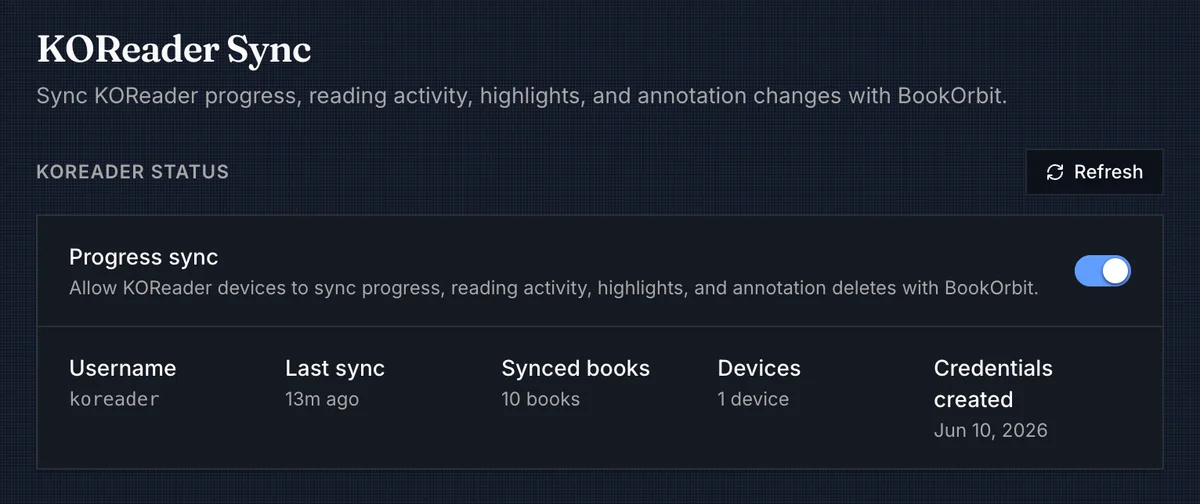
The KOReader account is separate from the normal BookOrbit login. A user with koreader_sync creates one username and password in Settings > Integrations > KOReader. That account belongs to the same BookOrbit user, so every sync request is still scoped to that user's accessible libraries and permissions.
The Progress sync toggle is the kill switch for the device account. When it is off, paired KOReader devices stop syncing. Deleting the credentials disconnects the devices, but the progress, reading sessions, and annotations already stored in BookOrbit remain.
| Permission | Access |
|---|---|
koreader_sync | Open KOReader settings, create or delete sync credentials, download the plugin package, view device activity, and authenticate KOReader sync requests. |
If the BookOrbit user is disabled or loses koreader_sync, the KOReader credentials stop working.
Installing The Plugin
After credentials exist, the KOReader Sync page shows the plugin server URL and a Download Plugin button. The download is a preconfigured bookorbit.koplugin.zip; it includes the BookOrbit origin, username, and KOReader-compatible password key so you do not have to type them on the device. The page also shows the latest available plugin version and notes that device-side updates can be applied from within KOReader once the plugin is installed.
Install it like a normal KOReader plugin:
- Download the plugin package from BookOrbit.
- Unzip
bookorbit.koplugin.zip. - Copy
bookorbit.koplugintokoreader/plugins/on the KOReader device. - Restart KOReader.
- Open a book and use Tools > BookOrbit Sync.
TIP
The URL in local screenshots may use localhost. A real device needs the public BookOrbit URL it can reach over the network, such as https://books.example.com. Do not add /api/v1/koreader when entering it manually; the plugin adds the API path itself.
If the server cannot build the plugin package, the BookOrbit server likely cannot find the plugin source directory. In that case, configure KOREADER_PLUGIN_PATH on the server to point at the plugin source.
Plugin Menu
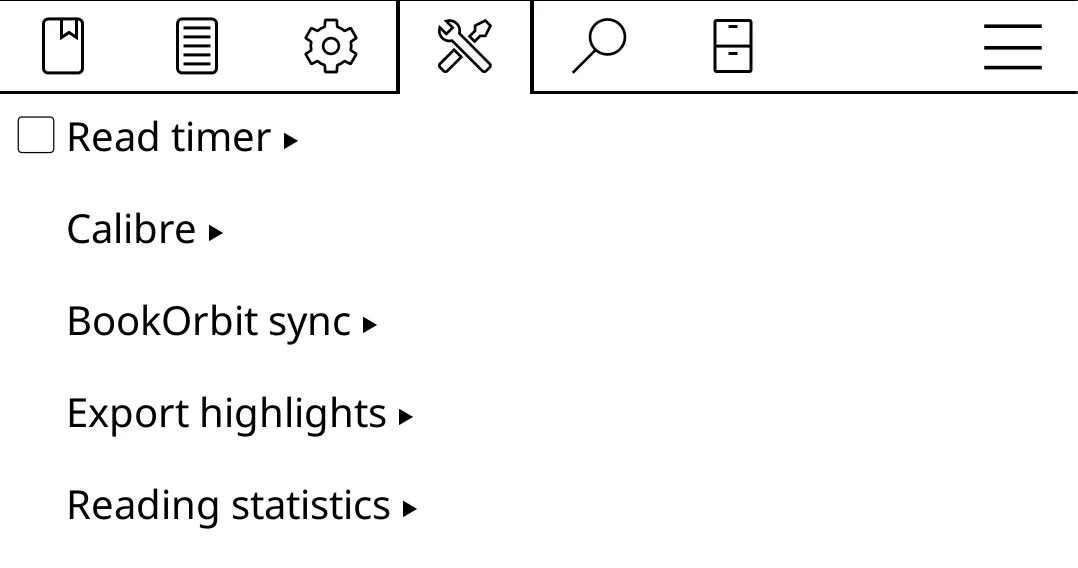
Open the plugin from the KOReader toolbar under Tools > BookOrbit Sync. The menu shows the current sync state and exposes both sync controls and catalog access.
| Option | Behavior |
|---|---|
| Open dashboard | Opens the catalog browser to navigate, search, and download books from your BookOrbit library. |
| Installed plugin: vX.X.X (Check for update) | Shows the installed version. Tap to check for a newer plugin on the BookOrbit server and apply the update in place. |
| Last sync | Read-only status line showing the timestamp and matched/unmatched book counts from the last full sync. |
| Sync this book now | Runs the full open-book sync immediately: progress, reading events, highlights, status, and rating. |
| Sync all books now | Runs a manual device sweep across matched books from KOReader history, statistics, and sidecar files. |
| Auto sync this book | Pulls progress when a book opens. On close or suspend, uploads the open book's progress, highlights, status, rating, and reading time. |
| Two-way highlight sync | Also applies BookOrbit highlight, note, and delete changes back to KOReader. When off, local KOReader highlight changes still upload. |
| Sync settings | Opens sync behavior options: periodic sync interval and how to handle forward and backward progress conflicts. |
| Account & setup | Opens account and server configuration. |
Full-library sweeps are manual. They are useful after installing the plugin on a device that already has reading history, but they still only upload files KOReader can fingerprint and BookOrbit can match.
Catalog
Open dashboard launches a native BookOrbit library interface inside KOReader. It authenticates with the same KOReader credentials as sync, so no separate login is needed.
Dashboard
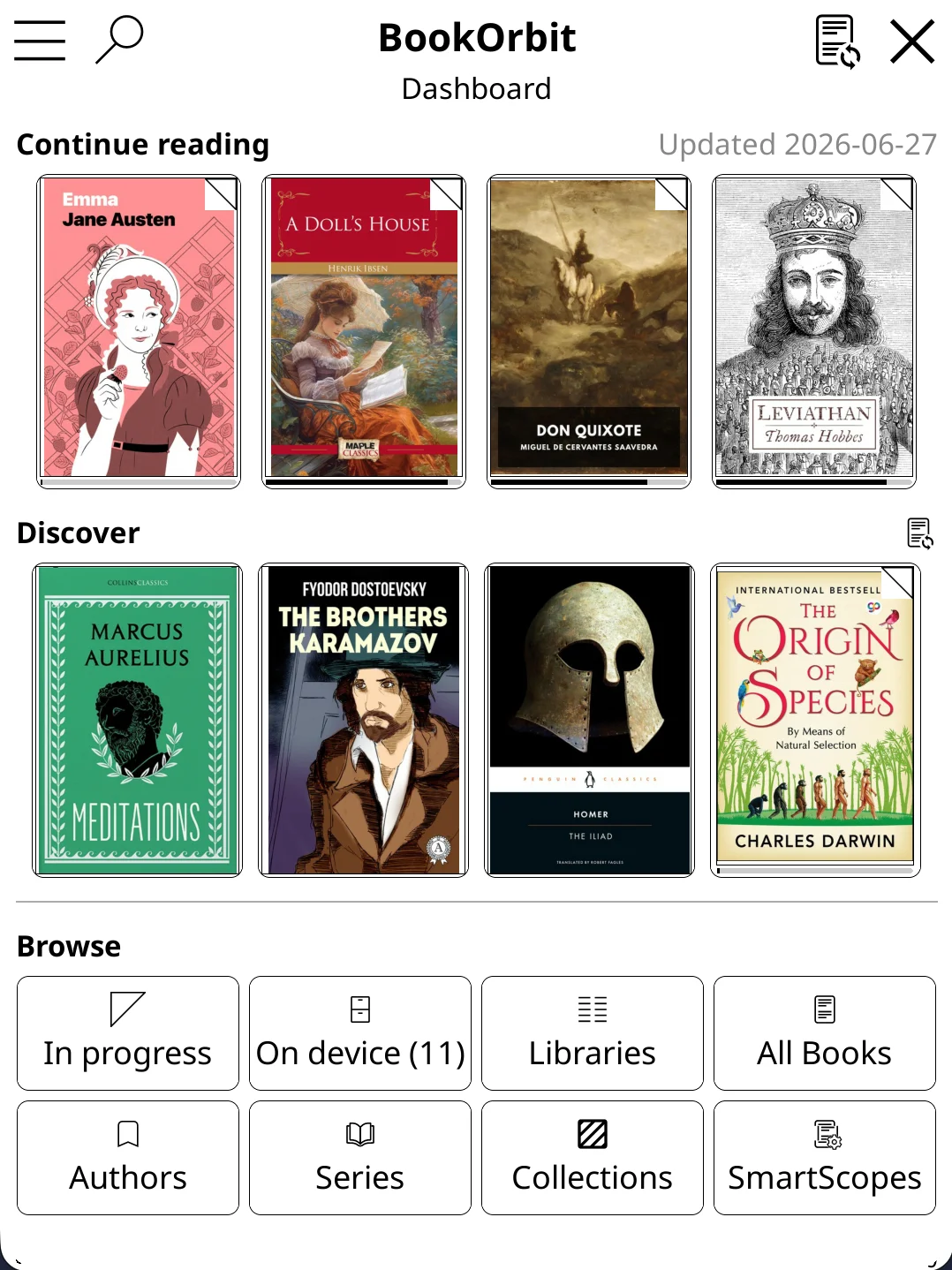
The dashboard opens to three areas:
- Continue reading - books with in-progress reading, sorted by most recently read. Tap any cover to open that book's detail page.
- Discover - recently added books you have not started yet.
- Browse - tiles for each catalog entry point: In progress, On device, Libraries, All Books, Authors, Series, Collections, and SmartScopes.
The search icon in the title bar opens a full-text search across title and author for your entire library.
Browsing
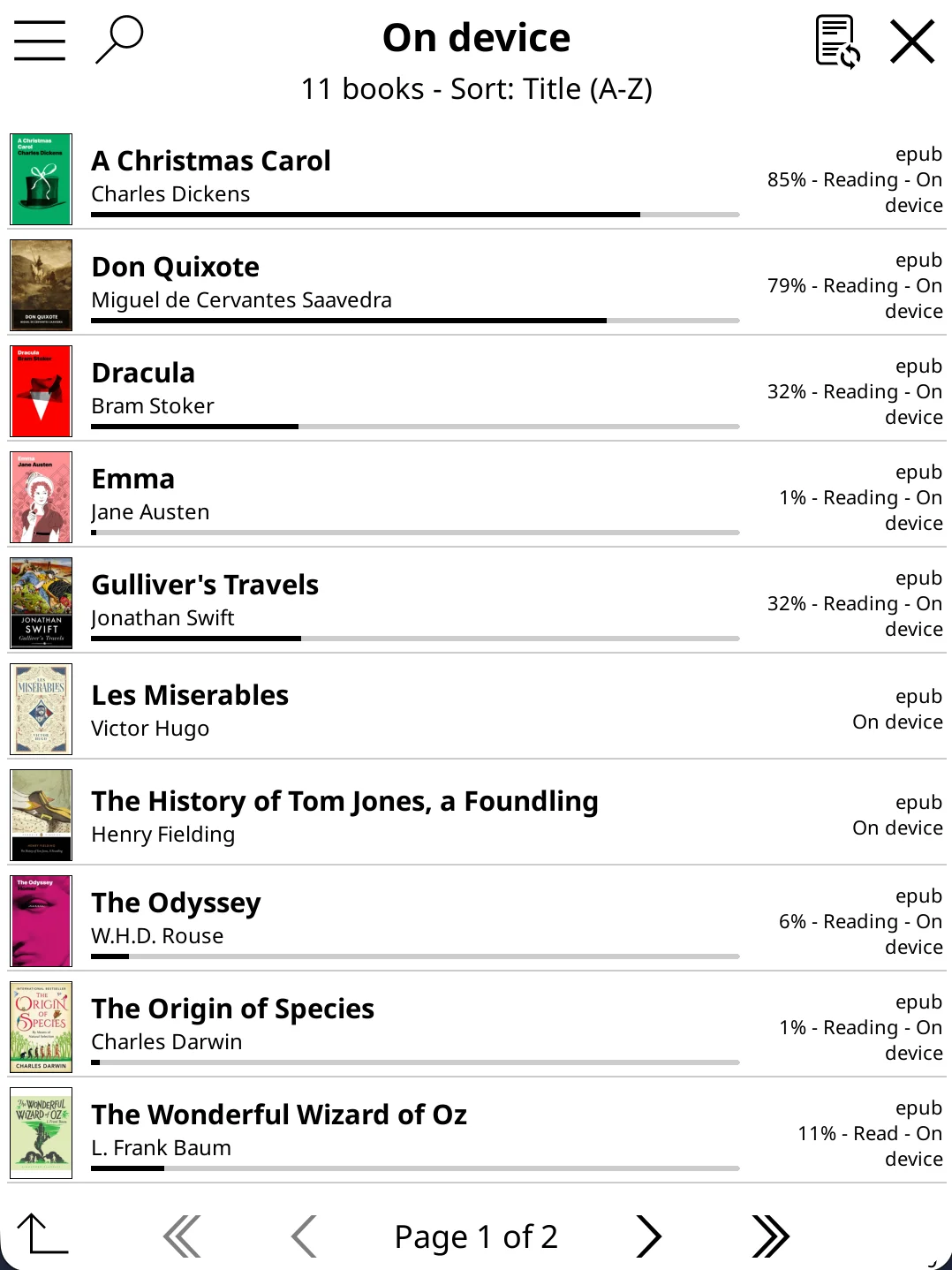
Tap any Browse tile or section to open a book list. Each row shows the cover, title, author, a progress bar, reading status, and file format. Tap a row to open the book's detail page. The title bar shows the current section name and book count.
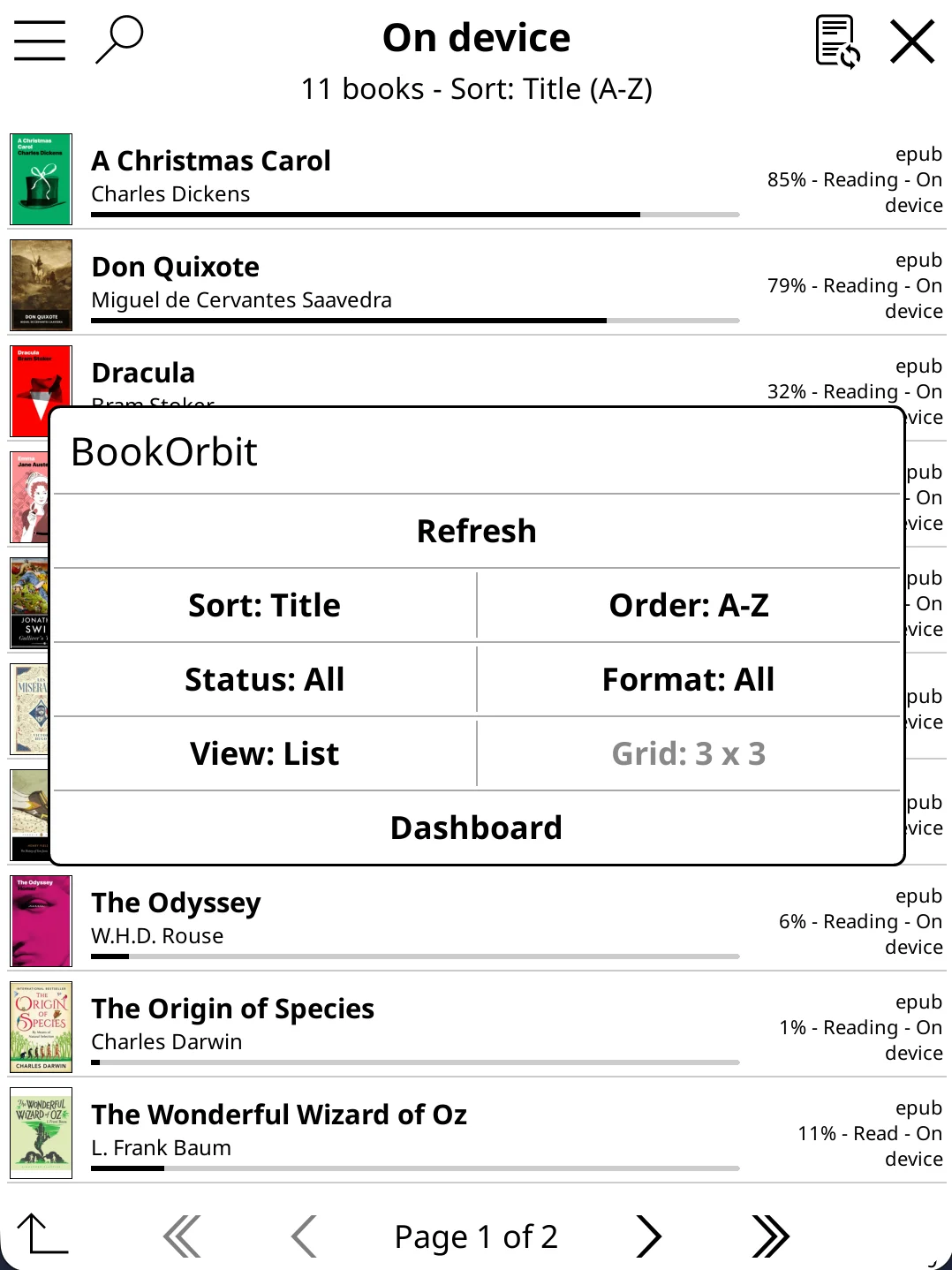
Tap the menu icon in the title bar to open view and sort controls.
| Control | What it does |
|---|---|
| Refresh | Reloads the list from the BookOrbit server. |
| Sort | Choose from Title, Author, Recently added, Recently updated, Recently read, or Series order. |
| Order | Flip the sort direction (A-Z or Z-A). |
| Status | Filter by reading status: all, reading, finished, or abandoned. |
| Format | Filter by file format. |
| View | Switch between List and Mosaic (cover grid). |
| Grid | Adjust the number of columns and rows in the mosaic view. |
Book Detail
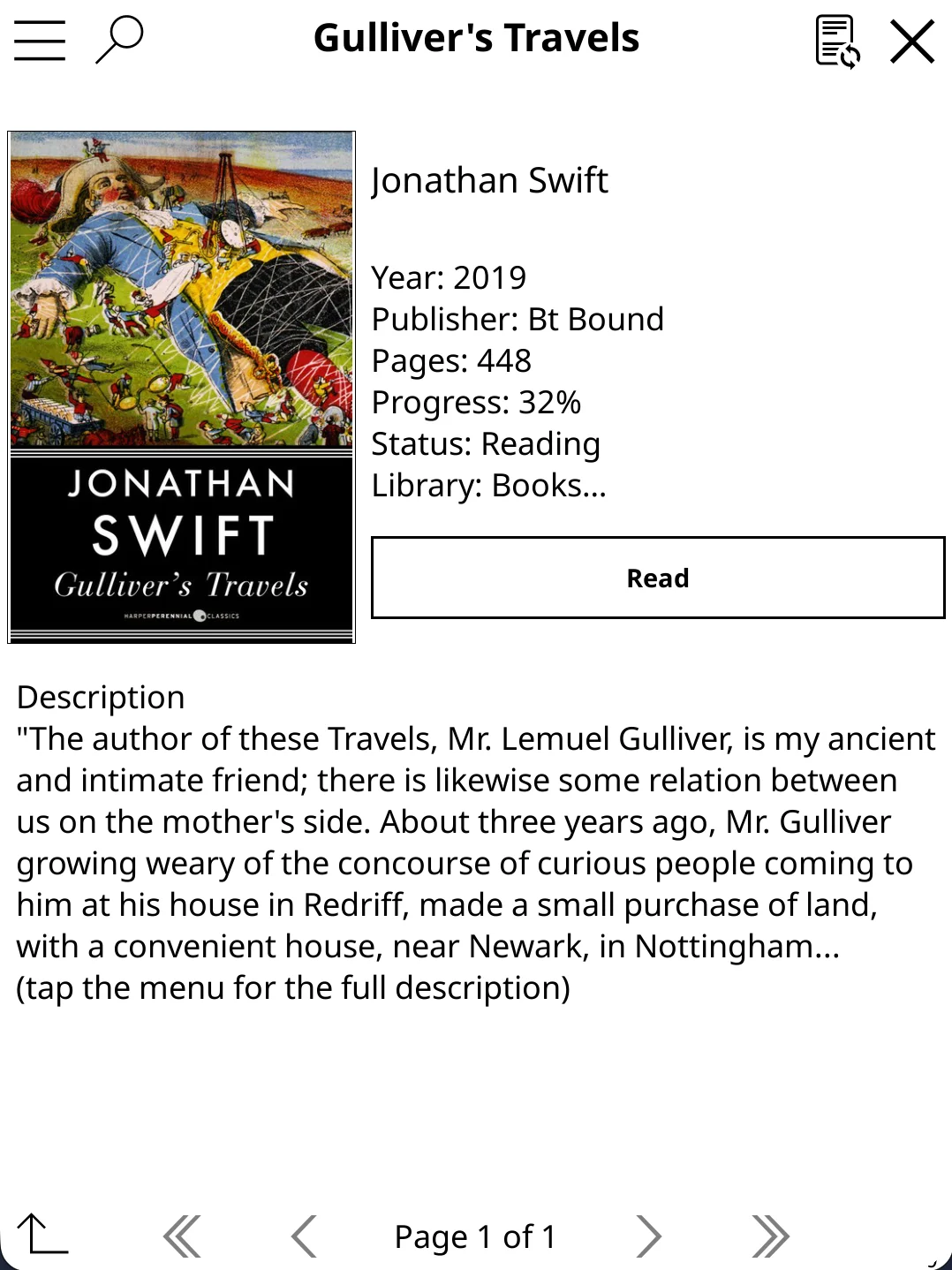
Tap a book to open its detail page. The page shows the cover, author, year, publisher, page count, current progress, reading status, library, and a truncated description. Tap the menu icon in the title bar to see the full description and access additional actions.
Read opens the file in KOReader if the book is already on the device. For books not yet downloaded, the button shows Download instead - tap it to save the file to the device. Once downloaded, the file is linked back to your BookOrbit book record so sync works immediately.
Status and Rating
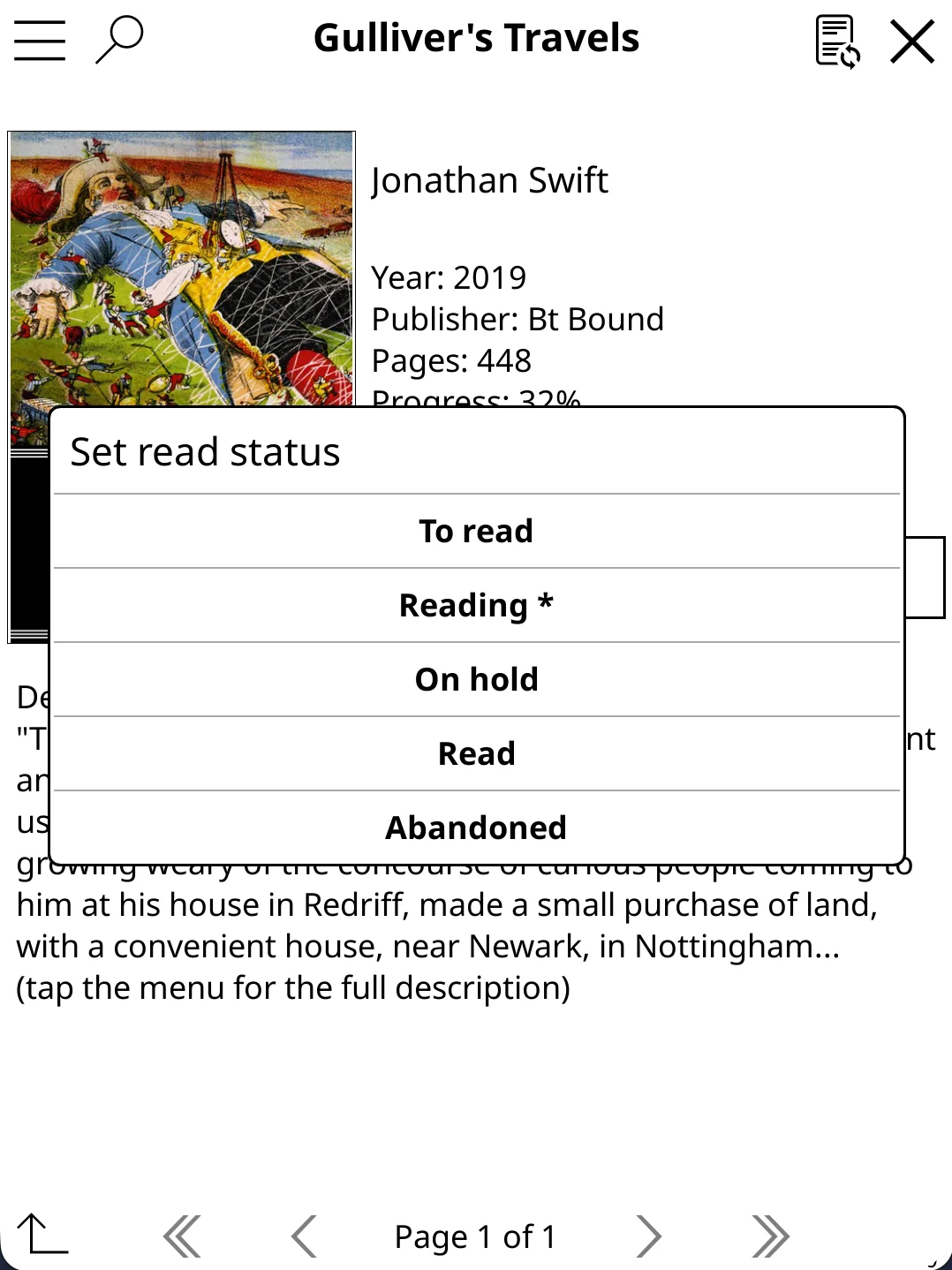
The detail page menu lets you set the book's read status directly from KOReader: To read, Reading, On hold, Read, or Abandoned. The current status is marked with an asterisk. The change is sent to BookOrbit on the next sync.
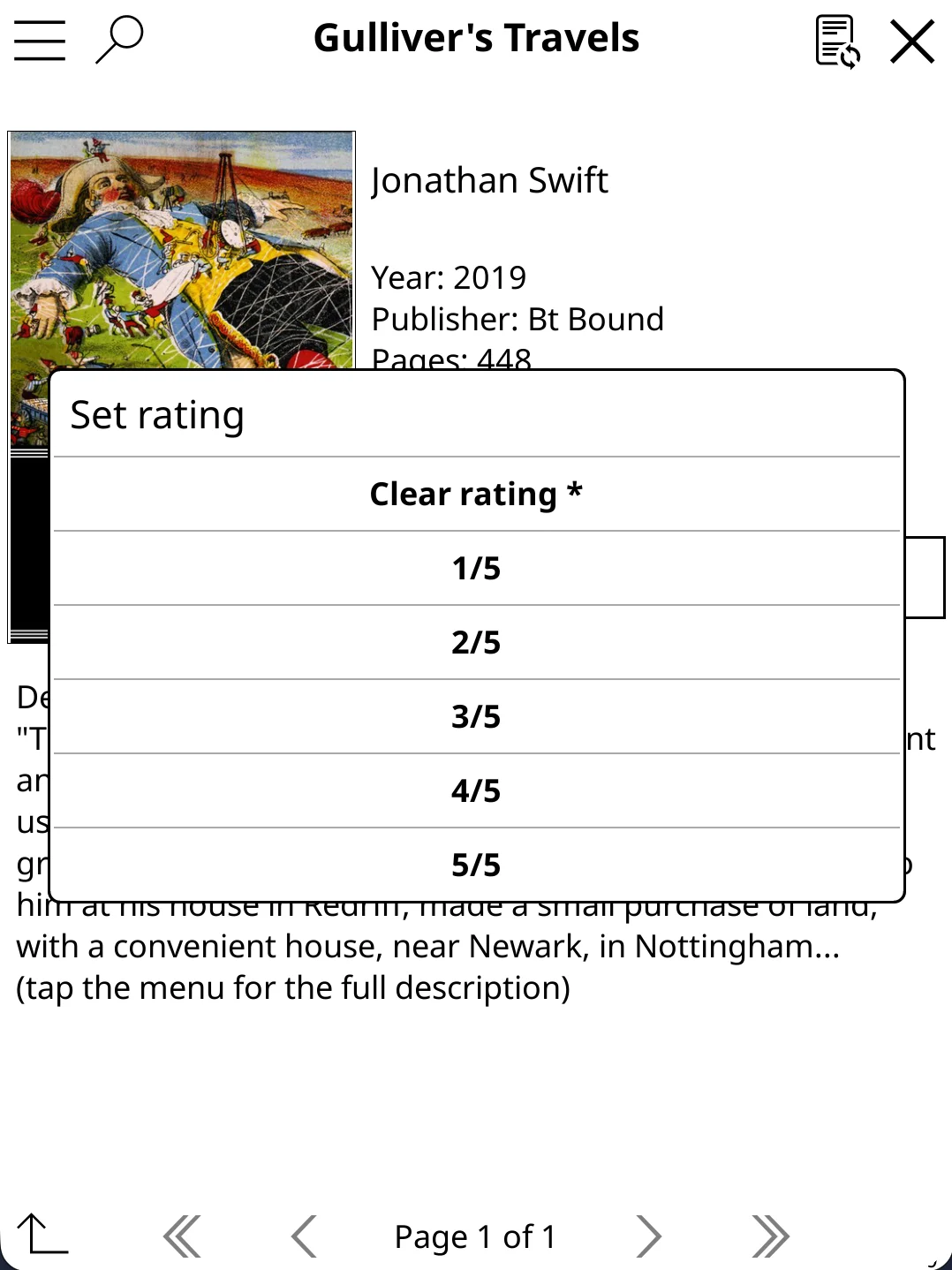
You can also set a 1-5 star rating from the same menu. The rating syncs back to BookOrbit and appears on the book page. Setting a rating here does not clear a rating already in BookOrbit unless you explicitly choose a new value.
Genres
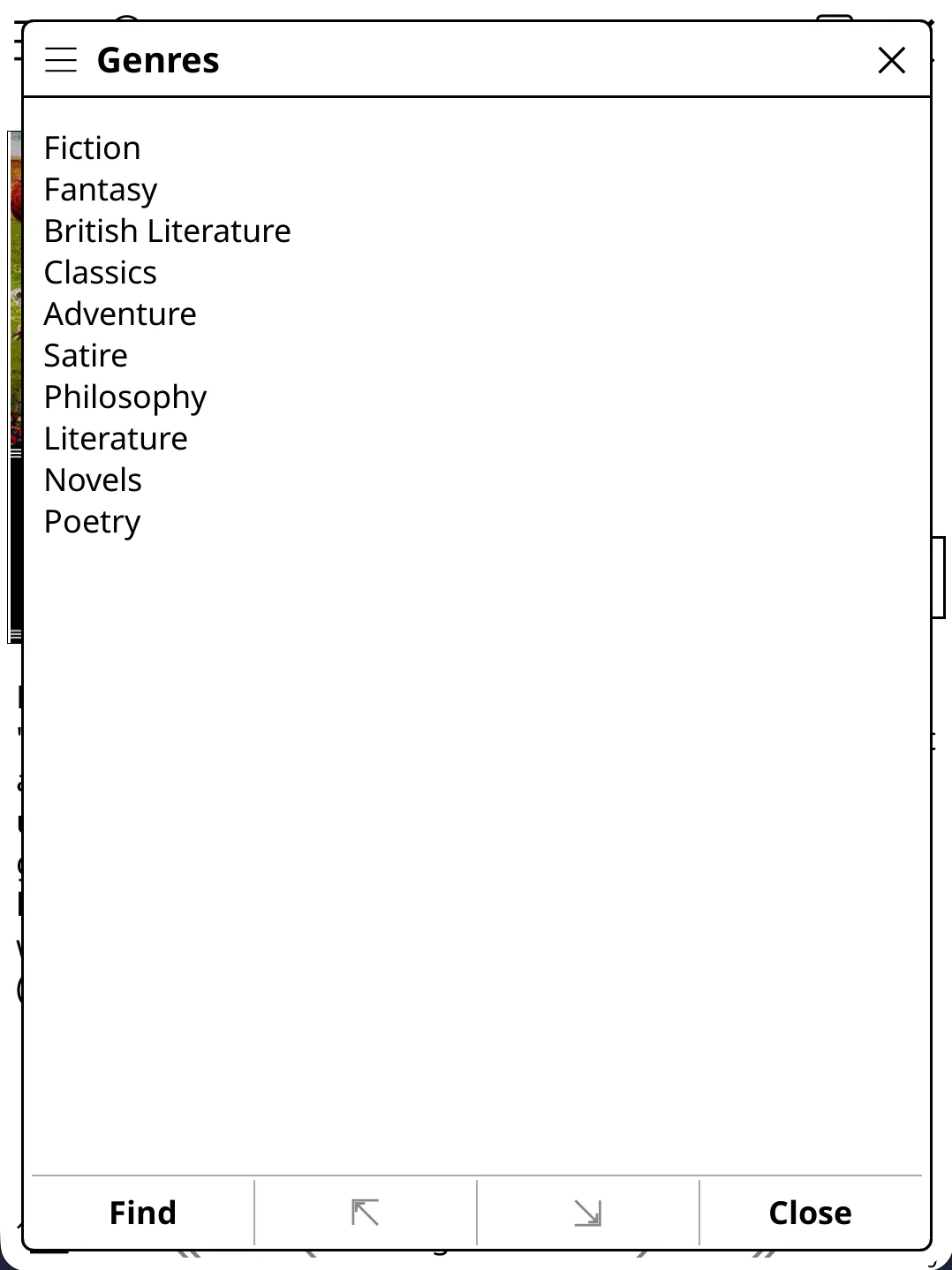
Tapping a genre tag on the detail page opens the full genre list for that book. Tap Find to open a filtered book list for the selected genre, or use the arrow controls to step through genres.
Cleanup

Deleting credentials removes the KOReader account and disconnects paired devices. It does not erase existing BookOrbit reading progress, reading sessions, highlights, or ratings. Create new credentials when you want to pair devices again.
Troubleshooting
| Symptom | Check |
|---|---|
| Device cannot log in | Confirm the BookOrbit user has koreader_sync, the KOReader account exists, sync is enabled, and the device can reach the public BookOrbit URL. The plugin calls /api/v1/koreader under that URL. |
| Plugin download fails | Confirm the server has access to the BookOrbit KOReader plugin source, or set KOREADER_PLUGIN_PATH. |
| Auto sync cannot be enabled | Auto sync needs KOReader to turn Wi-Fi on without asking. In KOReader, open Network > Action when Wi-Fi is off and choose Turn on, then enable auto sync again. |
| Catalog browser shows no books | Confirm the device can reach the BookOrbit server and the user can access at least one library. The catalog uses the same KOReader credentials as sync. |
| Catalog download fails | Check available storage on the KOReader device and confirm the file format is supported. |
| Plugin update check finds nothing | The check runs against the BookOrbit server the plugin is configured against. Confirm the server is reachable and is running a version that ships the newer plugin. |