Creating a Library
A library tells BookOrbit where your book files live and how that folder tree should be interpreted. Each library has its own folders, scanner rules, format priority, metadata import preferences, file-write settings, reading thresholds, and automation settings.
Create separate libraries when collections need different rules. For example, an ebook library usually uses portrait covers and ebook formats first, while an audiobook library usually uses square covers and audio formats first.
TIP
Folder paths are resolved on the BookOrbit server, not on the computer running your browser. In Docker, use the path inside the container, such as /books/audiobooks, not the host path from Finder or Explorer.
Who can create libraries
Library creation requires the manage_libraries permission. Users without that permission can use libraries they have access to, but they will not see the create controls.
Ways to create a library
The same creation wizard is available from three places.
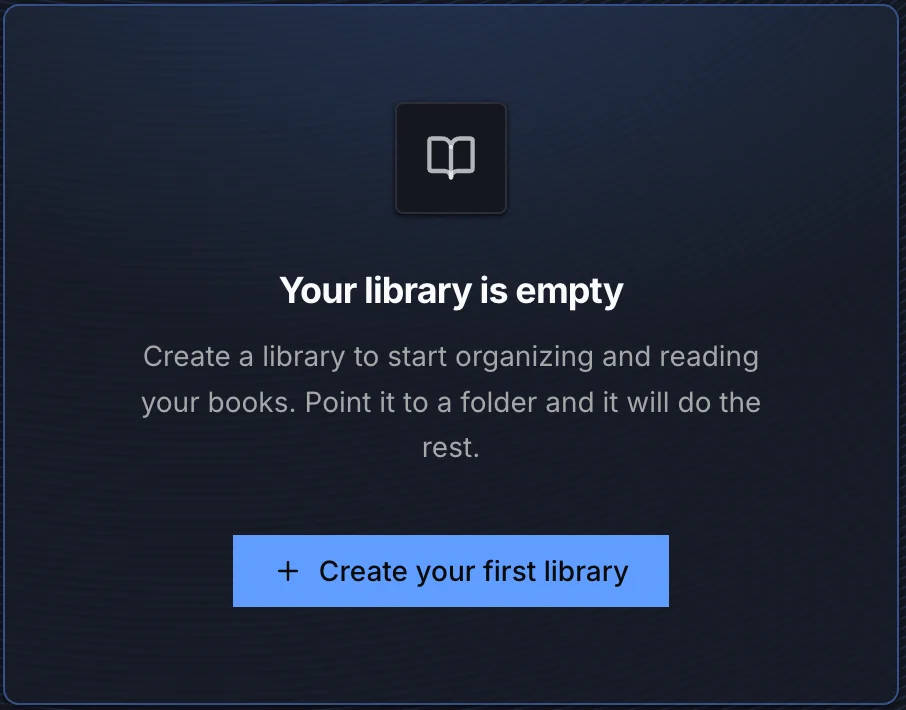
1. Dashboard empty state
On a fresh instance, the dashboard shows a Create your first library button after the admin account is created.
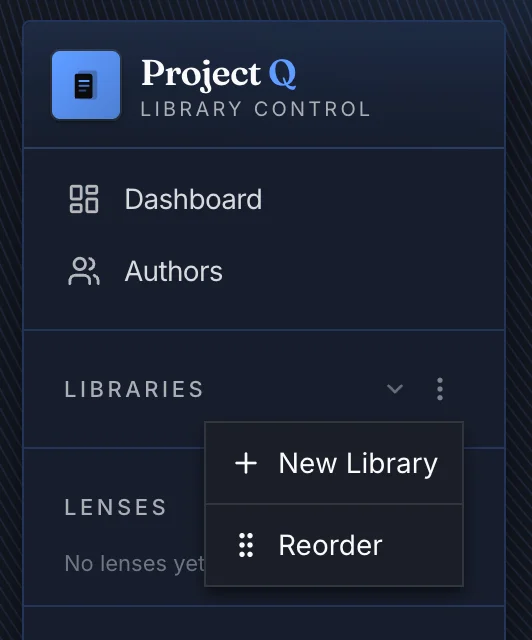
2. Sidebar
Open the ... menu beside Libraries in the sidebar and choose New Library.
3. Settings > Libraries
Open Settings > Libraries and click Add Library. On an empty instance, the empty state button reads Add your first library.
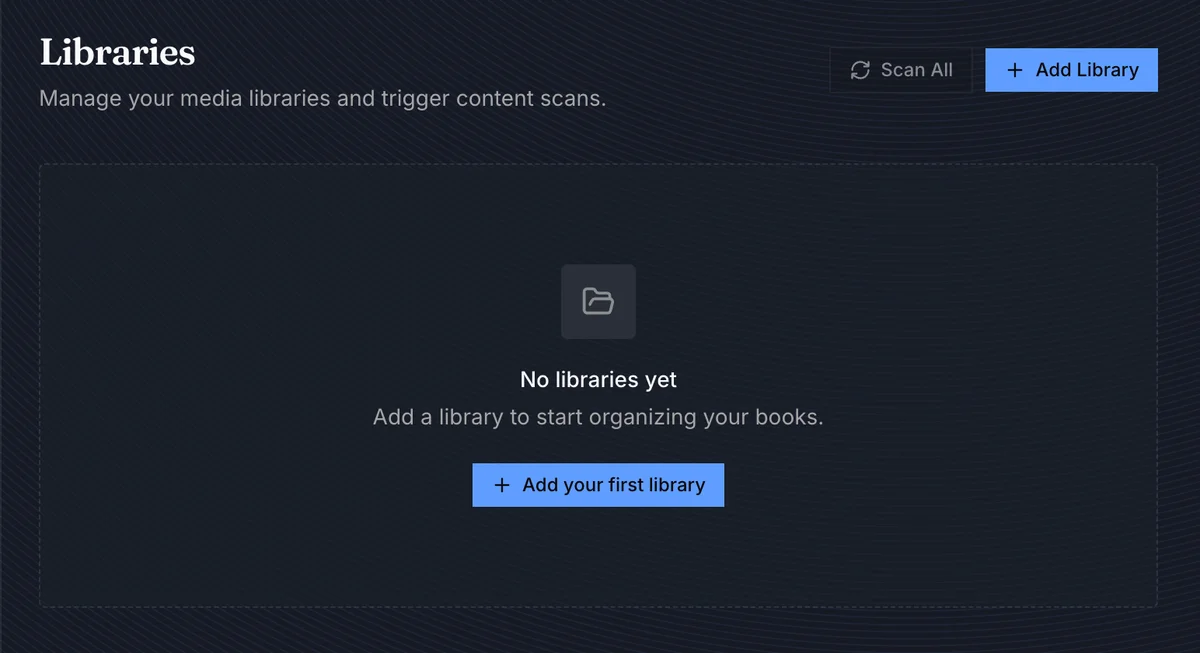
All three paths open the same seven-step wizard.
Step 1: Details
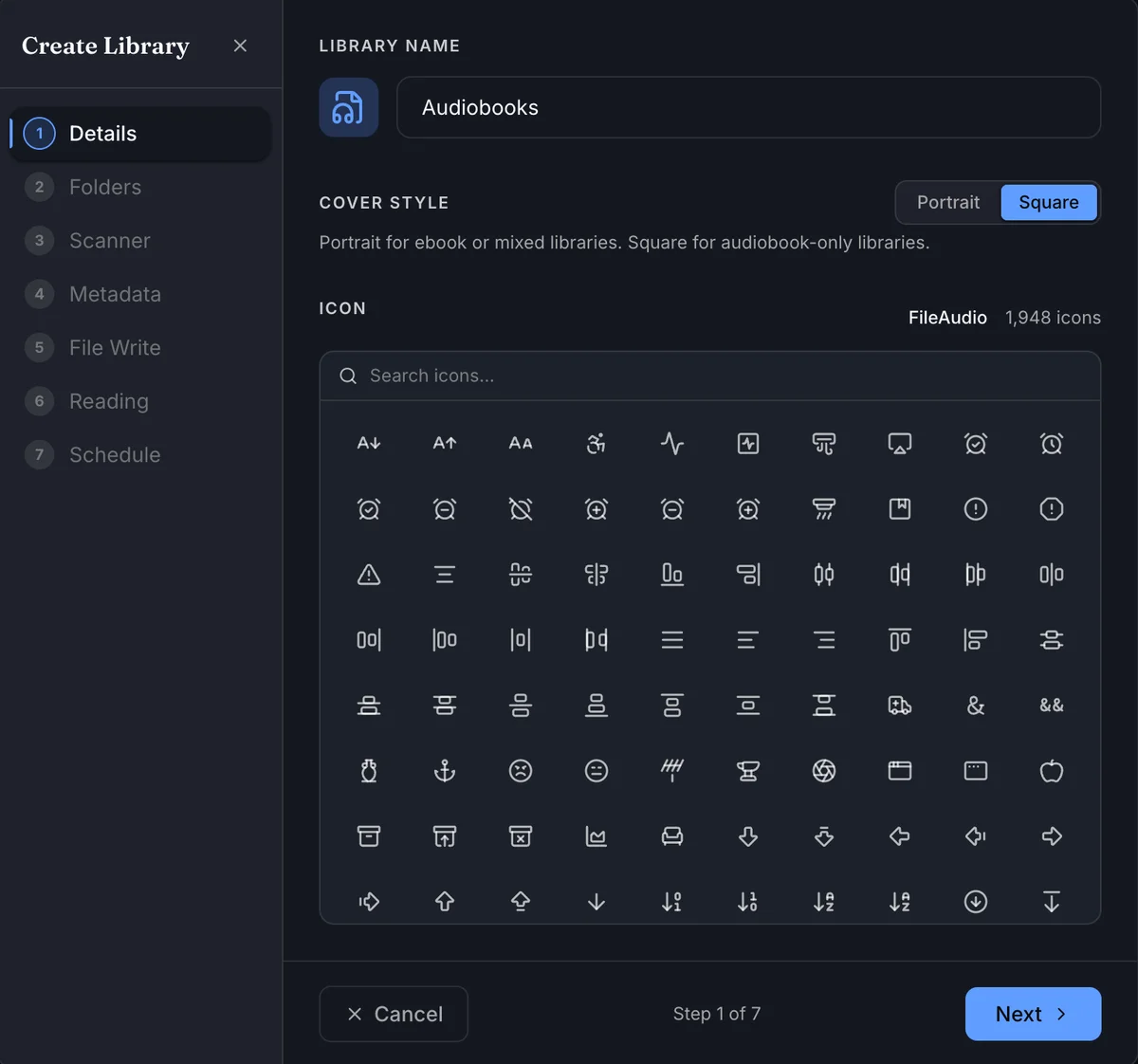
Use this step to set how the library appears in navigation and book lists.
| Field | How to choose |
|---|---|
| Library name | Required and must be unique. Use a name that matches the collection, such as Ebooks, Audiobooks, Comics, or Kids Books. |
| Cover style | Choose Portrait for ebooks and mixed libraries. Choose Square for audiobook-only libraries where covers are usually square. |
| Icon | Required. Search the icon grid and pick an icon that makes the library easy to identify in the sidebar and settings pages. |
The Next button stays disabled until both a name and icon are selected.
Step 2: Folders
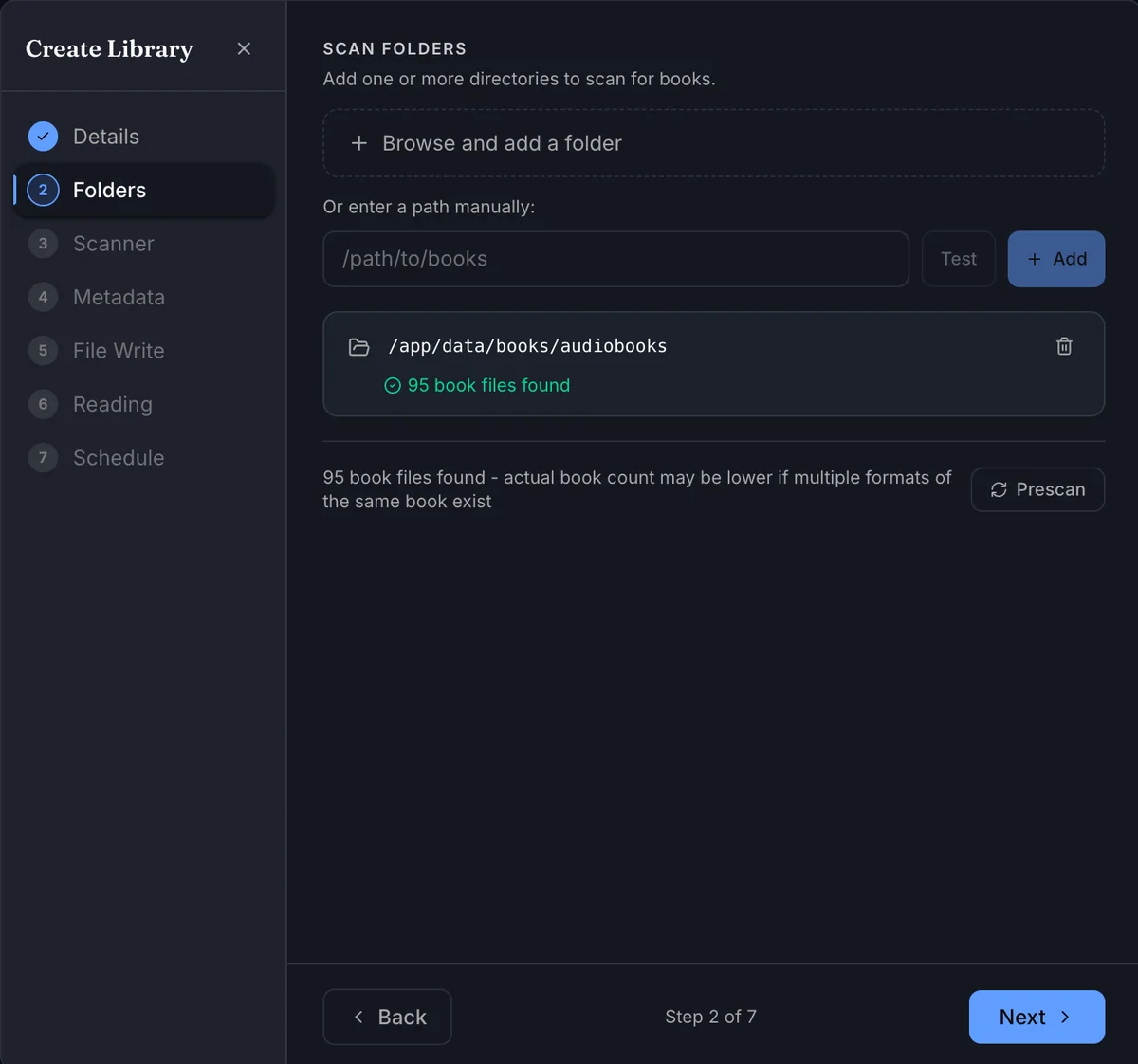
Add one or more server-accessible directories for BookOrbit to scan. A library can include multiple folders, and all of them use the same scan rules from later steps.
The Next button stays disabled until at least one folder is added.
Adding folders
| Control | What it does |
|---|---|
| Browse and add a folder | Opens a server-side folder picker. Navigate the filesystem BookOrbit can see and select the current folder. |
| Manual path | Lets you type a path directly, such as /books/audiobooks. |
| Test | Checks whether the typed path is accessible on the server. |
| Add | Adds the typed path to the library's folder list. |
| Prescan | Validates all added folders and counts supported book files before the library is created. |
Prescan results
Prescan is worth running before you save the library because it catches the common setup problems early:
- Accessibility: Shows whether BookOrbit can read the folder.
- File count: Counts supported content files under the folder.
- Overlap warning: Warns when the folder overlaps with a folder already assigned to another library.
TIP
Prescan reports files, not final book records. A folder containing Book.epub and Book.pdf may show two files but become one book when Folder as Book is used.
WARNING
Avoid overlapping library folders unless you deliberately want the same physical files to be visible in more than one library. Overlap can make scans and missing-file states harder to reason about.
Step 3: Scanner
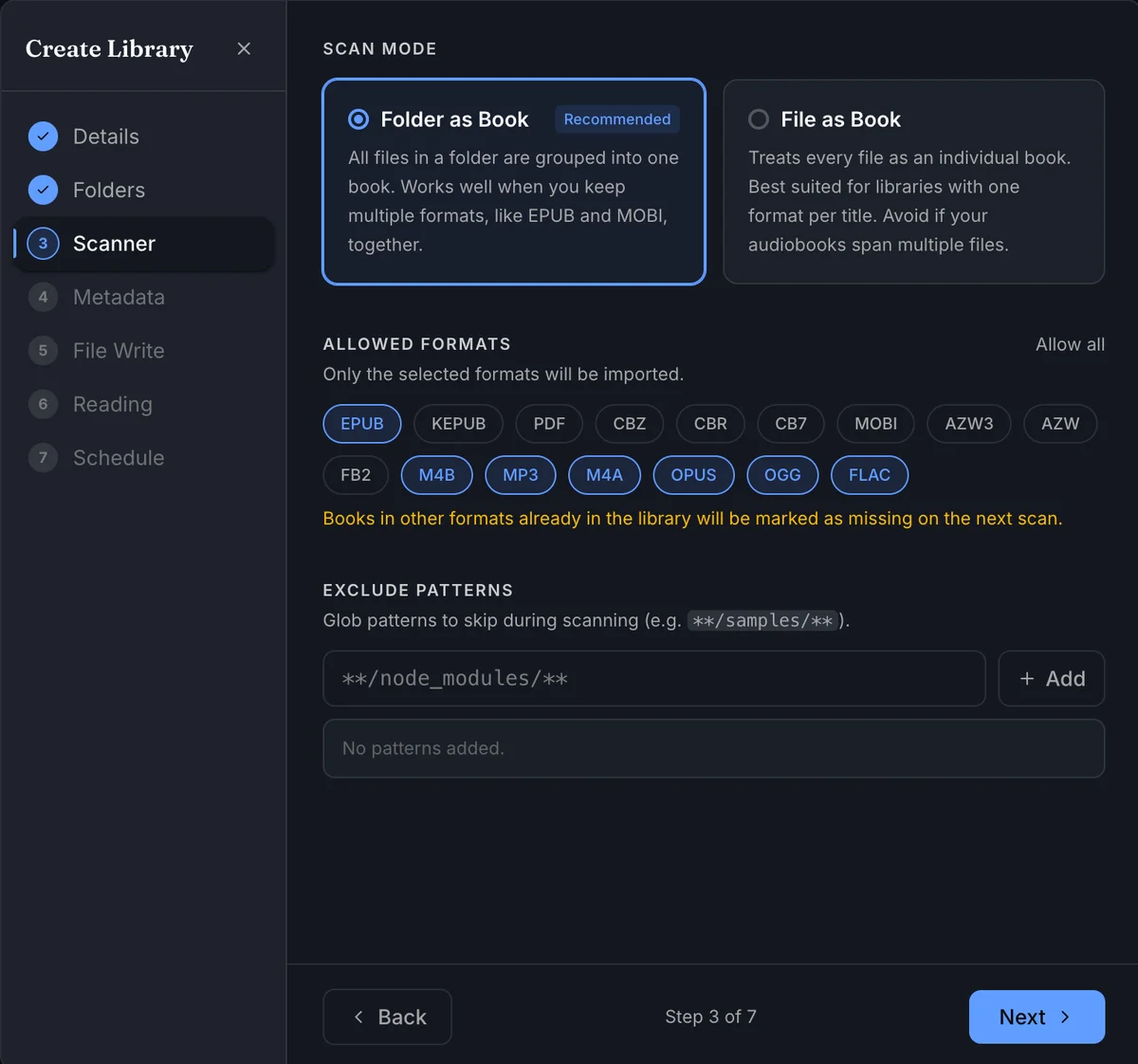
The scanner step decides what becomes a book and which file formats are allowed into the library.
Scan mode
| Mode | What BookOrbit creates | Best for |
|---|---|---|
| Folder as Book | Groups the files in a book folder into one book. Multiple formats, sidecar metadata files, covers, and audiobook tracks in the same folder stay together. Root-level book files still become individual books. | Most libraries, especially audiobooks, comics, and collections with more than one format per title. |
| File as Book | Treats each supported content file as its own book. Sidecar files and folder-level extras are not associated because there is no reliable book folder to attach them to. | Flat ebook folders where every file is a separate title. |
For audiobooks, use Folder as Book. The scanner keeps multi-file audiobooks together, flattens common disc folders such as CD 1 or Disc 2, and sorts audio files naturally by filename.
Allowed formats
Leaving Allowed formats empty means every supported content format is allowed. Selecting formats turns the list into a filter, so only selected content formats are imported.
| Type | Supported formats |
|---|---|
| Ebooks | EPUB, KEPUB, PDF, MOBI, AZW3, AZW, FB2 |
| Comics | CBZ, CBR, CB7 |
| Audiobooks | M4B, MP3, M4A, OPUS, OGG, FLAC |
Use format filtering when a folder contains files you do not want in this library. For example, an audiobook library can allow only M4B, MP3, M4A, OPUS, OGG, and FLAC.
WARNING
If you restrict formats after books already exist, files in now-excluded formats can be marked missing on the next scan.
Exclude patterns
Exclude patterns skip files or folders while the scanner walks the library tree. Patterns are matched against each file or folder name, so literal names and simple * wildcards are the safest choices.
Useful examples:
samples: Skips folders or files namedsamples.node_modules: Skips folders namednode_modulesif a non-book directory is mounted by mistake.*.tmp: Skips temporary files ending in.tmp.*_sample.*: Skips sample files that follow a consistent naming pattern.
Hidden files and folders whose names start with . are skipped automatically.
Step 4: Metadata
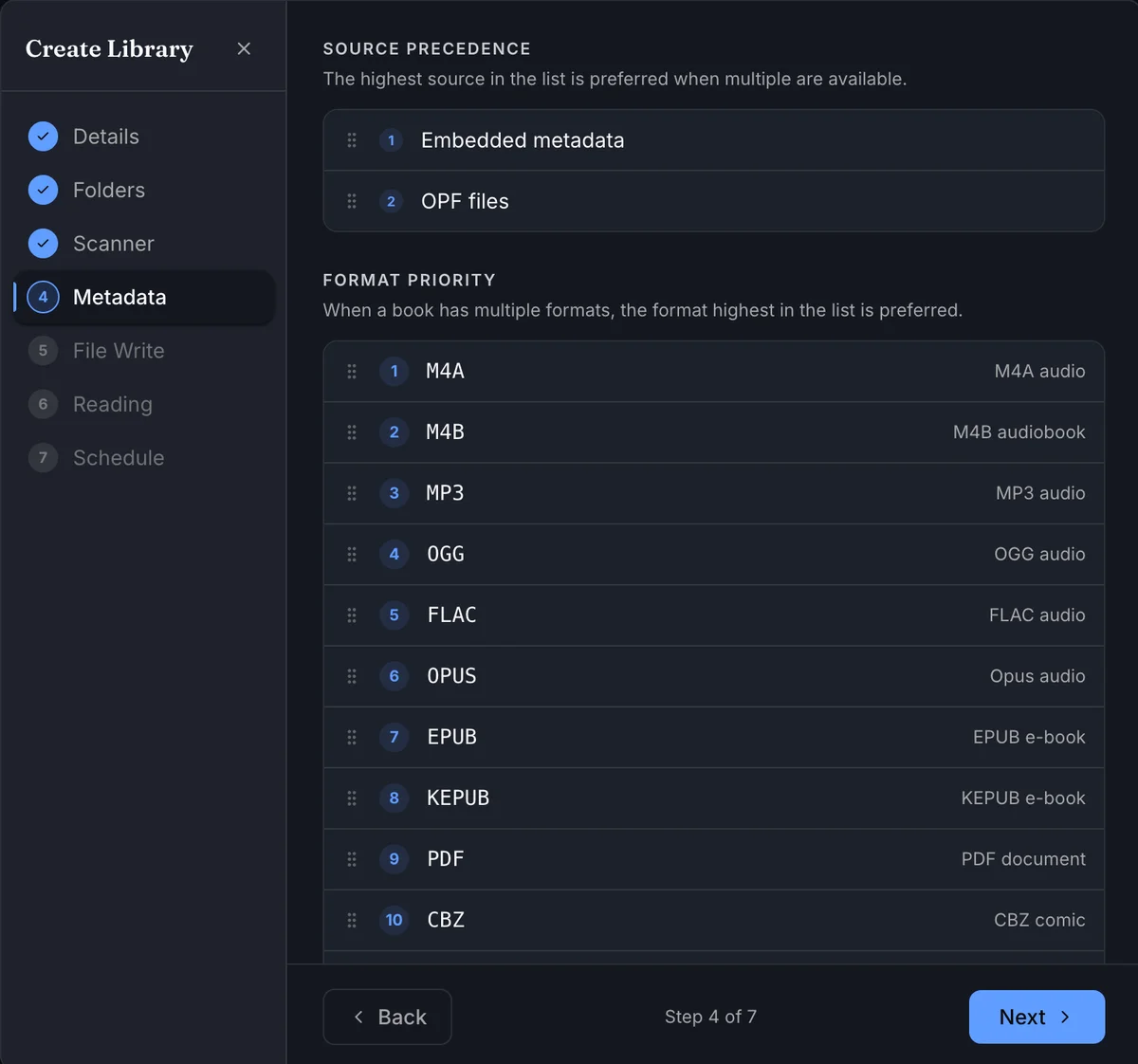
This step controls which local metadata source is trusted first and which file format becomes the book's primary file when multiple formats are present.
Source precedence
Drag sources so the one you trust most is first.
| Source | What it means |
|---|---|
| Embedded metadata | Metadata stored inside the book file, such as EPUB OPF data, PDF info fields, comic metadata, or audio tags. |
| OPF files | Separate .opf files kept next to the book files. Use this first if your collection maintains curated sidecar OPF metadata. |
Format priority
BookOrbit registers all allowed content files for a book, then picks the primary file by walking the format priority list from top to bottom. The primary file is the preferred file for reading, downloads, and normal embedded metadata extraction during import.
The default format order for a new library is:
EPUB, KEPUB, PDF, CBZ, CBR, CB7, MOBI, AZW3, AZW, FB2, M4B, MP3, M4A, OPUS, OGG, FLAC
For an audiobook library, move audio formats such as M4B, M4A, and MP3 above ebook and comic formats. For an ebook library, the default order is usually a good starting point.
TIP
Format priority does not filter files. Use Allowed formats on the Scanner step when you want to exclude formats from the library entirely.
Step 5: File Write
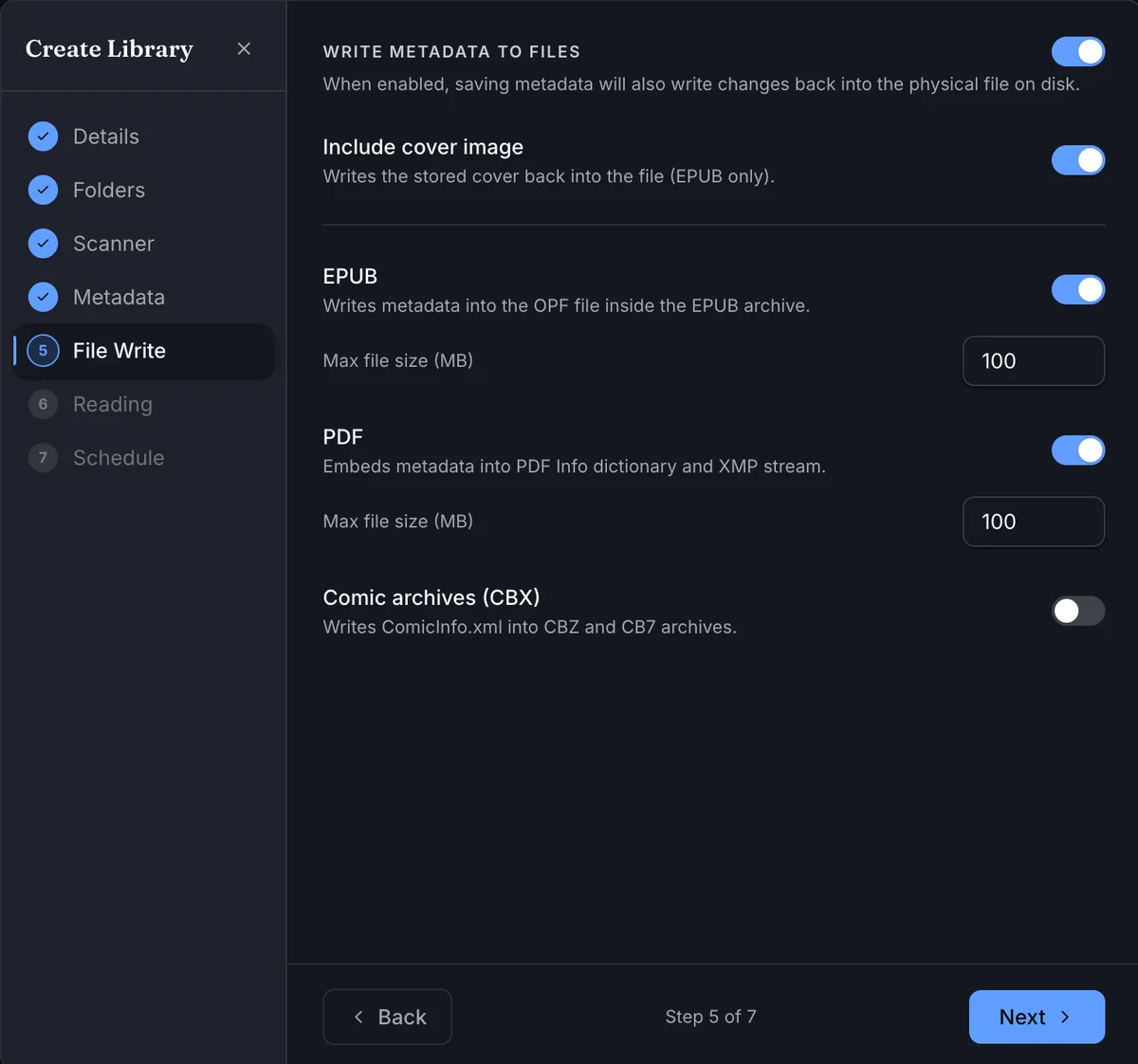
File Write controls whether BookOrbit is allowed to write metadata changes back into the physical files on disk. It is disabled by default for new libraries.
Enable it only when you want BookOrbit changes, such as title, author, series, publisher, description, genres, tags, rating, or cover changes, to be embedded into supported files.
| Option | Default | Effect |
|---|---|---|
| Write metadata to files | Off | Master toggle. When off, BookOrbit keeps metadata changes in its database only. |
| Include cover image | On | Allows cover artwork to be written for formats that support it. |
| EPUB | On, 100 MB max | Writes metadata into the OPF inside the EPUB archive. |
| On, 100 MB max | Writes PDF info and XMP metadata. | |
| Comic archives (CBX) | Off, 500 MB max | Writes ComicInfo.xml into CBZ and CB7 archives. CBR is imported but is not written by this option. |
The size limit prevents large files from being rewritten accidentally. Each limit can be set from 1 MB to 10,000 MB.
WARNING
File Write changes files on disk. Keep backups before enabling it for a library you care about preserving exactly as imported.
After the library exists, Settings > Libraries also provides Sync metadata to files for a full-library write pass. That action is disabled unless File Write is enabled for the library.
Step 6: Reading
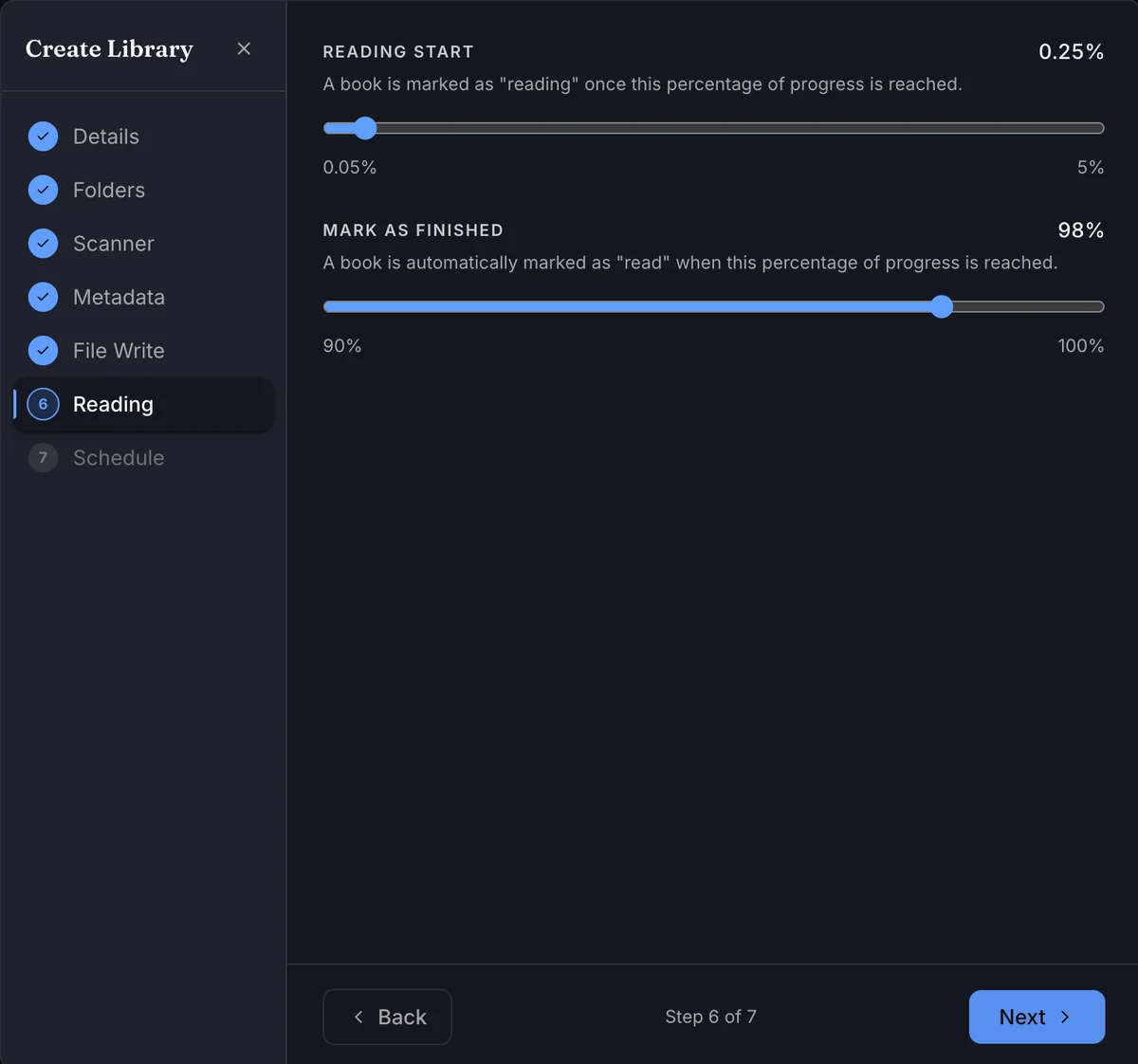
Reading thresholds decide how progress is classified.
| Setting | Default | Allowed range | Behavior |
|---|---|---|---|
| Reading start threshold | 0.25% | 0.05% to 5% | Progress at or above this value changes a book from unstarted to reading. |
| Mark as finished | 98% | 90% to 100% | Progress at or above this value marks the book as finished. |
The 98% finish default avoids forcing users to read through appendices, indexes, credits, or trailing blank pages before a book counts as complete.
Step 7: Schedule
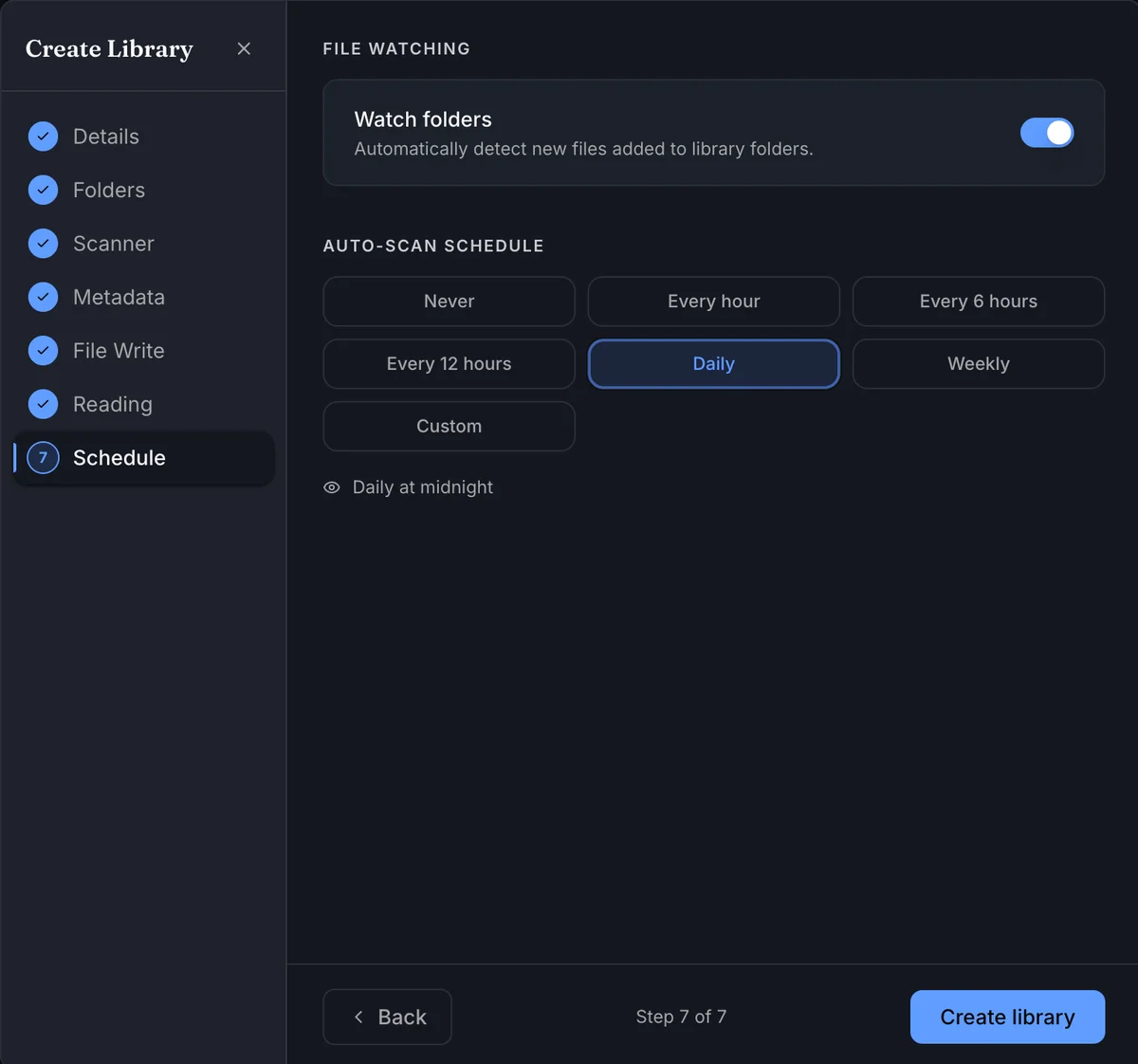
Schedule settings control scan automation for the library.
File watching
Watch folders starts a filesystem watcher for the library folders. When files are added, changed, moved, or removed, BookOrbit schedules targeted scan work instead of waiting for you to run a full manual scan.
Use watching when your storage supports filesystem events reliably. If your library is on a network mount that does not emit stable events, leave watching off and use manual scans or an auto-scan schedule.
Auto-scan schedule
Choose the library's auto-scan cadence. Presets are saved as standard five-field cron expressions.
| Option | Stored cron expression |
|---|---|
| Never | No cron expression |
| Every hour | 0 * * * * |
| Every 6 hours | 0 */6 * * * |
| Every 12 hours | 0 */12 * * * |
| Daily | 0 0 * * * |
| Weekly | 0 0 * * 1 |
| Custom | A custom five-field cron expression |
Custom cron uses the format minute hour day month weekday. For example, */30 * * * * means every 30 minutes.
After creation
Click Create library on the Schedule step. BookOrbit saves the library, adds the folders, starts a watcher if Watch folders is enabled, redirects you to the new library, and immediately starts the initial scan.
The first scan can take seconds or minutes depending on the number of files and the storage speed. Progress appears in Settings > Libraries, and books appear as the scanner imports them.
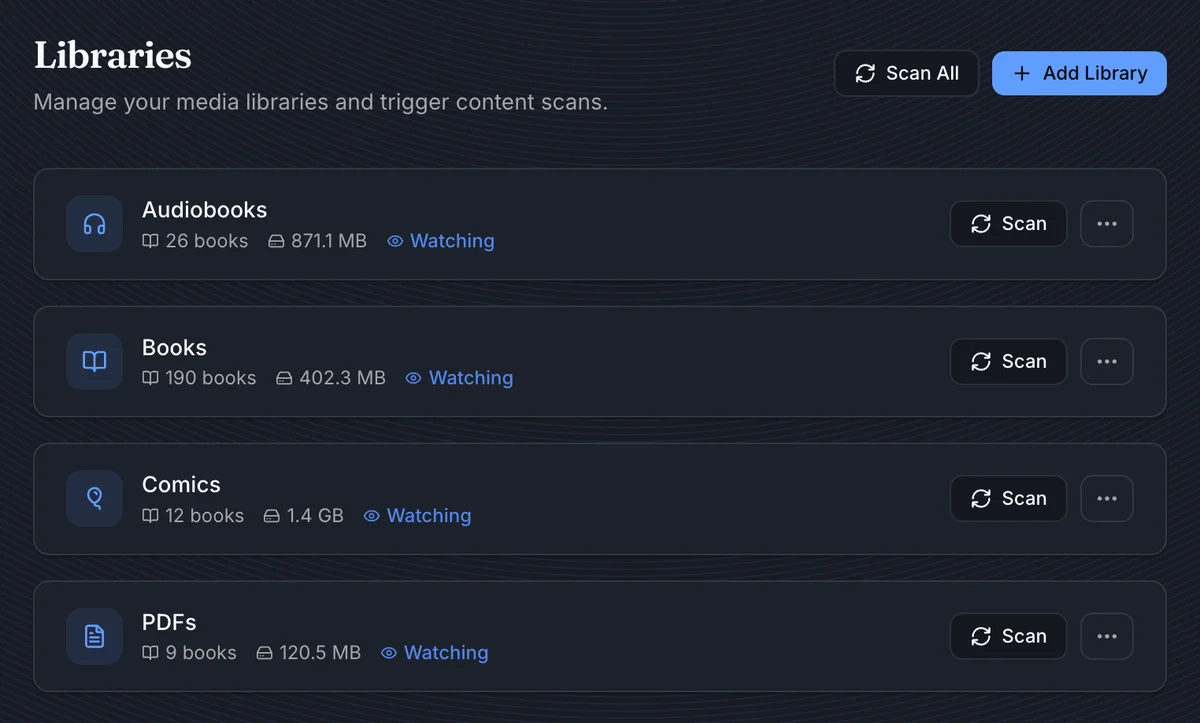
The Libraries settings page becomes the main control panel after creation:
- Scan All starts scans for every library.
- Scan starts a scan for one library.
- Watching shows that folder watching is enabled for that library.
- The
...menu opens library actions such as edit, refresh covers, sync metadata to files, and delete.
You can edit the same settings later from Settings > Libraries > Edit library. The edit flow also includes Access, which is not shown during creation because user access is only meaningful after the library exists.