Reader
Settings > Reader controls the defaults BookOrbit uses when opening books in the built-in readers. It is available to every signed-in user and is split by reader type: eBook, PDF, Comics, Audiobook, and General.
Reader settings do not control library scanning or file import. Libraries decide which files exist in BookOrbit; Reader settings decide how supported files open after they are already in the library.
To choose a specific file or format from a book page, use the Read menu or Files tab described in Book Details & Viewer.
The eBook reader also creates web-reader highlights and notes from selected text. Those annotations can be reviewed per book or across the whole library in Annotations & Highlights.
| Reader tab | Formats covered |
|---|---|
| eBook | EPUB, MOBI, AZW, AZW3, FB2 |
| Comics | CBZ, CBR, CB7 |
| Audiobook | M4B, MP3, M4A, OPUS, OGG, FLAC |
How Reader Defaults Work
BookOrbit keeps defaults per reader group, not per library. One eBook default applies to all EPUB-family files, one PDF default applies to all PDFs, and so on.
For eBook, PDF, and Comics readers, the effective settings are built in this order:
- BookOrbit's built-in fallback settings.
- The format defaults saved in Settings > Reader.
- Book-specific changes made while that file is open in the reader.
This matters when troubleshooting a book that does not match the global defaults. A change made inside an individual eBook, PDF, or comic can override the Reader defaults for that file. The Reset to defaults link on a Reader tab only clears that tab's saved format default; it does not erase book-specific reader changes already saved for individual files.
Audiobook settings behave differently. Playback speed, volume, and skip durations are shared audio defaults. Changing those controls in the audiobook player updates the same audio defaults used by the Audiobook tab.
eBook
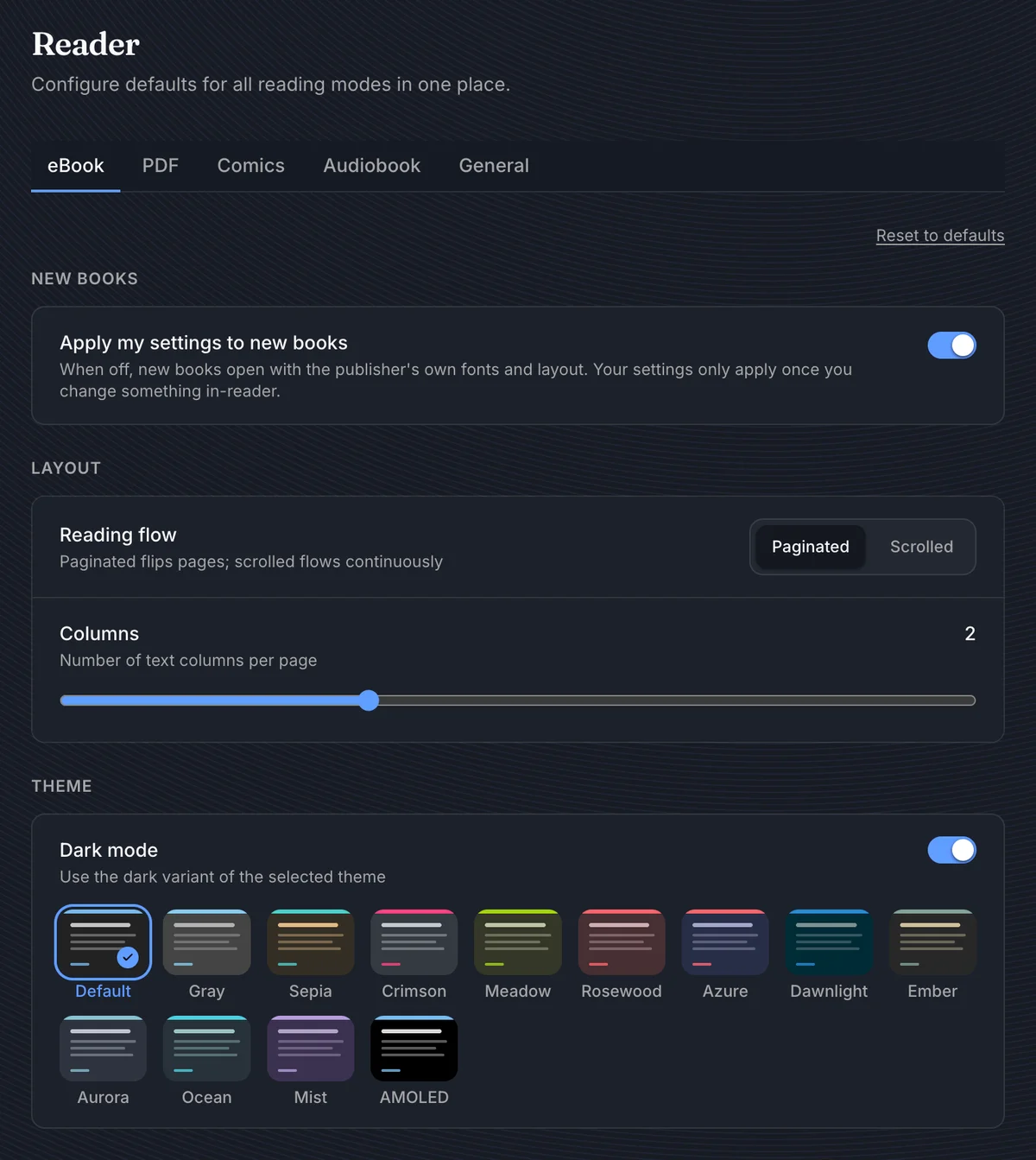
The eBook tab controls how reflowable text books open. Use it for the defaults you want most books to inherit before you make any book-specific adjustments in the reader.
New Books
Apply my settings to new books decides whether BookOrbit should apply your eBook defaults as soon as a new book is opened.
| State | Behavior |
|---|---|
| On | New books open with your selected flow, columns, theme, typography, and advanced layout settings. This is the best choice when you want a consistent reading environment. |
| Off | New books open with the publisher's embedded fonts and layout. Your Reader settings start applying only after you change something from the in-reader settings panel for that specific book. |
Turn this off when you want to preserve publisher-designed formatting by default, especially for books with custom typography, poetry, textbooks, or layout-sensitive content.
Layout and Theme
| Setting | What to use it for |
|---|---|
| Reading flow | Choose Paginated for page-turn reading or Scrolled for continuous vertical reading. |
| Columns | Set how many text columns can appear per page. The settings UI supports 1 to 4 columns. |
| Dark mode | Uses the dark variant of the selected color theme. It is independent of the app's global light/dark appearance. |
| Theme | Chooses the eBook page palette. Available themes include Default, Gray, Sepia, Crimson, Meadow, Rosewood, Azure, Dawnlight, Ember, Aurora, Ocean, Mist, and AMOLED. |
Use fewer columns on narrow screens or when reading large text. Use more columns on wide displays where a single long line becomes harder to scan.
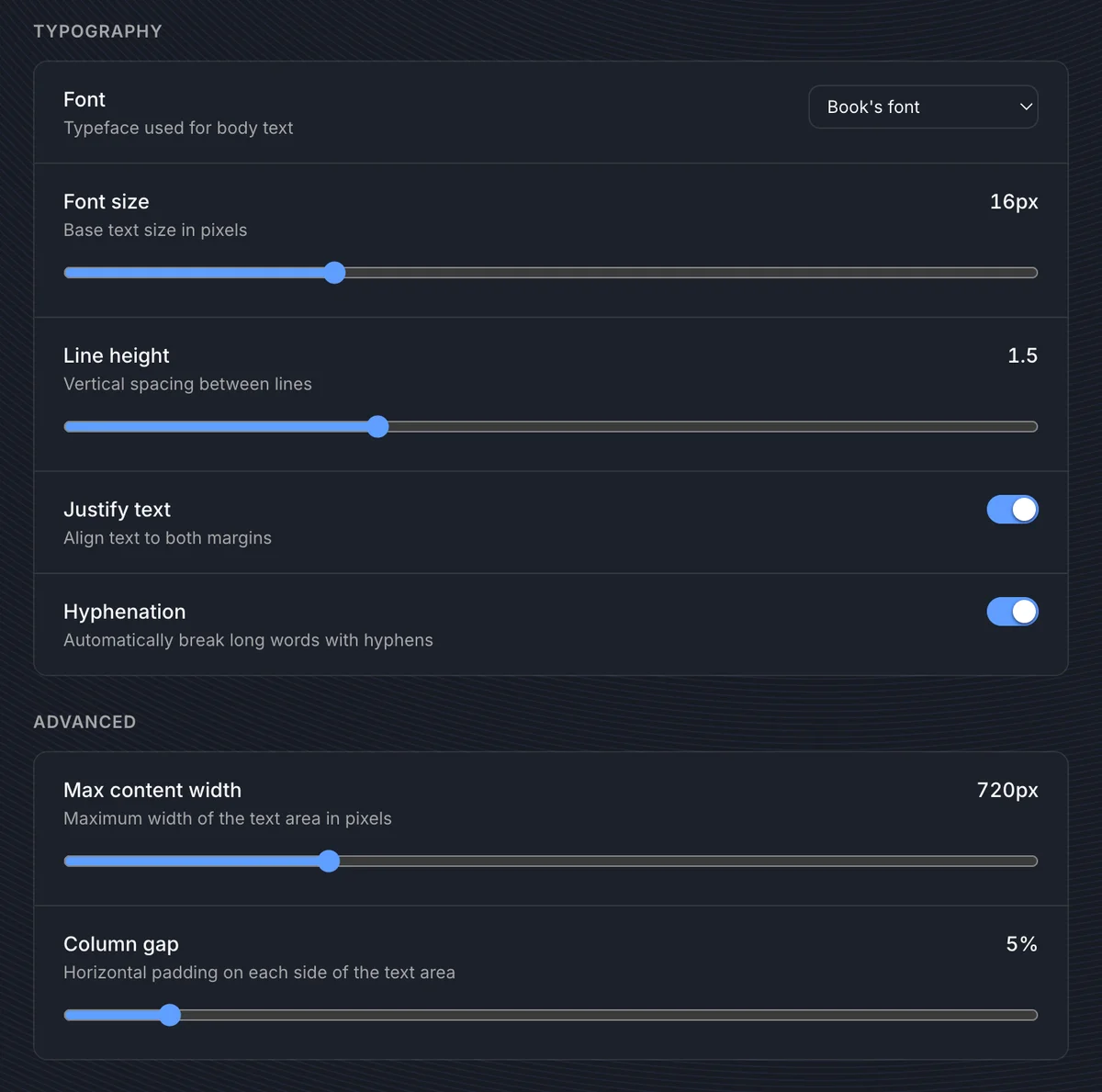
Typography
| Setting | What it changes |
|---|---|
| Font | Uses the book's embedded font, or forces Serif, Sans-serif, Monospace, Georgia, or Palatino. |
| Font size | Sets the base text size from 10px to 32px. |
| Line height | Sets vertical spacing between lines from 0.8 to 3.0. |
| Justify text | Aligns text to both margins. Turn it off if justification creates distracting word gaps. |
| Hyphenation | Allows long words to break with hyphens. It usually improves justified text, but you may prefer it off for cleaner line breaks. |
Advanced
| Setting | What it changes |
|---|---|
| Max content width | Caps the text area from 400px to 1600px. Lower values keep lines shorter on wide screens. |
| Column gap | Adds horizontal padding on each side of the text area. The UI shows it as a percentage from 0% to 50%. |
PDF
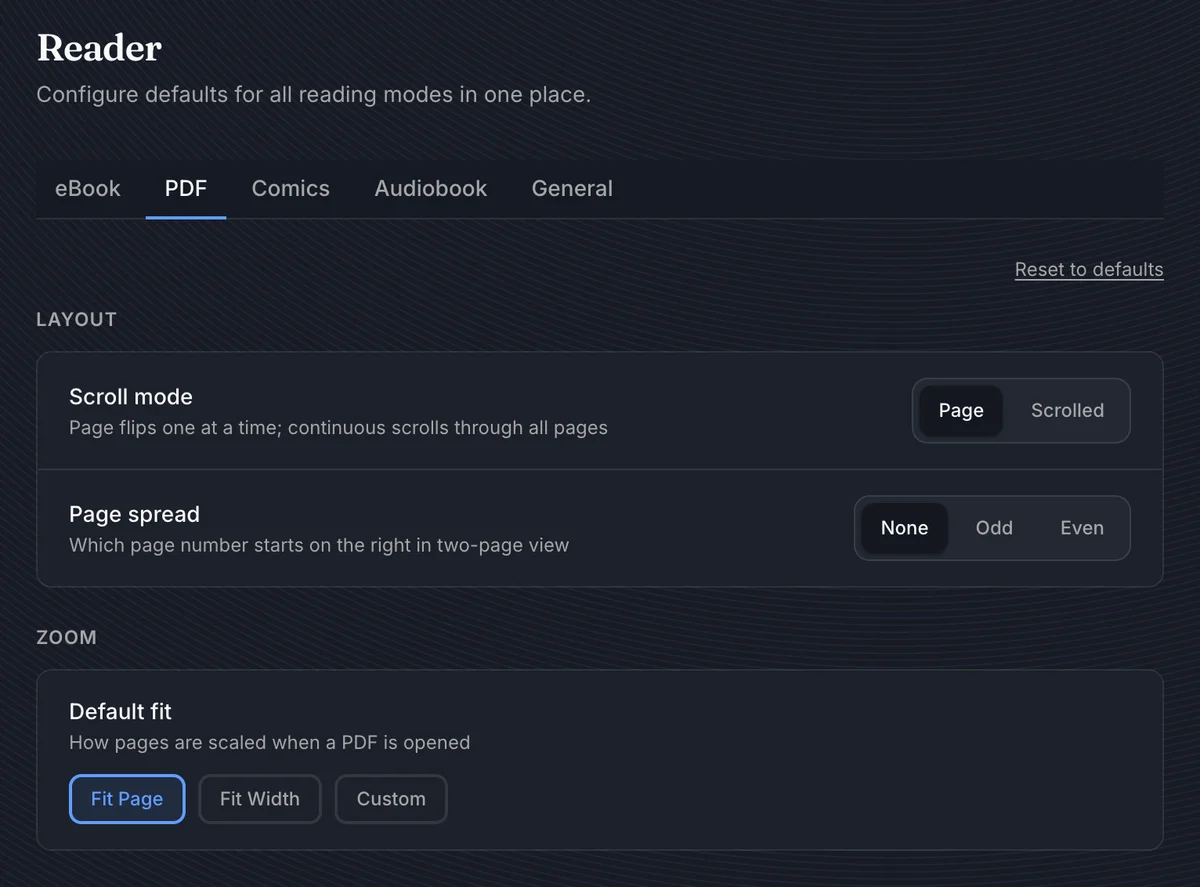
The PDF tab controls the initial page navigation and scaling used when a PDF opens.
| Setting | Behavior |
|---|---|
| Scroll mode: Page | Shows one page position at a time and navigates like page turns. |
| Scroll mode: Scrolled | Uses continuous vertical scrolling through the document. |
| Page spread: None | Disables two-page spread pairing as the default. |
| Page spread: Odd | Treats odd-numbered pages as the right-hand page in two-page view. |
| Page spread: Even | Treats even-numbered pages as the right-hand page in two-page view. |
| Default fit: Fit Page | Scales each page so the full page is visible. |
| Default fit: Fit Width | Scales pages to fill the available width. This is usually better for reading text-heavy PDFs. |
| Default fit: Custom | Uses a fixed zoom level. When selected, the zoom slider supports 25% to 400%. |
PDF toolbar changes made while reading are saved for that PDF file, so a heavily adjusted document can keep its own page mode, spread, and zoom without changing the global PDF defaults.
Comics
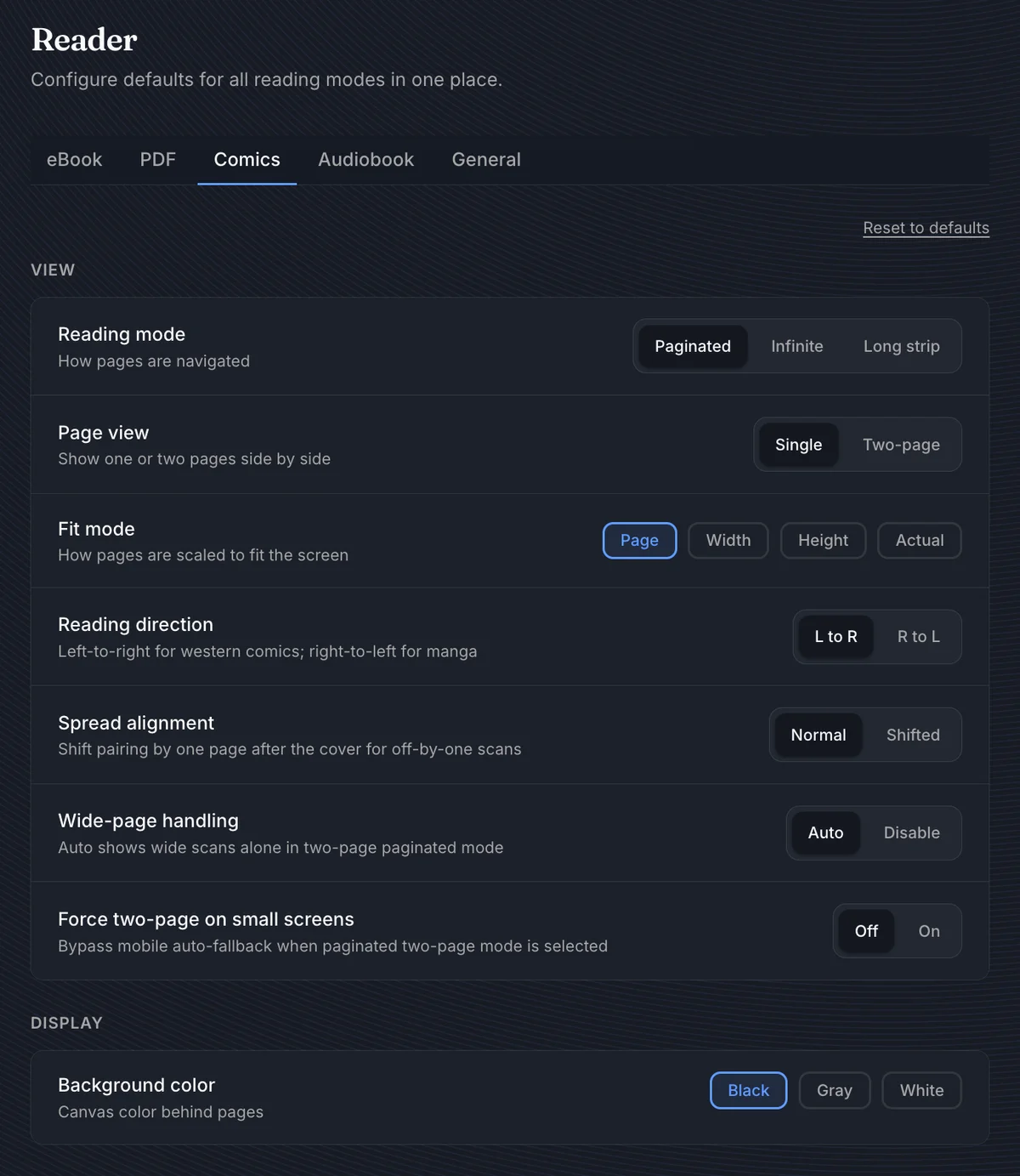
The Comics tab controls CBZ, CBR, and CB7 reading behavior. These settings are most useful when your collection mixes western comics, manga, wide scans, and different archive layouts.
View
| Setting | Behavior |
|---|---|
| Reading mode: Paginated | Reads page by page. This is the closest behavior to a normal comic reader. |
| Reading mode: Infinite | Scrolls continuously through pages. Use it when you prefer not to page-turn. |
| Reading mode: Long strip | Presents pages in a vertical strip style for continuous reading. |
| Page view: Single | Shows one page at a time. |
| Page view: Two-page | Shows two pages side by side when space allows. |
| Fit mode: Page | Fits the whole page in the viewport. |
| Fit mode: Width | Fits the page width to the viewport. Useful for tall pages or portrait screens. |
| Fit mode: Height | Fits the page height to the viewport. Useful when you want full-height pages without vertical clipping. |
| Fit mode: Actual | Shows the image at actual size. |
| Reading direction | Use L to R for western comics and R to L for manga. |
| Spread alignment | Use Shifted when two-page spreads are paired incorrectly after the cover. It shifts pairing by one page after the cover. |
| Wide-page handling | Auto shows wide scans alone in two-page paginated mode, avoiding awkward pairing with another page. |
| Force two-page on small screens | Keeps two-page mode even when BookOrbit would normally fall back for small screens. Use it carefully; it can make pages too small on phones. |
Display
| Setting | Behavior |
|---|---|
| Background color | Sets the canvas behind comic pages to Black, Gray, or White. Black is usually best for dark room reading; White can make scanned pages feel closer to print. |
Comics changes made from the reader settings menu are saved for the current file. That lets a manga archive keep right-to-left mode without making every comic right-to-left by default.
Audiobook
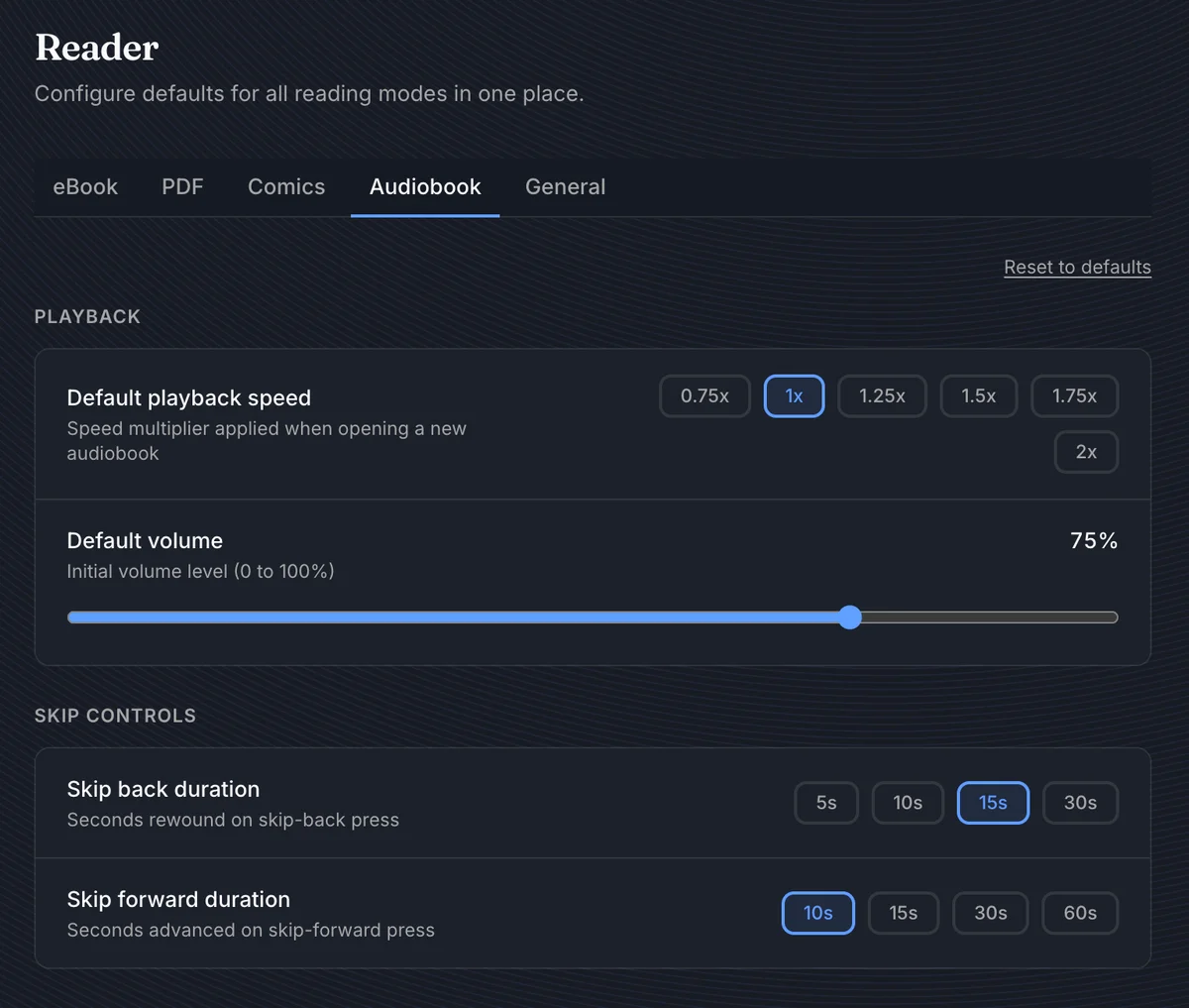
The Audiobook tab sets the playback controls used by audio formats. These are shared player defaults, so changes in the audiobook player update the same values shown here.
| Setting | Behavior |
|---|---|
| Default playback speed | Starts new audiobooks at 0.75x, 1x, 1.25x, 1.5x, 1.75x, or 2x. The player can adjust speed more finely while listening. |
| Default volume | Sets the initial volume from 0% to 100%. |
| Skip back duration | Sets the rewind button to 5s, 10s, 15s, or 30s. |
| Skip forward duration | Sets the forward skip button to 10s, 15s, 30s, or 60s. |
Use shorter skip-back durations when you mainly replay missed words. Use longer skip-forward durations for podcasts, lectures, or audiobooks with long intros and outros.
General
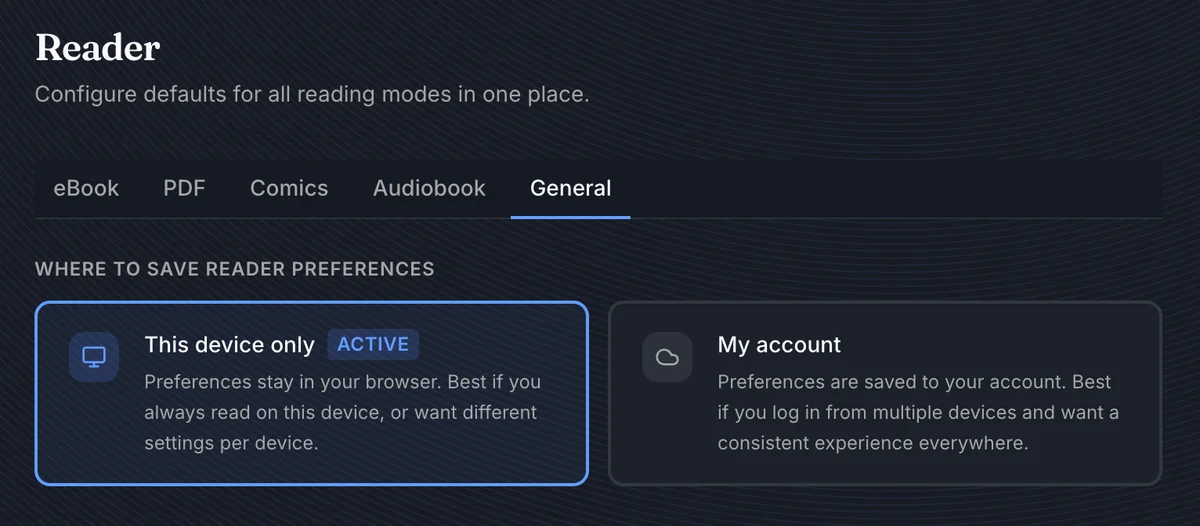
The General tab chooses where Reader preferences are stored.
| Option | Storage behavior | Best for |
|---|---|---|
| This device only | Stores Reader defaults and book-specific reader changes in the current browser. | A single reading device, shared computers, or cases where each device needs different settings. |
| My account | Stores Reader defaults and book-specific reader changes on your BookOrbit account, with a local cache for the browser you are using. | Users who read from multiple devices and want the same Reader behavior after signing in. |
Choose the storage mode before tuning a new setup. If you switch from This device only to My account after already changing local defaults, make a small change on each Reader tab you want to sync so that value is written to your account. Use Reset to defaults only when you want that reader group to return to BookOrbit's built-in defaults.