Dashboard
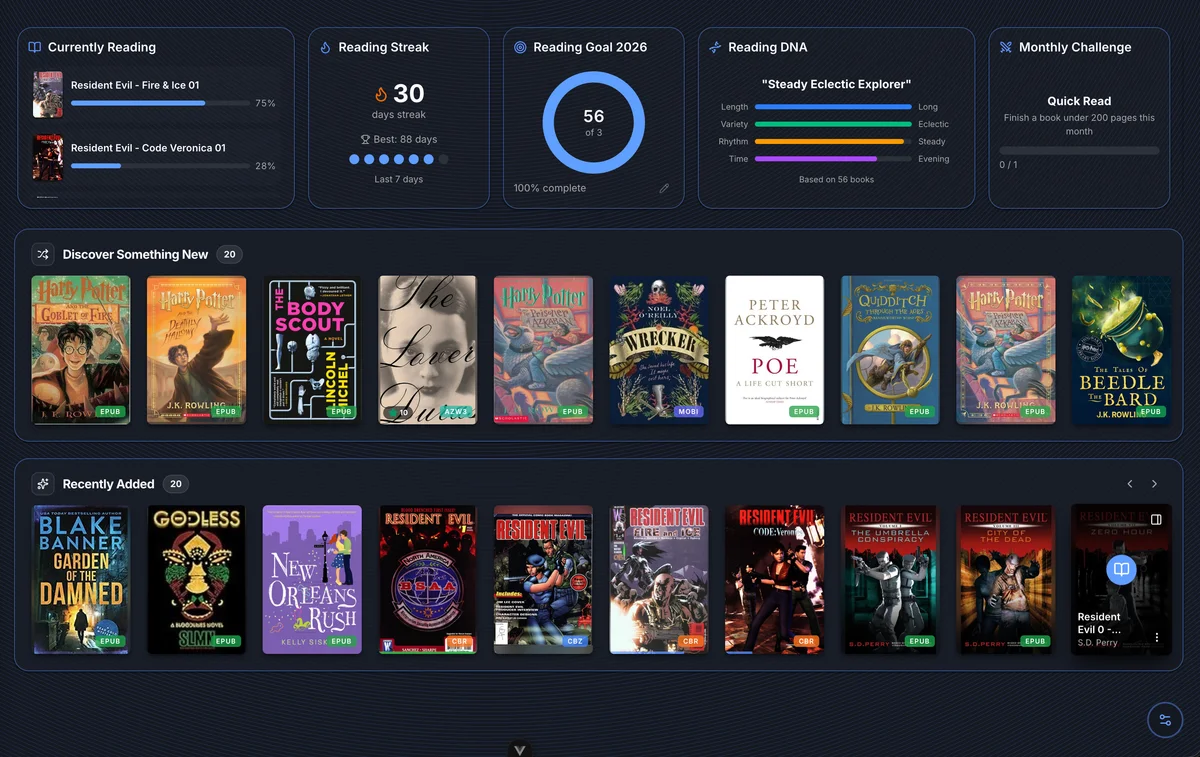
The dashboard is the first thing you see when you open BookOrbit. It gives you a quick pulse on your reading life - what you're currently reading, how consistent you've been, and what your library looks like. Everything on it is personal to you.
Two layers: widgets and shelves
The dashboard has two distinct layers:
- Widgets - compact stat cards that run across the top. Each widget surfaces a specific piece of information about your reading habits or library.
- Shelves - horizontal book rows below the widgets. Each shelf is a scrollable row of covers you can click directly into.
Both are fully customizable.
Customizing the dashboard
Click the tune icon in the bottom-right corner of the dashboard to open the Customize Dashboard panel. It has two tabs: Widgets and Shelves.
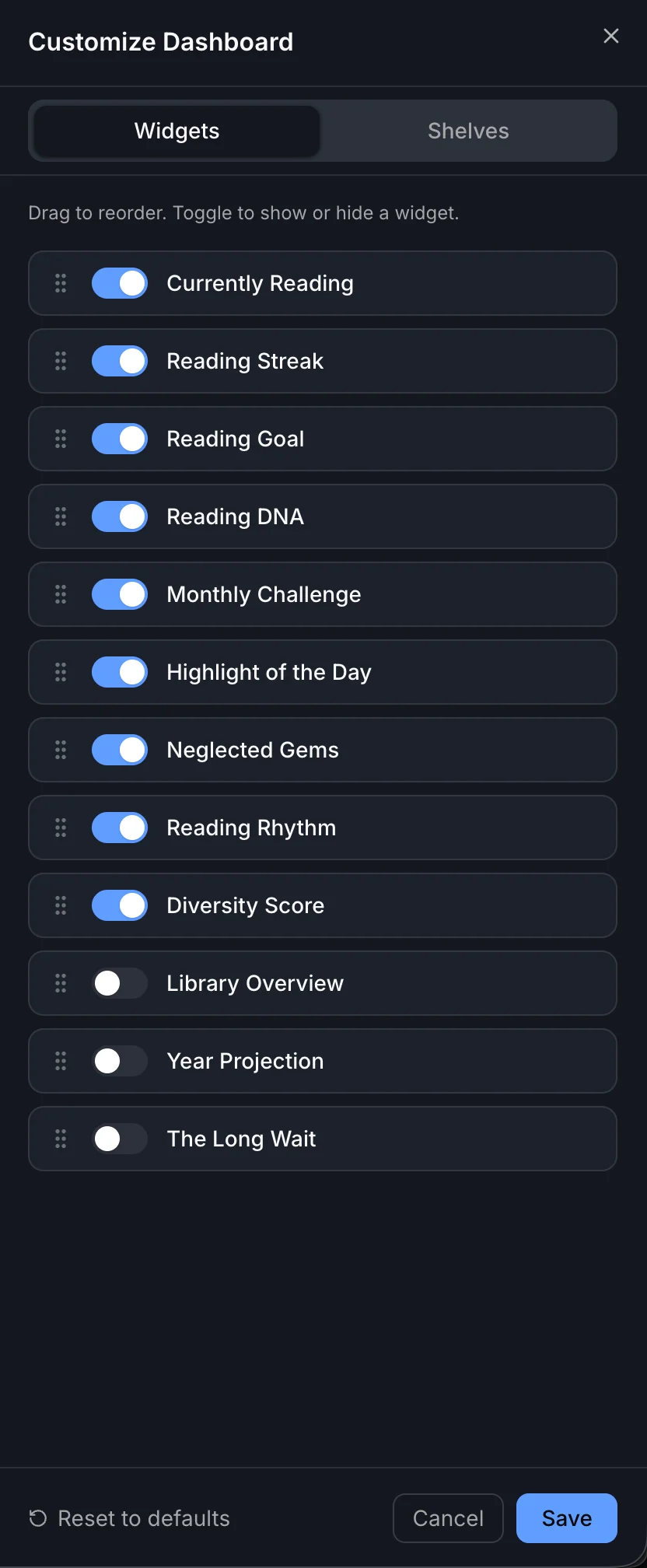
In both tabs you can:
- Toggle any widget or shelf on or off
- Drag to reorder using the grip handle (mouse), or use the up/down arrows (touch)
- Reset to defaults to restore the original layout
Widget preferences are saved to your account and follow you across devices. Shelf preferences are saved in your browser's local storage and are per-device.
Widgets
Twelve widgets are available, each surfacing a different aspect of your reading life - progress, consistency, habits, and library health.
Currently Reading
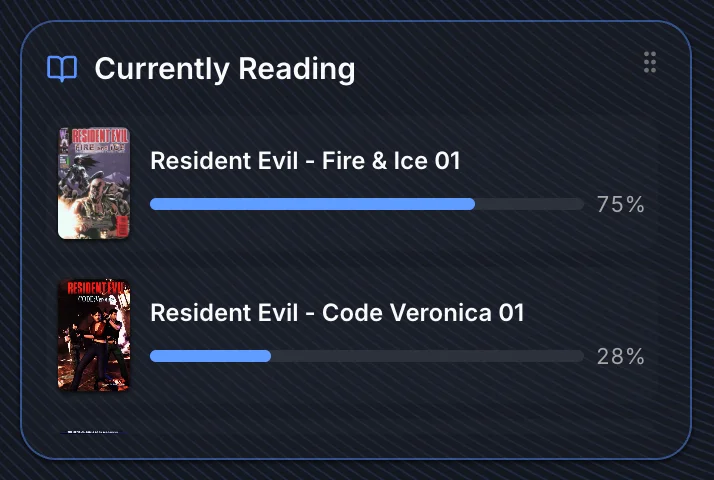
Books you have opened and are actively working through, sorted by most recently read. Each entry shows the cover, title, and a progress bar. Clicking a book jumps straight into the reader at your last position.
Reading Streak
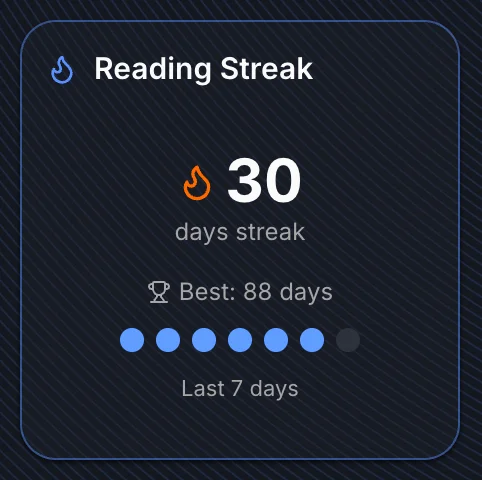
Your current consecutive reading streak in days, your all-time best streak, and a dot row showing whether you read on each of the last 7 days. A filled dot is a day you read; an empty dot is a day you skipped.
The streak increments when you record any reading session in a day. Missing a day resets the current streak to zero, though your best-streak record is never erased.
Reading Goal
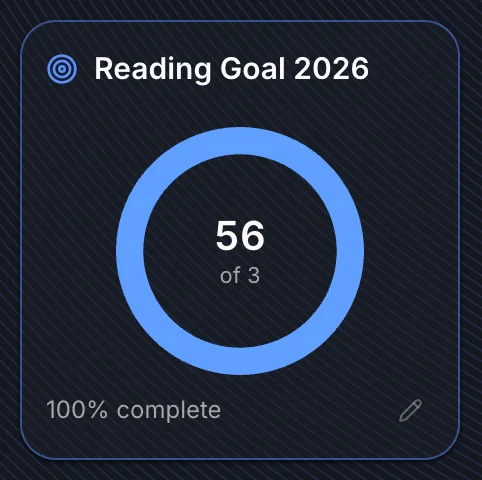
A donut chart showing your progress toward a yearly book count target. Set your goal by clicking the pencil icon on the widget - enter how many books you want to finish this year. Once set, the ring fills as you complete books. You can update the goal at any time.
Reading DNA
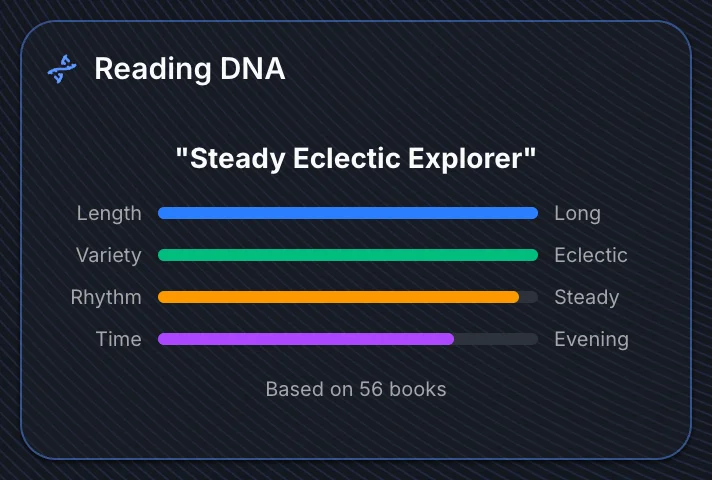
Four horizontal bars that profile your reading habits:
| Trait | What it measures |
|---|---|
| Length | Whether you tend to read short books, long books, or a mix |
| Variety | How wide a range of genres and formats you read |
| Rhythm | How consistently you read day-to-day |
| Time | Whether you read in the morning, afternoon, or evening |
Below the bars, a one-line archetype label summarizes your overall profile (for example, "Steady Eclectic Explorer"). The widget shows how many books were analyzed to produce the scores.
Monthly Challenge
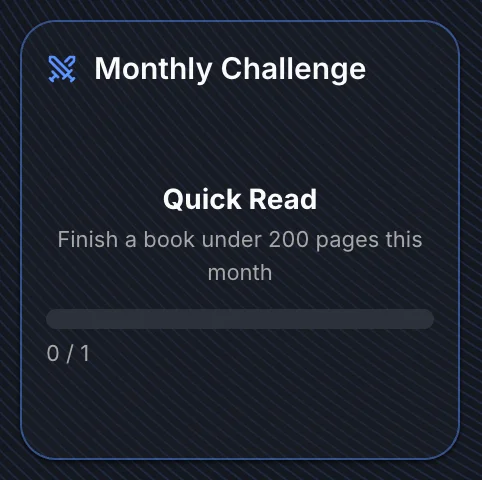
A challenge for the current month with a progress bar. Each month BookOrbit picks a challenge algorithmically based on your reading stats and library - for example: finish a book under 200 pages, read a book from a genre you haven't touched recently, or complete a book you've had in progress for over a month. The same challenge stays in place all month and a new one is chosen at the start of the next.
Progress updates automatically as you read.
Highlight of the Day
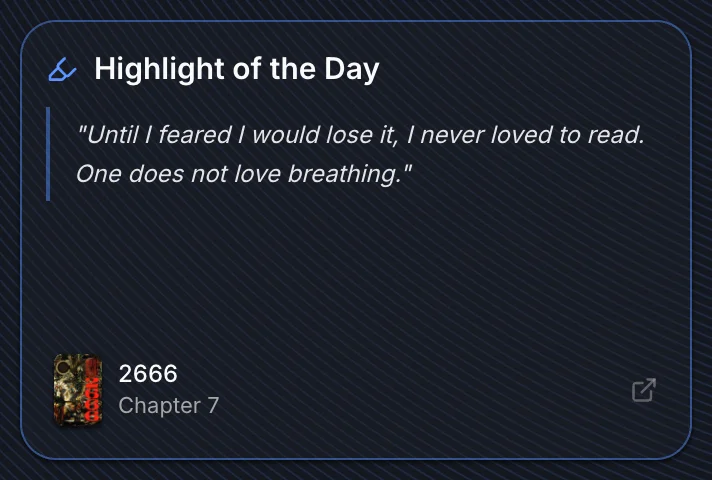
A random annotation from your reading history, shown with the book title and the chapter where it appears. Clicking the widget opens the book at that annotation. The selection rotates daily. See Annotations & Highlights for the full annotation workspace.
If you have no annotations yet, this widget stays empty until you make your first highlight.
Neglected Gems
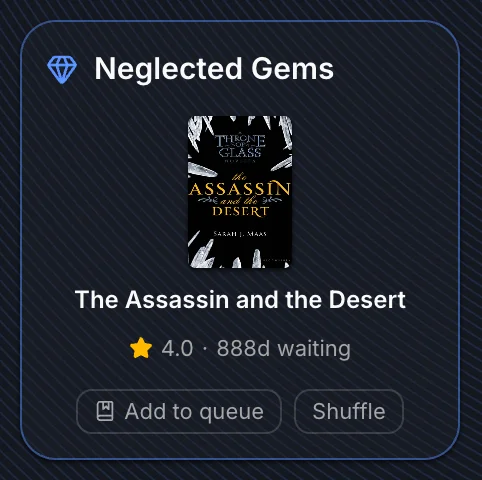
A book you started and then left untouched - with the number of days since you last opened it. The widget cycles through all your neglected in-progress books one at a time. You can click Add to queue directly from the widget to mark it as something you still intend to read, without having to open it.
Reading Rhythm
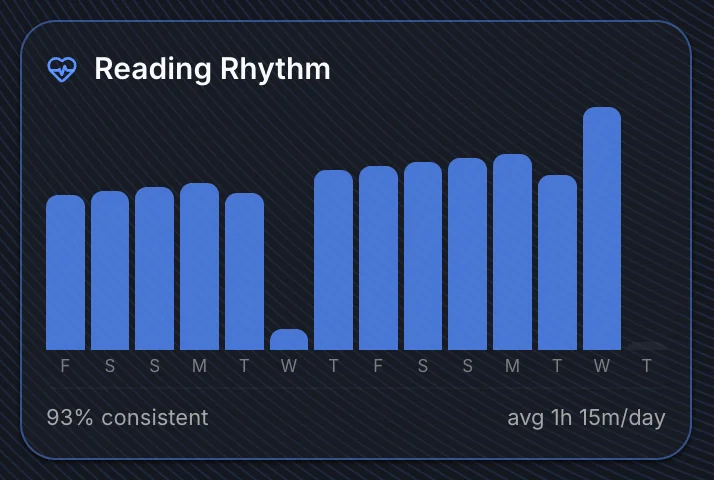
A bar chart of your reading time for each of the last 28 days. Taller bars mean more reading time that day. The average reading time per active day is shown below the chart. Empty bars are days with no recorded sessions.
Diversity Score
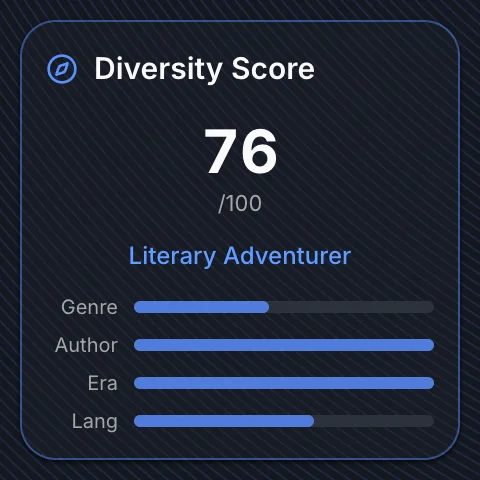
A score from 0 to 100 measuring how varied your reading is across four dimensions: genre, author, publication era, and language. Four sub-bars break down where your score comes from. A label describes the result in plain English. Requires at least 3 completed books to calculate.
Library Overview
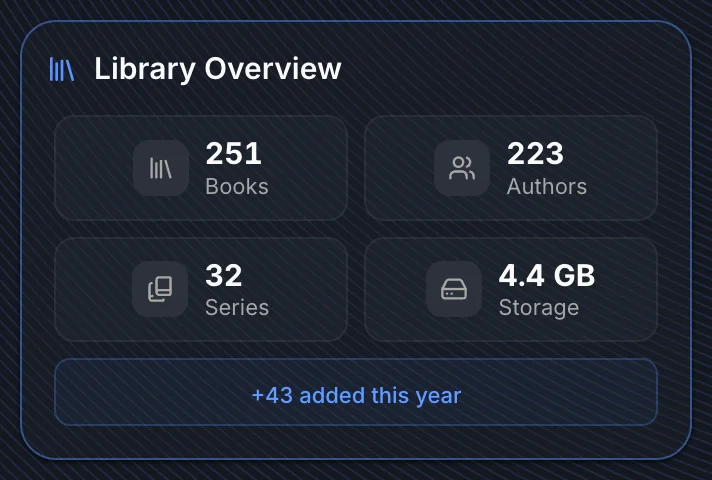
Your library by the numbers - total books, authors, series, and total storage used. Clicking any stat navigates to the relevant section. A callout at the bottom shows how many books were added to your accessible libraries this year.
Year Projection
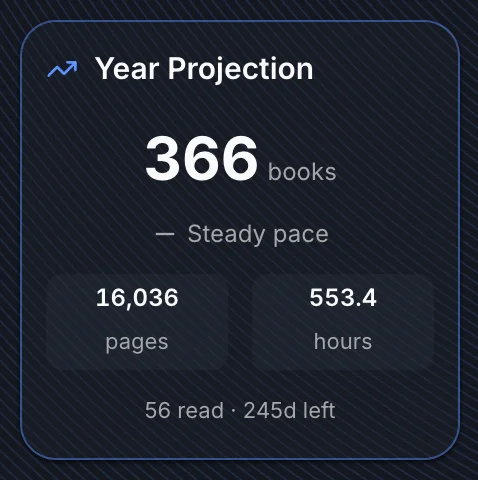
At your current pace, how many books, pages, and hours of reading will you accumulate by the end of the year? The widget shows books completed so far this year alongside days remaining and a trend indicator (up, down, or stable) based on your recent pace vs your earlier pace.
The Long Wait
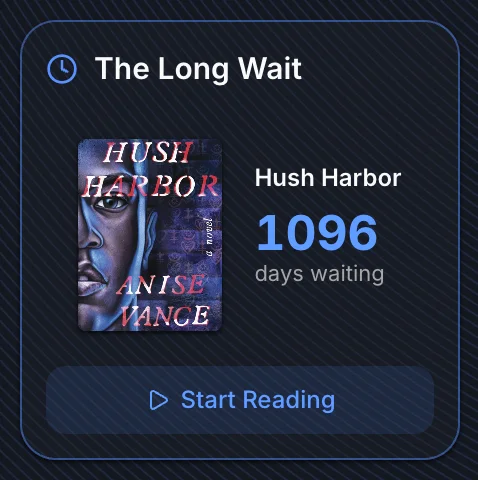
The book that has been sitting unread in your library the longest - with the day count front and center. A nudge to finally open it. Clicking Start Reading opens the book in the reader if the file is available; if not, it navigates to the book detail page.
Shelves
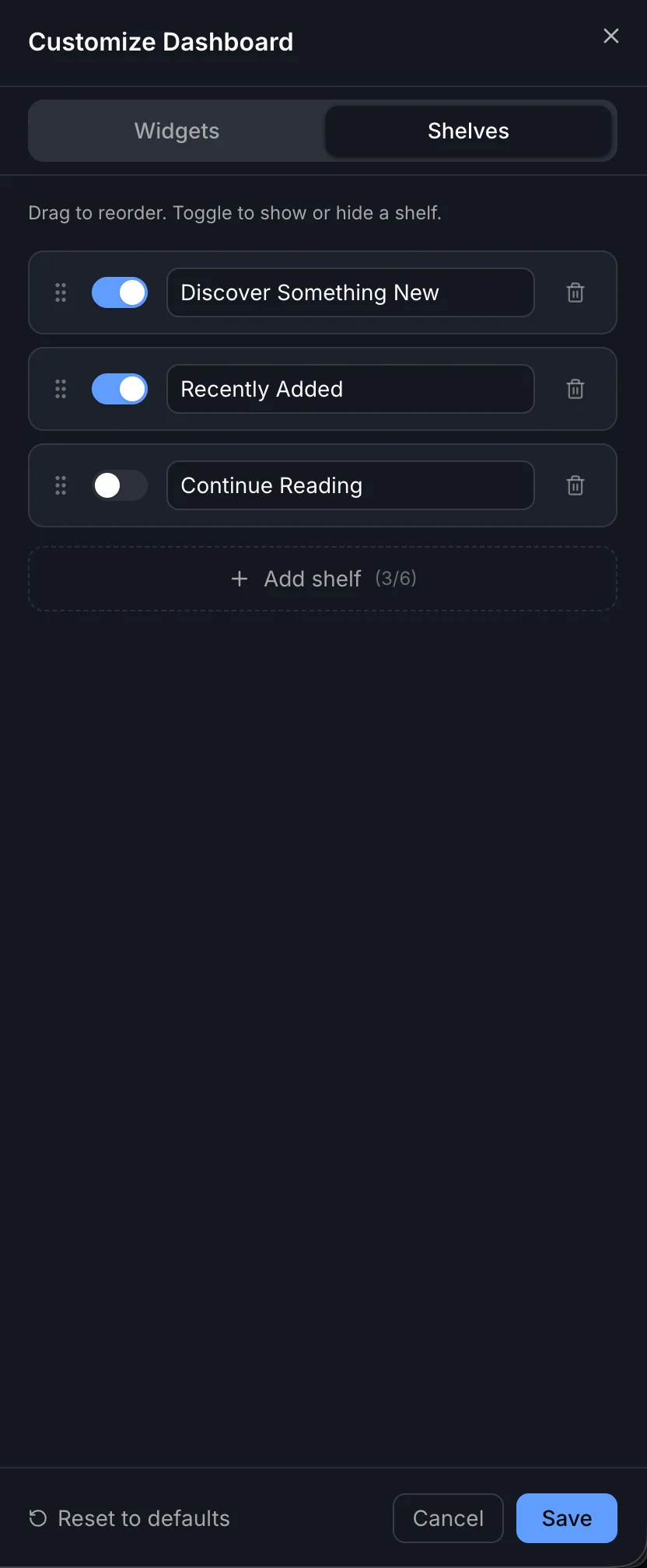
Shelves are the horizontal book rows below the widgets. Each shelf shows up to 20 covers. Click any cover to open the book.
Shelf types
| Type | What it shows |
|---|---|
| Continue Reading | Books you've started but not finished, sorted by most recently read |
| Recently Added | The latest books added across all your accessible libraries |
| Discover Something New | A random selection from your library - reshuffled on each page load |
| Smart Scope | Any saved Smart Scope from your sidebar, shown as a shelf row |
Adding and removing shelves
You can have up to 6 shelves at once. Click Add shelf to add a new one, choose its type from the dropdown, and save. Each shelf can be enabled or disabled independently without deleting it. The minimum is one shelf - the last shelf cannot be removed.
The Smart Scope shelf type lets you bring any saved filter directly onto the dashboard. After selecting Smart Scope as the type, a second dropdown appears to pick which scope to use. The shelf label automatically takes the scope's name.
TIP
Shelf preferences are stored in your browser, not your account. If you log in from a different browser or device you will see the default shelves until you reconfigure them there.