Book Details, Editing, and Viewer
Each book opens into a focused viewer workspace with tabs for Details, Edit Metadata, Files, Reading Log, and Highlights. Use Details to read, inspect, rate, and review the book. Use Edit Metadata to clean up the record and cover. Use Files when a book has more than one attached format and you want to choose exactly what to open or download.
Details
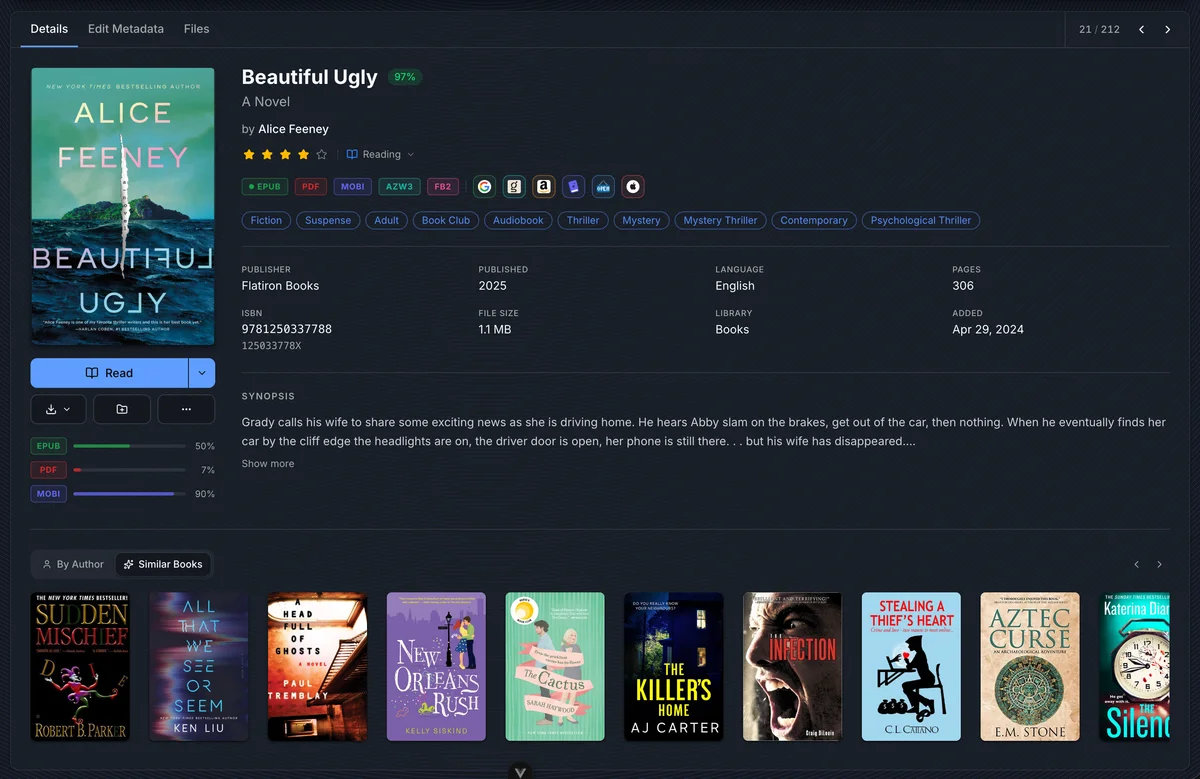
The Details tab is the main book viewer. It brings the cover, identity, reading controls, metadata score, provider links, progress, and discovery rows into one place.
| Area | What it does |
|---|---|
| Cover | Opens a larger preview when clicked. The edit shortcut on the cover jumps to the metadata editor. |
| Read / Listen | Opens the primary file in the built-in reader or audiobook player. If the book has multiple readable files, the split menu lets you choose another format. |
| Download | Downloads the primary file or, from the menu, another attached file when you have download permission. |
| Rating | Sets a personal star rating when metadata editing is allowed and the rating field is not locked. |
| Read status | Marks the book as Unread, Reading, Finished, or another configured status. |
| Metadata score | Shows how complete the book metadata is. Click it to see the score breakdown and jump to editing weak fields. |
| Format badges | Show every attached format. The dot marks the primary format. |
| Provider links | Open the saved provider record, such as Google Books, Goodreads, Amazon, Hardcover, Open Library, or iTunes. |
| Progress bars | Show reading progress per file, so an EPUB, PDF, and MOBI copy can each keep its own position. |
| Discovery rows | Surface books by the same author, in the same series, or similar to the current book. |
The Read button uses the primary file. When you want a specific file, use the split menu beside Read, or open the Files tab.
Files
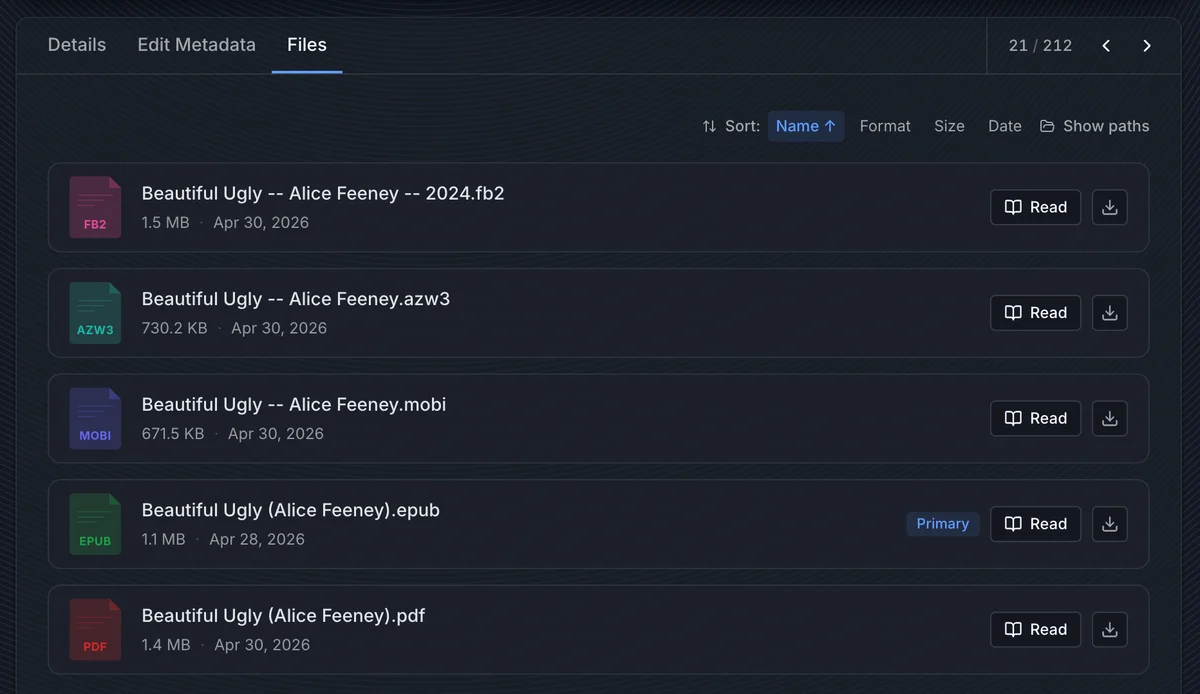
The Files tab lists every file attached to the book. It is the best place to verify which formats are present, open a non-primary copy, download a single file, or inspect the on-disk path.
| Control | Use it for |
|---|---|
| Sort | Sort by name, format, size, or date. Click the active sort again to reverse it. |
| Show paths | Reveals absolute paths for troubleshooting scanner or filesystem issues. |
| Read / Play | Opens that exact file in the matching built-in reader. Audio files show Play. |
| Download | Downloads the selected file when you have download permission. |
| Primary | Marks the file used by the main Read button on the Details tab. |
| View sync log | Appears when metadata has been written back to files and shows recent write results. |
BookOrbit chooses the reader by file type: eBook formats open in the eBook reader, PDFs in the PDF reader, comics in the comics reader, and audio files in the audiobook player. Reader defaults and per-book reader settings are covered in Reader.
Highlights
The Highlights tab collects annotations for the current book. It can search, filter by color, filter by chapter or date, sort by reading position or creation date, edit notes and highlight styles, export the current page, and jump back into the reader at the saved position.
For the full annotation workflow across the whole library, see Annotations & Highlights.
Edit Metadata
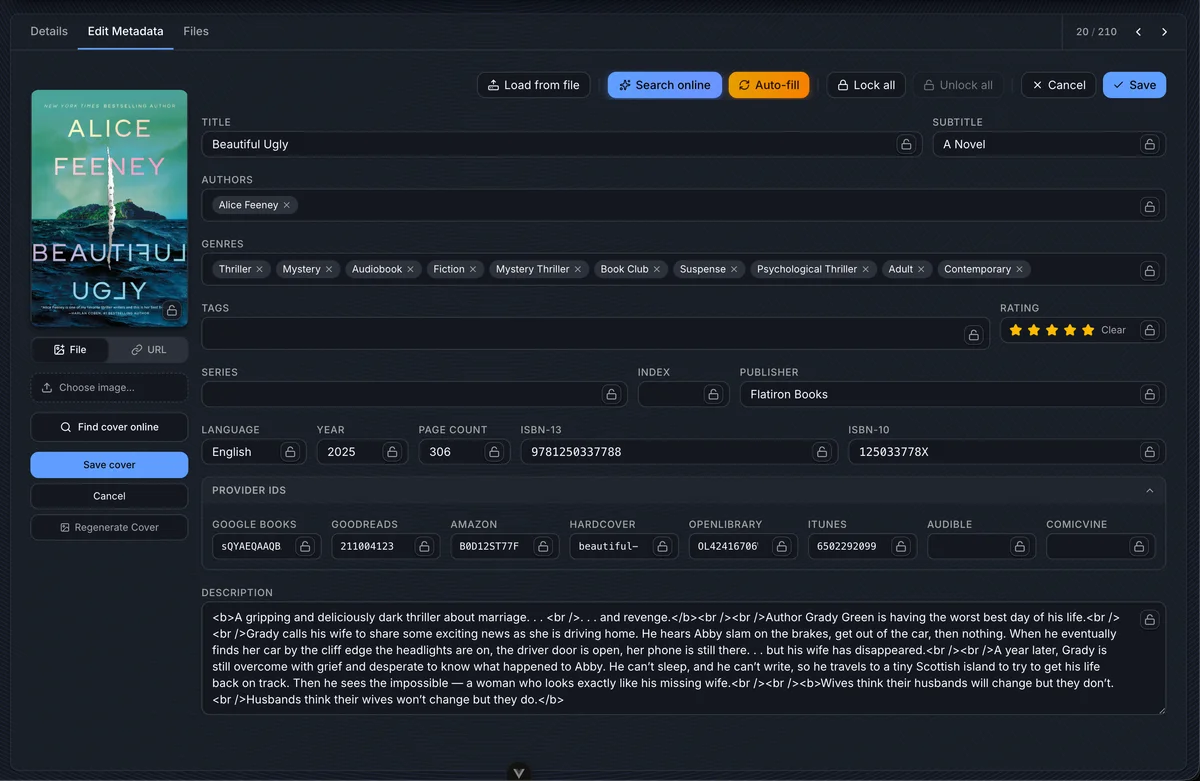
The Edit Metadata tab is a review-and-save workspace. Changes stay in the form until you click Save, so you can load data from several sources, compare it, adjust it, and cancel without changing the book record.
Editing requires the library_edit_metadata permission.
Action bar
| Action | Behavior |
|---|---|
| Load from file | Reads embedded metadata from the primary book file and places found fields into the form. |
| Search online | Opens the manual provider search drawer so you can pick and compare candidate records. |
| Auto-fill | Runs the configured metadata provider pipeline from Settings > Metadata and applies allowed fields to the form. |
| Lock all | Locks every metadata field, including cover, so automated and manual provider updates cannot overwrite them. |
| Unlock all | Clears all field locks. |
| Cancel | Resets unsaved form changes. |
| Save | Writes the form values to the book record and saves any pending cover change. |
Editable fields
The form covers core book metadata, provider identifiers, and format-specific fields.
| Group | Fields |
|---|---|
| Core | Title, subtitle, authors, genres, tags, rating, description |
| Publishing | Publisher, year, language, page count |
| Series | Series name and index |
| Identifiers | ISBN-13, ISBN-10, Google Books, Goodreads, Amazon, Hardcover, Open Library, iTunes, Audible, ComicVine |
| Audiobooks | Narrators, duration, abridged |
| Comics | Issue number, volume, story arcs, creators, characters, teams, locations |
Author, narrator, genre, and tag fields use chips. Type to search existing values, press enter to add a new one, and remove chips you do not want to keep.
Cover Editing
The cover editor lives in the left column of Edit Metadata.
| Option | Behavior |
|---|---|
| File | Uploads a local image file and previews it before saving. |
| URL | Uses an image URL as the custom cover. |
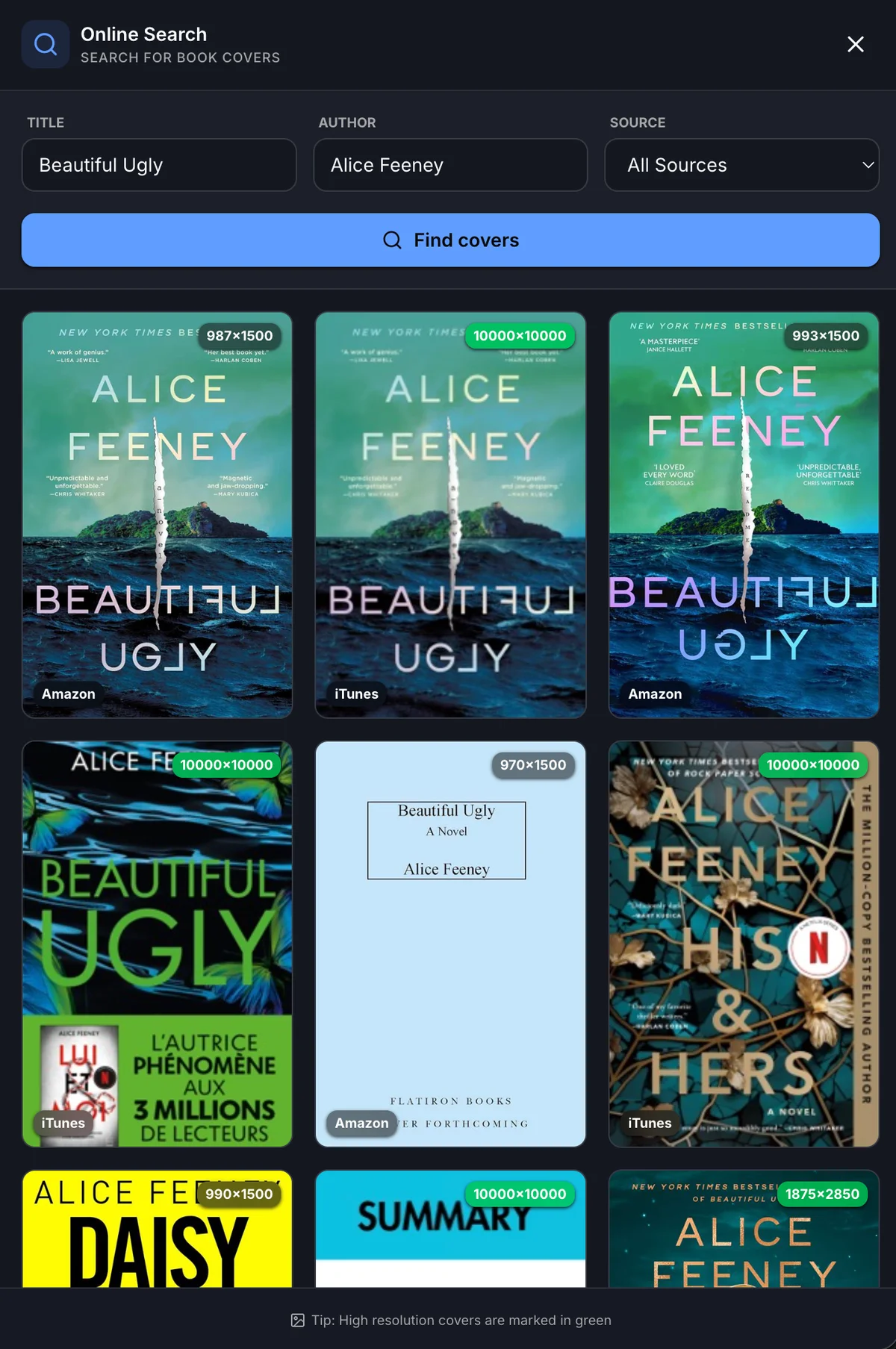
| Find cover online | Searches DuckDuckGo, iTunes, or all cover sources. High-resolution results are marked in green. |
| Save cover | Saves the pending file or URL as a custom cover. |
| Cancel | Clears the pending cover selection. |
| Revert to original | Removes the custom cover and falls back to the extracted cover when one exists. |
| Regenerate Cover | Re-extracts the cover from the book file. |
| Cover lock | Prevents cover uploads, URL changes, provider cover updates, regeneration, and revert operations until unlocked. |
Choose covers that match the edition you are keeping. A high-resolution image is useful, but edition, language, and title treatment matter more than raw pixel count.
Online Metadata Search
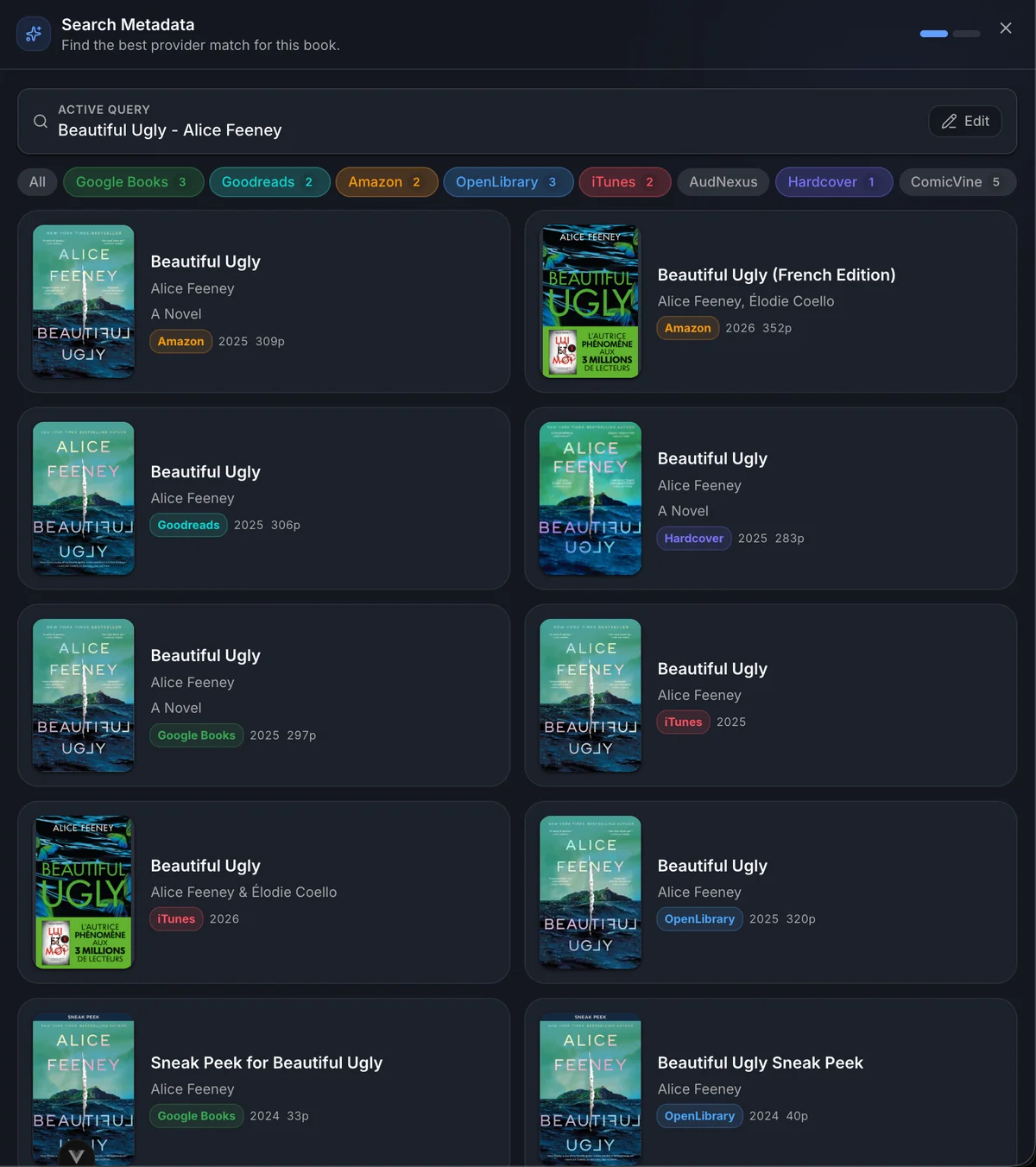
Search online opens a drawer seeded with the current title, first author, and ISBN when available. Results stream in provider by provider, and each provider pill shows how many matches arrived.
Use the provider pills to narrow noisy searches. Click Edit in the active query card when you want to revise the title, author, or ISBN without closing the drawer.
Search works best with an ISBN. If the book does not have one, use a clean title and the primary author. Remove file-name clutter such as format names, release tags, or extra punctuation before searching.
Compare Metadata
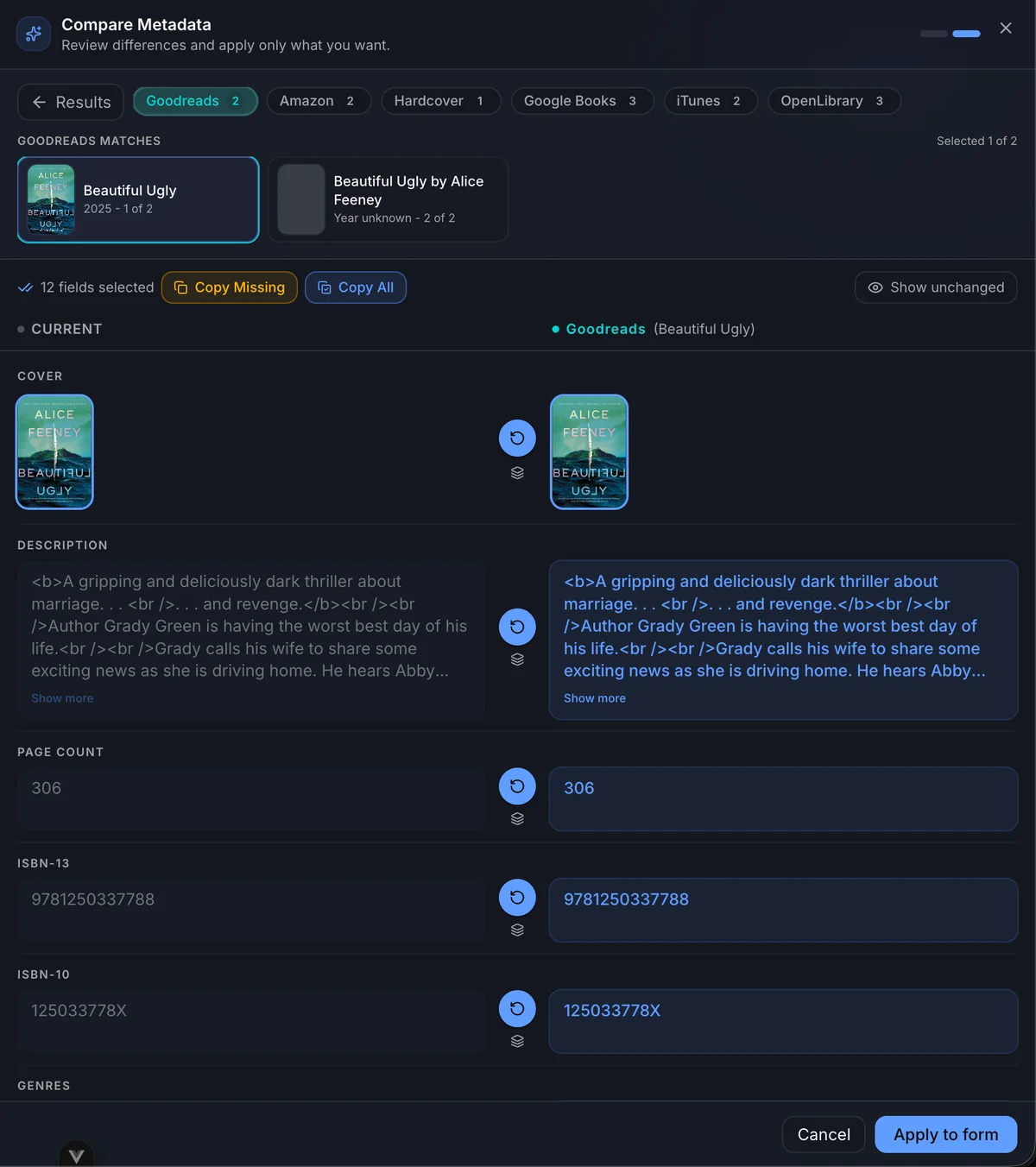
Selecting a result opens Compare Metadata. The left side shows the current book value. The right side shows the selected provider value for the active provider tab.
Selections are field-based, not provider-based. You can take the title and identifiers from Goodreads, the description from Amazon, genres from Google Books, and the cover from iTunes before applying everything to the edit form at once.
| Control | Behavior |
|---|---|
| Provider tabs | Switch between provider results. Existing field picks from other providers stay selected. |
| Matches row | Appears when a provider returned multiple records; choose the exact edition before selecting fields from that provider. |
| Copy Missing | Selects empty fields from the active provider without changing fields you already picked from another provider. |
| Copy All | Selects every copyable field from the active provider. This can replace earlier picks for the same fields. |
| Show unchanged | Shows fields that already match or have no visible difference. |
| Arrow button | Selects or unselects the active provider's value for that field. |
| Layers button | Opens all provider values available for that field, so you can pick a different provider without changing tabs. |
| Apply to form | Sends selected fields back to the edit form. It does not save the book yet. |
When a picked field comes from a provider other than the active tab, the current side shows a small provider badge. This makes it easier to review a mixed selection before applying it.
Mixing Providers
Use the comparison drawer as a staging board. Pick the best value for each field, then apply the full set.
| Goal | Workflow |
|---|---|
| Mostly one provider, cover from another | On the best metadata provider, click Copy All. Open the cover row's Layers picker and choose the cover from another provider, or switch to that provider and select only the cover row. |
| Only fill gaps from one provider | Click Copy Missing on the provider that best matches the edition. Then switch providers or use Layers for any remaining fields. |
| Description from one provider, identifiers from another | Select the description row from the provider with the best synopsis. Switch to the provider with the strongest ISBN or external record and select the identifier rows you want. |
| Build a record field by field | Move across providers and click the arrow only on the rows you trust. The selected-field count increases as picks accumulate. |
| Replace one earlier choice | Use the Layers button on that row and choose another provider, or switch to the provider you prefer and click the row's arrow. Only that field changes source. |
| Undo one field | Click the selected row's arrow again, or choose the same provider in the Layers picker again. |
Changing the selected match inside a provider clears previous picks from that provider, because those picks may no longer describe the same edition. Picks from other providers remain in place.
Provider IDs
Provider IDs are first-class fields in the diff. When a provider result has an external ID, its ID row appears while that provider tab is active.
There are two ways provider IDs get applied:
- If you select any field from a provider, BookOrbit automatically includes that provider's ID when the result has one.
- If you want an ID without taking any other metadata from that provider, switch to the provider tab and select its ID row directly.
This lets you copy provider IDs one by one. For example, you can keep all visible metadata from Goodreads, select only the Amazon ID from Amazon, select only the Open Library ID from Open Library, then choose an iTunes cover. Applying the selection sends the combined patch back to the edit form.
TIP
Provider IDs improve future searches. After you verify that a provider result is the correct edition, keep its ID even if you only use one field from that provider. The Hardcover ID is especially useful for Hardcover Sync, where reliable matching is needed before status, progress, or rating can be pushed.
Field Locks
Every metadata field has a lock button. A locked field is disabled in the form and is protected from auto-fill, provider search, bulk refresh, and cover operations.
Use locks after you have verified a field manually: final title, carefully curated genres, the correct series index, or a custom cover you do not want replaced. Use Lock all after a full cleanup when the record should be treated as finished.
Robust Metadata Workflow
This workflow favors complete, accurate records over speed.
- Configure providers first. In Settings > Metadata, enable the providers you trust, set field rules, and turn on provider ID storage. For covers, keep high-quality cover sources early in the cover provider order.
- Open the book and inspect Details. Note the current metadata score, existing formats, publication year, page count, ISBNs, and whether the primary file is the edition you expect.
- Go to Edit Metadata and click Load from file. Embedded metadata is often the best source for ISBNs, language, series index, and audiobook or comic-specific fields.
- Clean the search anchors. Correct the title and author, remove filename artifacts, and add ISBN-13 or ISBN-10 when you know it.
- Click Search online. Prefer ISBN searches. If there is no ISBN, search by exact title plus the primary author, then use provider filters to reduce noise.
- Compare editions before copying. Match on title, author, language, year, page count, ISBN, and cover. Avoid preview chapters, foreign editions, summaries, and audiobook records unless that is the file you are editing.
- Apply selectively. Start with Copy Missing when the record already has good data. Use Copy All only for a high-confidence edition match, then override individual fields with Layers when another provider has a better cover, description, genre list, or identifier.
- Fix the cover. Use the diff cover when it matches the edition, or open Find cover online and pick a clean, high-resolution result for the same edition.
- Review the form. Normalize genres and tags, check series index, confirm language, and remove provider IDs that clearly belong to the wrong edition.
- Lock verified fields, then Save. After saving, run Auto-fill only for remaining gaps; locks and field rules will protect the work you already reviewed.
TIP
Provider IDs make later fetches more accurate. When you apply a trusted provider result, keep its ID so future searches can find that same record again.
Troubleshooting
Search returns the wrong editions
Use ISBN first. If there is no ISBN, remove extra words from the title and search with only the main author. Filter to one provider at a time when a broad search is noisy.
Auto-fill did not update a field
The field may be locked, disabled in Settings > Metadata > Field Rules, missing from the provider response, or using a fill-missing strategy while the book already has a value.
Cover actions are disabled
The cover field is locked. Unlock the cover before uploading, searching, reverting, or regenerating.
Applied metadata disappeared
Apply to form only stages values in the edit form. Click Save before leaving the page.
The wrong file opens when reading
Use the Read split menu or the Files tab to open the exact format you want. The main Read button opens the primary file.