Adding Books
There are three ways to get books into BookOrbit: uploading through the browser, using Book Dock, or copying files directly into a library folder on the server. Each method suits a different workflow.
| Method | Best for |
|---|---|
| Upload dialog | Quick browser uploads of individual files straight into a library |
| Book Dock | Staged ingestion with metadata review before finalizing into a library |
| Copy to folder | Bulk transfers via SCP, rsync, or shared drives when you have direct server access |
1. Upload Dialog
The upload dialog sends files from your browser directly into a library. A book record is created immediately and metadata is extracted in the background.
Who can upload
The upload button is only visible to users with the library_upload permission. Users without it will not see the button in the navigation bar.
Open the dialog
Click the Upload icon in the top navigation bar.
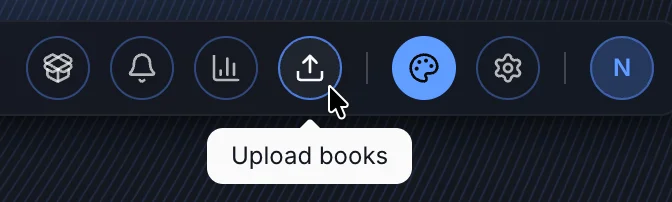
When you are already inside a library, the dialog opens pre-scoped to that library and the library selector is hidden.
Add files and choose a destination
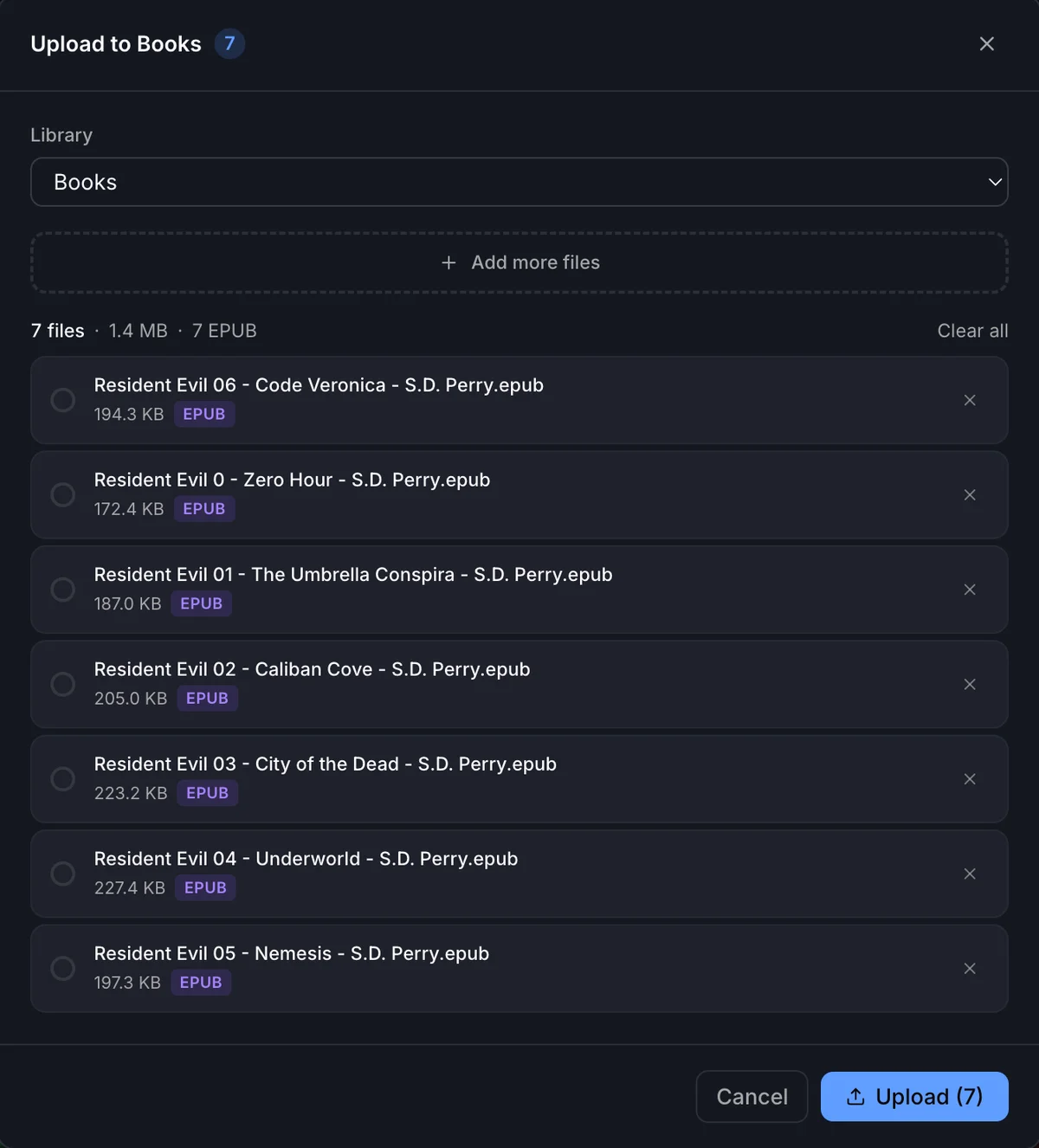
Drop files onto the drop zone or click it to open a file picker. After the initial selection, use the Add more files strip to append more without clearing the queue.
Select the target Library. When the library has more than one folder, a Target folder selector appears - choose which folder the files should land in. Libraries with a single folder skip the selector and route files there automatically.
Up to three files transfer in parallel. Each file shows an individual progress bar while uploading.
Supported formats
| Type | Formats |
|---|---|
| Ebooks | EPUB, KEPUB, PDF, MOBI, AZW3, AZW, FB2 |
| Comics | CBZ, CBR, CB7 |
| Audiobooks | M4B, MP3, M4A, OPUS, OGG, FLAC |
The maximum file size is 500 MB per file. The browser validates size and format before the upload begins, so unsupported or oversized files are rejected immediately with an error in the queue.
WARNING
If the target library has Allowed formats configured, uploading a file of an excluded format fails with This library does not allow .X files. The restriction is enforced by the library settings, not the dialog itself.
After upload
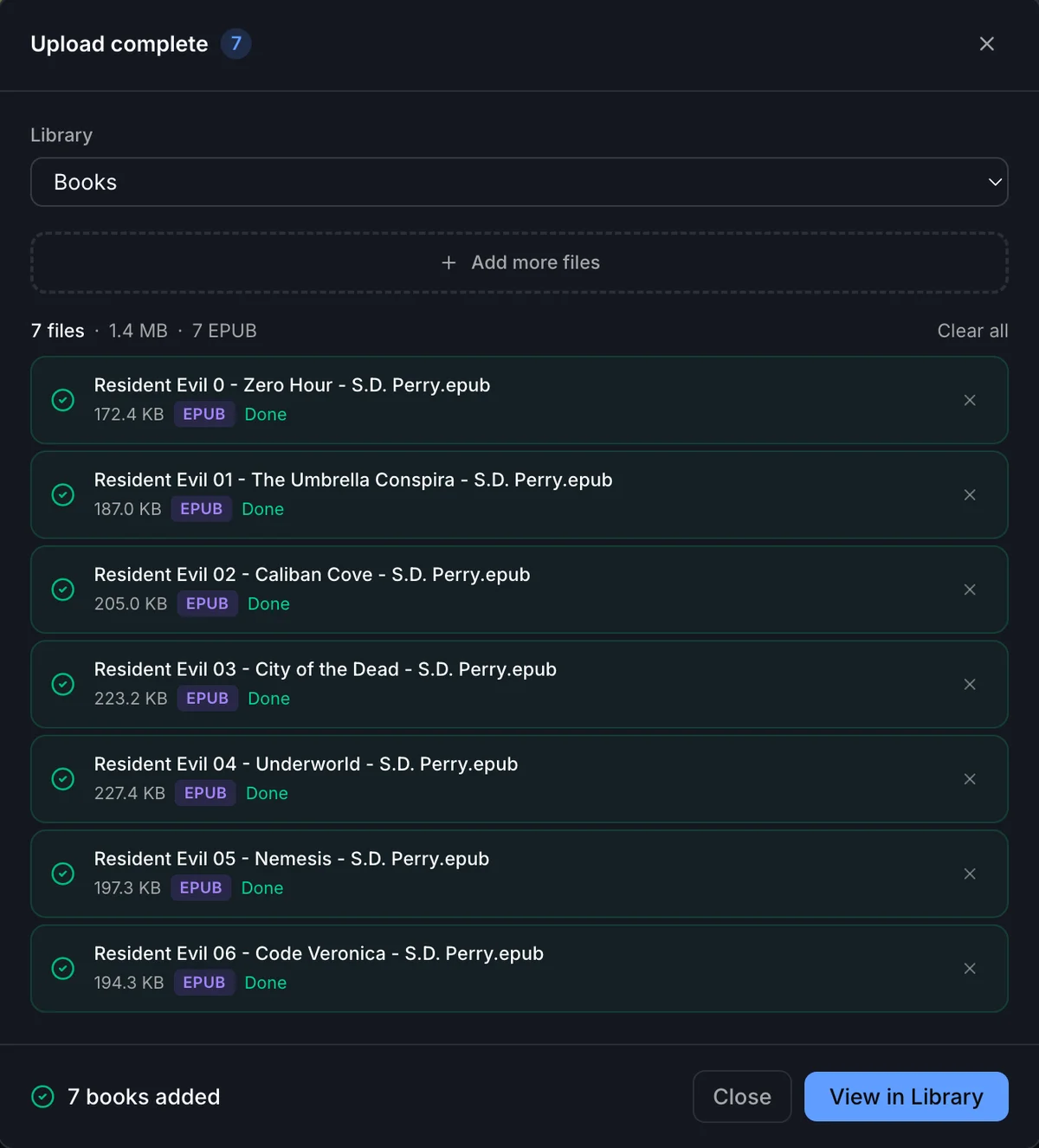
Each successfully uploaded file becomes a book in the library immediately. BookOrbit extracts embedded metadata - title, authors, cover, series, description, and other fields - asynchronously in the background. The book appears in the library grid right away; the cover and metadata fill in as extraction completes.
View in Library navigates to the library and closes the dialog. Close dismisses without navigating.
Failed files show the server error message inline and a Retry button. Retrying re-attempts only that file without affecting the rest of the queue.
If you add the same file twice in one session (matched by filename and size), the second copy is silently skipped.
File naming and placement on disk
Where the uploaded file is written depends on the library's organization mode and whether a file naming pattern is configured.
Without a pattern:
| Organization mode | Where the file is saved |
|---|---|
| Folder as Book | A subfolder named after the file stem, e.g. My Novel/My Novel.epub |
| File as Book | Directly in the library folder root, e.g. My Novel.epub |
With a file naming pattern, BookOrbit reads embedded metadata from the uploaded file and resolves the pattern tokens before saving. The pattern is set per-library under Settings > Libraries > Edit, or globally under Settings > File Naming. Available tokens:
| Token | Value |
|---|---|
{title} | Book title from embedded metadata |
{authors} | All authors, comma-separated |
{authors:first} | First author only |
{authors:sort} | Authors in sort order (Last, First) |
{authors:initial} | First letter of first author surname |
{series} | Series name |
{seriesIndex} | Series index, zero-padded to two digits (e.g. 02, 02.5) |
{year} | Publication year |
{publisher} | Publisher name |
{language} | Language code |
{isbn} | ISBN-13 |
{originalFilename} | Uploaded filename without extension |
{extension} | File extension without the dot |
Optional blocks like <{series}/> are omitted entirely when the token has no value. Fallbacks like <{series}|Standalone> insert the fallback text instead.
TIP
If embedded metadata cannot be read (for example a PDF with no info fields), pattern tokens fall back to the original filename. The upload always completes even if token extraction fails.
Conflict handling
If a file with the same name already exists at the resolved destination path, the upload fails with:
A file named "X" already exists at the target location
Rename the file before uploading, choose a different destination folder, or delete the existing file first.
2. Book Dock
Book Dock is a dedicated staging area that sits between incoming files and your libraries. Files land in Book Dock first, metadata is extracted and optionally fetched from providers, and then you review and finalize each file into the library of your choice.
Use Book Dock when you want to verify covers and metadata before books appear in your library, or when you want auto-finalize to handle the whole pipeline hands-free.
See the Book Dock documentation for full details.
3. Copying Files Directly to a Library Folder
If you have filesystem access to the server - for example through SCP, rsync, a Samba share, or a Docker bind mount - you can copy book files directly into a library folder. BookOrbit detects and imports them automatically when Watch folders is enabled, or on the next scan if it is not.
With folder watching enabled
When Watch folders is turned on for a library (set on the Schedule step during library creation, or under Settings > Libraries > Edit), BookOrbit uses native filesystem events to detect changes. When a new file appears, BookOrbit waits for the write to finish before importing it - so books appear in your library shortly after the copy completes, without any manual intervention. Moves and renames within watched folders are also detected automatically; the existing book record updates its path instead of creating a duplicate.
WARNING
Network-mounted storage (NFS, SMB, CIFS, S3FS, and similar) may not emit reliable filesystem events. If your library is on a network mount, leave Watch folders off and use an auto-scan schedule instead.
Without folder watching (manual or scheduled scan)
When watching is off, BookOrbit does not react to disk changes until a scan is triggered. After copying files:
- Open Settings > Libraries and click Scan next to the library to scan it immediately.
- Click Scan All to scan every library at once.
- Wait for the next scheduled scan if the library has an auto-scan cron configured.
To configure automatic scanning, open Settings > Libraries > Edit and go to the Schedule step. Presets range from every hour to weekly, with a custom cron option for anything in between.
TIP
Combining a disabled watcher with a short auto-scan interval works well for network mounts and cloud-synced folders where filesystem events are unreliable.
Scan modes and folder structure
The library's scan mode determines how copied files are grouped into books. In Folder as Book mode, each subfolder becomes one book - all its files grouped together, including sidecar covers and audiobook tracks. Disc subfolders like CD 1 or Disc 2 are flattened into the parent book automatically. Files copied directly to the library root (not inside a subfolder) still become individual books. In File as Book mode, every content file is its own book and sidecar files are not associated.
For full folder layout examples and sidecar rules, see Library File Structure.
What the scanner imports and what it skips
Only content-role files become books. Sidecar files in the same folder are associated with the book but are not listed as separate books.
| Role | Extensions | Behavior |
|---|---|---|
| Content | epub, kepub, pdf, mobi, azw3, azw, cbz, cbr, cb7, fb2, m4b, m4a, mp3, opus, ogg, flac | Becomes a book |
| Metadata sidecar | opf, nfo | Associated with the book in the same folder |
| Cover sidecar | jpg, jpeg, png, webp, gif, bmp (only when filename is cover, folder, thumbnail, artwork, or front) | Associated as the book cover |
| Supplement | Everything else | Ignored |
The scanner also skips:
- Files and folders whose names start with
.(hidden files) - Symbolic links to files or directories
- Names matching the library's Exclude patterns
- Folders that return a permission denied error
- Paths longer than 4,096 characters
Settings changes and full rescans
If you change a library's Allowed formats, Scan mode, Exclude patterns, or Format priority after the initial scan, BookOrbit detects the settings change and forces a full rescan the next time any scan runs for that library - even if only a few files changed.
WARNING
Restricting Allowed formats after books already exist in the library can cause those books to be marked missing on the next scan if their files are in a now-excluded format.
Docker path notes
When BookOrbit runs in Docker, library folder paths must be the path inside the container, not the host path.
For example, if your Docker Compose file or run command mounts:
-v /mnt/data/books:/booksconfigure the library folder as /books, not /mnt/data/books. Copy files to /mnt/data/books on the host; BookOrbit sees them at /books inside the container. The watcher and scanner always use the container-side path.
Troubleshooting
"A file named X already exists at the target location"
A file with the same resolved name is already on disk at the destination. Rename the file before uploading, choose a different target folder, or delete the conflicting file first.
"This library does not allow .X files"
The target library has Allowed formats configured and the uploaded format is not on the list. Either upload to a library that allows the format, or update the library's allowed formats under Settings > Libraries > Edit > Scanner.
"File exceeds the 500 MB limit"
The upload dialog enforces a 500 MB per-file ceiling. For files above this limit, copy them directly to the library folder on the server - there is no size limit for files placed on disk directly.
Files copied to a folder are not appearing
Check the following in order:
- Is Watch folders enabled? Open Settings > Libraries and look for the Watching badge on the library. If it is not there, watching is off - trigger a manual Scan instead.
- Is the library on a network mount? NFS, SMB, and similar filesystems often do not emit reliable OS-level filesystem events. Disable watching and set up an auto-scan schedule instead.
- Did the copy finish? BookOrbit waits for a file's modification time to stabilize before importing it (up to 60 seconds for actively-written files). The book appears after the copy completes and the stability window passes.
- Is the format supported? Only content-role formats are imported.
.opf,.nfo, cover images, and other sidecar files do not become books on their own. - Does the filename start with
.? Hidden files are skipped automatically. - Does the filename match an exclude pattern? Check Settings > Libraries > Edit > Scanner for configured exclude patterns.
A book shows as missing after moving files on disk
With watching enabled, BookOrbit uses inode numbers to detect moves and update the book path automatically. If the book is still missing, the most likely causes are:
- The source and destination are on different filesystems (inode tracking does not work across devices).
- The storage reports inode
0- common on network mounts - which disables move detection entirely. - The watcher was not running when the move happened.
Run a manual Scan on the library. BookOrbit will re-discover the file at its new location and restore the book. A periodic background reconcile pass also resolves stale missing-book states automatically.