Collections
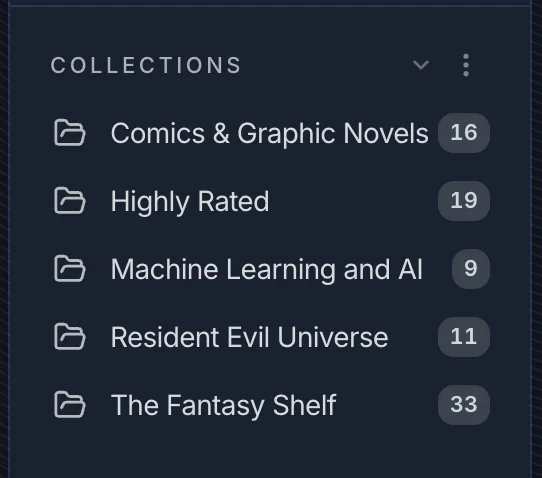
Collections are hand-curated lists of books. Think of them as playlists - you decide exactly what goes in, and in what order. They show up in the sidebar, and any collection can optionally sync to your Kobo device.
Creating a collection
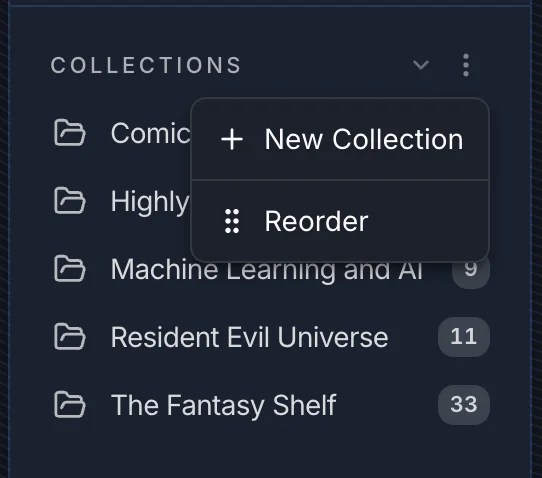
Click the three-dot menu next to the COLLECTIONS heading in the sidebar and choose New Collection.
Give it a name and pick an icon - both are required. After saving, you land directly on the new (empty) collection.
Adding books
There are two ways to add books to a collection:
From a book's context menu - right-click any book cover (or use the three-dot menu on a book card) and choose Add to collection. A sheet slides up showing all your collections. Tap any collection to add the book instantly. You can also create a new collection from the same sheet without leaving the flow.
Select mode - in any library or search view, click SELECT, check the books you want, then use the action bar that appears at the bottom to add them to a collection in bulk.
Collection detail
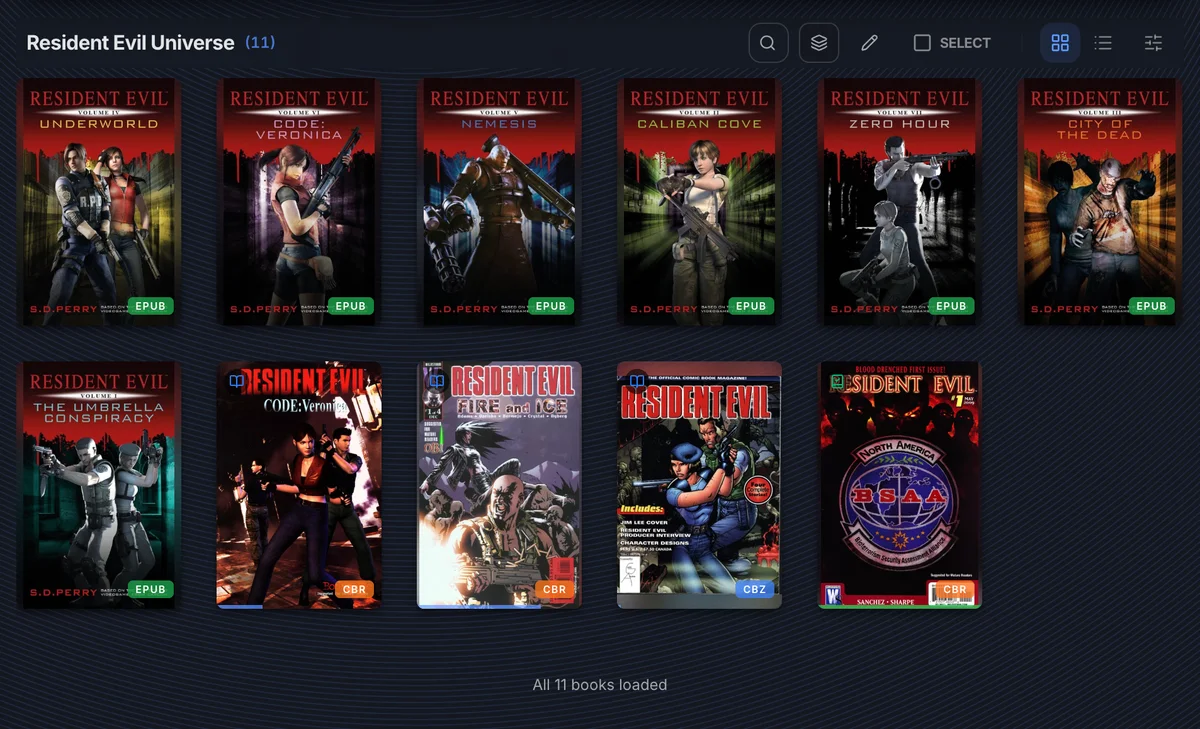
The collection detail page shows all books in the order they were added. You can search within the collection, switch between grid and list views, and toggle series collapse. A SELECT mode lets you remove specific books in bulk.
Editing a collection
Click the pencil icon on the collection detail page to open the Edit Collection dialog.
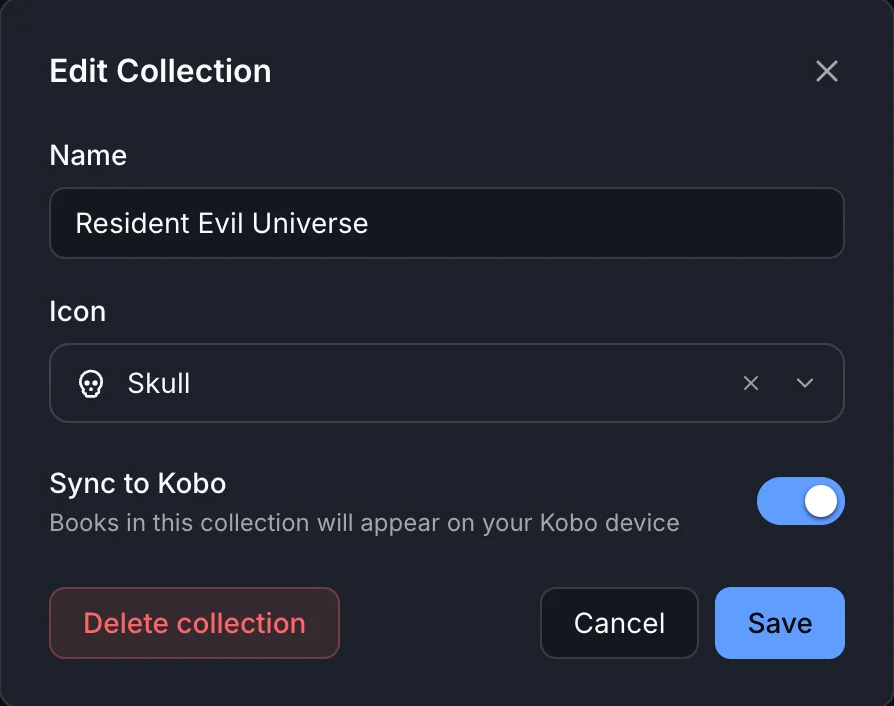
From here you can:
- Rename the collection
- Change the icon
- Sync to Kobo - toggle this on to push every book in this collection to your paired Kobo as a named shelf. Books removed from the collection are removed from the Kobo shelf on the next sync. See Kobo Sync for device setup and eligibility requirements.
- Delete the collection - clicking Delete once shows a "Confirm?" prompt before anything is erased. Deleting a collection never deletes the underlying books.
Reordering collections
Click the three-dot menu next to COLLECTIONS and choose Reorder. Drag the collections into whatever order you want. On touch, use the up/down arrows.