Email
Settings > Email configures how BookOrbit sends book files through SMTP. Use it for Kindle personal document delivery, email-based e-reader workflows, or sending a book file to another address you control.
BookOrbit does not hand the book to a third-party service directly. It creates an email, attaches the selected book file, sends it through your SMTP provider, and records the result in send history.
Setup checklist
For a first working setup:
- Add an SMTP provider in Providers.
- Test the provider connection.
- Add at least one recipient in Recipients.
- Set your automatic defaults in Preferences.
- Use Send via Email from a book card or selected books action bar.
- Check History if delivery fails or stays pending.
TIP
For Kindle delivery, the provider's From Address usually needs to be approved in your Amazon "Personal Document Settings". BookOrbit can send the email, but Amazon may reject it if the sender address is not allowed.
Permissions
Email features are split by permission:
| Permission | Access |
|---|---|
email_send | Recipients, groups, templates, preferences, history, and send actions from books. |
manage_email | Create and edit SMTP providers. |
| Superuser | Share providers with all users and choose the system mail provider. |
Recipients, groups, preferences, and history are user-owned. Shared providers are the main cross-user object.
Providers
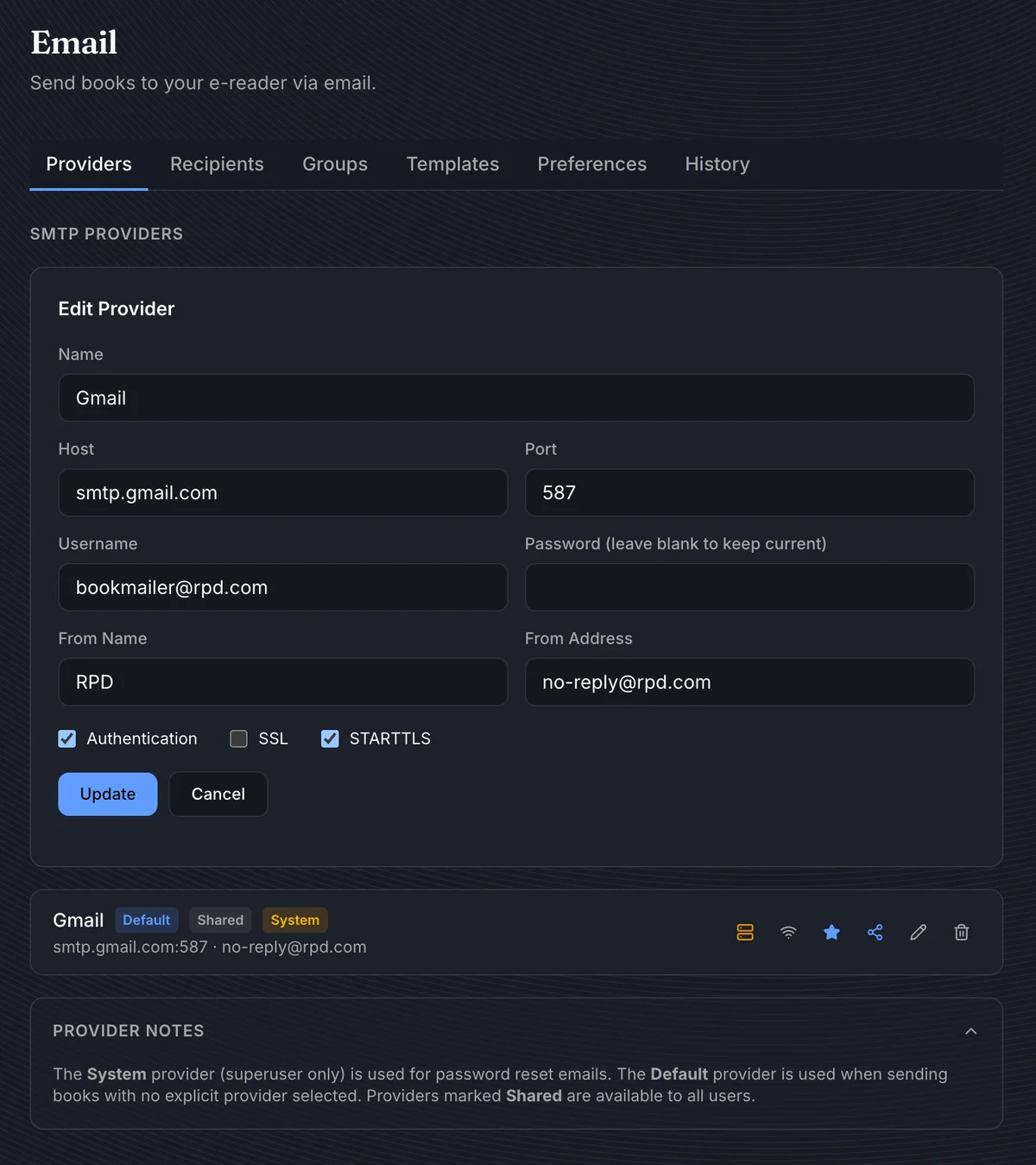
Providers are SMTP accounts BookOrbit can send through. A provider is not a recipient; it is the outgoing mail server and sender identity.
What to enter
| Field | How to use it |
|---|---|
| Name | Short label shown in provider dropdowns, like Gmail or Family SMTP. |
| Host / Port | SMTP server and port. Common examples are port 587 with STARTTLS or port 465 with SSL. |
| Username / Password | SMTP login. For services like Gmail, this is often an app password rather than your normal account password. |
| From Name / From Address | Sender identity used in outgoing mail. Set this deliberately for Kindle, because Amazon checks the sender address. |
| Authentication | Keep enabled unless your SMTP relay explicitly allows unauthenticated sending. |
| SSL | Use for implicit TLS, commonly port 465. |
| STARTTLS | Use for explicit TLS, commonly port 587. |
Passwords are not returned to the browser after saving. When editing a provider, leave the password field blank to keep the existing password.
Provider badges
| Badge | Meaning |
|---|---|
| Default | Marks the provider you intend to use by default. To make send flows use it automatically, select it in Preferences > Default provider. |
| Shared | Available to other users. Only superusers can share providers. |
| System | Used for system mail such as password reset emails. Only superusers can set or clear it. |
Testing
The connection test verifies that BookOrbit can connect and authenticate with the SMTP server. It does not prove that Kindle/Kobo/recipient-side filtering will accept the message or attachment.
WARNING
Password reset email requires a System provider. Normal book sending uses the provider chosen in the send dialog or the provider selected in Preferences.
Recipients
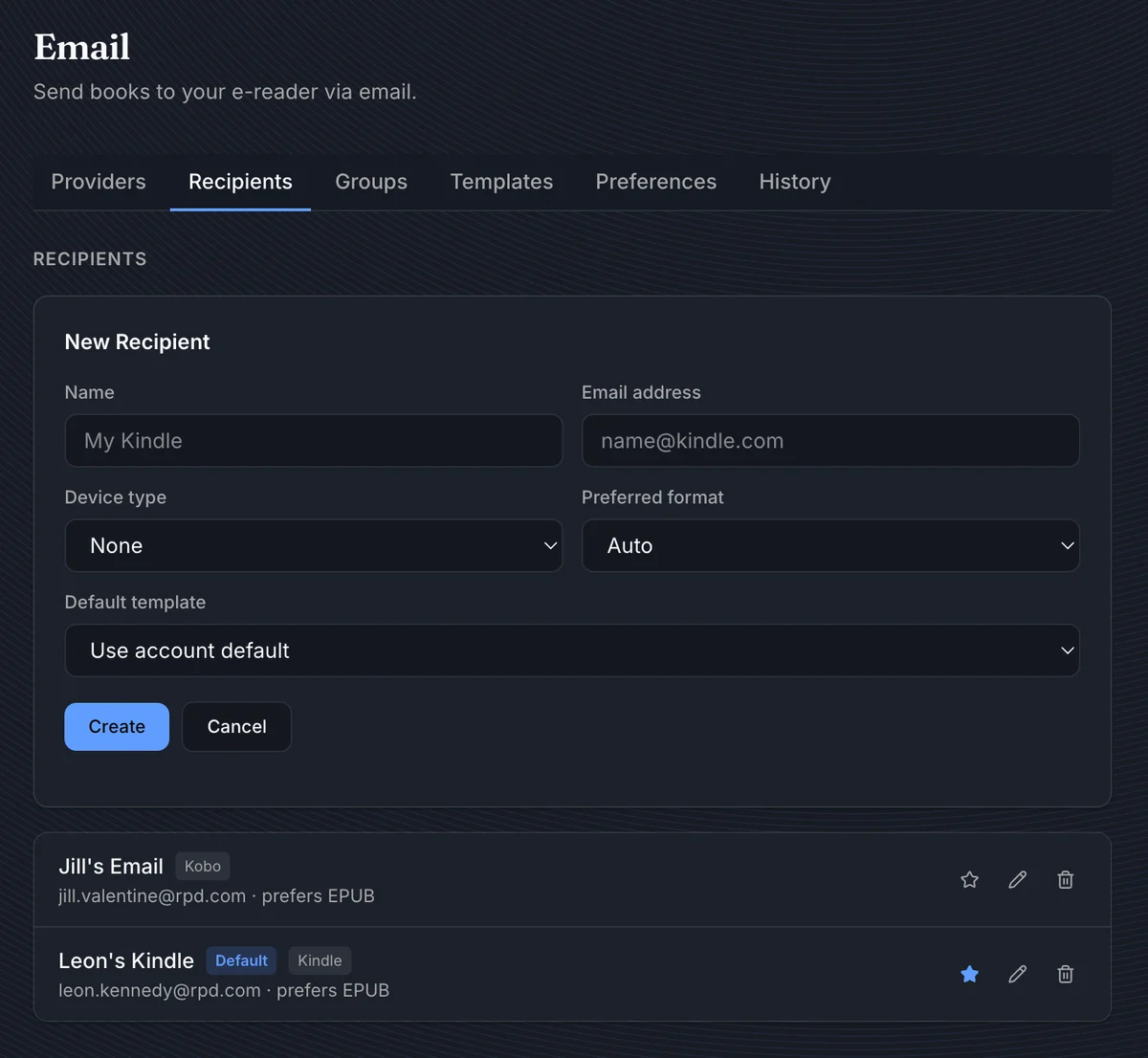
Recipients are the addresses you send books to. For e-readers, this is usually the device's personal document email address.
| Field | How it affects sending |
|---|---|
| Name | Friendly label shown in send dialogs. |
| Email address | Final destination address. Each user can only save an address once. |
| Device type | Enables device-specific behavior. Kindle recipients force the email subject to convert. |
| Preferred format | Used when a book has multiple files and no file is selected manually. |
| Default template | Template used for this recipient unless the send dialog chooses another template. |
Preferred format is a preference, not a conversion engine. If a recipient prefers EPUB but the book only has PDF, BookOrbit sends the primary/available file instead.
TIP
Use Preferences > Default recipient for quick send. The recipient list can show a default badge, but quick send reads the preference value.
Groups
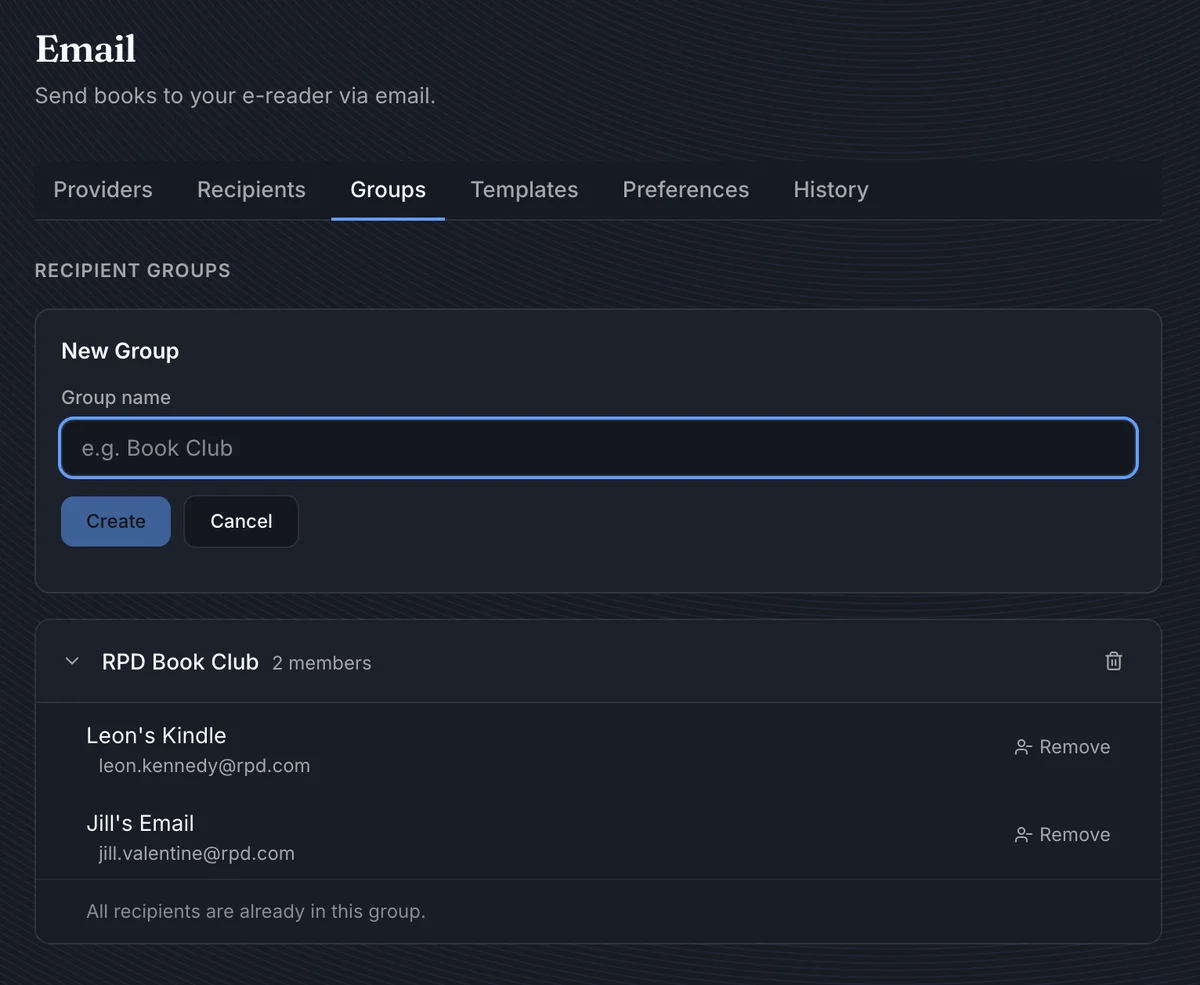
Groups are named sets of your recipients. They are useful when the same book should go to several devices or people.
- A group can only contain recipients owned by the same user.
- Removing a recipient from a group does not delete the recipient.
- Deleting a group removes the grouping only.
- If you select a group and also select one of its members directly, BookOrbit sends only one email to that recipient.
When you send multiple books to a group, BookOrbit queues one message per book per unique recipient.
Templates
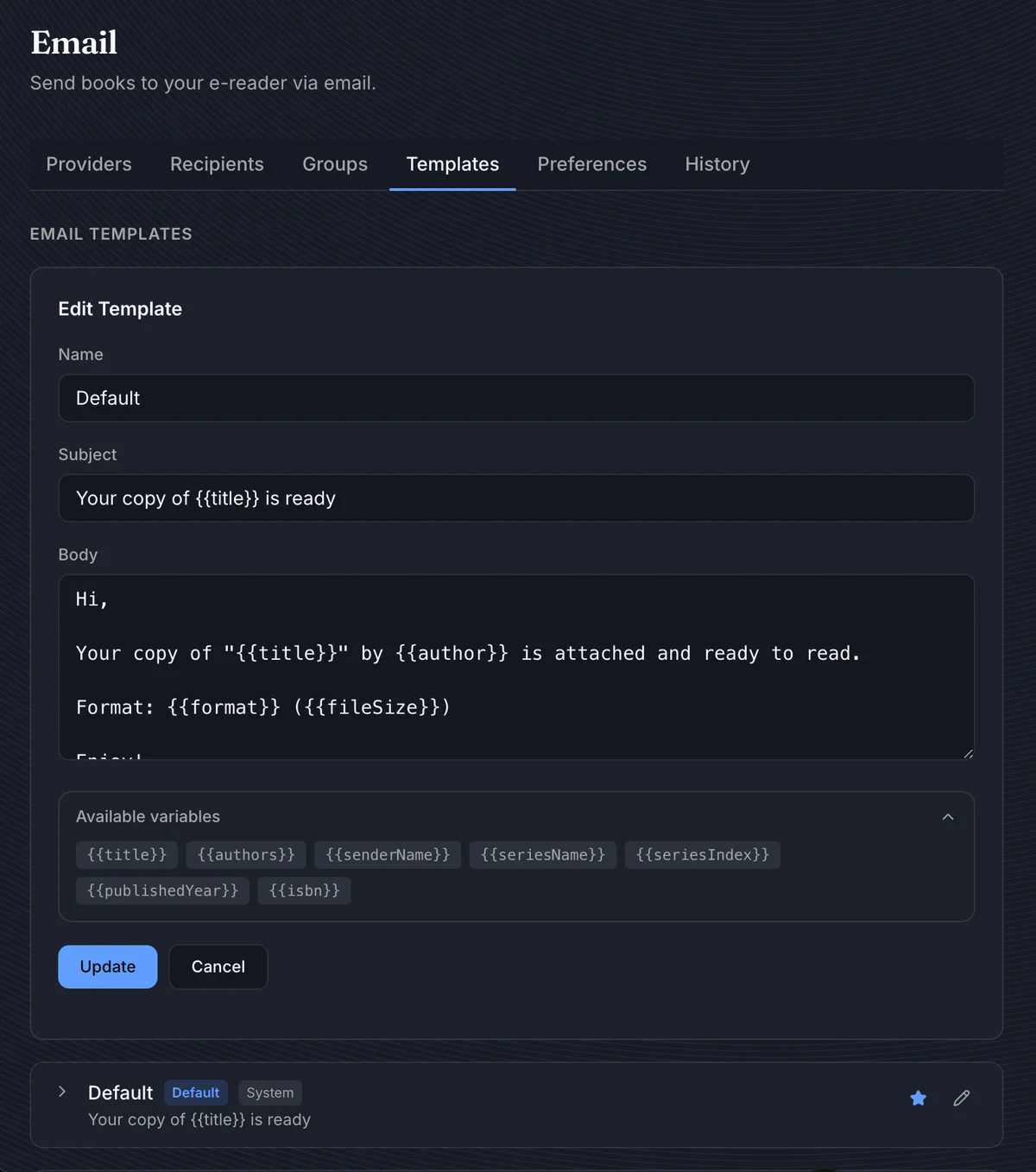
Templates define the subject and plain-text body used for book delivery emails. They are rendered separately for each book/file, so variables use the metadata and file selected for that specific send.
Resolution order
BookOrbit chooses the template in this order:
- Template selected in the send dialog.
- Recipient's default template.
- User default template from Preferences.
- System default template.
Variables
| Variable | Value |
|---|---|
{{title}} | Book title |
{{subtitle}} | Book subtitle |
{{author}} | Same value as authors |
{{authors}} | Comma-separated author names |
{{series}} | Same value as series name |
{{seriesName}} | Series name |
{{seriesIndex}} | Series position |
{{format}} | Selected file format, like EPUB |
{{fileSize}} | Selected file size |
{{pageCount}} | Page count |
{{publisher}} | Publisher |
{{publishedYear}} | Published year |
{{isbn}} | ISBN-13, falling back to ISBN-10 |
{{tags}} | Comma-separated tags |
{{language}} | Language |
{{senderName}} | Name of the user sending the email |
{{appUrl}} | Configured BookOrbit app URL |
{{coverUrl}} | Book cover API URL |
Missing values render as blank text. Unsupported names that match the {{name}} variable pattern also render blank.
System templates
System templates are built in so email can work without every user creating a template first. They cannot be deleted. Superusers can edit system templates; users can create their own templates or mark a template as their default.
Preferences
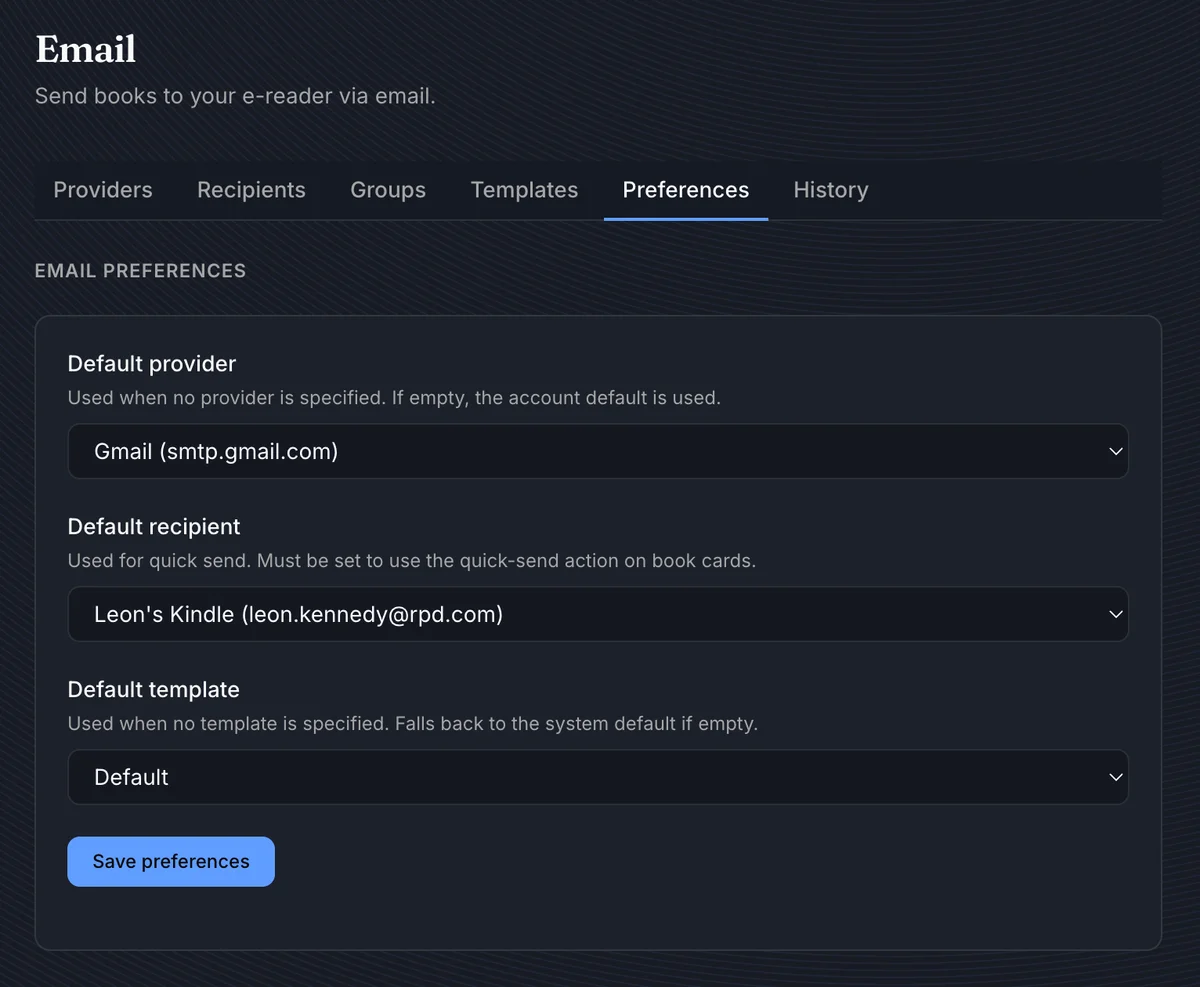
Preferences are the defaults BookOrbit uses when the send dialog leaves a field on Default. They also control whether quick send can run without opening the dialog.
| Preference | Why it matters |
|---|---|
| Default provider | Used when no provider is chosen in the send dialog. If unset, sending without an explicit provider fails. |
| Default recipient | Required for quick send from book cards. |
| Default template | Used when neither the send dialog nor the recipient chooses a template. If unset, BookOrbit falls back to the system default template. |
Use this page as the operational source of truth for automatic sending behavior.
Sending Books
There are two entry points: a quick action from a book card for fast sends, and a full send dialog when you need to pick recipients, override the file, or change the provider.
From a book card
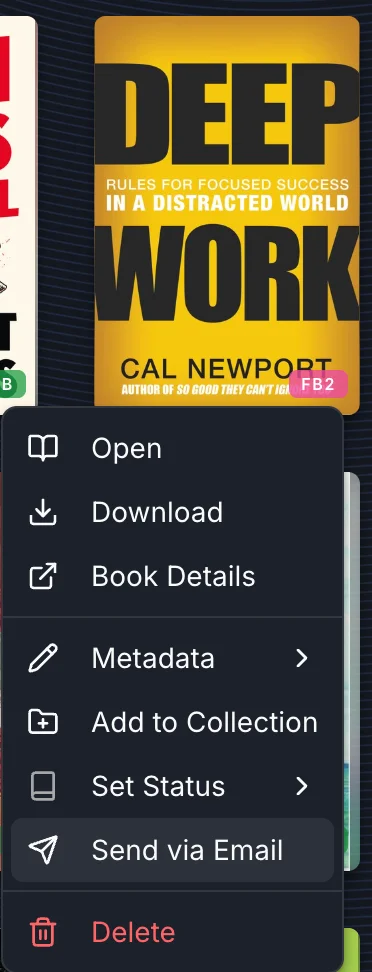
Use Send via Email from a book card or row menu. The action is visible only to users with email_send and only sends books the user can access.
Send dialog
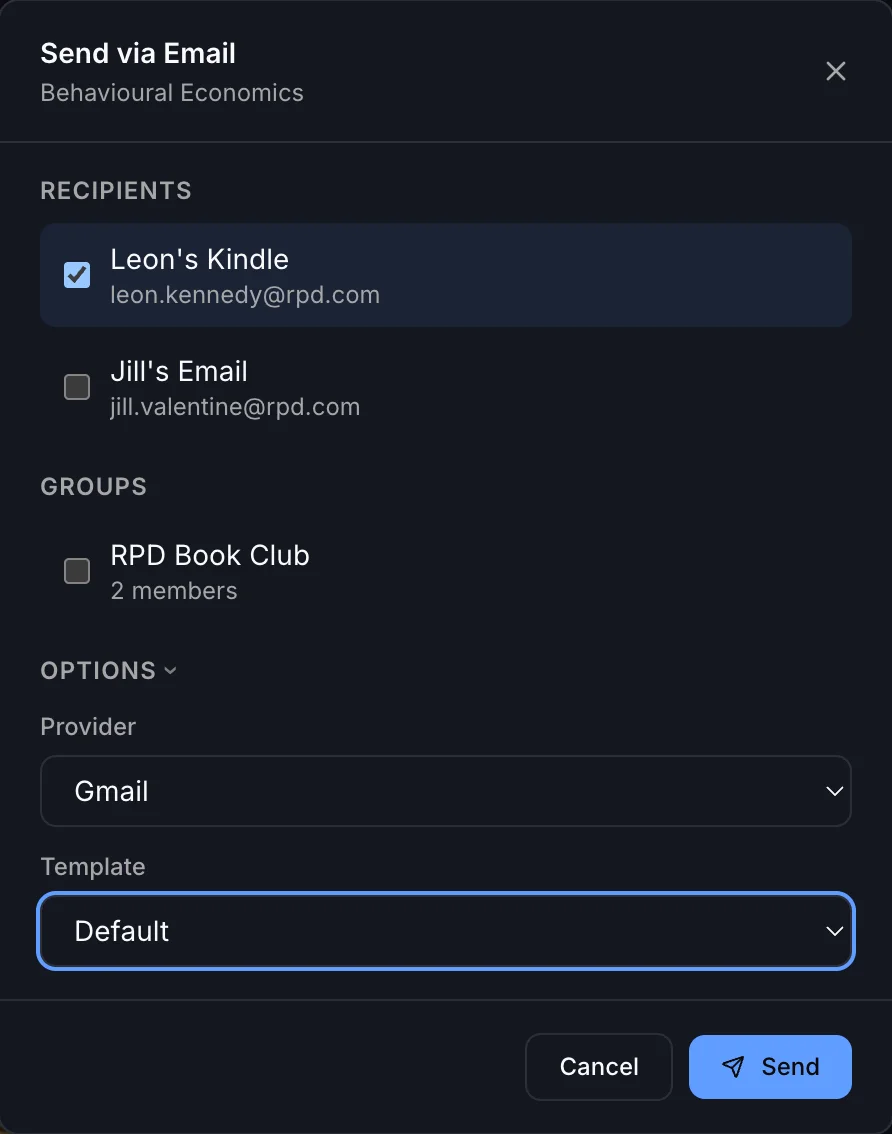
The send dialog is for explicit, reviewed sends:
- Choose one or more recipients.
- Choose one or more groups.
- Override the file when a book has multiple files.
- Override the provider.
- Override the template.
BookOrbit expands groups into recipients, removes duplicates, checks book access, creates a history entry, and queues the actual SMTP send in the background.
File selection
For each book, BookOrbit chooses the attachment in this order:
- File selected in the send dialog.
- Recipient preferred format, if that format exists for the book.
- Book's primary file.
- First available file.
The attachment filename comes from the selected file path and format.
Quick send
Quick send skips the dialog and sends one book to the Default recipient from Preferences. It uses that recipient's preferred format and default template, then falls back through user/system defaults.
WARNING
Quick send fails if Preferences > Default recipient is empty. Normal sends fail if no provider is selected and Preferences > Default provider is empty.
History
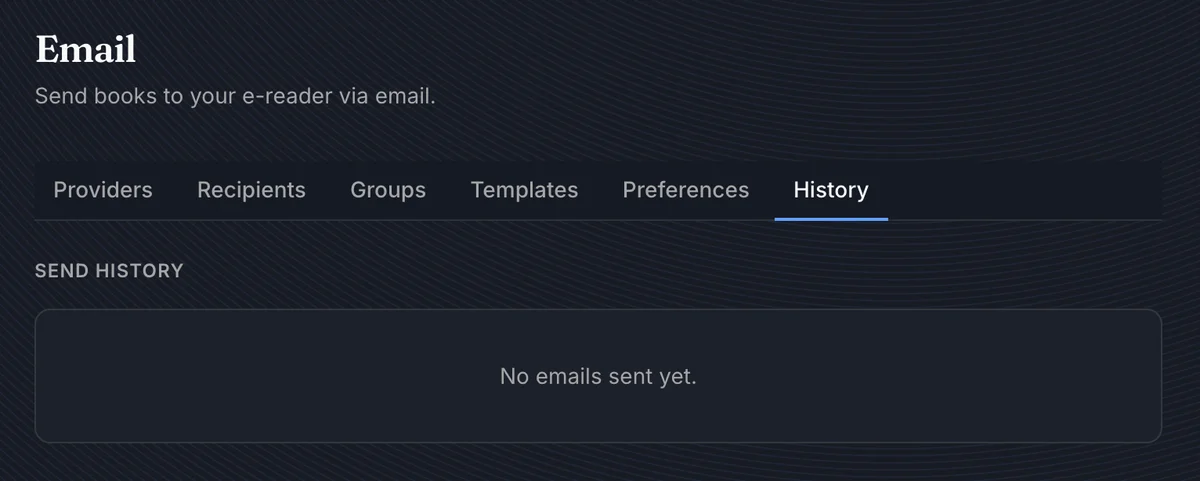
History is the place to verify what happened after a send is queued.
| Status | Meaning |
|---|---|
pending | BookOrbit created the send job and is attempting delivery. |
sent | SMTP delivery completed successfully. |
failed | Delivery failed after retries, or the server restarted before a pending send finished. |
BookOrbit automatically retries failed SMTP dispatch while the job is pending. It makes up to three attempts: the first attempt immediately, then retries after roughly 30 seconds and 2 minutes.
Failed entries can be resent from History. Resend creates a new send attempt using the original recipient, book/file, provider, and template information where available.
TIP
If History says sent but the book does not appear on the e-reader, check the recipient service: approved sender lists, attachment limits, spam filtering, and supported formats can still reject a message after SMTP accepts it.