Users & Permissions
BookOrbit is a multi-user app. An administrator creates accounts for everyone who needs access, assigns which libraries they can see, and controls what they can do with a granular permission system.
The users list
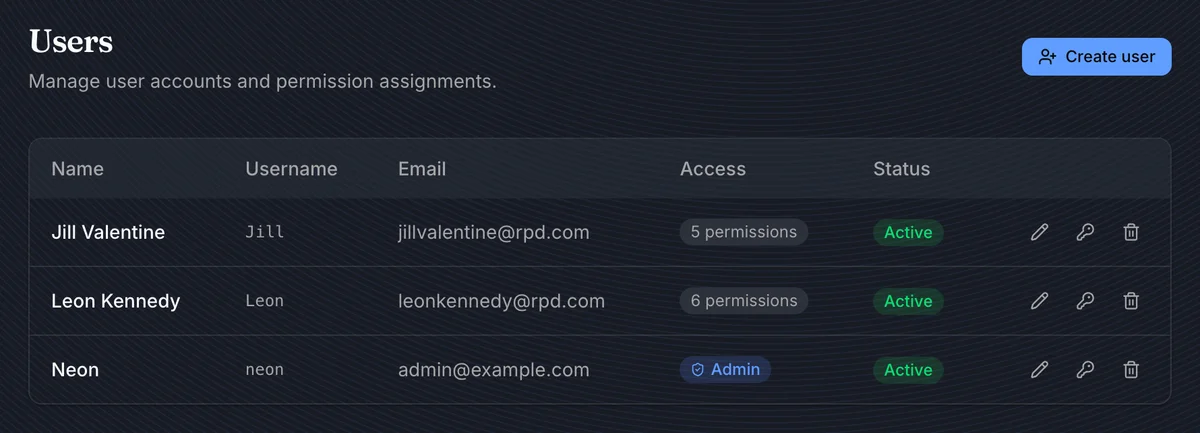
Settings > Users shows every account on the instance. The Access column gives a quick summary - regular users show a permission count badge, superusers show an Admin shield badge. Three actions are available per row:
| Icon | Action |
|---|---|
| Pencil | Edit name, email, library access, and permissions |
| Key | Generate a new password reset link |
| Trash | Delete the account permanently |
Creating a user
Click Create user in the top-right corner. You need the manage_users permission to do this.
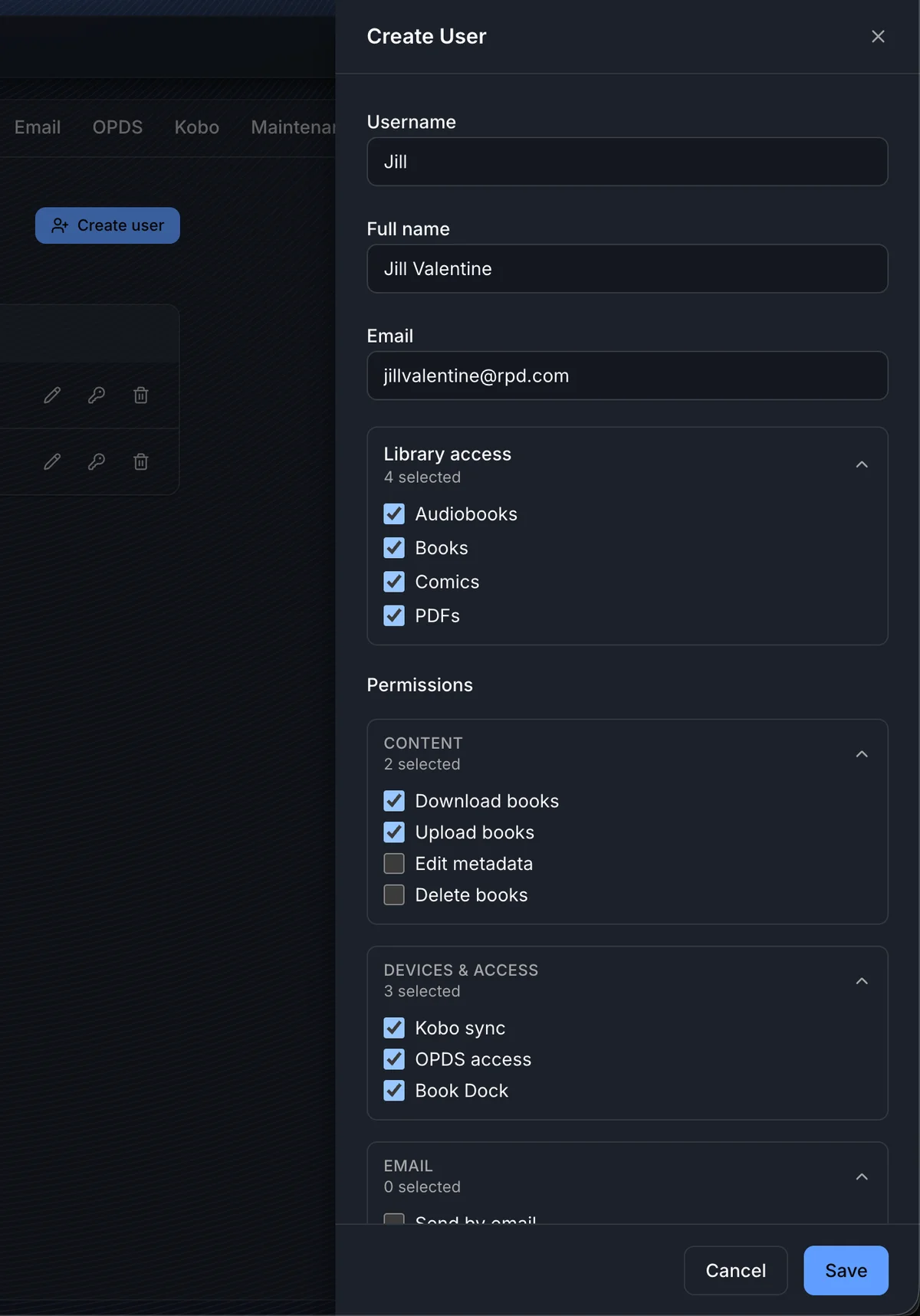
Basic info
| Field | Notes |
|---|---|
| Username | 3 to 100 characters. Unique across the instance. |
| Full name | Display name shown throughout the app. |
| Used for the forgot-password flow if SMTP is configured. Must be unique. |
Library access
Check every library this user should be able to see. A user with no libraries checked can log in but will see an empty app. Library access is binary - either they can see a library or they cannot.
Permissions
Permissions are grouped into four categories. Expand each to toggle individual permissions on or off. See the Permissions reference below for a full description of what each one does.
TIP
After you save, the app immediately shows a one-time Password Reset Link. Copy it and send it to the user - it expires in 15 minutes and will not be shown again.
The password reset link
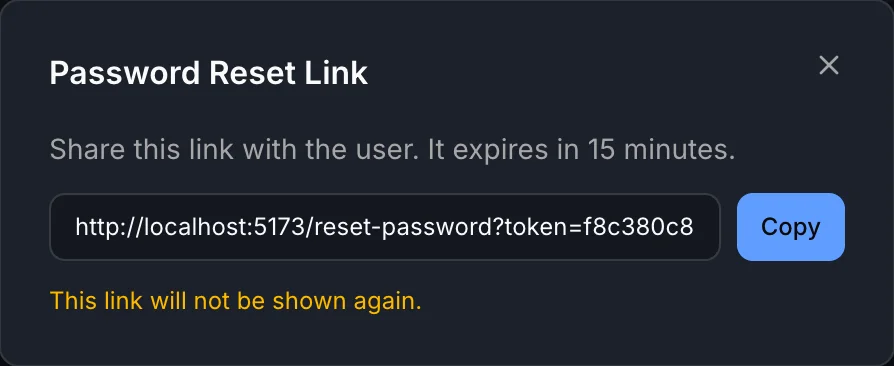
Every new account starts with a randomly generated password. The reset link is the only way to hand that account to the user so they can set their own password.
- The link expires in 15 minutes.
- It is shown once and cannot be retrieved after closing the dialog.
- If you close it by accident, use the key icon on the user row to generate a fresh link.
- After the user follows the link and sets a password, the link is invalidated immediately.
WARNING
If SMTP is not configured, BookOrbit cannot send reset emails. The only delivery method is sharing the link manually.
Permissions reference
Permissions are divided into four groups matching the UI.
Content
Controls what a user can do with books inside libraries they have access to.
| Permission | What it allows |
|---|---|
| Download books | Download book files to their device and open them in the reader |
| Upload books | Add files to any library via Book Dock |
| Edit metadata | Edit book and author metadata, update covers, use the entity manager |
| Delete books | Permanently remove books from a library |
Devices & Access
Controls access to device sync and third-party clients.
| Permission | What it allows |
|---|---|
| Kobo sync | Register a Kobo device and sync reading progress and sideloaded books |
| OPDS access | Browse and download books through OPDS-compatible apps |
| Book Dock | Access the Book Dock upload interface |
Email
| Permission | What it allows |
|---|---|
| Send by email | Send books to email addresses from the book detail page |
| Manage email | Configure email providers, view delivery logs, manage send templates |
Administration
| Permission | What it allows |
|---|---|
| Manage libraries | Create, edit, and delete libraries; configure scan rules and folders |
| Manage metadata config | Configure metadata providers, field rules, auto-fetch, and author enrichment |
| Manage app settings | Change instance-wide settings including OIDC, file naming, and maintenance |
| Manage users | Create, edit, and delete user accounts; assign permissions and library access |
| View audit log | Read the audit log of user and system actions |
| Notification access | View and manage in-app notifications |
Superuser vs regular user
The Admin badge on an account means that user is a superuser. Superusers are different from regular users in a few important ways:
- A superuser bypasses permission checks entirely - they can access everything without any permissions being explicitly granted.
- Only superusers can modify, reset passwords for, or delete other superuser accounts.
- A regular user who has every permission still cannot touch admin accounts.
The first account created during initial setup is always a superuser. Additional superuser accounts can only be promoted by an existing superuser.
WARNING
There must always be at least one superuser on the instance. BookOrbit will block any action that would delete the last one.
Editing users
Click the pencil icon on any user row to open the edit panel. You can update their full name, email, library access, and permissions. Changes take effect immediately on the user's next request - they do not need to log out and back in.
A user's username cannot be changed after creation.
What users can change themselves
Users manage their own account from Settings > Account:
- Full name - editable at any time
- Avatar - upload or remove a profile photo
- Password - change via a current-password confirmation dialog
- OIDC identities - link or unlink SSO providers from the account
Email address is read-only for the user. Only an administrator can update it.
Self-registration
By default, only admins can create accounts. If the allow_registration setting is enabled (under Settings > App Settings), a Sign up link appears on the login page and anyone can register. New self-registered accounts start with no permissions and no library access - an admin still needs to grant them access after they sign up.
Troubleshooting
| Symptom | Check |
|---|---|
| User logs in but sees no books | They have no library access - edit the user and assign at least one library |
| User can't open the reader or download files | Missing Download books permission |
| Kobo sync option not visible to user | Missing Kobo sync permission |
| OPDS tab missing from Settings | Missing OPDS access permission |
| OIDC user says "forgot password" link doesn't work | OIDC accounts authenticate through their SSO provider; password reset is not available for them |
| Password reset link expired | Use the key icon on the user row to generate a fresh link |
| Can't delete a user | You cannot delete your own account, the last superuser, or an admin account if you are not a superuser yourself |
| Create user button not visible | Requires the manage_users permission |