Table View
The table view is a different way to look at your library - less visual, more structured. Where the grid gives you covers and the list gives you a quick scan, the table gives you data. Every book becomes a row, every piece of metadata becomes a column, and you can edit, sort, filter, and bulk-act without leaving the page.
Switch to it from the view toggle in the top-right of any library, Smart Scope, or collection page.
Reading the table
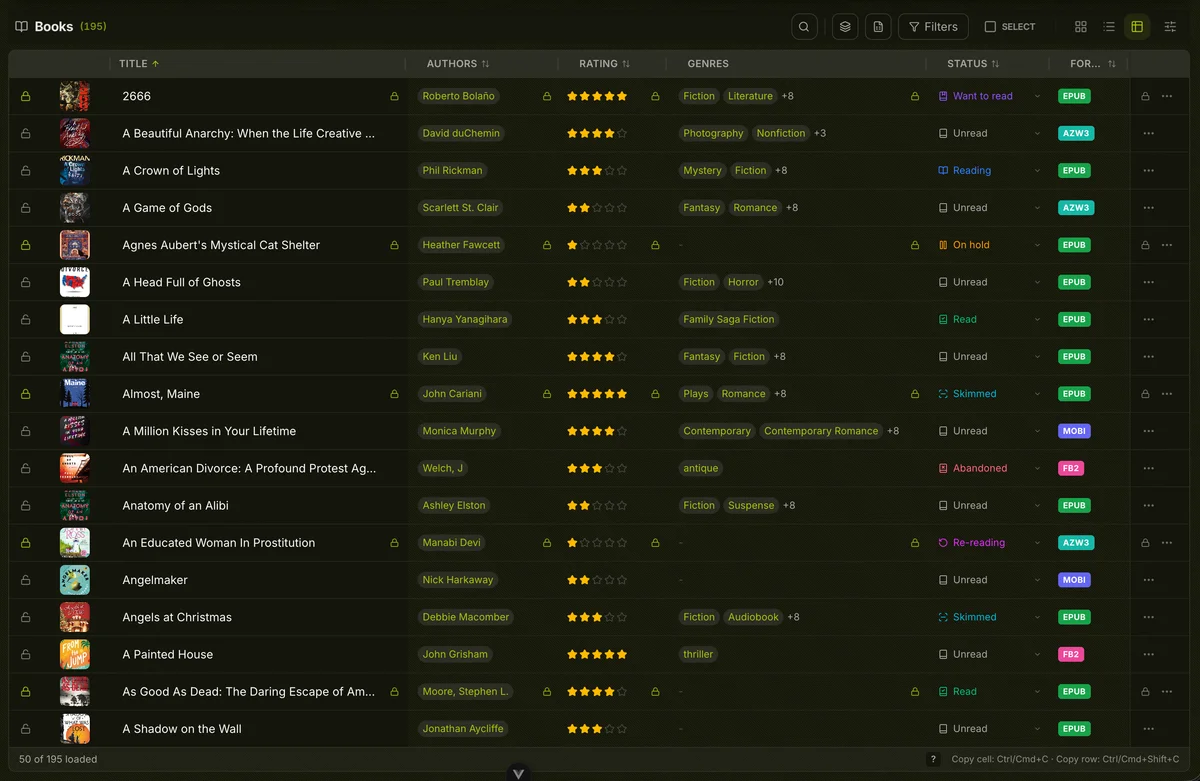
Each row is a book. The default layout shows cover thumbnail, title, authors, series, series index, year, rating, read status, format, and file size. Pinned columns - cover and title on the left, the actions cell on the right - stay fixed as you scroll horizontally through wider layouts.
Navigation links are woven into the cells themselves. Title opens the book detail page. Series name navigates to the series. Author chips link to the author's page. Genre and tag chips act as instant filters - clicking one adds a quick filter scoped to that value without leaving the table.
A small lock icon in the actions cell on the right means some of that book's fields are locked against automated updates. Hover over any editable cell to see whether that specific field is locked, and toggle it without leaving the row.
When a book's file is missing from disk, the row gets a subtle red tint as a heads-up. When a metadata refresh is running, a "Fetching..." badge appears inline; after it completes it flips to a green "Updated" badge, or a red "Failed" badge with a retry button if something went wrong.
At the bottom, a status bar shows the loaded count, a "Filtered" indicator when any filter is active, and the current selection count when you're in selection mode.
Inline editing
The table isn't read-only. Click any editable cell to open an in-place editor - no drawer, no navigation. Text fields get a text input. Chip fields like authors, genres, and tags get a tokenized editor with typeahead search against your existing library data. Rating cells open a star picker. Status cells open the same dropdown you'd find in the grid view. Series index accepts decimal values.

When a cell is active, Tab moves to the next editable cell in the row, Shift+Tab moves back, and Up/Down arrows move to the same column in the adjacent row - so you can sweep through a column of empty fields rapidly without reaching for the mouse.
Changes save the moment you confirm. If a save fails - because a field is locked or there's a server error - a toast appears and the cell reverts to its previous value.
Editing requires the library_edit_metadata permission. On narrow screens the table switches to read-only mode and shows a notice; use the list or grid view for touch-friendly actions on mobile.
Lock management
Every editable field has an individual lock that prevents automated metadata refreshes from overwriting it. In the table, locks are first-class - you don't have to open each book to manage them.
Hover over any editable cell and a small lock icon appears in the corner. Click it to toggle that specific field's lock for that book. From the actions cell on the right (the ... menu), you can also Lock all or Unlock all fields for that row in a single click. The lock icon in the actions cell turns visible whenever any field is locked, so you can spot locked books in a glance as you scan down the table.
Column manipulation
Columns are first-class objects in the table - you can resize, reorder, and pin any of them.
Resize by dragging the divider on the right edge of a column header. Columns remember their widths between sessions.
Reorder by dragging a column header left or right. Pinned columns (cover, title, actions) stay fixed at their edges; only the unpinned columns in the middle can be rearranged.
Right-click any column header to open its context menu:
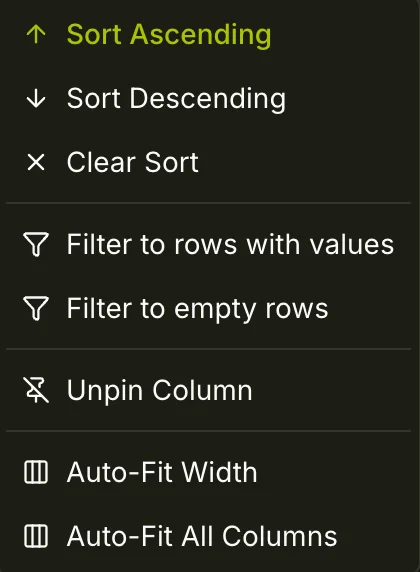
| Action | What it does |
|---|---|
| Sort Ascending / Descending | Applies or changes the sort for this column |
| Clear Sort | Removes this column from the sort order |
| Filter to rows with values / empty rows | Adds a quick filter scoped to whether this field has data |
| Filter to present / missing files | Available on the Format and Cover columns |
| Hide Column | Removes the column from view |
| Pin Left / Pin Right | Locks the column to its edge so it stays visible while scrolling |
| Unpin Column | Releases a pinned column back into the scrollable area |
| Auto-Fit Width | Resizes this column to fit its current content |
| Auto-Fit All Columns | Resizes every visible column to fit its content |
Sorting
Click a column header to sort by it, click again to reverse direction. When more than one sort is active, a sort strip appears at the top of the table showing numbered chips - one per sort level - with arrows indicating direction. Each chip has an x to remove that level. The first active sort is the primary order; subsequent sorts are tiebreakers applied in sequence.
Row context menu
Right-click any row (or use the ... button in the actions cell on the right) to open the row context menu:
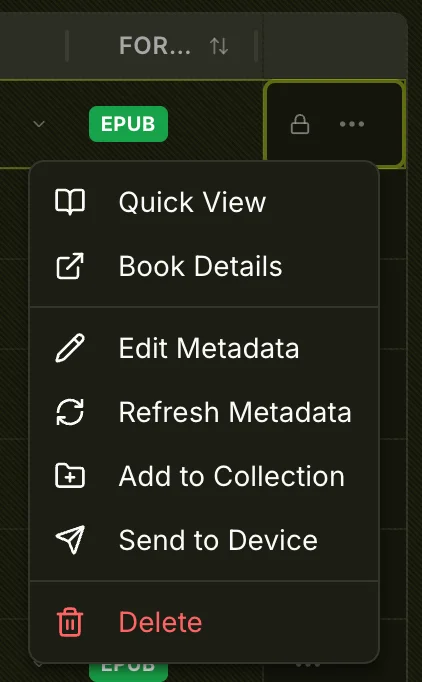
- Quick View - opens the book's detail panel without navigating away
- Book Details - navigates to the full book detail page
- Edit Metadata - navigates directly to the Edit Metadata tab
- Refresh Metadata - triggers a fresh metadata pull from your configured providers; a spinner appears inline while it runs
- Add to Collection - opens the collection picker sheet
- Send to Device - opens the email send dialog (requires
email_sendpermission) - Delete - permanently removes the book (requires
library_delete_bookspermission)
Collapsed series rows
When series collapse is turned on via the toolbar toggle, all books in a series are grouped into a single summary row showing up to four cover thumbnails, the series name, total book count, and how many you've read. Clicking the row opens the series detail page. Individual books inside a collapsed series are still selectable via checkbox for bulk actions.
Keyboard navigation
The table is fully keyboard-navigable. Click anywhere on the table surface to give it focus, then use the keys below.
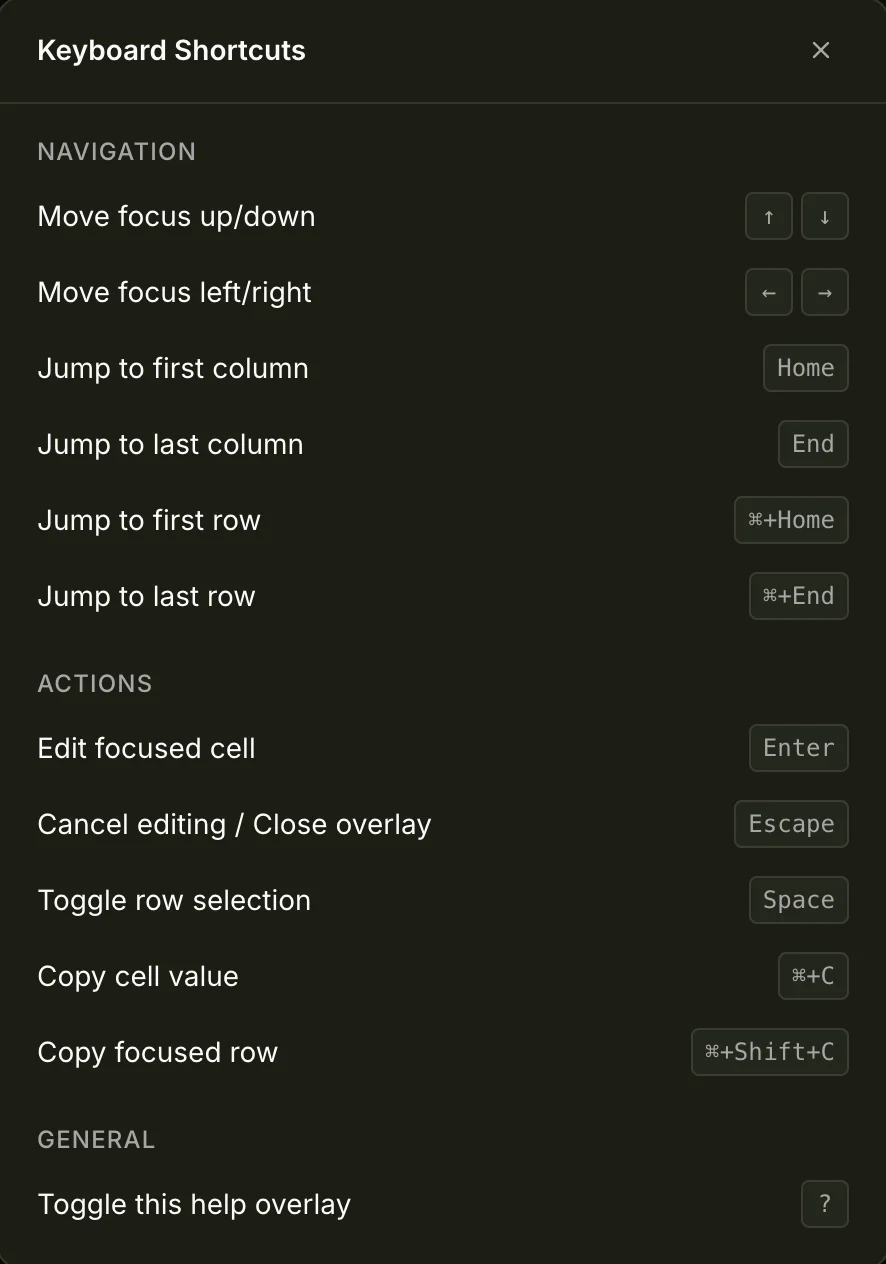
NAVIGATION
| Key | Action |
|---|---|
↑ / ↓ | Move focus one row up or down |
← / → | Move focus one column left or right |
Home | Jump to the first column in the current row |
End | Jump to the last column in the current row |
Cmd/Ctrl + Home | Jump to the first row |
Cmd/Ctrl + End | Jump to the last row |
ACTIONS
| Key | Action |
|---|---|
Enter | Open an editor for the focused cell |
Escape | Cancel editing or close any open overlay |
Space | Toggle selection for the focused row (in selection mode) |
Cmd/Ctrl + C | Copy the focused cell's value to the clipboard |
Cmd/Ctrl + Shift + C | Copy the entire focused row as labeled key-value pairs |
Press ? at any time to open the shortcut overlay. Press it again to close.
When a cell editor is open, Tab / Shift+Tab and ↑ / ↓ navigate between editable cells as described in Inline editing - the global navigation keys resume once the editor is closed.
Selection mode and the action bar
Enter selection mode by clicking SELECT in the toolbar or by clicking any row's checkbox. Once in selection mode, clicking a row selects it; Shift+click extends the selection range; the header checkbox selects or deselects all loaded rows. The status bar shows the running count.
Whenever one or more books are selected, a pill-shaped action bar rises from the bottom of the screen:

The count badge on the left shows how many books are selected. The icons trigger bulk actions - permissions gate what's visible:
| Action | Notes |
|---|---|
| Send via email | Sends all selected books; requires email_send |
| Download as ZIP | Prompts for scope: primary files only, all formats, or audio only; requires library_download |
| Add to collection | Opens the collection picker |
| Remove from collection | Visible when inside a collection view |
| Open metadata editor | Opens the bulk metadata editor; requires library_edit_metadata |
| Set reading status | Applies one status to all selected books |
| Set rating | Sets a 1-5 star rating, or clears it |
... more actions | Export metadata, Set field, Edit tags, Refresh metadata, Re-extract cover, Lock/Unlock all metadata |
| Delete | Requires confirmation; typing DELETE is required when more than 50 books are selected |
| Exit | Closes selection mode |
Set field in the more menu lets you bulk-write a single field - series name, publisher, language, published year, authors, genres, tags, or narrators - across all selected books at once. Leave the value blank to clear the field.
Configuring the display
The display panel is where you shape the table to fit your workflow. Open it from the columns icon in the toolbar.
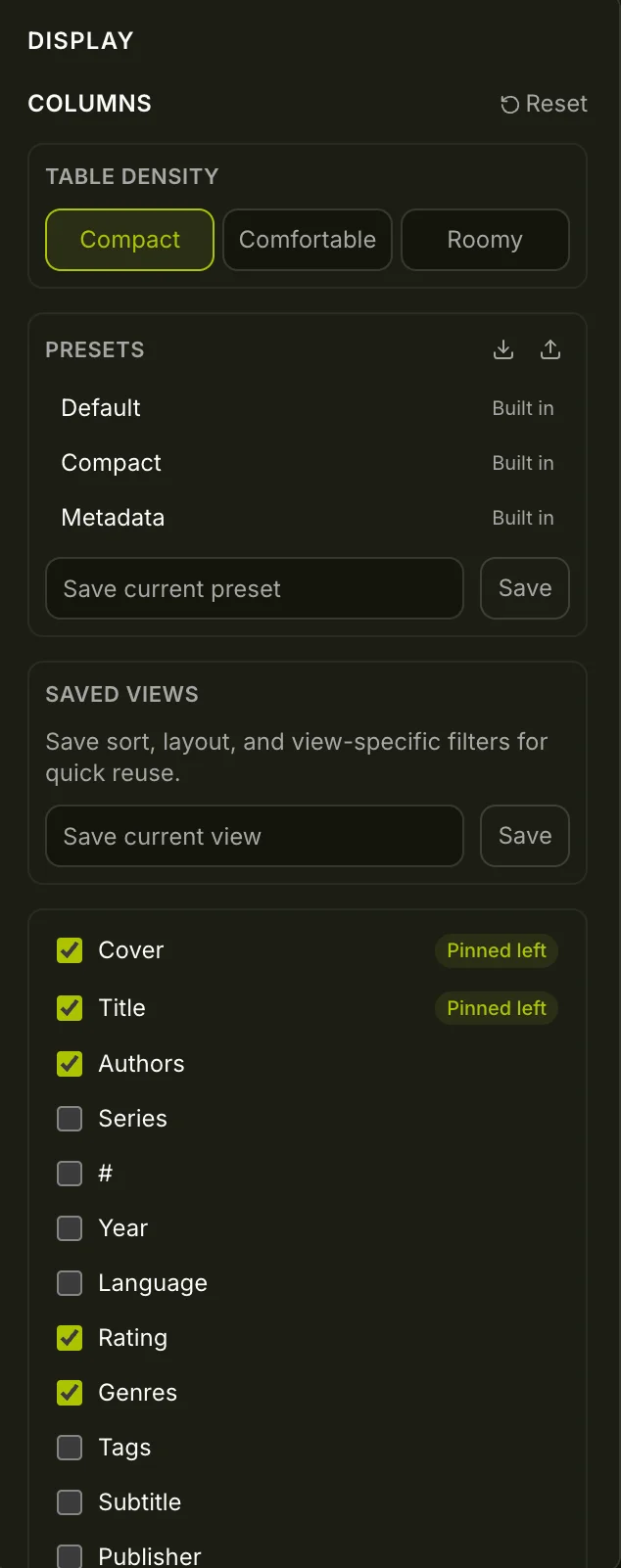
Density
Three density modes control row height:
- Compact - tight rows, more books visible at once
- Comfortable - the default balance
- Roomy - extra padding, easier to scan on large displays
Columns
Toggle any column on or off from the panel. The full set:
| Column | Editable |
|---|---|
| Cover | - |
| Title | Yes |
| Authors | Yes |
| Series | Yes |
| # (Series Index) | Yes |
| Year | Yes |
| Language | Yes |
| Rating | Yes |
| Genres | Yes |
| Tags | Yes |
| Subtitle | Yes |
| Publisher | Yes |
| Pages | Yes |
| ISBN-13 | - |
| Narrators | Yes |
| Progress | - |
| Date Read | - |
| Status | Yes |
| Format | - |
| File Size | - |
| Updated | - |
| Added | - |
Columns can also be hidden directly from the column header context menu while you're working in the table.
Presets
A preset saves the current column visibility, order, and widths - and optionally a default sort - under a name. Three built-in presets come with BookOrbit:
- Default - the standard starting layout
- Compact - title, authors, rating, and status only
- Metadata - a wider set focused on editorial fields: subtitle, publisher, language, year, page count, format
Save your own by typing a name into Save current preset and clicking Save. Custom presets can be renamed, duplicated, favorited (floats them to the top of the list), and deleted. Use the import/export icons to share presets across different BookOrbit instances.
Saved Views
A saved view goes further than a preset - it also stores the sort order and active filters alongside the layout. Save the current state by typing a name into Save current view and clicking Save. Activating a saved view restores everything: columns, widths, sort levels, and filters, exactly as you left them.
Both presets and saved views live in your browser's local storage. They persist across sessions on the same device but are not synced to your account.
TIP
Enable Zebra striping in Settings > Display to alternate row backgrounds - useful when scanning wide layouts with many columns.
Exporting metadata
Open the Export Metadata dialog from the export icon in the toolbar, or from the action bar when books are selected.
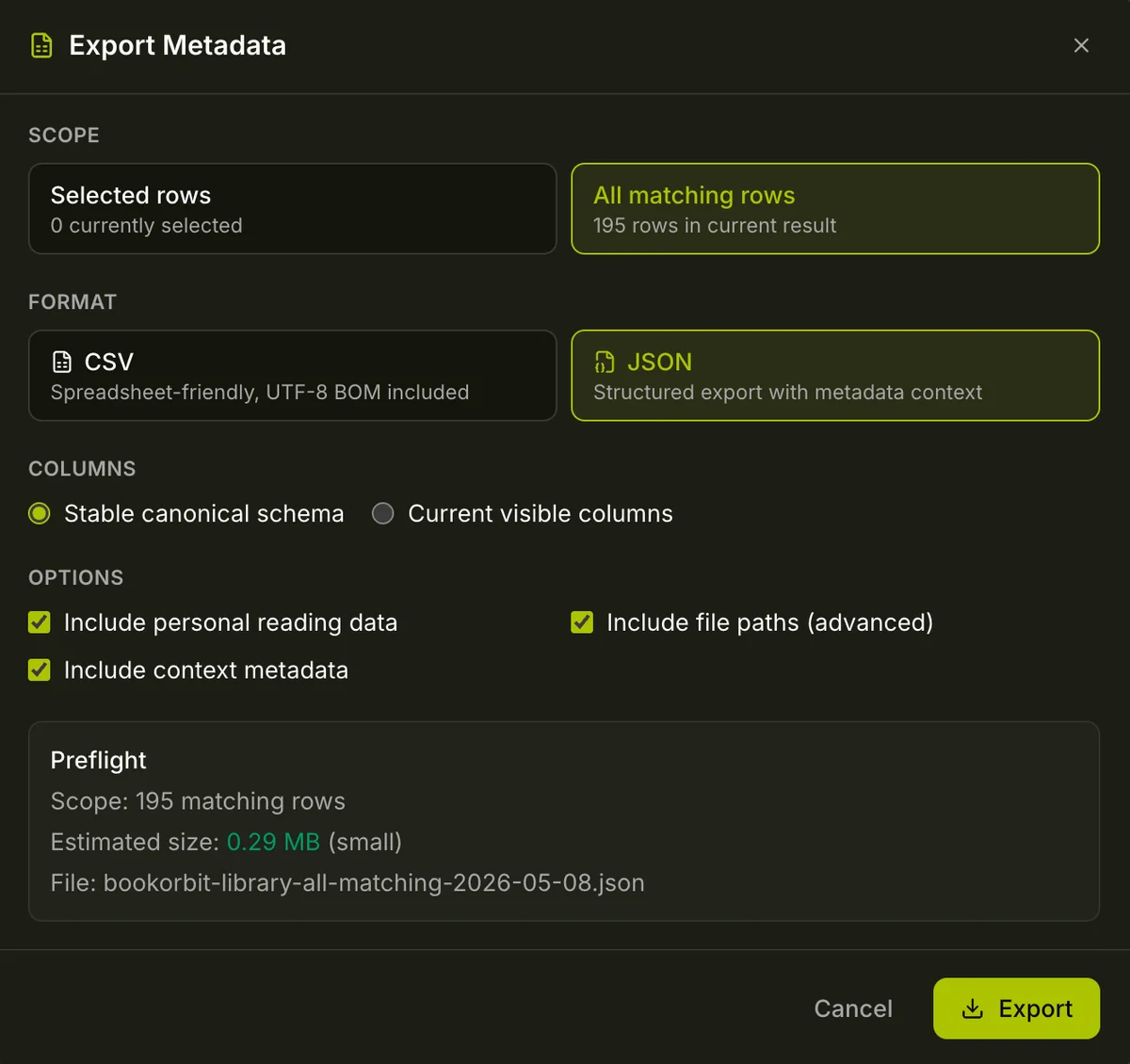
Scope - export either your current selection or all rows matching the current filter, regardless of what's selected.
Format - CSV for spreadsheets (UTF-8 BOM included for Excel and Numbers compatibility) or JSON for structured exports better suited to scripting and tooling.
Columns - choose between a stable canonical schema (a fixed field set that stays consistent across exports) or the current visible columns (exports exactly what's on screen).
Three optional data groups toggle extra fields in:
| Option | Adds |
|---|---|
| Personal reading data | Status, rating, progress, and reading sessions |
| Context metadata | Series, collection, and smart scope membership |
| File paths (advanced) | Absolute on-disk paths for every attached file |
The Preflight panel at the bottom shows the exact row count, estimated file size, and the generated filename before you commit. Large libraries with file paths included can produce substantially bigger files - the estimate is there to help you decide.