Book Dock
Book Dock is a staging area for incoming files. Files land here first, BookOrbit extracts metadata and covers, optionally fetches provider metadata, and then you finalize them into a library.
Use it when you want to review or fix books before they appear in a library. A staged file is not a normal library book until it is finalized.
TIP
Keep the Book Dock folder separate from your library folders. Do not add the Book Dock staging folder as a library folder.
When to Use It
| Method | Best for |
|---|---|
| Book Dock | Metadata review, destination cleanup, provider matching, and controlled intake. |
| Upload dialog | Quick browser uploads directly into one library. |
| Copy to library folder | Bulk imports through the normal library scanner. |
Book Dock is best for mixed downloads, messy metadata, and files that should not appear in a library until reviewed.
Access
Book Dock requires the Book Dock permission (book_dock_access). Superusers can see every staged file. Other permitted users can see their own uploads plus files added through the shared watched Book Dock folder.
Open Book Dock
Click the Book Dock icon in the top navigation. The badge shows how many files are staged.

Add Files
Files enter Book Dock through browser upload, drag and drop, or the watched Book Dock folder on the server. Use Rescan if files were copied into the watched folder but do not appear.
Browser uploads are limited to 500 MB per file. Larger files should be copied into the watched Book Dock folder directly.
| Type | Formats |
|---|---|
| Ebooks | EPUB, KEPUB, PDF, MOBI, AZW, AZW3, FB2 |
| Comics | CBZ, CBR, CB7 |
| Audiobooks | M4B, MP3, M4A, OPUS, OGG, FLAC |
The target library's Allowed formats are checked during finalize, not while the file is staged.
Statuses
| Status | Meaning |
|---|---|
| Pending | Queued for processing. |
| Extracting | Reading embedded metadata and cover. |
| Fetching | Querying metadata providers when auto-fetch is enabled. |
| Ready | Available for review, edit, destination assignment, and finalize. |
| Error | Extraction failed. Select the row and use Retry Errors, or discard it. |
The Pending tab includes pending, extracting, and fetching rows. The Ready and Error tabs show only those final states.
Workspace
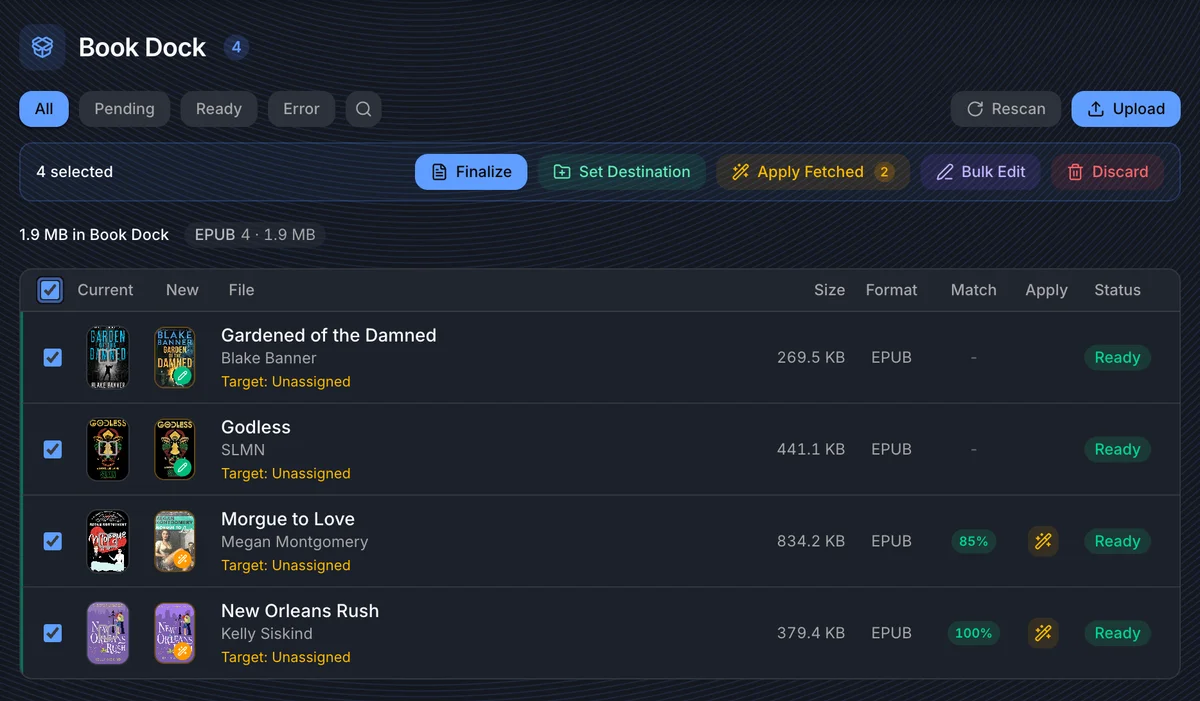
Use the workspace to check three things before finalizing: file identity, metadata quality, and destination.
| Area | What it does |
|---|---|
| Tabs | Filter by All, Pending, Ready, or Error. |
| Search | Filters staged file names. It does not search every metadata field. |
| Current cover | Cover extracted from the file. |
| New cover | Cover from selected or fetched metadata. |
| Target | Shows the destination preview. Target: Unassigned means no library/folder pair is set. |
| Match | Confidence score for fetched provider metadata. |
| Apply | Applies fetched metadata unless the row already has manual edits. |
The target preview uses the destination library's file naming pattern when configured, otherwise the global upload naming pattern, otherwise the original filename.
Metadata Review
Book Dock keeps three metadata layers.
| Layer | Source | Finalize priority |
|---|---|---|
| Embedded | Extracted from the file. | Used when nothing else is selected. |
| Fetched | Returned by metadata providers. | Used only after you apply it or auto-finalize selects it. |
| Selected | Manual edits or applied fetched metadata. | Used first. |
Confidence compares embedded metadata with fetched metadata. ISBN matches score highest; conflicting ISBNs score low; title, author, year, and series fill in the rest. Treat the score as a review signal, not proof.
Bulk Apply Fetched skips rows with manual edits so provider data does not overwrite your work. Open the row and use the diff review if you want to override an edited file.
Edit One File
Open a row to edit title, subtitle, authors, description, publisher, year, language, ISBN, series, genres, cover URL, and destination.
You can also search metadata providers manually and apply selected fields through a diff view. Edits are saved to Book Dock and used during finalize; they do not modify the staged file itself.
Bulk Actions
| Action | Use it for | Notes |
|---|---|---|
| Finalize | Move staged files into libraries and create book records. | Files without a destination need a default destination in the dialog. |
| Set Destination | Assign one library/folder pair to many rows. | The folder must belong to the selected library. |
| Apply Fetched | Accept provider metadata for many rows. | Skips edited rows and rows with no fetched metadata. |
| Retry Errors | Requeue failed extraction rows. | Only error rows are retried. |
| Bulk Edit | Apply shared fields such as language, publisher, series, or genres. | Array fields can be merged instead of replaced. |
| Discard | Delete staged files from Book Dock. | Also removes extracted Book Dock covers. |
Finalize
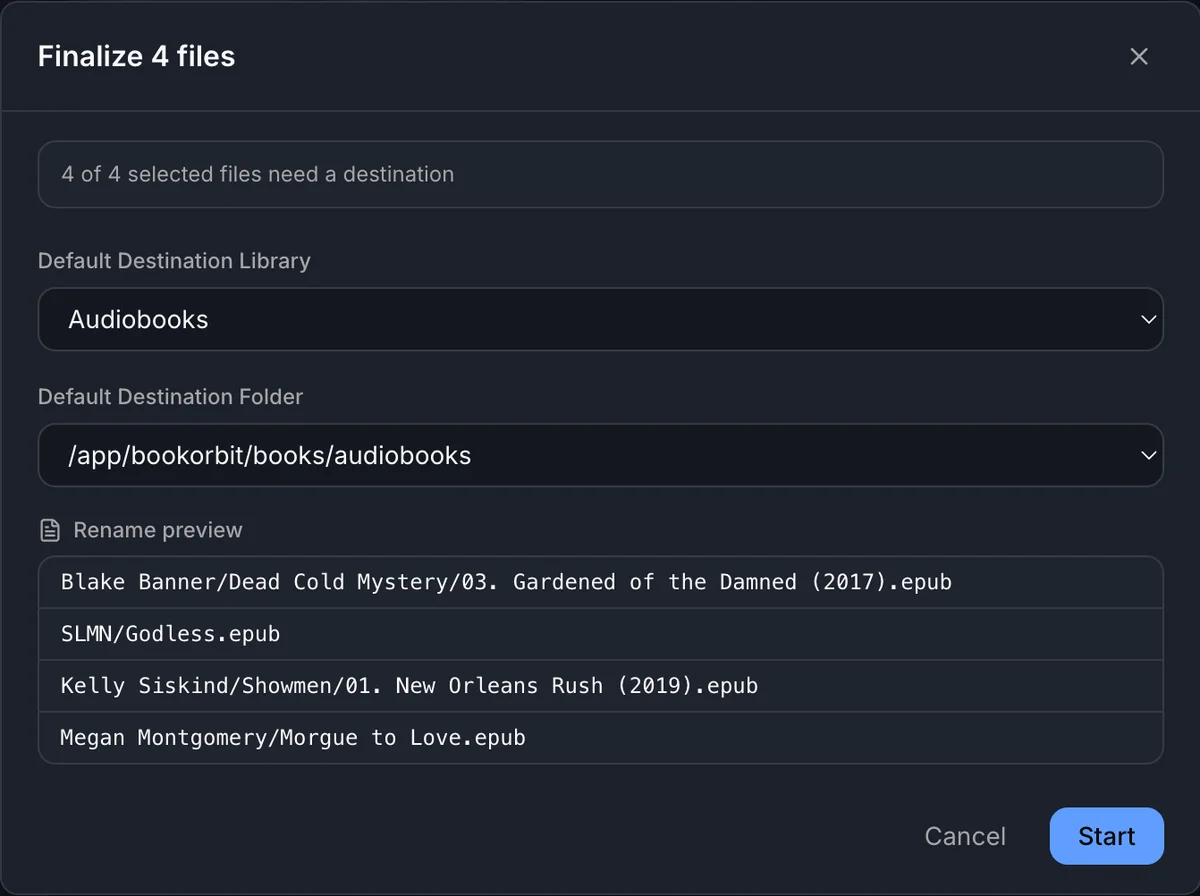
Finalize turns staged files into normal library books. BookOrbit checks destination access, validates the file format against the target library, resolves the final filename, avoids overwriting existing files, checks duplicates by ISBN or title, moves the file, creates the book record, applies metadata and cover, then removes the Book Dock record.
If some selected files have no destination, the dialog asks for a Default Destination Library and Default Destination Folder. That default is only used for unassigned files.
Review the rename preview before starting, especially when file naming patterns use title, author, or series tokens. Finalize can partially succeed; the result screen shows created books, duplicate matches, and per-file errors.
Settings
Open Settings > Book Dock to configure ingest automation.
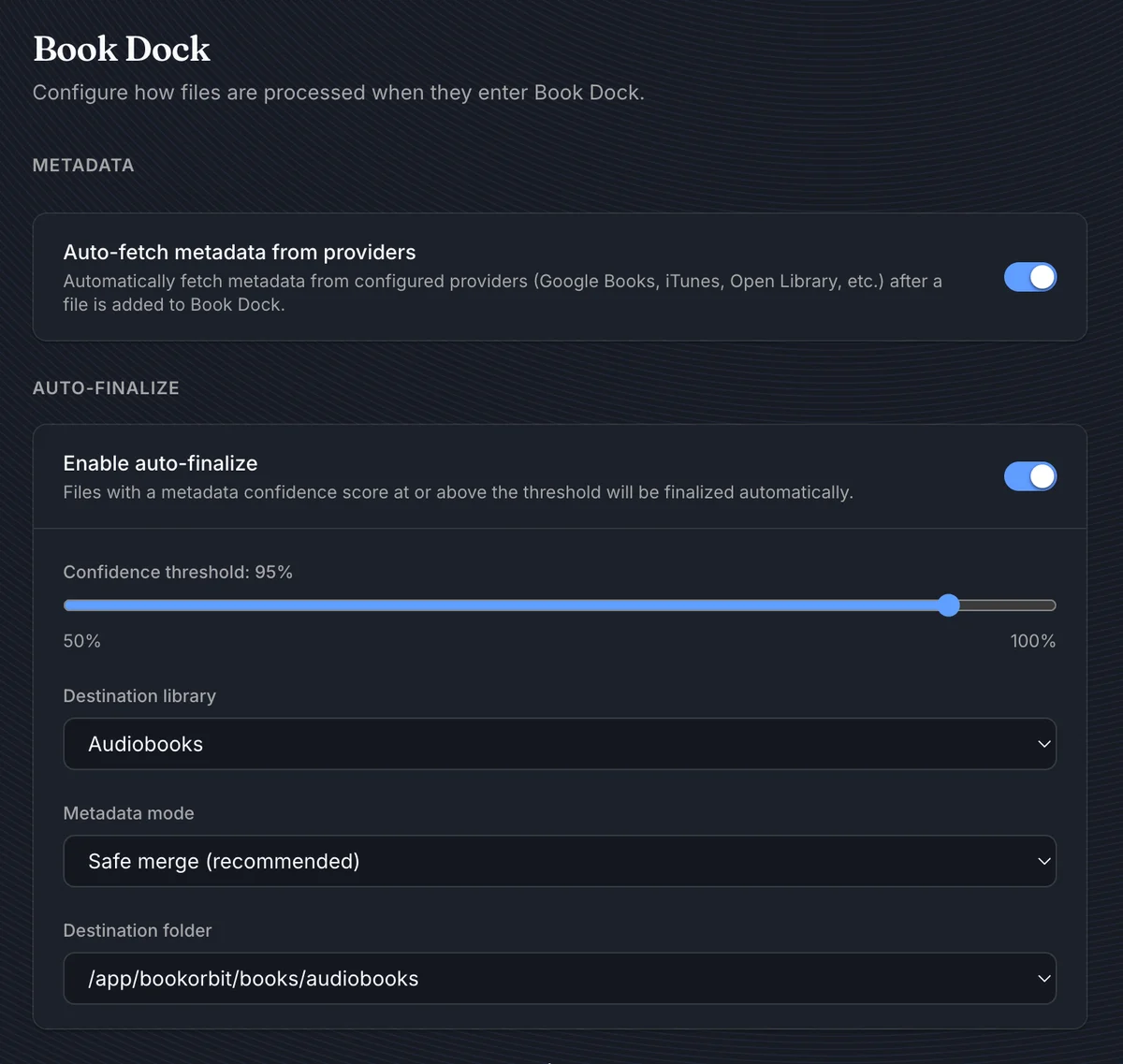
Auto-Fetch
Auto-fetch metadata from providers runs the configured metadata provider pipeline after embedded extraction when the file has a title or ISBN. If provider lookup fails, the file still becomes Ready.
Auto-Finalize
Auto-finalize finalizes eligible files without manual review. It requires auto-finalize to be enabled plus a destination library and destination folder.
| Setting | Behavior |
|---|---|
| Confidence threshold | Minimum fetched metadata score for Safe merge and Fetched only modes. Range: 50% to 100%. |
| Destination library/folder | The target used for every auto-finalized file. |
| Metadata mode | Controls which metadata layer is written to the new book. |
| Metadata mode | Behavior | Threshold used? |
|---|---|---|
| Safe merge | Embedded, then fetched, then manual edits. Later layers win. | Yes |
| Fetched only | Fetched metadata, then manual edits. | Yes |
| Embedded only | Embedded metadata, then manual edits. | No |
Use auto-finalize only for predictable intake, such as one trusted incoming folder for one library. Leave it off for mixed downloads or files that need per-book destination decisions.
Typical Workflows
Manual Review
- Add files to Book Dock.
- Wait for Ready.
- Fix metadata or search providers where needed.
- Set destinations in bulk.
- Review the rename preview.
- Finalize and inspect failures.
Faster Intake
- Enable auto-fetch.
- Add files with usable titles or ISBNs.
- Apply fetched metadata to high-confidence rows.
- Set destination and finalize.
Hands-Off Intake
- Enable auto-fetch and auto-finalize.
- Set destination library and folder.
- Use Safe merge with a conservative threshold, such as
85%or higher. - Periodically check Book Dock for errors, duplicates, and low-confidence files left behind.
Troubleshooting
Files are not appearing
Check that the file has a supported extension, was copied into the watched Book Dock folder, finished copying, and is not already tracked. Then click Rescan.
Search is not finding a title
Search filters staged filenames only. Open the row to inspect metadata.
A file is stuck processing
Refresh first, then use Rescan. If extraction fails, the row moves to Error with a message.
Apply Fetched skipped files
The row either has no fetched metadata or has manual edits. Open the row and use the diff review if you want to apply provider metadata anyway.
Finalize says destination is not set
Set a destination before finalizing, or choose a default destination in the finalize dialog for unassigned files.
Finalize says the library does not allow this format
The selected library's Allowed formats excludes the file extension. Choose another library or update the library Scanner settings.
Finalize found a duplicate
BookOrbit checks existing books in the target library by ISBN first, then by title when no ISBN is available. Use View existing from the results dialog to inspect the match.
Finalize says the file already exists
The resolved target path already exists. Change the destination, metadata used by the naming pattern, or file naming pattern, or remove the existing file.