Migration
Migration imports metadata, covers, and user data from another app into your BookOrbit library. It works as an overlay: BookOrbit matches your existing books to their counterparts in the source system and enriches them with the data from there. No books are created from scratch.
INFO
Your books must already be scanned into a BookOrbit library before running migration. If you haven't done that yet, see Creating a Library and Adding Books.
Run migration before editing metadata
For the cleanest results, run migration immediately after your libraries are scanned and before making any manual metadata edits in BookOrbit. Migration overwrites metadata, authors, genres, and tags on every matched book - so edits made beforehand will be replaced.
WARNING
Migration replaces author, narrator, genre, and tag mappings on matched books. Any manual edits you have made to those fields in BookOrbit will be overwritten.
Migration is available to administrators and users with the Manage App Settings permission.
What gets migrated
| Category | What's imported |
|---|---|
| Book metadata | Title, subtitle, description, publisher, published year, language, page count, series name and index, rating, ISBN-10, ISBN-13, and external IDs (Goodreads, Google Books, Amazon, Hardcover, Audible, ComicVine) |
| Relationships | Authors, narrators, genres, tags - existing links on matched books are replaced |
| Covers | Book cover images from the source media directory |
| User data | Reading status, reading and audiobook progress, bookmarks, annotations, collection memberships |
The following are not yet migrated: PDF annotations, book notes, Kobo device state, comic metadata, and reader/viewer preferences.
Supported sources
| Source | Tested version |
|---|---|
| Booklore | v2.2.2 |
| Grimmory | v3.0.3 |
Later versions are likely compatible but have not been verified. Run a dry-run first to confirm before committing data.
Opening migration
Go to Settings → Maintenance and click Import from Booklore in the Import section. (Grimmory users: select grimmory as the source type inside the dialog.)
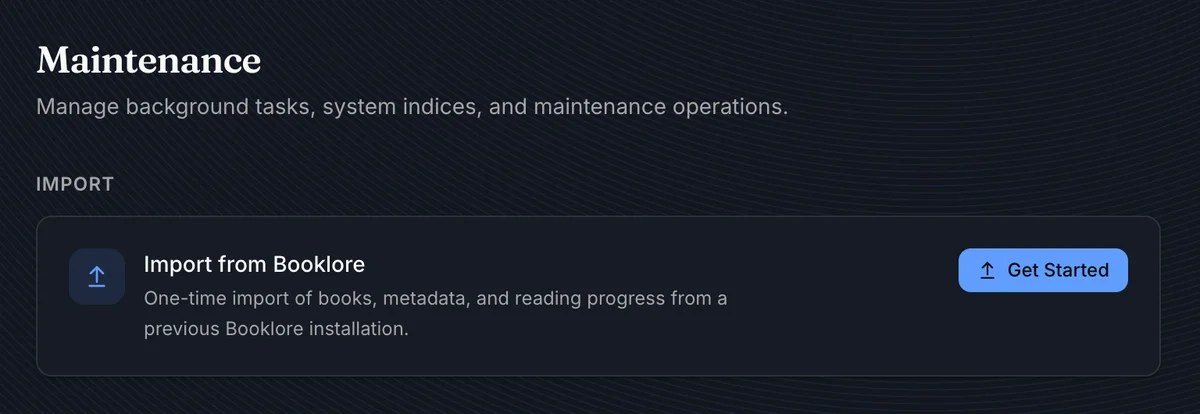
Click Get Started to open the migration wizard.
The five-step wizard walks you through the full process.
Step 1: Source Connection
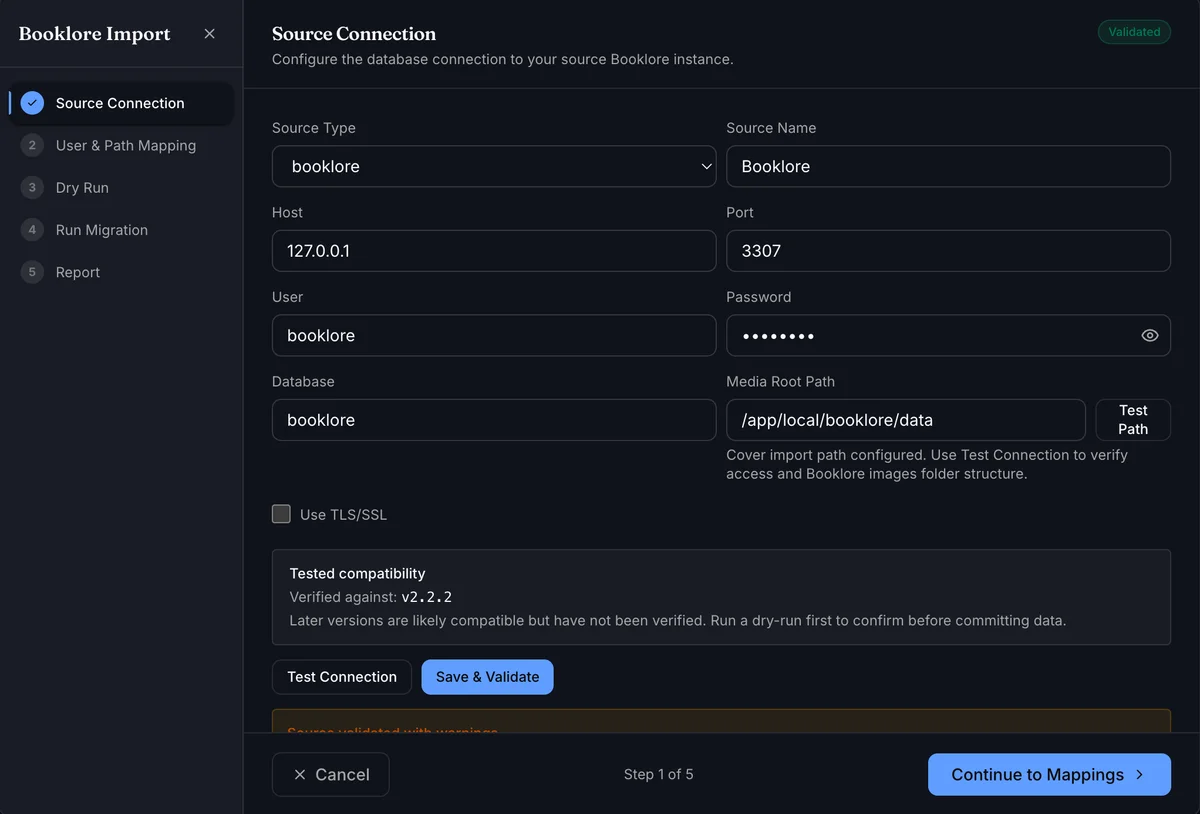
Enter the source details for your instance: source type, source name, host, port, database user and password, database name, and media root path.
Database credentials, not app credentials
The user and password fields here are your database credentials - the ones used to connect to Booklore's or Grimmory's MariaDB instance, not your login credentials for the app itself.
Media Root Path is the directory on disk where the source app stores book cover images. Use Test Path to verify that BookOrbit can access it.
Click Test Connection to verify connectivity without saving, or Save & Validate to save and confirm the database schema is compatible. A Validated badge appears in the top-right corner on success.
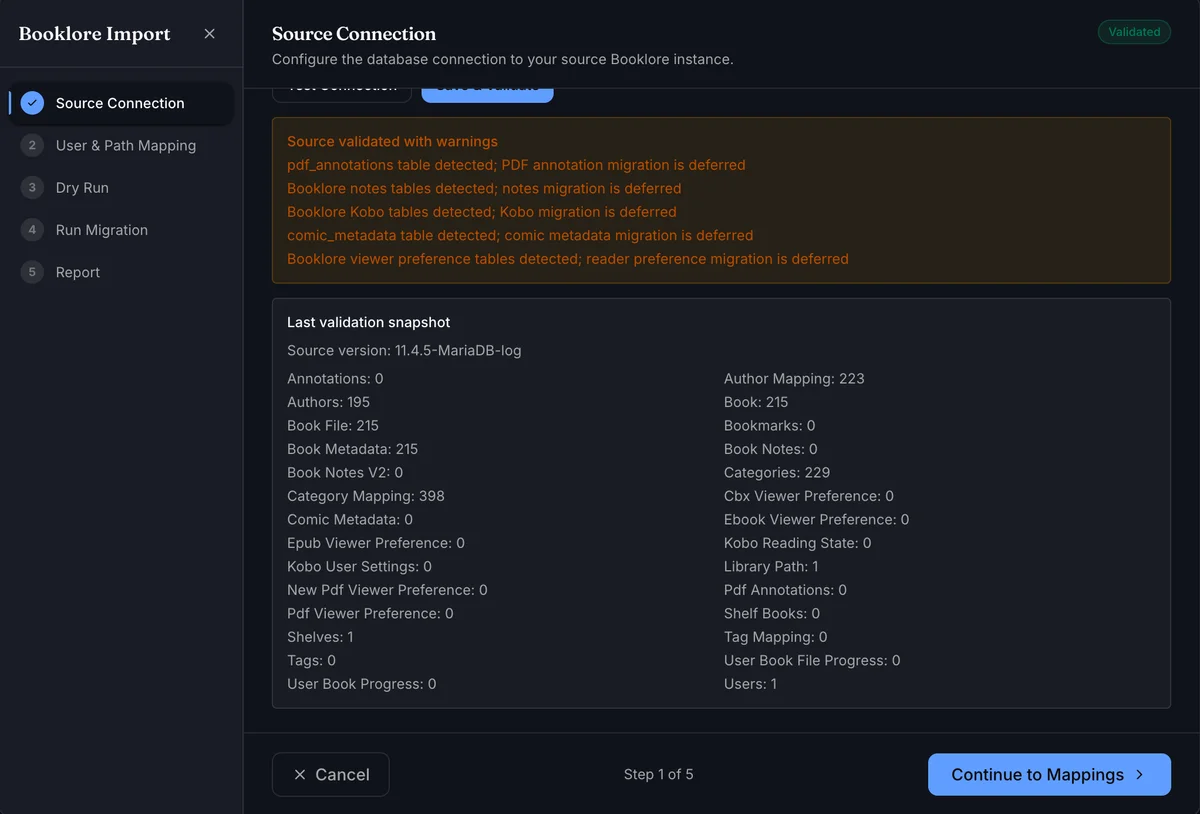
Any warnings below the form - deferred features, missing optional tables, or optional feature tables - are informational and do not block migration.
After validation, BookOrbit also shows a Last validation snapshot with source version and detected table counts.
Step 2: User & Path Mapping
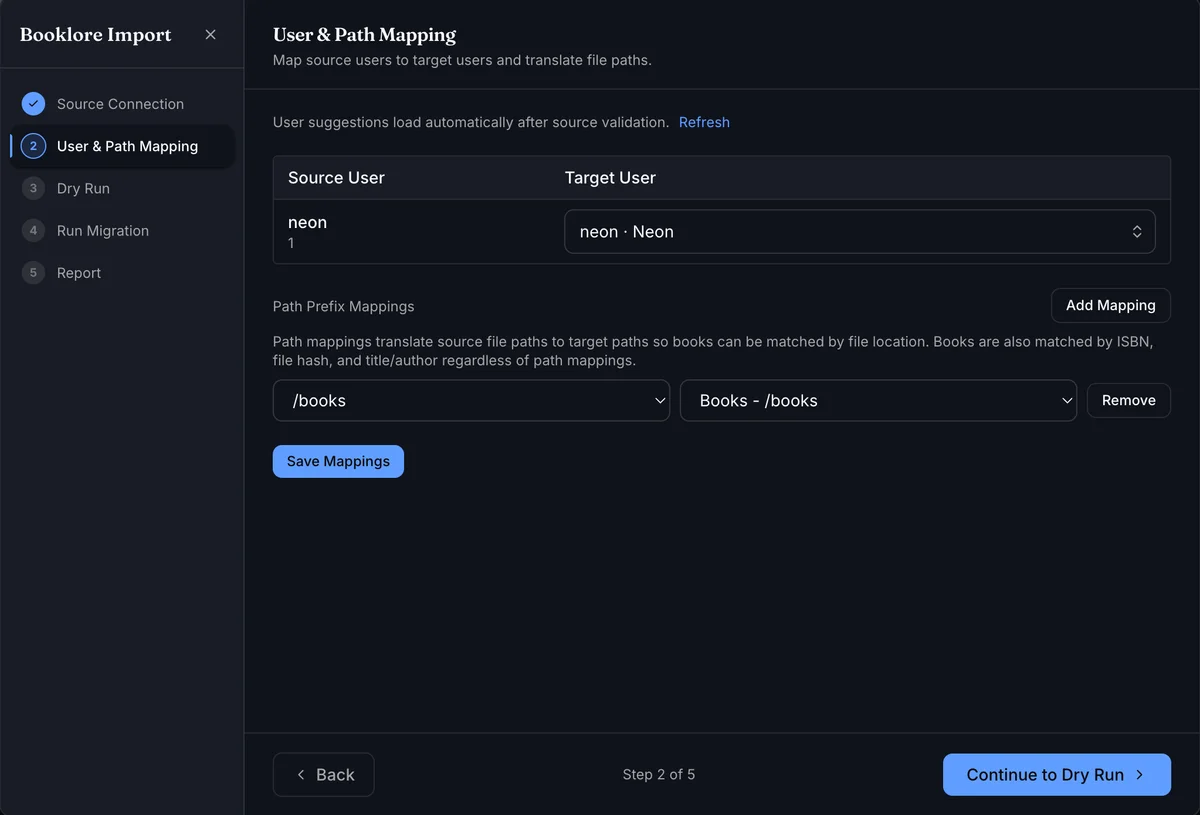
User mappings connect each source user to a BookOrbit account. Suggestions load automatically after validation - BookOrbit matches by username and email and shows a confidence level. Adjust any mapping using the dropdowns.
Path mappings translate source file paths to target paths so BookOrbit can match books by file location. Add one row per root folder: select the source prefix on the left (auto-detected from the source library) and the corresponding BookOrbit library folder on the right.
Path mappings are optional if all your books have matching ISBNs or file hashes, but adding them significantly improves match rates for large libraries.
Use the Path validation panel to confirm mapped source paths are found on disk before continuing.
Click Save Mappings when done.
Step 3: Dry Run
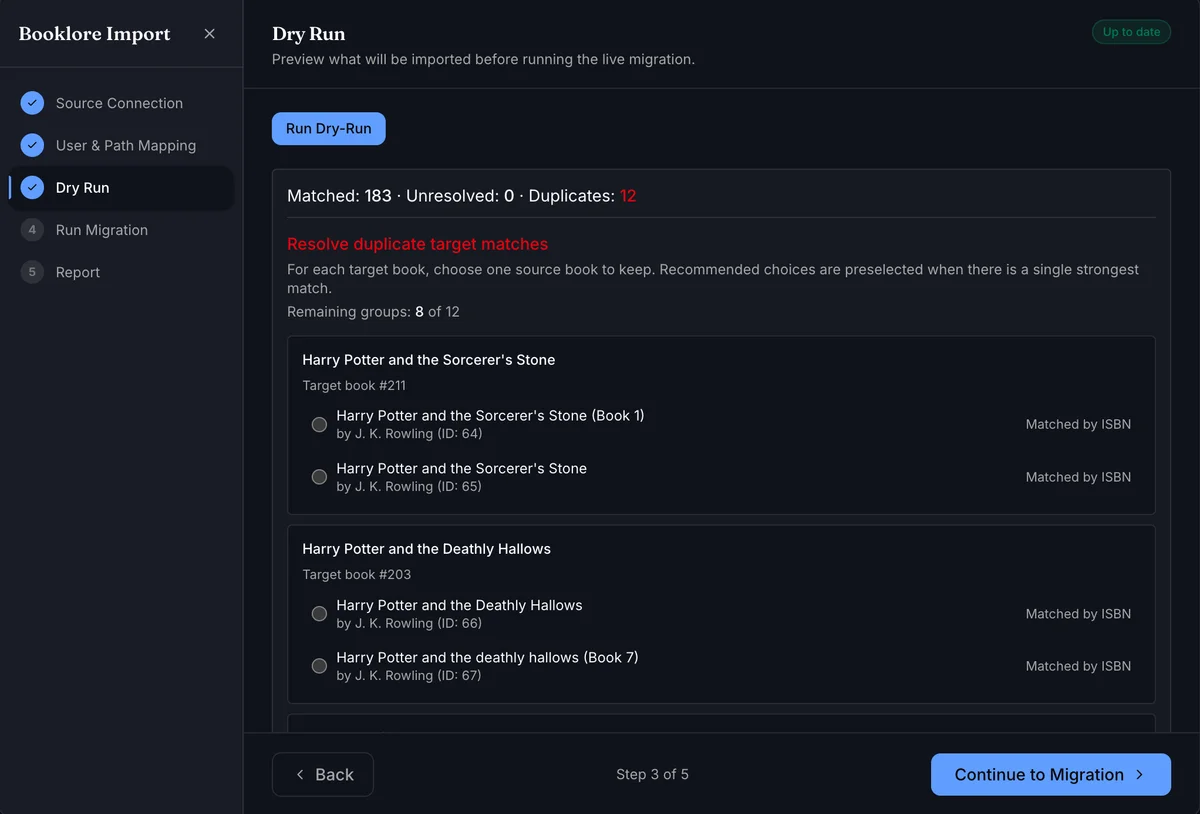
The dry run previews exactly which books will be matched before any data is written. Click Run Dry-Run to generate the plan.
The summary shows three counts:
| Count | Meaning |
|---|---|
| Matched | Books BookOrbit successfully paired to a source book |
| Unresolved | Source books with no matching book in your library |
| Duplicates | Target books matched by multiple source books - requires resolution |
BookOrbit tries to match each book using these strategies in order:
- ISBN - ISBN-13 first, then ISBN-10
- File hash - a content fingerprint that works even after renaming or moving files
- Mapped file path - using your path mappings from the previous step
- Title + author - exact match, then a fuzzy author-name fallback
If duplicates exist, a resolution panel appears. For each target book with multiple source candidates, choose which source book's data to apply. Recommended choices are preselected when one candidate is clearly stronger.
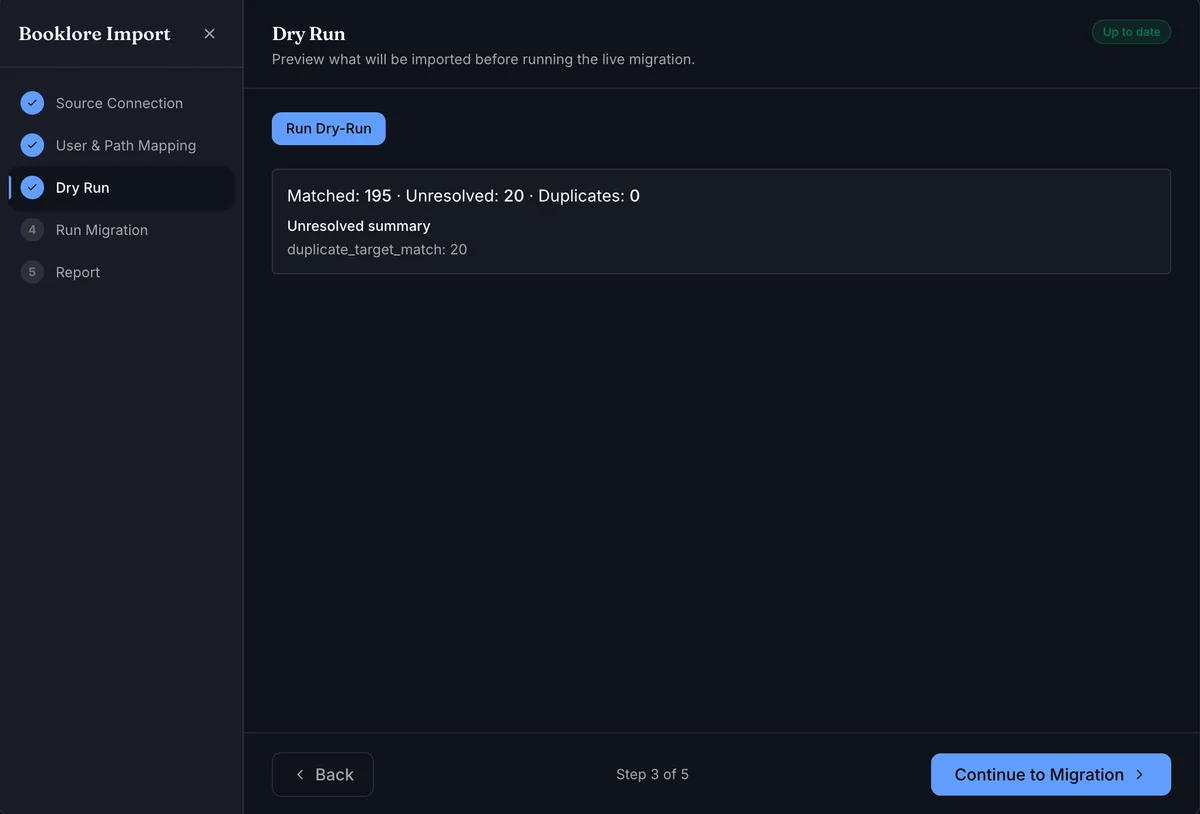
If no duplicate groups remain, the resolver panel is hidden and only the summary is shown. The unresolved summary may include machine-readable reason keys.
A dry-run result stays valid until you change the source connection or mappings. Re-run it after any such change.
Step 4: Run Migration
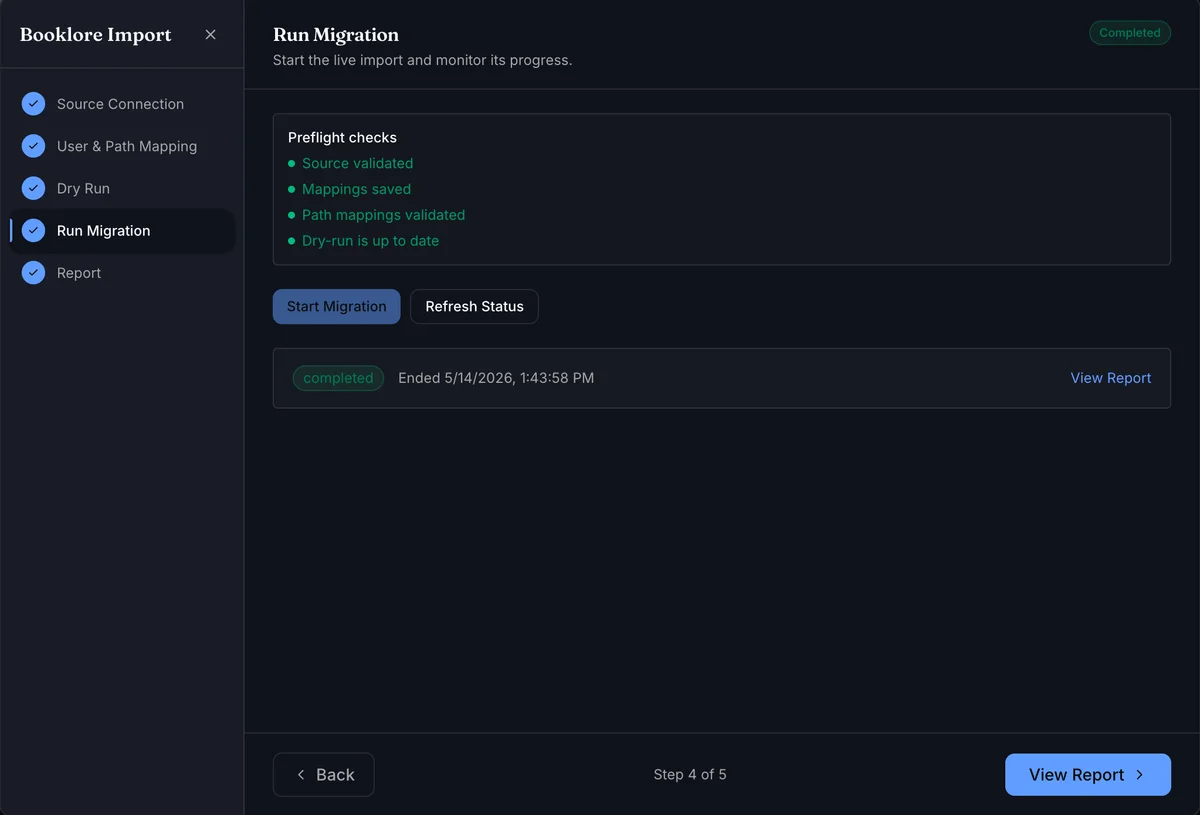
Before Start Migration becomes active, the preflight checks must all pass: source validated, mappings saved, path mappings validated, and dry-run up to date.
Click Start Migration. BookOrbit imports all matched data in the background and updates status in real time.
Use Refresh Status if needed while monitoring. Once complete, click View Report to see the full breakdown.
Step 5: Migration Report
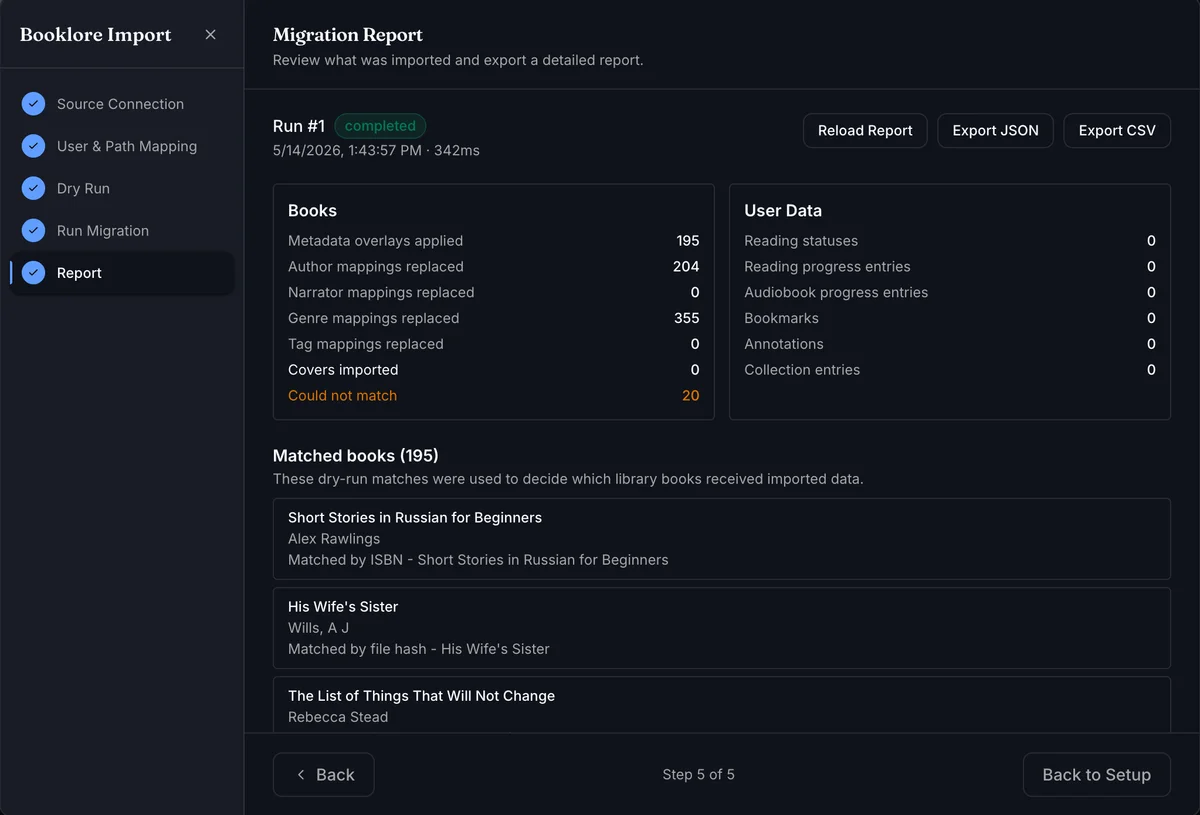
The report has two panels:
Books - entity counts for each type: metadata overlays applied, author/narrator/genre/tag mappings replaced, and covers imported. Books listed as Could not match were present in the source but had no corresponding book in your BookOrbit library.
User Data - counts for reading statuses, reading progress (epub and audiobook), bookmarks, annotations, and collection entries.
Use Load Full Report to include dry-run match details in the report payload before exporting.
The report can be exported as JSON or CSV for auditing.
Notes & limitations
- Re-running is safe. Each stage re-applies data to the same matched books using the existing dry-run plan. If source data has changed, re-run the dry-run first to get a fresh plan, then start the migration again.
- "Unresolved" is not an error. It means no match was found for that source book in your BookOrbit library - typically because the file is not in your library or the ISBN and title differ significantly between systems.
- Deferred features not yet included in migration: PDF annotations, book notes, Kobo device state, comic metadata, and reader/viewer preferences.