Annotations & Highlights
Annotations are the reading trail BookOrbit keeps after the book is closed. A highlight made in the web reader, a KOReader highlight with a note, or a Kobo highlight imported during device sync all land in the same system, so you can review them by book, search across the library, clean them up, and export the parts worth keeping.
Use this page for the BookOrbit annotation workspace itself. Device-specific rules are covered in Kobo Sync and KOReader Sync.
Creating Highlights
In the eBook reader, select text to open the selection toolbar. From there you can copy the text, create a highlight, search, translate, define a word, add a note, or delete an overlapping annotation.
Web reader highlights use a precise EPUB CFI position. That is why they can reopen directly at the selected passage later. The web reader supports highlight, underline, strikethrough, and squiggly styles from the selection toolbar. The annotation editor can also manage inverted style when an annotation already has it.
Annotations Page
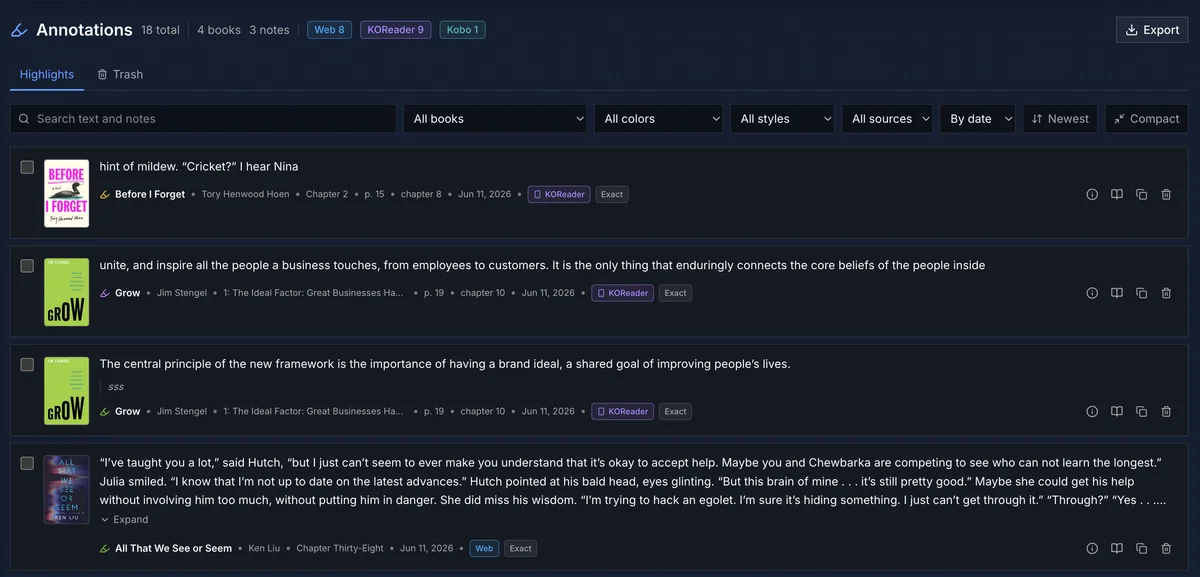
The Annotations page is the cross-book review desk. It starts with counts for total annotations, books, notes, and source badges, then lets you search the actual highlighted text and notes.
The filters are meant for triage. You can narrow the list by book, color, style, and the source options available in the source menu. Sorting by date is useful for recent reading; sorting by book groups annotations together so you can work through one title at a time.
| Control | Use it for |
|---|---|
| Search text and notes | Find a phrase from the quote or your note. |
| All books | Limit the list to one book. |
| All colors | Find highlights by BookOrbit and KOReader color palettes. |
| All styles | Separate highlights, underlines, strikethroughs, squiggles, and inverted annotations. |
| By date / By book | Switch between reading timeline and book grouping. |
| Newest / Oldest / A to Z | Reverse the active sort. |
| Compact | Tightens rows when you are reviewing many annotations. |
| Export | Download the current filtered result as Markdown, CSV, or JSON. |
Each row keeps enough context to decide what to do without opening the book: cover, quote, note, title, author, chapter, page when available, date, source, and position status. From this page you can jump back to the reader, copy text, inspect sync detail, move active rows to trash, restore trashed rows, or permanently delete rows once device sync allows it.
Book Highlights Tab
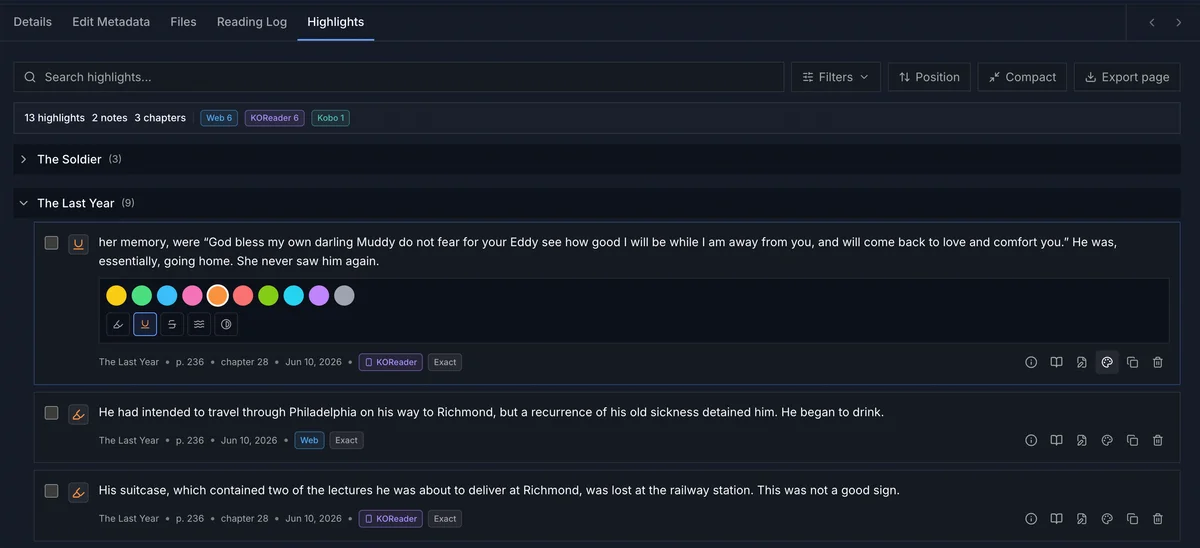
The Highlights tab on a book page narrows the same system to one title. It is the best place to review a book after finishing it, because the list can stay in reading order and group by chapter.
| Area | Behavior |
|---|---|
| Search | Searches highlights and notes for this book. |
| Filters | Narrows by color, chapter, and date range. |
| Position / Newest / Oldest | Switches between reading order and creation date. |
| Compact | Changes row density for the page. |
| Export page | Exports the current page as Markdown, plain text, or JSON. |
| Export selected | Appears after selecting rows and exports only those selected highlights. |
This is where individual annotation editing lives. Change color, change style, add or edit a note, copy the quote, jump back to the reader, inspect sync detail, or move the highlight to trash. Bulk selection lets you recolor, restyle, export, or trash several highlights at once.
Badges And Sync Detail
Source badges describe where the annotation originated.
| Source | Meaning |
|---|---|
| Web | Created in the BookOrbit web reader. |
| KOReader | Imported through the BookOrbit KOReader plugin. |
| Kobo | Imported through Kobo Reading Services sync. |
Position badges describe how confidently BookOrbit can place that annotation back into a reader.
| Badge | Meaning |
|---|---|
| Exact | The stored position resolves cleanly for the target reader. |
| Repaired | BookOrbit re-anchored the annotation through text matching. |
| Pending | A converted position is waiting to be verified or delivered. |
| Failed | BookOrbit could not produce a usable position for that format. |
| Approximate | The annotation can be opened near the right chapter or page, but not at an exact text range. |
The sync detail panel shows the stored position formats for the annotation: web reader CFI, KOReader XPointer, PDF, and Kobo span positions when available. It also shows whether known KOReader or Kobo devices are up to date. Failed or pending positions can be retried from that panel.
Trash And Deletes
Deleting a highlight moves it to trash first. The global Trash tab can restore it, or permanently delete it after synced devices have acknowledged the deletion.
That waiting period matters for KOReader and Kobo. If BookOrbit deleted a synced annotation immediately, a device that had not seen the delete yet could send the old highlight back and recreate it. Keeping the row in trash until devices catch up lets deletes move outward cleanly.
Exports
There are two export paths:
| Place | Formats | Scope |
|---|---|---|
| Global Annotations page | Markdown, CSV, JSON | The full filtered result, across books. |
| Book Highlights tab | Markdown, plain text, JSON | The current page or selected rows for one book. |
Use the global export when building a library-wide notes archive. Use per-book export when you are finishing a book and want a clean set of quotes grouped by chapter.
Sync Notes
BookOrbit treats Web, KOReader, and Kobo annotations as the same kind of library data, but each device has its own limits.
- KOReader can send highlights, notes, style changes, and deletes to BookOrbit. With two-way highlight sync enabled in the plugin, BookOrbit changes can return to KOReader. See KOReader Sync.
- Kobo highlights import into BookOrbit for synced books. Sending BookOrbit or KOReader highlights back to Kobo requires Sync BookOrbit highlights to Kobo and KEPUB delivery. See Kobo Sync.
- Web reader highlights are the cleanest source for reopening inside BookOrbit because they begin with a web-reader CFI.
Most sync work is quiet. If a row shows a failed position, the annotation still exists in BookOrbit, but that specific reader may not be able to jump to or receive it until the position can be converted.