
Editions
You own Jurassic Park four times: the EPUB you read years ago, the Scott Brick audiobook in your audiobook library, the 1990 first printing and a Spanish translation. Without editions, the library shows four books, each with its own progress, and your statistics say you finished it twice when you read it and then listened to it.
Editions group those records as one book. Each edition keeps its own page, files, metadata, cover and reading progress. Lists show the book once, every edition’s page lists all of them, and finished-book counts count the book once.
Edition, Format or Merge
Section titled “Edition, Format or Merge”An edition is a separate book record. A format is another file inside one record. Pick by what the second copy is.
| What you have | What to do |
|---|---|
| A different printing, translation or recording, or the audiobook kept in another library | Group them as editions |
| The same edition in another file type, such as a MOBI beside the EPUB | Add the file to the book as a format |
| Two records of the same edition that should become one | Merge them with Merge with another book… |
A book’s own files are listed in the Formats card on its page. Its editions are listed on the Editions tab further down.
Group Editions
Section titled “Group Editions”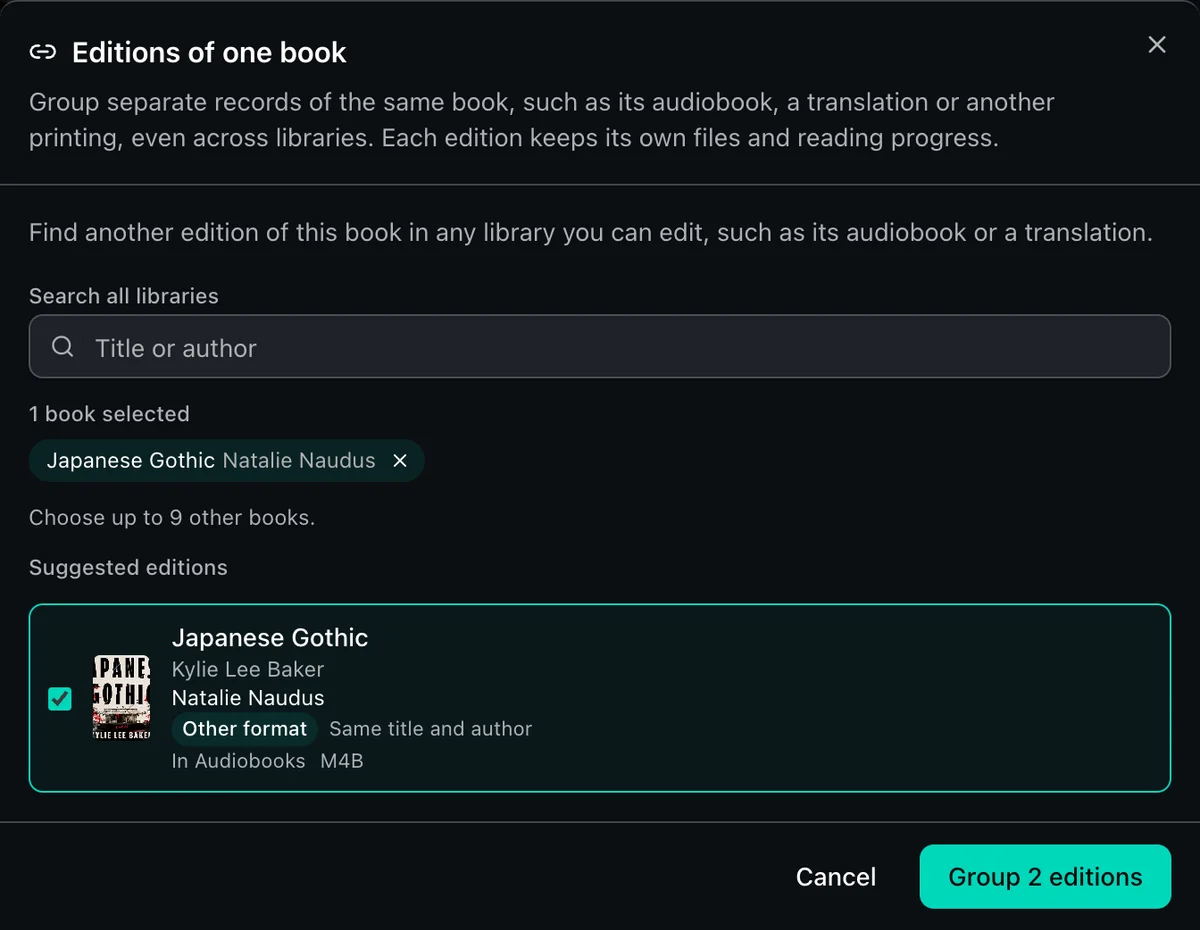
- Open the page of one edition. It becomes the main edition.
- Open the ⋮ menu beside the reading buttons and choose Add edition…. On a book that already has editions, the Add edition button on its Editions tab does the same.
- Tick a book under Suggested editions, or search all libraries by title or author and tick it in the results.
- Click Group 2 editions (the count follows your choice).
Suggested editions offers up to eight books from libraries you can edit that look like other editions of this one. Each is marked with what it is and why it matched:
| Label | Meaning |
|---|---|
| Other format | The audiobook of an ebook, or the ebook of an audiobook. |
| Other edition | Another ebook, or another audiobook, that differs in ISBN, Hardcover edition, narrator, publisher or year. |
| Same work on Hardcover or Open Library | Both books match the same work on Hardcover or Open Library. |
| Same title and author | Both books have the same title and share an author or narrator. |
A book that matches both ways says Same work, title and author. Copies of the same edition are not suggested, and neither are pairs marked Not editions in Duplicate Books.
To group from a list, select the books, open More actions in the selection bar and choose Group as editions…. Select each book yourself: the action is not offered when the selection is every book matching a filter.
A few rules apply:
- You need the Edit metadata permission in the library of every edition, including editions already in the group. See Users & Permissions.
- A group holds up to 10 editions, across any libraries.
- Adding a book that already belongs to a group brings that whole group in, and its main edition stays the main one.
To manage a group later, open any edition and use the ⋮ menu, or the ⋮ menu on a row of the Editions tab:
| Action | What it does |
|---|---|
| Make this the main edition | Lists, for readers who have read none of the editions, now show this one. |
| Remove from editions | The book stands alone again with everything it had. When one edition is left, the group ends. |
Switch Between Editions
Section titled “Switch Between Editions”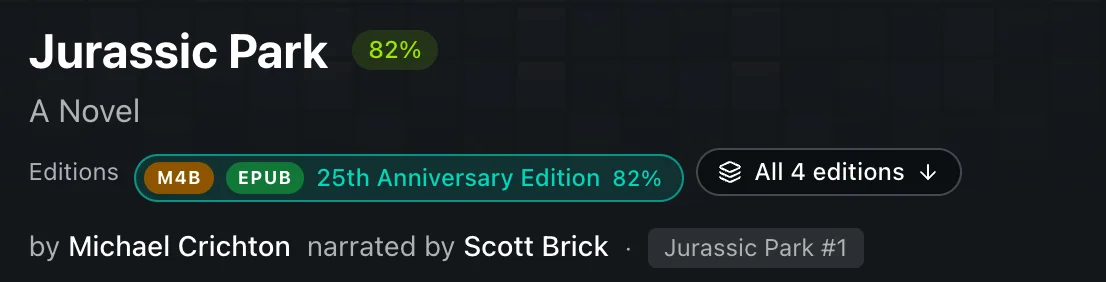
Every edition’s page shows an Editions row under the title. It holds the edition you are on, with its formats, its name and your own progress in it: a percentage while you are reading, a check mark once you have finished. All 4 editions (the count follows the group) opens the Editions tab, which lists them all.
BookOrbit names each edition with the first of these that it has:
- Its Edition name, such as 25th Anniversary Edition.
- The narrator, for an edition that is only an audiobook.
- Its publisher and year, such as Alfred A. Knopf · 1990.
- Its library.
When two editions would get the same name, the library is added to both.
Compare editions
Section titled “Compare editions”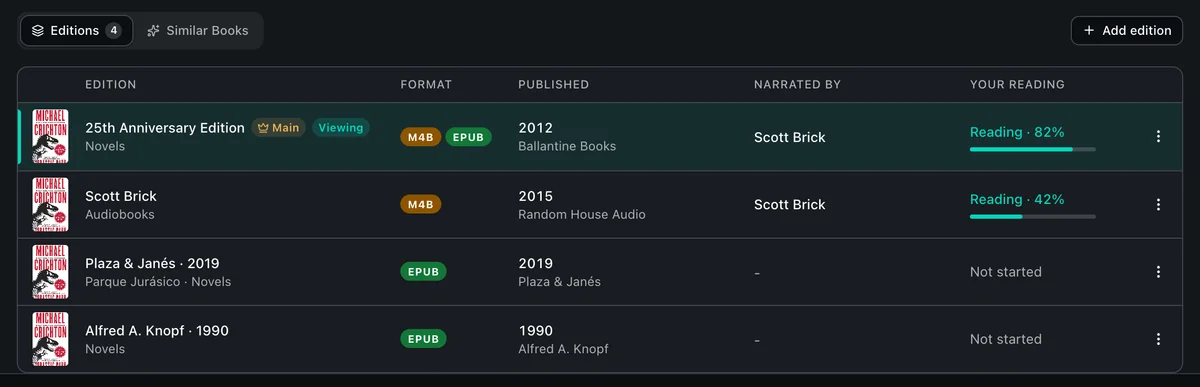
On a book with editions, the Editions tab comes first among the tabs below the book’s details. Each row is one edition:
| Column | What it shows |
|---|---|
| Edition | The edition’s name and library. Main marks the main edition and Viewing the page you are on. When an edition’s title differs, such as a translation, its title is shown beside the library. |
| Format | The edition’s file formats. |
| Published | Its year and publisher. |
| Narrated by | Its narrators, for an audiobook. |
| Your reading | Your percentage while you are reading, Finished with the month you finished, or Not started. An edition whose files are missing says Files missing. |
Click a row to open that edition. Its ⋮ menu has Open edition, Make main edition and Remove from editions, as your permissions allow. On a narrow screen, each row shows the name, formats, year and your progress.
The main edition comes first, then editions you have read, most recent first, then ebooks before audiobooks, newest first. You only see editions in libraries you have access to.
How Lists Show Editions
Section titled “How Lists Show Editions”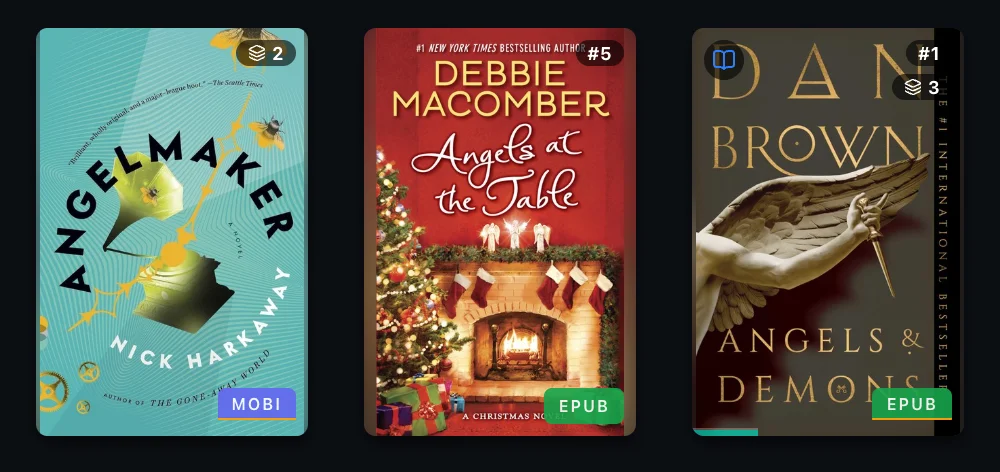
Library pages, collections, smart scopes, genre and tag pages, series pages, author pages and search show one card for each book. The pill with the stacked-layers icon shows how many editions the card stands for.
The card shows the edition you read most recently, or the main edition if you have not read any of them, and opens that edition. Each reader sees their own: someone listening to the audiobook sees the audiobook’s card, while someone who has not started sees the main edition.
Author pages count each book once in their header. Devices and apps that download files still see every edition: Kobo sync and OPDS list each edition as its own book, because each one is a separate download.
Bulk actions in a selection, such as editing metadata or adding to a collection, act on the edition each card shows. Delete asks about the others, as described in Delete an Edition.
Reading Status and Statistics
Section titled “Reading Status and Statistics”Reading status and progress belong to each edition. Finishing the audiobook does not mark the EPUB as read.
Statistics treat the group as one book:
| What is counted | How editions count |
|---|---|
| Books finished, in statistics, reading history, year in review, achievements, series completion and dashboard widgets | Once, however many editions you finished |
| Reading time and pages | From every edition |
| Your reading goal | Every finish, as before |
Finishing a second edition is a re-read. If you read the EPUB and later listen to the audiobook, reading history shows the second finish as a re-read, and your reading goal counts both finishes.
Counts are worked out when you look at them, so grouping or removing an edition later also changes past numbers.
Edition Name and First Published
Section titled “Edition Name and First Published”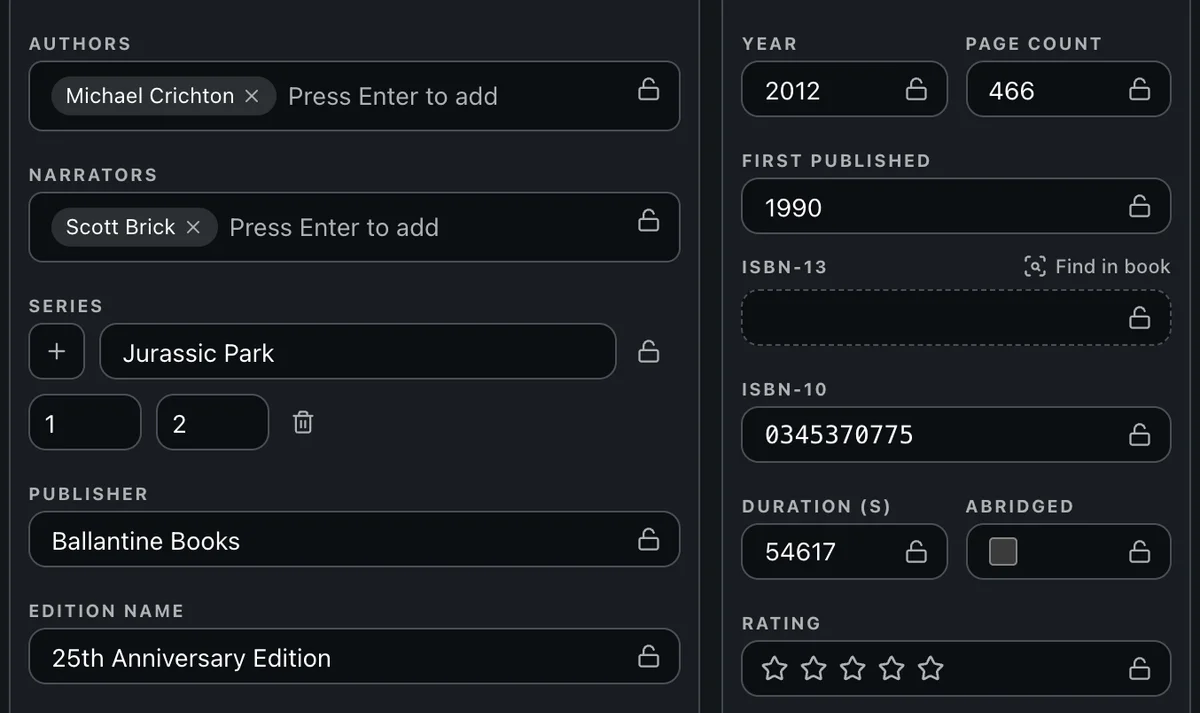
Two fields in Edit Metadata describe an edition:
- Edition name, under Publisher, is what sets this edition apart, such as Full Cast or 25th Anniversary. It names the edition everywhere editions are listed. Leave it empty and BookOrbit names the edition as described in Switch Between Editions.
- First published, under Year, is the year the book first came out. Year stays the year of this edition.
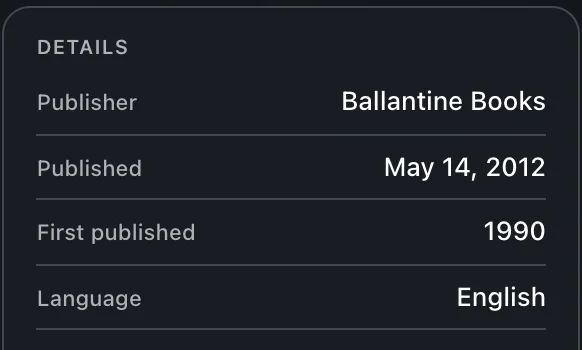
The Details card shows First published only when it is earlier than the edition’s own year. Hardcover and Open Library can fill it when you fetch metadata, and it has its own row in Field Rules. Lists can be sorted and filtered by First published.
Both fields can be locked like any other field. Neither is written into the book’s files.
Delete an Edition
Section titled “Delete an Edition”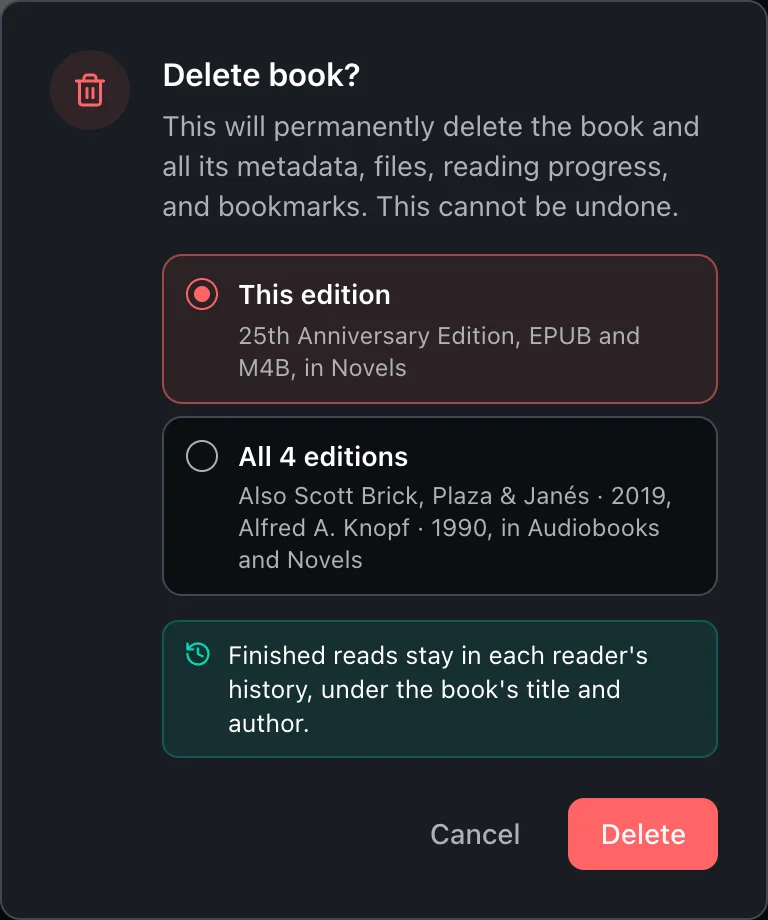
Delete book on a page with other editions asks what to delete: This edition or All 4 editions (the count follows the group). Only editions in libraries where you may delete books are included; the dialog says how many stay. Finished reads stay in each reader’s history either way.
In a list, Delete acts on the editions the selected cards show. Tick Also delete 2 other editions (the count follows your selection) to delete the rest of their groups too.
Find Editions You Already Have
Section titled “Find Editions You Already Have”Most libraries already hold editions that were never grouped. Tools > Duplicate Books finds them; you need permission to delete or merge books to open it. Run a scan and the results are split into three tabs.
| Tab | What it lists |
|---|---|
| Duplicates | Copies of the same edition: identical files, a shared ISBN, or the same or similar title and authors. |
| Same book, other format | An ebook and an audiobook of one book. Its Link action groups them as editions. |
| Other editions | Two ebooks, or two audiobooks, of one book that differ in ISBN, Hardcover edition, narrator, publisher or year. |
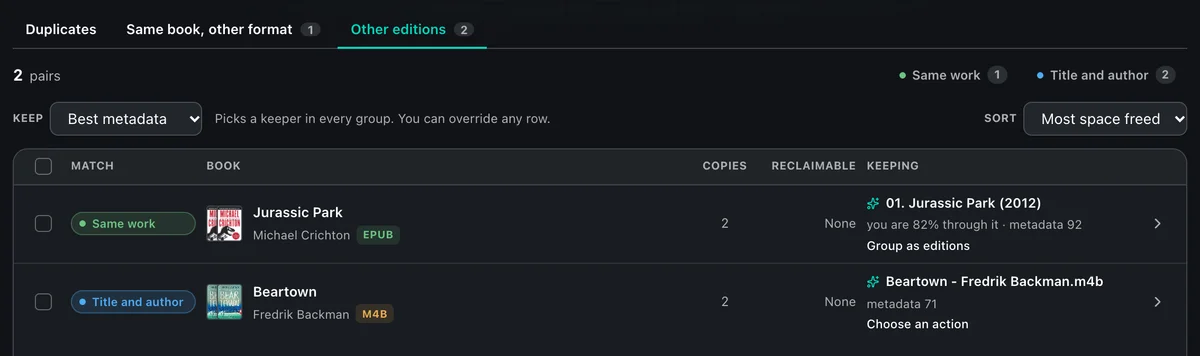
Open a pair to compare the two books, choose Group as editions as its action, then review and confirm. Not editions hides the pair from later scans, and the dismissed pairs list on the tab can restore it. Nothing is grouped until you confirm, and books that are already editions of each other never appear in any tab.
On the iPhone
Section titled “On the iPhone”With BookOrbit v3.10.0 or later and an app version that has editions, the iPhone and iPad app:
- Shows one card for each book, with the editions marker, in the library, collections, smart scopes, search, and series and author lists.
- Lists every edition on the book page, to switch between them.
- Shows First published in the details, and lets you edit Edition name and First published.
- Asks whether to delete one edition or all of them.
Grouping editions, changing the main edition and removing an edition are done in the web app.