Constellations & Reading Help
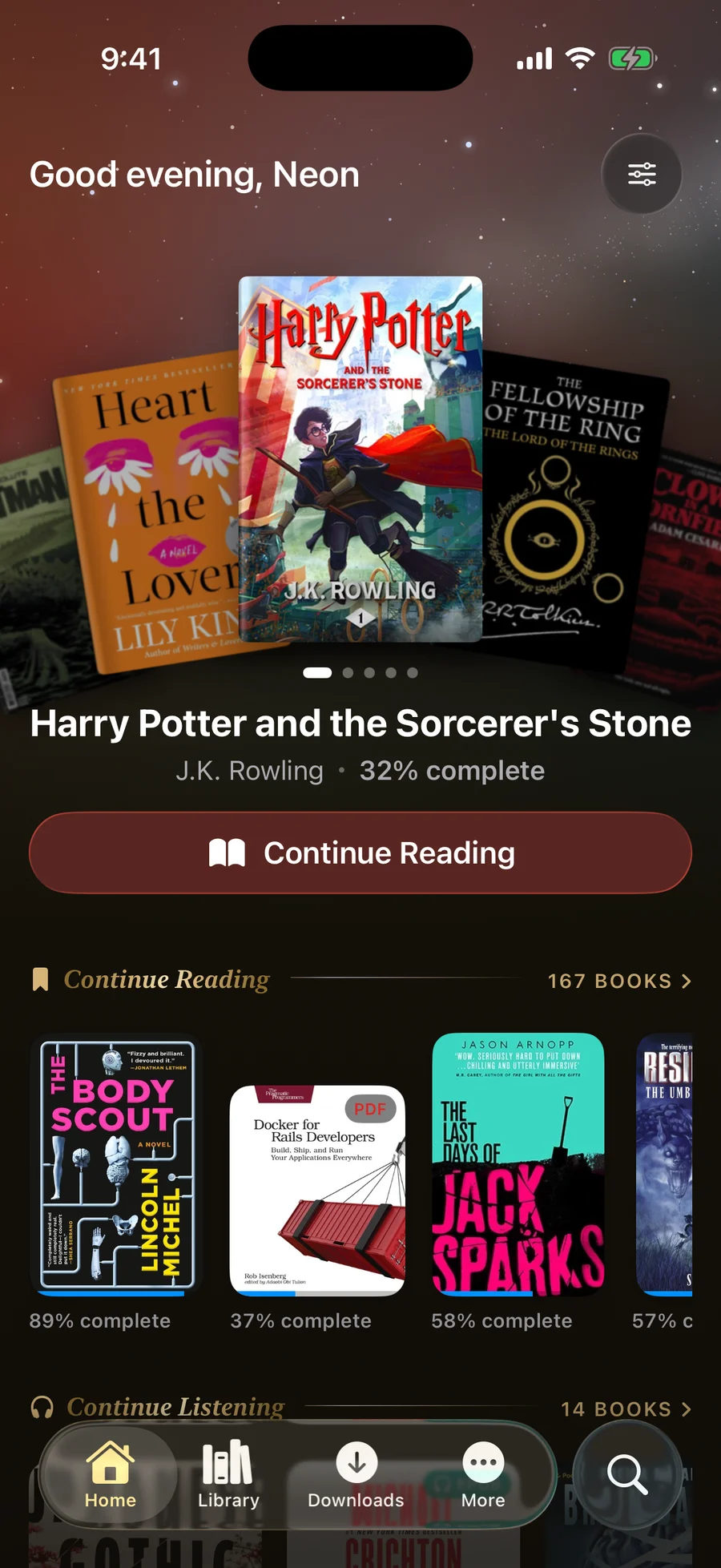
You are a third of the way into Harry Potter and the Sorcerer’s Stone, on the Hogwarts Express, and Ron is counting off his brothers. You put the book down for a week. When you come back, you cannot remember who is who.
That is what the iPhone app’s AI features are for. They work from the book you are reading, they use only the pages you have read, and they answer in a sentence or two instead of a page of search results. This page follows that one reader through the book: the cast list that opens from the reader, the sky of who appears with whom, a reminder for a name, a question about the plot, the recap after a week away, and the photo of a shelf.
Before you start
Section titled “Before you start”Most of this works on any iPhone, and some of it needs your server to have AI connected or your iPhone to support Apple Intelligence. What works with your setup says which, and Which AI does each feature use? lists every feature. The app only offers what is available, so a feature that is missing simply is not set up for your server or phone.
Nothing goes to your server’s AI until you agree to it, and the app says where each answer was written, in a line under the answer.
Constellations
Section titled “Constellations”Open a book you are reading and select the sparkles button at the top of the reader.
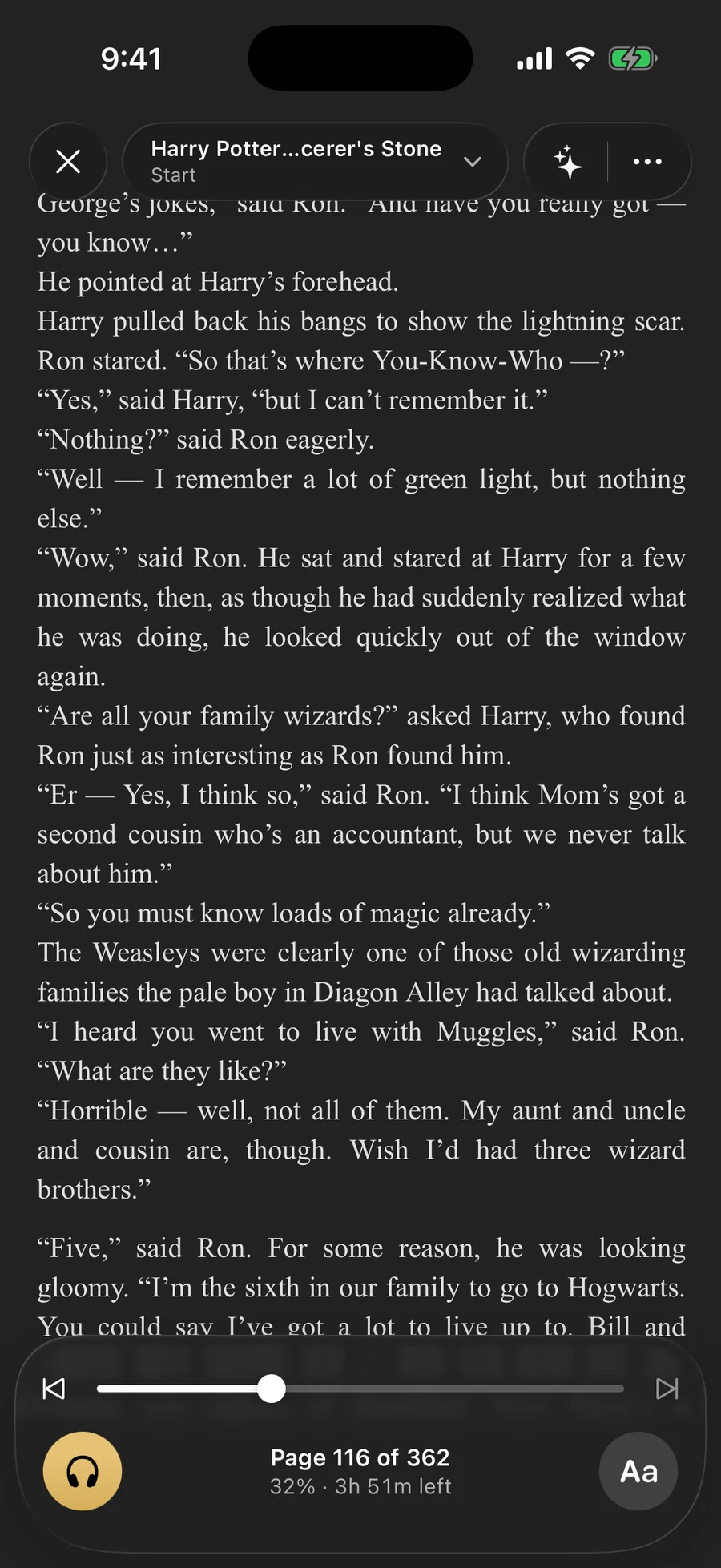
Constellations opens as a sheet over the page. It lists everyone and everything with a name in the book, in three tabs: People, Places and Terms. Next to each entry is how many times it has come up so far, with the start of its description beneath the name. Above the list is a search field, a row of chips for the names on the page you are looking at, and a box for a question about the story so far.
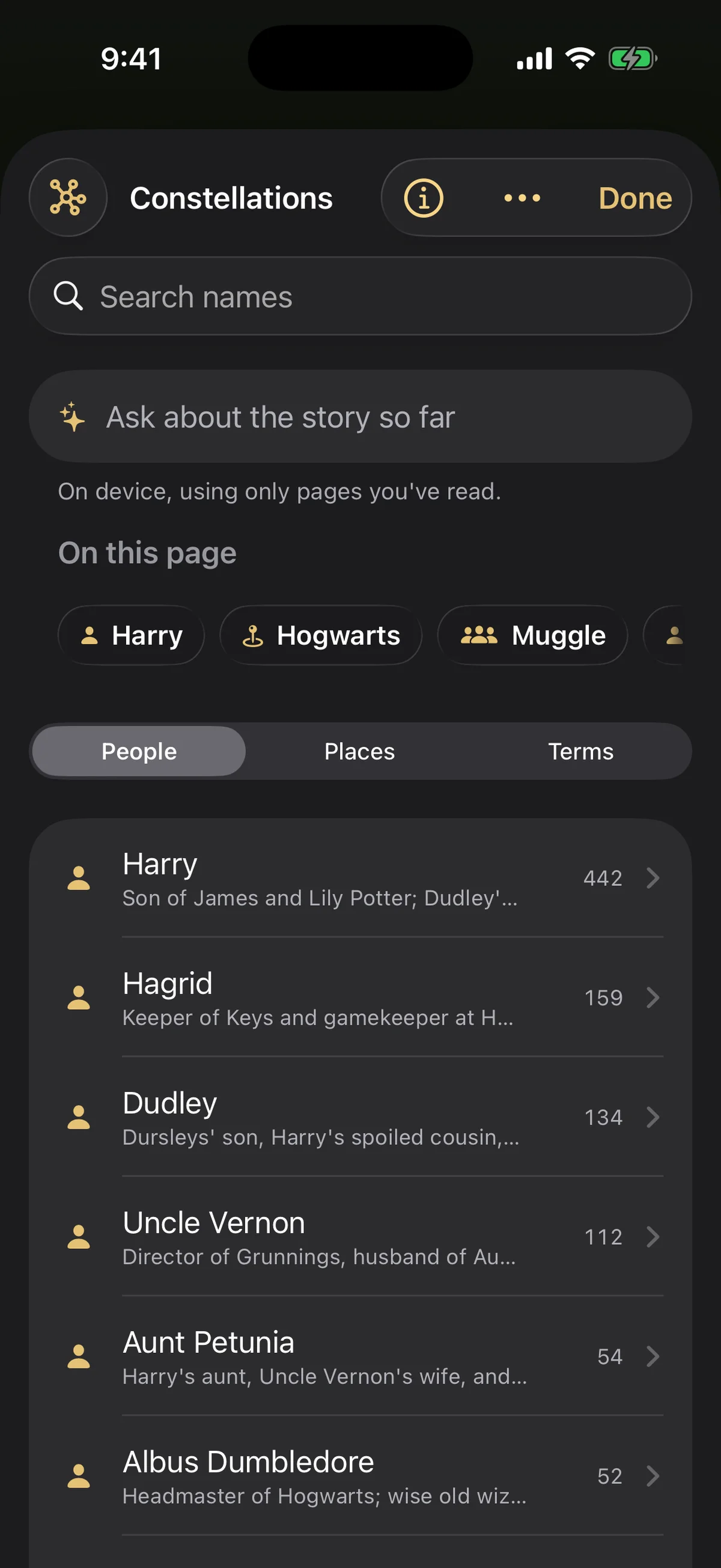
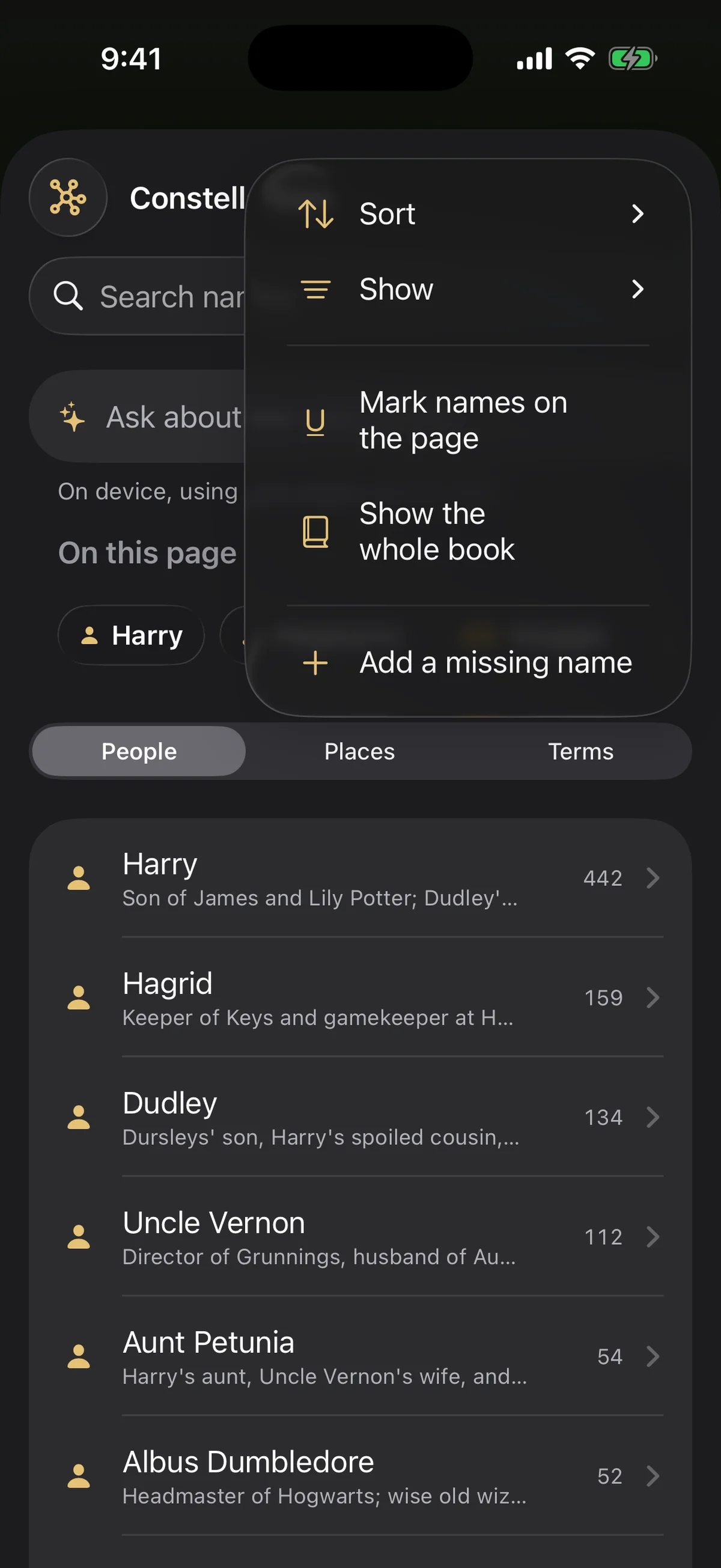
The … button holds what you can do to the whole list.
| Option | What it does |
|---|---|
| Sort | Most mentioned, Order of appearance, Name or Recently mentioned. |
| Show | Everything so far, This chapter or This page. |
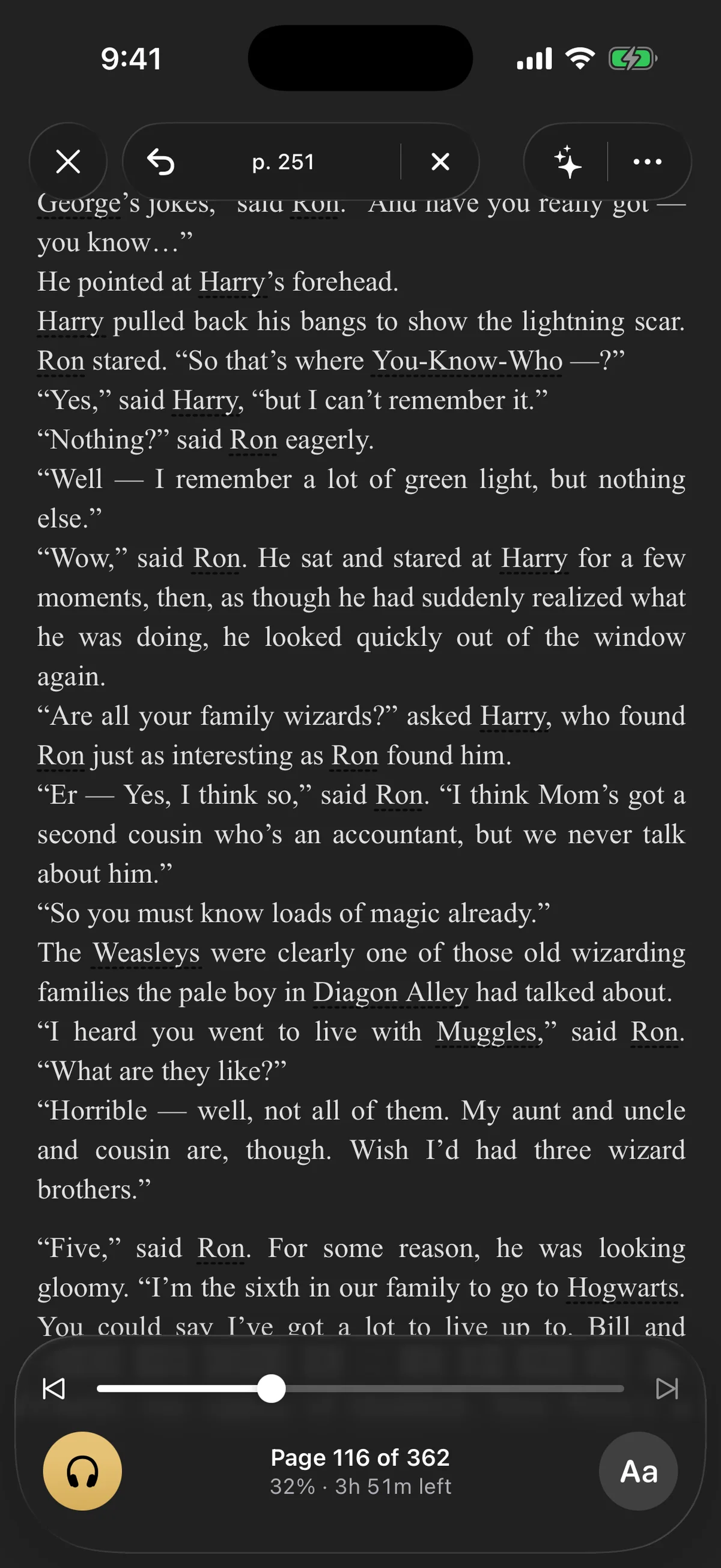
| Mark names on the page | Underlines every name from the list as it appears in the reader. |
| Show the whole book | Turns the spoiler protection off, after asking. Useful when re-reading. Once on, the option becomes Only pages read. |
| Add a missing name | Adds a name the book spells in a way the phone did not catch, as a person, a place or a term. It shows once you have read a page that names it. |
| Hidden names | Appears once you have hidden one, and lists them so they can be brought back. |
Pin a name to keep it at the top, and hide a name that is not worth a place in the list.
The tabs can also link to what the book itself prints: Cast list from the book on People, Maps from the book on Places, and Glossary from the book on Terms, when the book has them.
Open an entry
Section titled “Open an entry”Select a name for its entry.
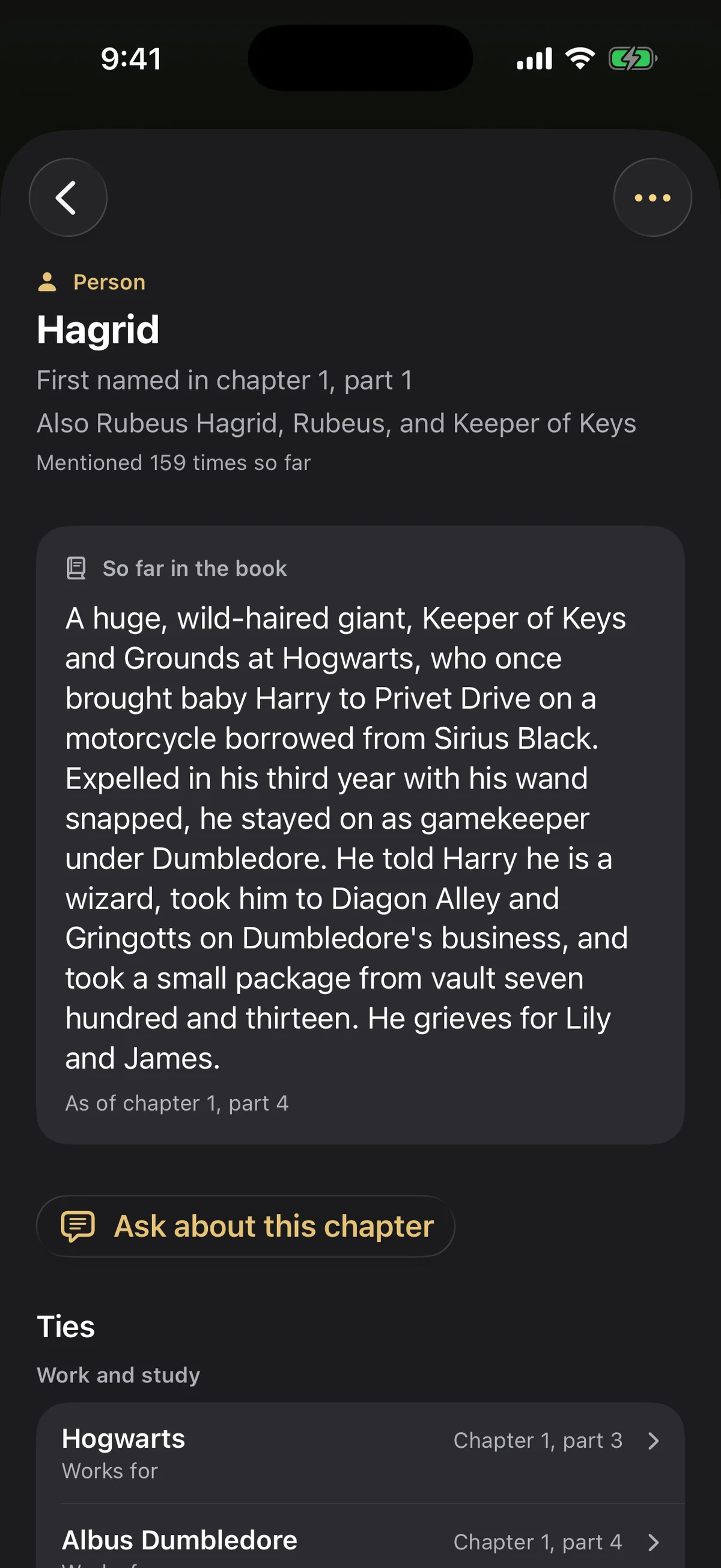
An entry carries:
- Other names the book calls them by, merged into one, so “Hagrid”, “Rubeus” and “Keeper of Keys” are the same person.
- So far in the book, a short description written for the chapter you have reached, with the chapter it is “as of” underneath.
- Ties to other entries, such as who works for whom or who is family, each marked with the chapter it first appeared in.
- Ask about this chapter, which writes a reminder about the name from the chapter you are in. It appears only when that chapter names it, and when reading help is available.
- Where it comes up, Often with and Your note, below.
Where it comes up
Section titled “Where it comes up”Scroll down and the entry shows a bar for each chapter, a marker at You’re here, and nothing beyond it.
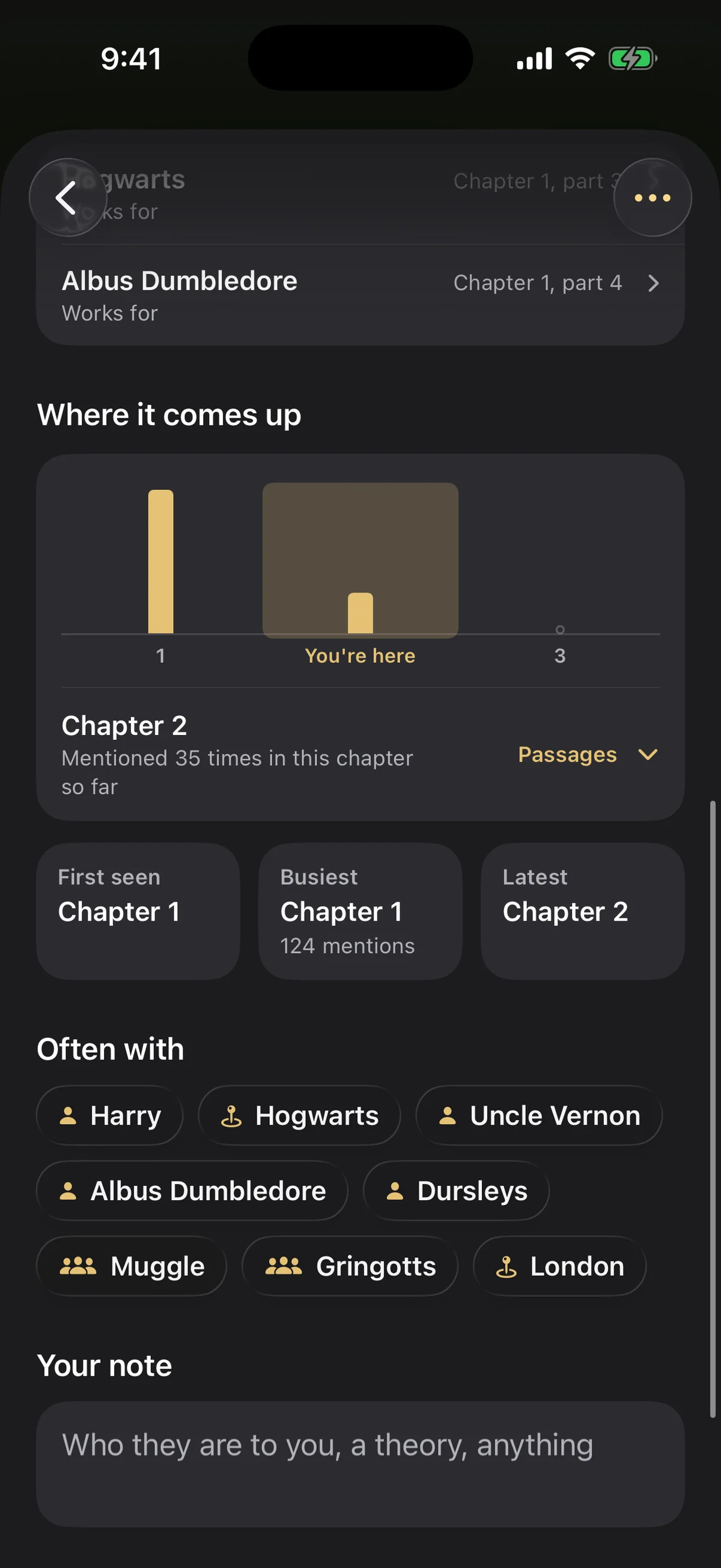
Three tiles under the chart say where the name was First seen, which chapter was the Busiest and how many mentions that was, and where it was Latest seen. Select Passages and every mention in the chapter opens as a short excerpt with the name in bold; selecting one takes the reader to that spot in the book.
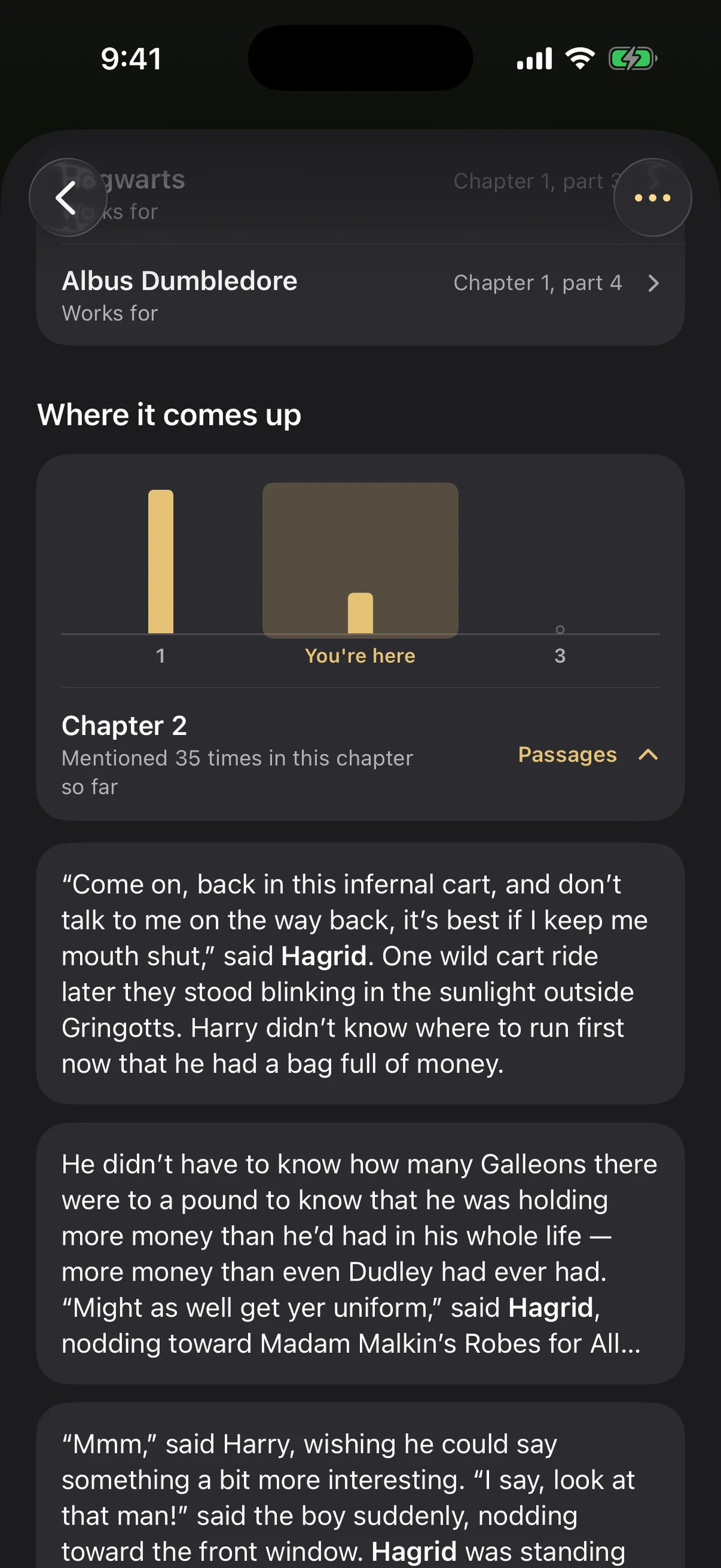
Often with lists the entries that turn up in the same paragraphs, and each one opens its own entry. Your note is a place to write who someone is to you, or a theory. In the Notebook, a name filter narrows your highlights and notes to the ones that mention a name from Constellations.
No spoilers
Section titled “No spoilers”Chapters you have not reached are left empty on purpose, and so is every description, tie and count. The story guide was built from the whole book, but the app only shows what comes before your page. Read on and the entries grow with you.
There are exceptions, and the sheet tells you when one applies. A finished book and a non-fiction book show everything, because there is nothing left to spoil. For re-reading, Show the whole book shows names and descriptions from pages you have not reached, and Turn off puts the protection back.
Fix a mistake in an entry
Section titled “Fix a mistake in an entry”Guides are written by a model, and a model sometimes mistakes two people for one. An entry’s … menu lets you put it right.
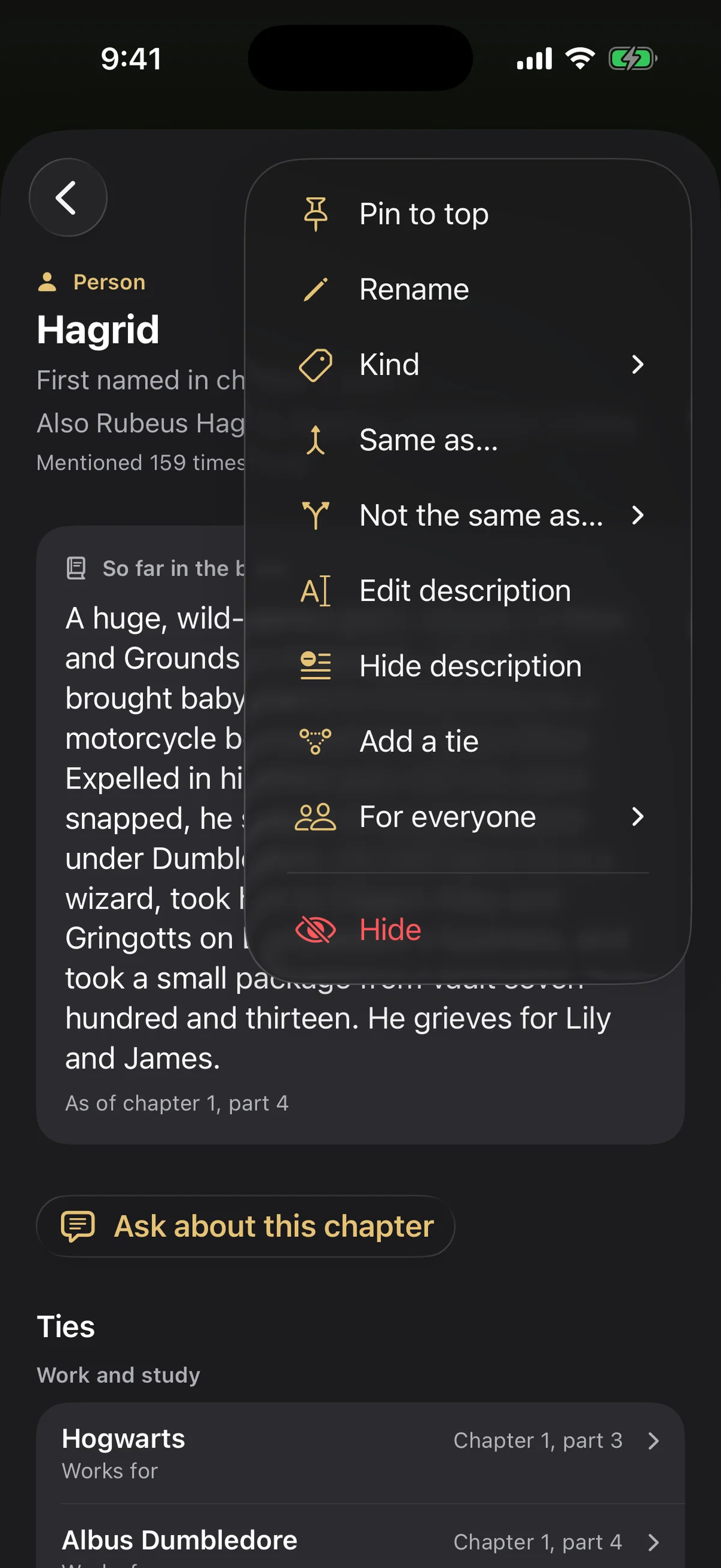
| Action | What it does |
|---|---|
| Pin to top | Keeps the entry at the head of the list. |
| Rename | Changes the name. |
| Kind | Moves it between people, places and terms. |
| Same as… | Merges it into another entry. |
| Not the same as… | Separates two entries that were merged. |
| Edit description and Hide description | Corrects the written line, or removes it. |
| Add a tie | Joins it to another entry. |
| For everyone | Makes the same change for everyone who reads this book. It needs the Build story guides permission. |
| Hide | Takes it off the list. |
A fix is for you unless you make it For everyone. If the server refuses a fix for everyone, for example because you no longer have the permission, the app keeps it for you and says Saved for you only. Fixes made for everyone survive a rebuild of the guide, and ones that can no longer find what they fixed show under Need attention.
If the book has no story guide
Section titled “If the book has no story guide”Constellations still opens on a book without a guide. The phone finds the capitalised names as you read, so you get a list of who has come up and where, but no merged names, no descriptions from the guide, and no ties.
To get the full version, someone with the Build story guides permission builds the guide, either on the book’s page in the web app or from the Cast section of the book’s details in the app. It arrives for everyone on the server once it is built. See Story Guides.
The Sky: who appears with whom
Section titled “The Sky: who appears with whom”The button at the top left of Constellations opens the Sky: the book’s cast drawn as constellations. The most mentioned entries are the biggest stars, and the ones that share the most paragraphs are gathered together.
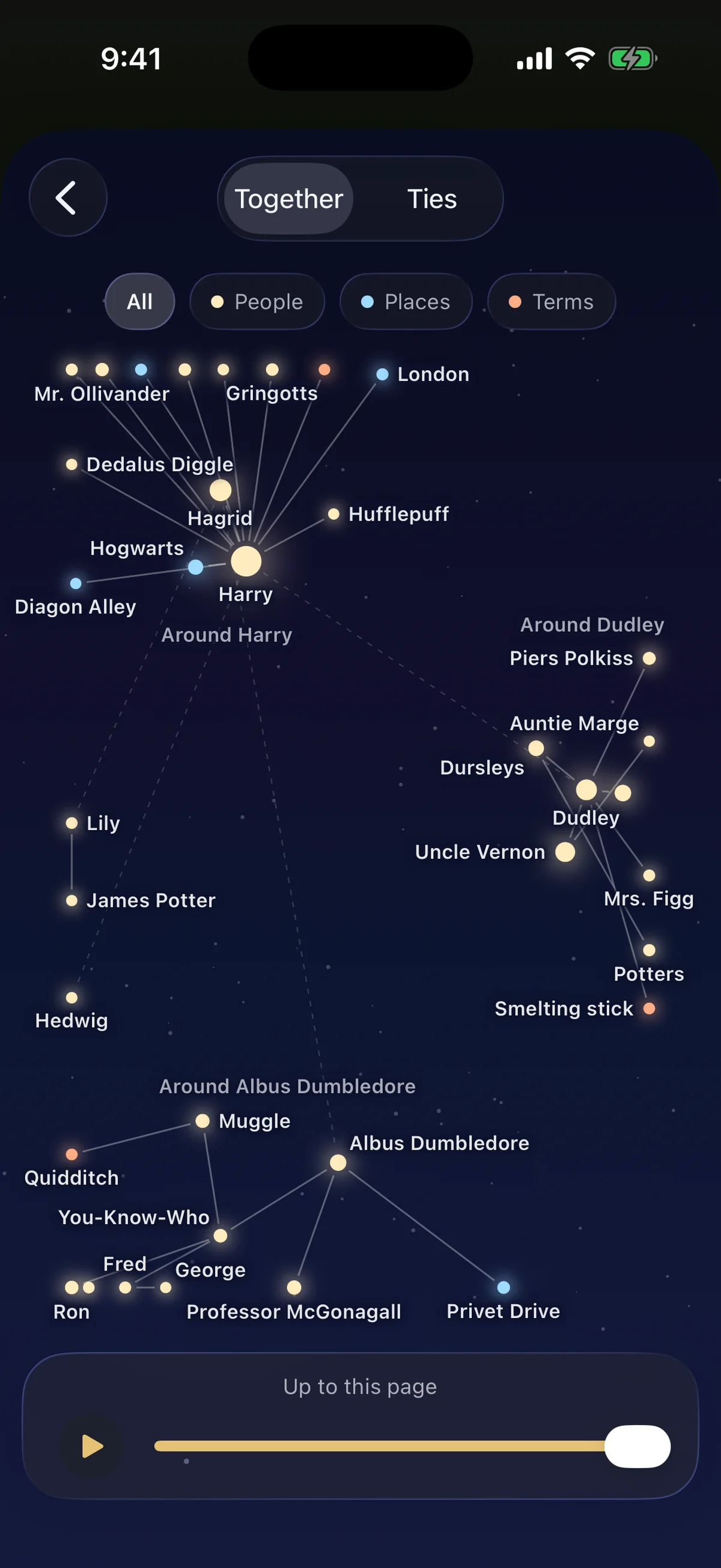
Together draws who appears with whom, and names the clusters, such as Around Harry and Around Dudley. Ties swaps those lines for the story guide’s relationships. A legend names the kinds the book has, such as Family, Friends and enemies and Other ties, each in its own colour (love and bonds, such as a rider and a dragon, are kinds of their own), and each is a filter.
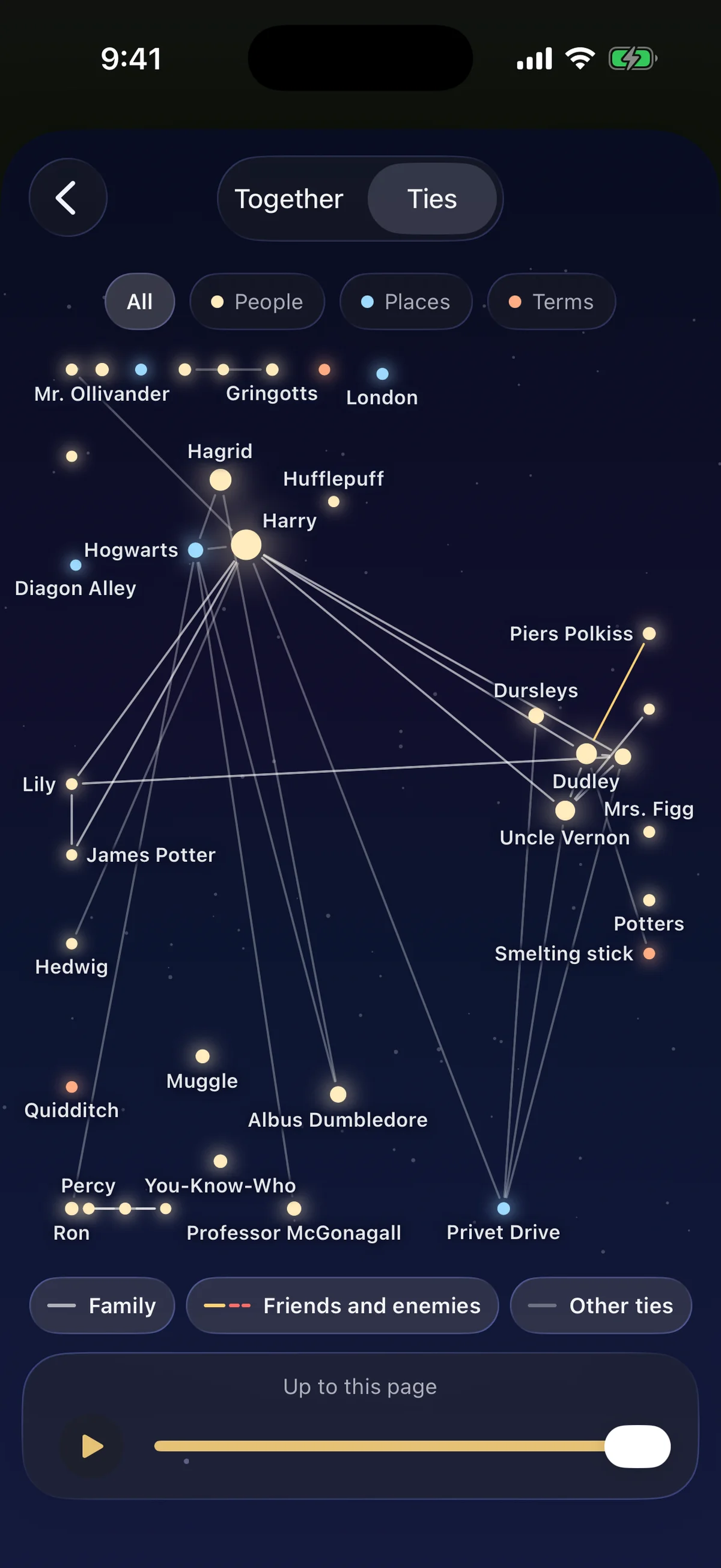
Along the top, All, People, Places and Terms filter the stars, and the others fade. The scrubber at the bottom reads Up to this page and walks back through the chapters you have read: the stars you had not met yet disappear, and the others stay where they are. The play button runs the chapters one after another, so you can watch the cast grow. Once you have finished a book, the Sky can be shared as a picture.
The same protection applies here: the Sky shows nothing from beyond your page unless you have asked for the whole book.
Ask a question
Section titled “Ask a question”The box at the top of Constellations reads Ask about the story so far. Type a question, such as Why does Harry live with the Dursleys?, and the phone finds the paragraphs you have read that bear on it and writes an answer from only those.
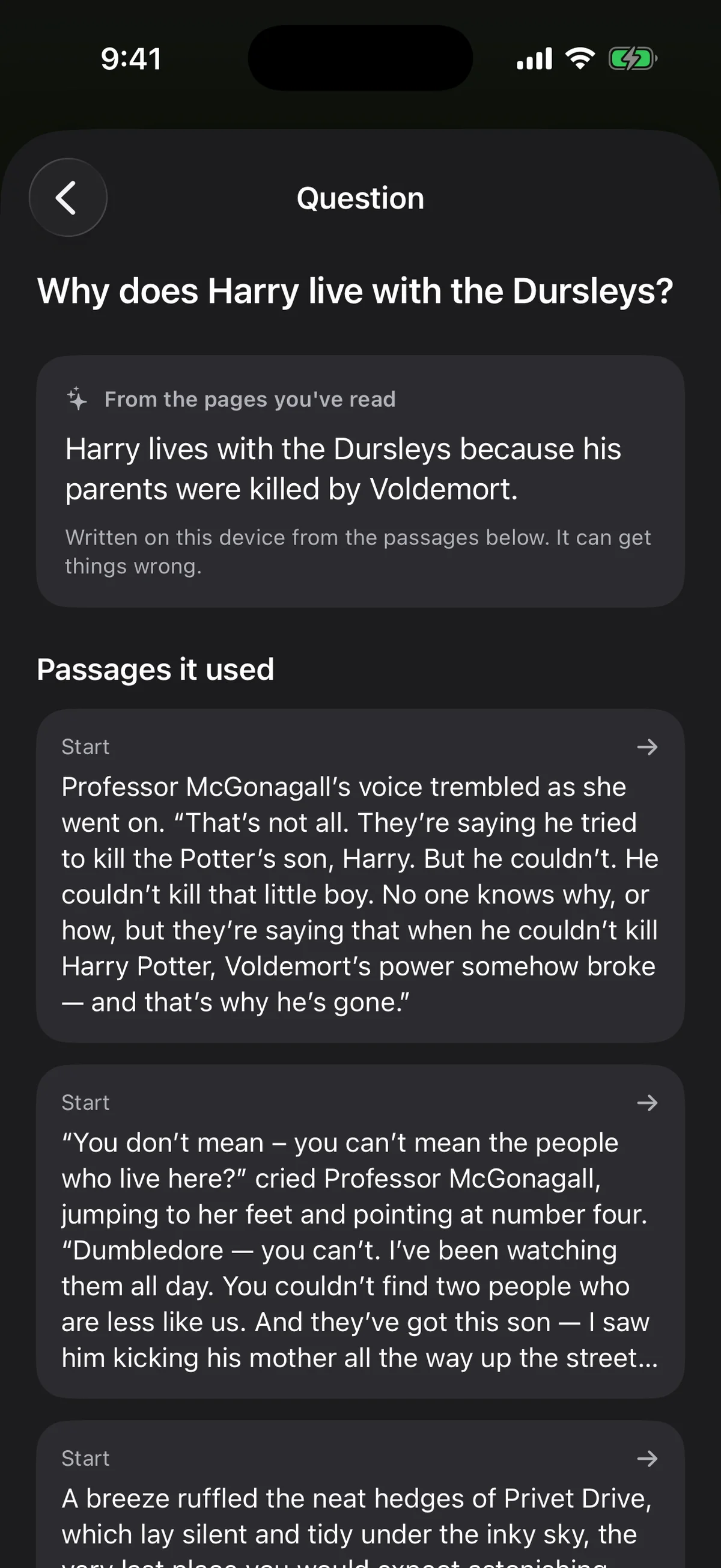
The answer is short, says that it was written on your device, and is followed by Passages it used, so you can check it against the book. Select a passage to go to it. Names help: a question that mentions someone from the book finds better passages than one that does not.
Answers to typed questions get the same protection: a sentence that names someone you have not met yet is withheld, and a name the book never uses is reported as coming from outside the book. Typed questions are always answered on the phone, never by your server’s AI, and they need Apple Intelligence and BookOrbit Premium. The last ten questions about a book are remembered on the phone.
Look up a name
Section titled “Look up a name”You do not have to open Constellations for this. Press and hold a name on the page, then select the sparkles in the menu that appears.
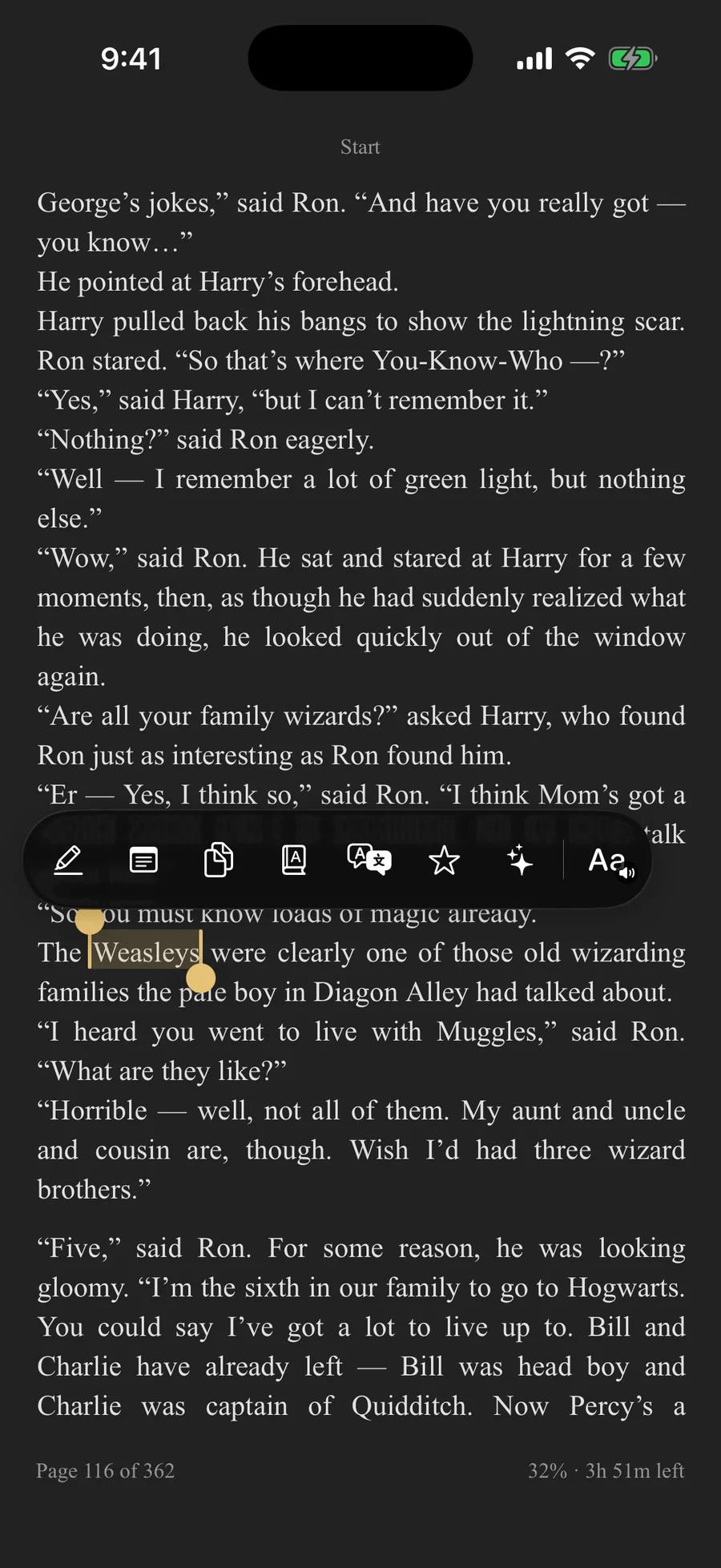
A sheet slides up with the name and a short reminder.
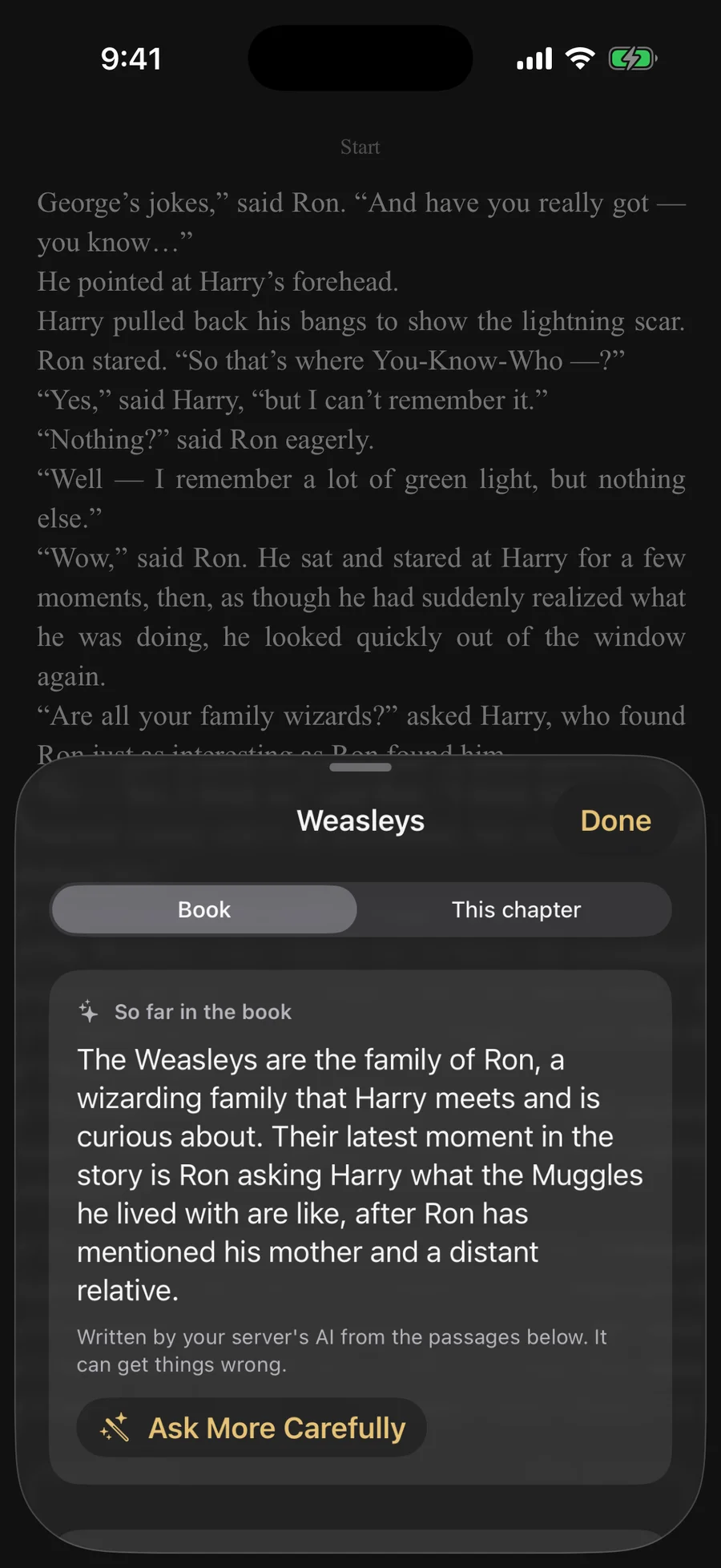
The reminder is built only from the passages you have read, shown further down the sheet so you can check it against the book. Book covers everything so far; This chapter narrows it to the chapter you are in. The line under the text says whether the phone or the server wrote it, and that it can get things wrong.
When the server wrote it and the administrator gave the stronger model a slot, Ask More Carefully asks again with that model. It takes longer and costs a little more, so it is there for the answer that did not satisfy you.
Choose who writes the answers
Section titled “Choose who writes the answers”Reminders, recaps and descriptions can be written by Apple Intelligence on your phone, or by the AI your administrator connected. You choose in Settings > Reading Help, separately on each device.
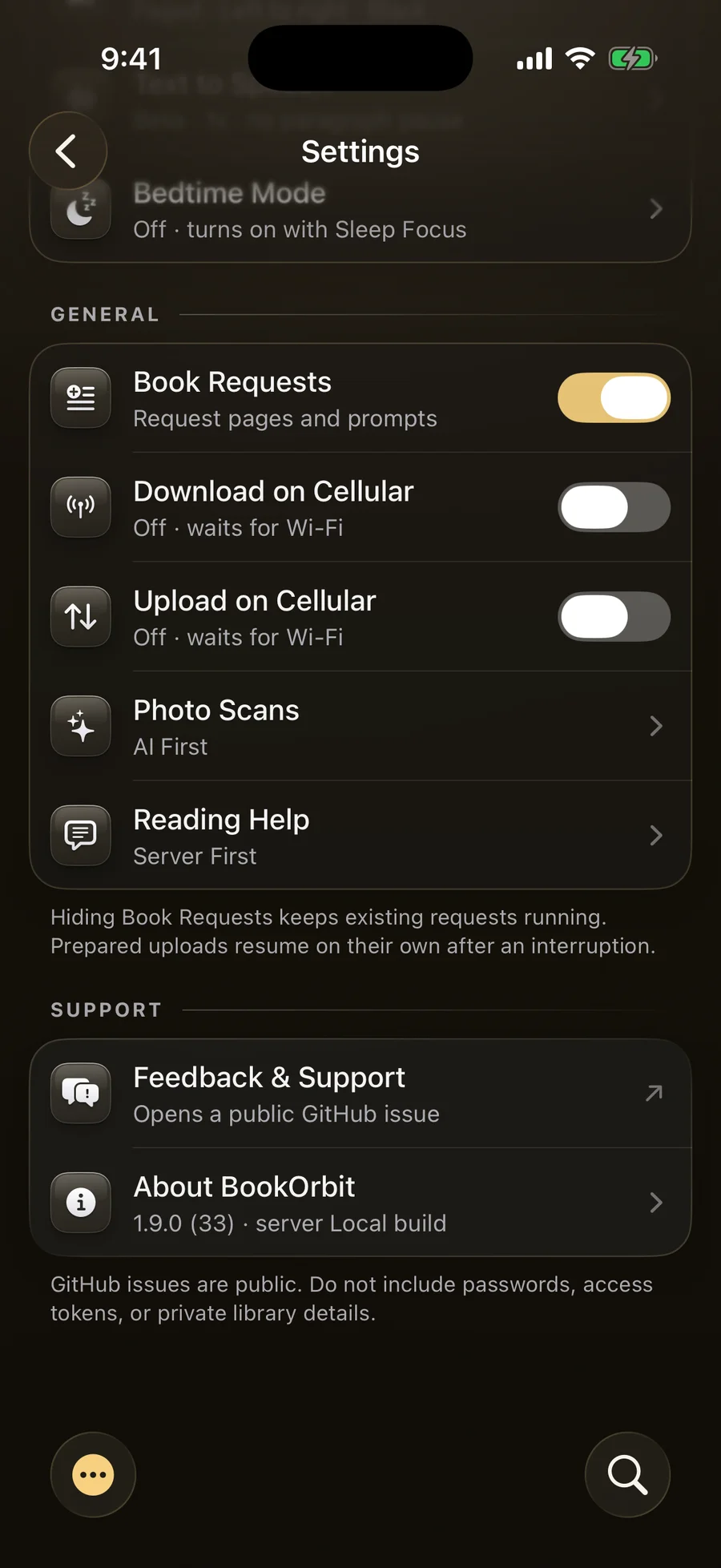
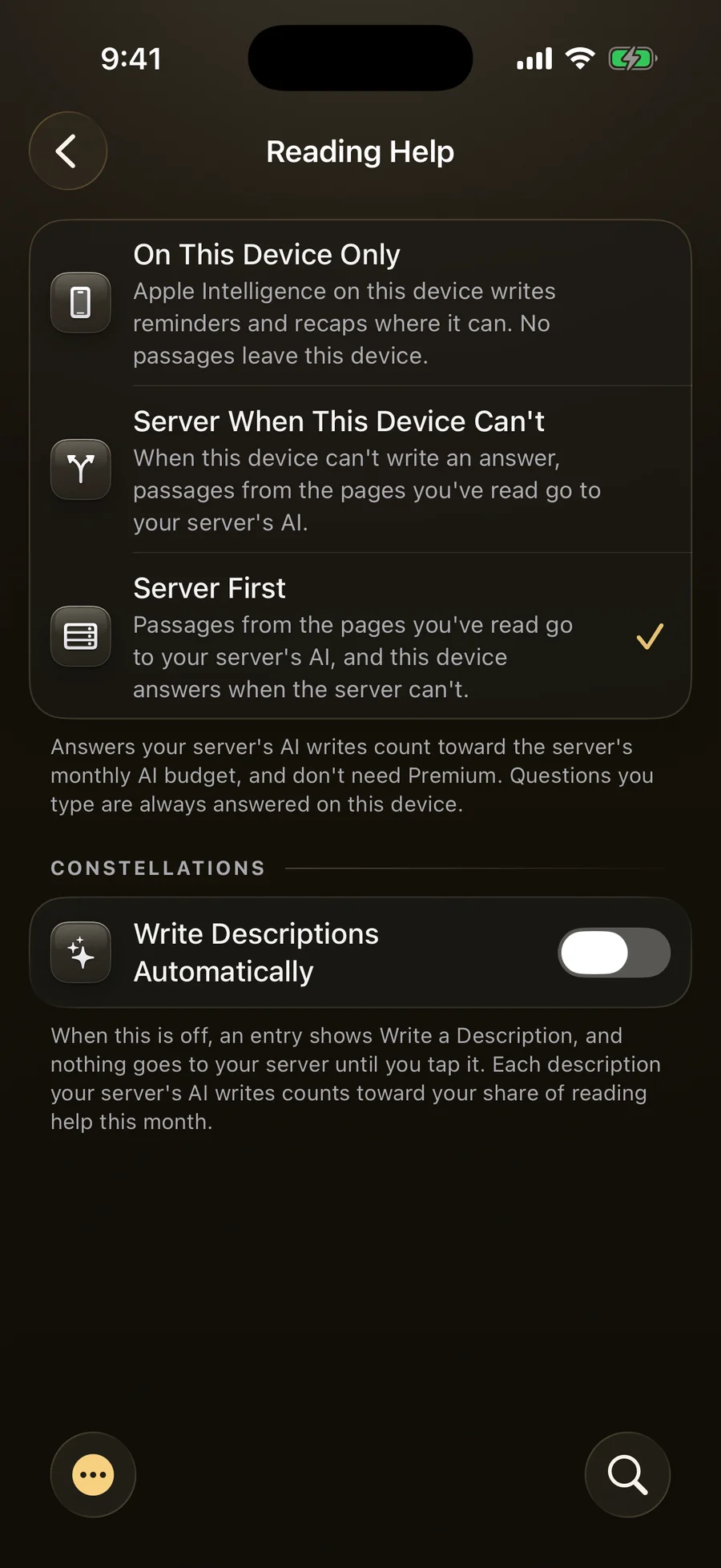
| Choice | What happens |
|---|---|
| On This Device Only | Apple Intelligence writes everything. No passages leave your phone. This is the default. |
| Server When This Device Can’t | Your phone tries first. If it cannot, whether because the phone does not support Apple Intelligence, it is switched off, or it declined the passage, the server writes it. |
| Server First | The server writes it, and your phone steps in when the server cannot. |
The first time you pick a server choice, the app asks whether you agree.
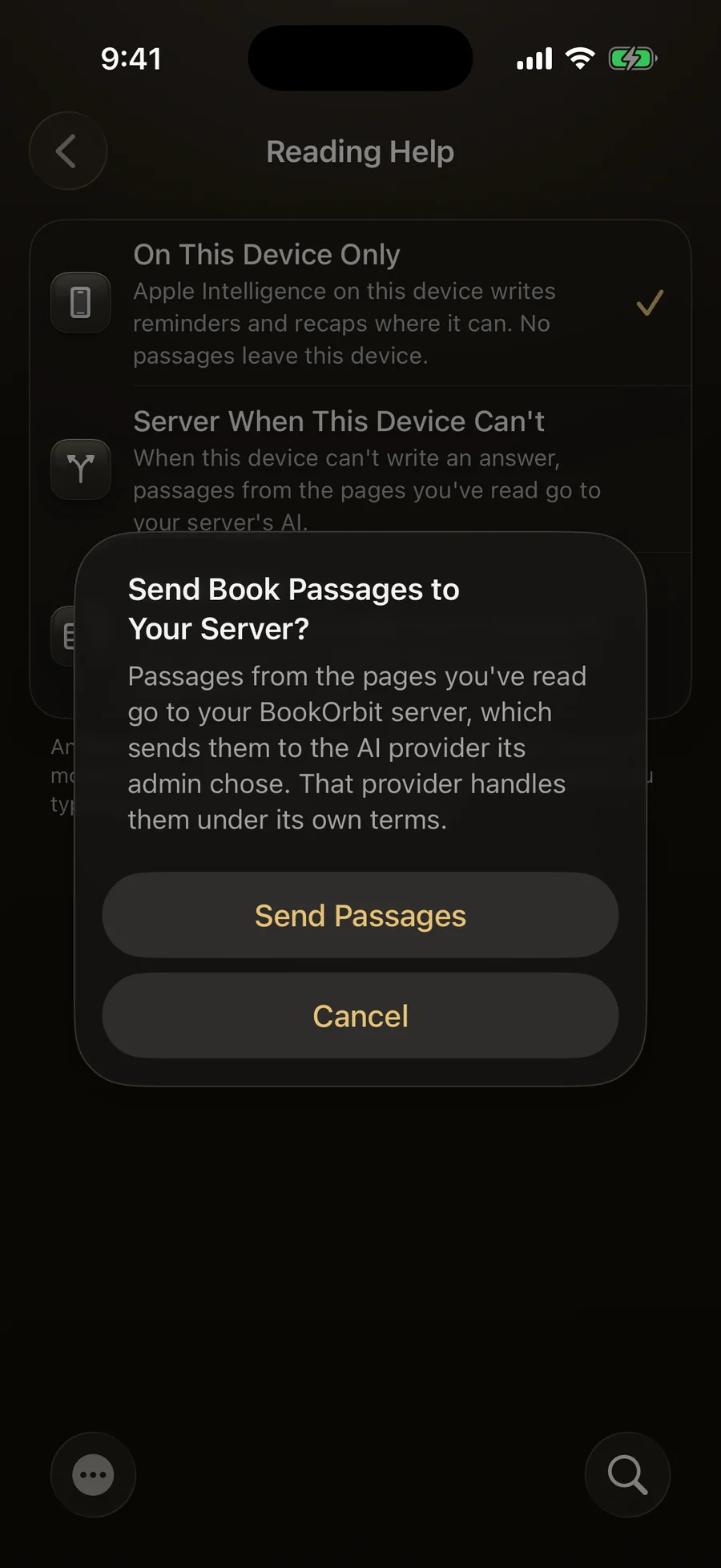
Only passages from the pages you have read go to your server, which passes them to the AI provider its administrator chose. Your account, your notes, the book’s title and author, and the pages you have not read stay out of it.
What it costs you
Section titled “What it costs you”Answers the server writes do not need BookOrbit Premium, and they are paid for from the server’s AI budget, not by you. Premium unlocks only the answers written on the phone. If your phone cannot run Apple Intelligence, the server’s AI is the way to get these features at all.
Two limits keep one reader from using up the month. Each reader has a monthly share set by the administrator, by default $1 or 300 answers, and answers already written are served from a shared cache and do not count. A reader who reaches their share gets the phone’s own answer where it can write one, and a message otherwise, until the month turns.
Descriptions on a tap
Section titled “Descriptions on a tap”An entry with no description from a story guide can have one written for it, by your phone or by the server’s AI. When the server would write it, the entry shows Write a Description and waits for you to tap it, so nothing is sent until you choose. To have descriptions written as you open entries, turn on Write Descriptions Automatically in Settings > Reading Help. It only matters for descriptions the server writes. Descriptions from a story guide are always there.
Catch up with a recap
Section titled “Catch up with a recap”Open the reader’s menu (the three dots) and select Recap.
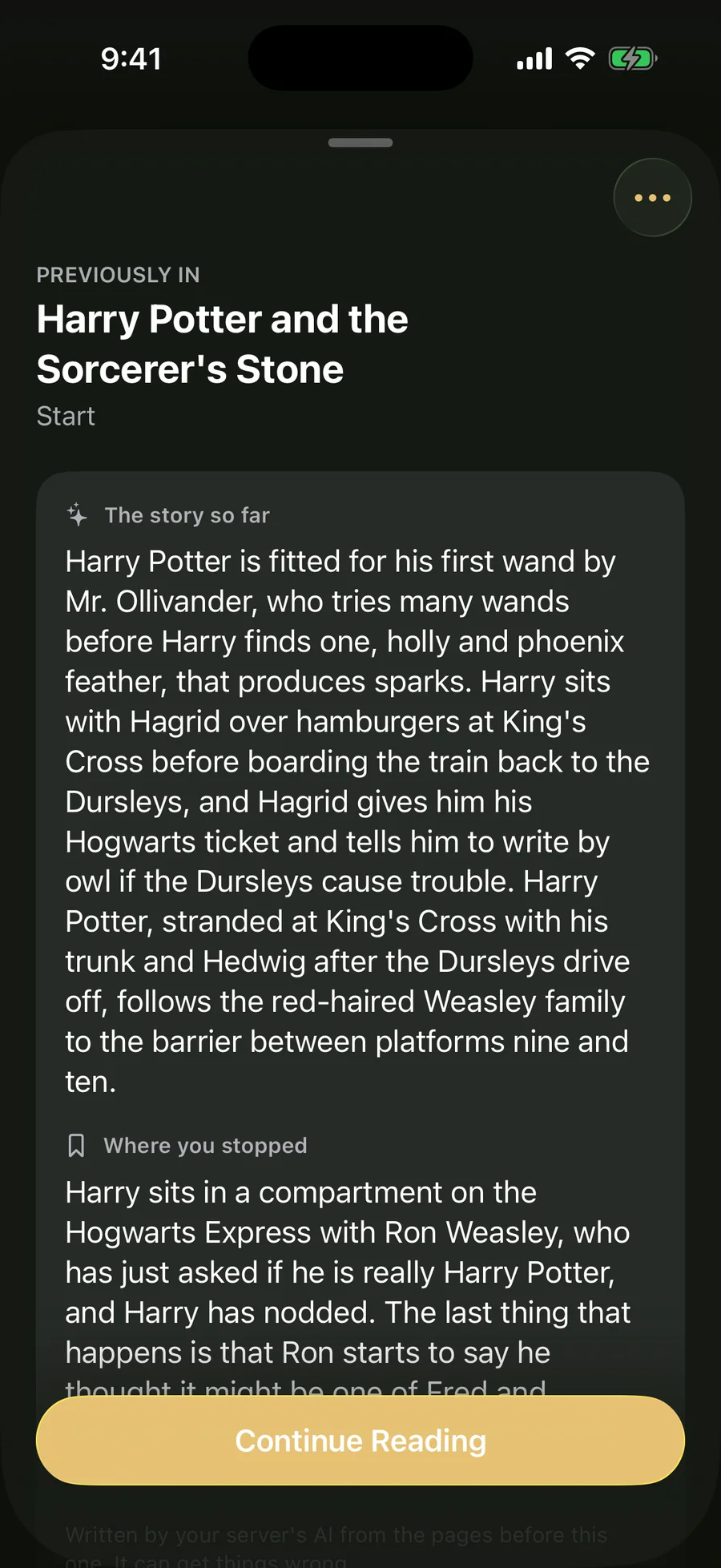
The story so far summarises the chapters behind you, taken from the story guide’s chapter summaries. Where you stopped is a few sentences about the last pages you actually read, written fresh from them. People worth remembering are listed beneath, and Continue Reading closes the sheet where you left off.
Turn on Show After a Break in the recap’s menu and it opens by itself when you return after three days or more.
Photo scans
Section titled “Photo scans”The same Scan a Book control in Search can read a cover or a whole shelf of spines and tell you which books are already in your library. It can use your server’s AI for the hard cases, and you choose when under Settings > Photo Scans. Photo Scans walks through both modes with screenshots.
Siri and Shortcuts
Section titled “Siri and Shortcuts”Once you have opened a book, its names are ready on the phone, and the Who Is This in a Book action answers a question without opening the app. Ask Siri who a name is in a book, or build it into a shortcut, and the answer comes from the description you were shown, or from who the name appears with if there is none yet. A book you have never opened says to open it first.
If something does not work
Section titled “If something does not work”| What you see | What to try |
|---|---|
| Entries have no description or ties | The book has no story guide yet. Ask someone who can build guides, or build one yourself if you have the permission. |
| The book page says the guide was built for a different copy | The book’s file was replaced after the guide was built. Ask whoever builds guides to rebuild it. |
| ”Names can only be found in books written with capital letters” | The phone finds names by their capitals, so a story guide is how books in other scripts get a cast list. |
| Selecting a name shows a Premium message | You chose On This Device Only, and answers written on the phone need Premium. Switch to a server choice, which is free, or add Premium. |
| A typed question cannot be answered | Questions are written on the phone, so they need Apple Intelligence turned on, and Premium. |
| Server When This Device Can’t never uses the server | Your phone can write the answer itself, so it did. Choose Server First to try the server’s AI. |
| ”Your server doesn’t offer reading help right now” | An administrator has switched Reading help off under Settings > Server > AI. |
| A message about this month’s share | You reached your monthly allowance. It resets when the month turns, or an administrator can raise it. |
| Photo scans fall back to the phone | The server’s Photo scans feature is off, its monthly budget is spent, or the Vision slot has no model that reads images. |