
Book Details, Editing, and Viewer
Each book opens into a focused viewer workspace with tabs for Details, Edit Metadata, Files, Reading Log, and Highlights. Use Details to read, inspect, rate, and review the book. Use Edit Metadata to clean up the record and cover. Use Files when a book has more than one attached format and you want to choose exactly what to open or download.
Details
Section titled “Details”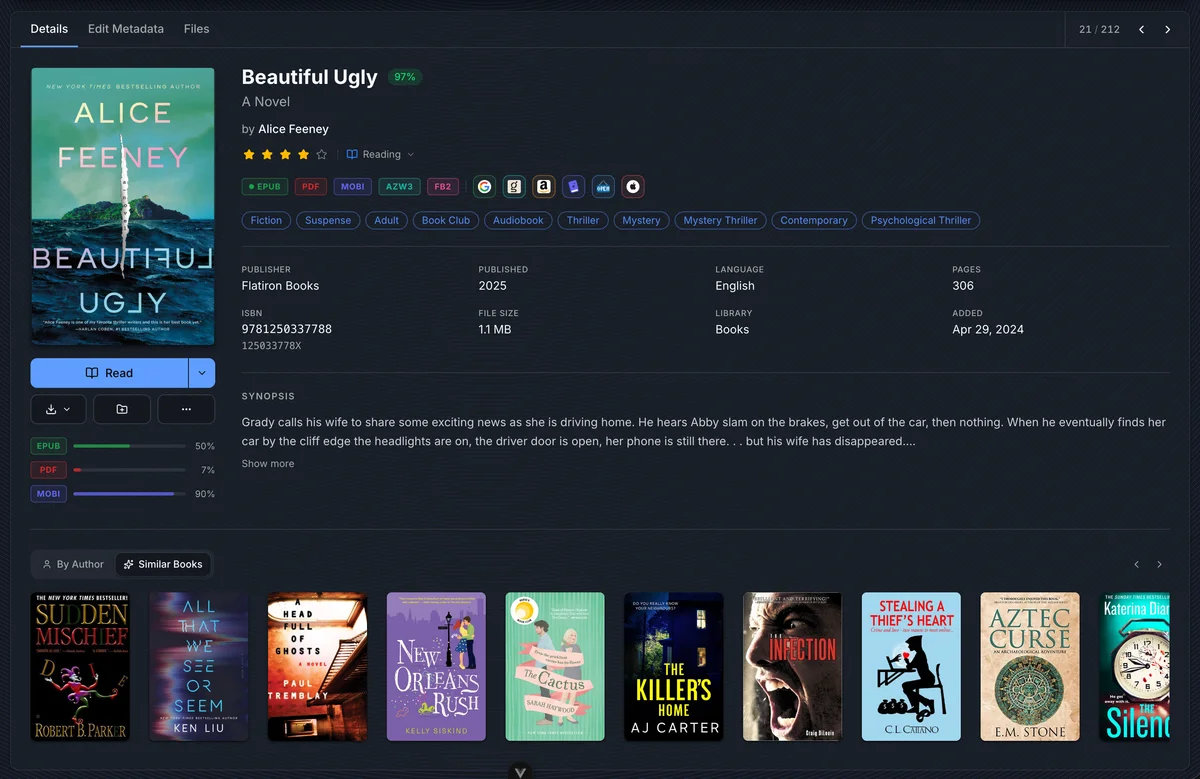
The Details tab is the main book viewer. It brings the cover, identity, reading controls, metadata score, provider links, progress, and discovery rows into one place.
| Area | What it does |
|---|---|
| Cover | Opens a larger preview when clicked. When the book has both a Book and an Audiobook cover, the preview has a Book / Audiobook switch. The edit shortcut on the cover jumps to the metadata editor. |
| Read / Listen | Opens the primary file in the built-in reader or audiobook player. If the book has multiple readable files, the split menu lets you choose another format. |
| Download | Downloads the primary file or, from the menu, another attached file when you have download permission. |
| Rating | Sets a personal star rating when metadata editing is allowed and the rating field is not locked. |
| Read status | Marks the book as Unread, Reading, Finished, or another configured status. |
| Metadata score | Shows how complete the book metadata is. Click it to see the score breakdown and jump to editing weak fields. |
| Format badges | Show every attached format. The dot marks the primary format. |
| Provider links | Open the saved provider record, such as Google Books, Goodreads, Amazon, Hardcover, Open Library, or iTunes. |
| Progress bars | Show reading progress per file, so an EPUB, PDF, and MOBI copy can each keep its own position. |
| Discovery rows | Surface books by the same author, in the same series, or similar to the current book. |
The Read button uses the primary file. When you want a specific file, use the split menu beside Read, or open the Files tab.
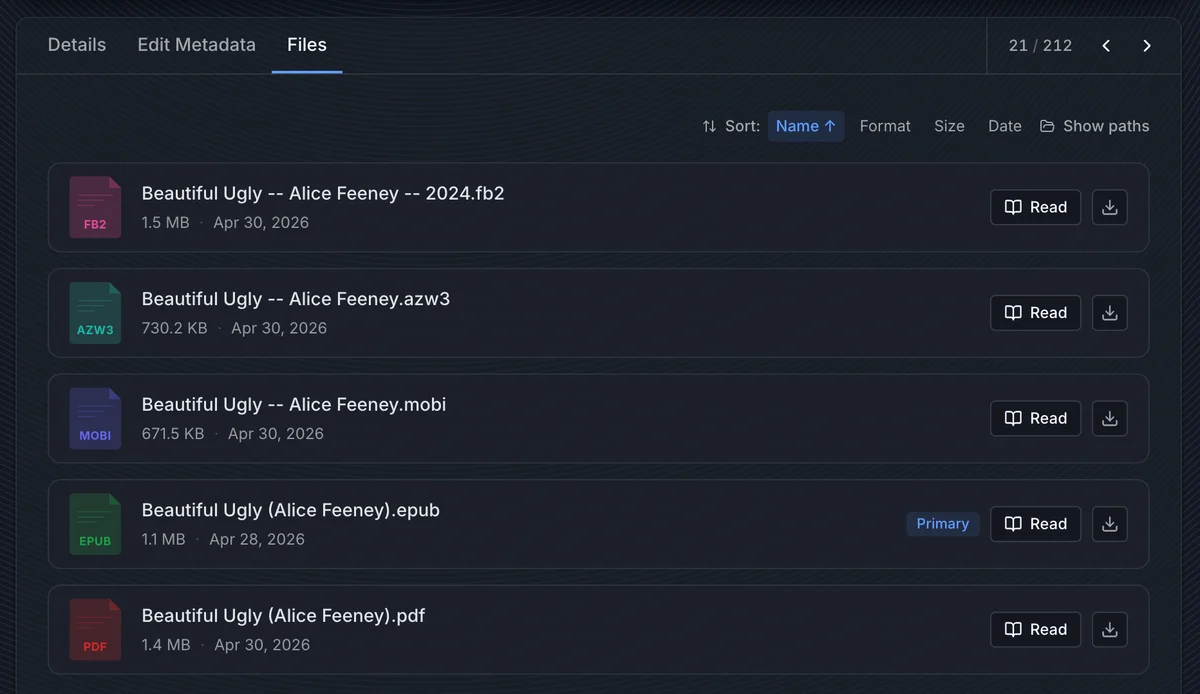
The Files tab lists every file attached to the book. It is the best place to verify which formats are present, open a non-primary copy, download a single file, or inspect the on-disk path.
| Control | Use it for |
|---|---|
| Sort | Sort by name, format, size, or date. Click the active sort again to reverse it. |
| Show paths | Reveals absolute paths for troubleshooting scanner or filesystem issues. |
| Read / Play | Opens that exact file in the matching built-in reader. Audio files show Play. |
| Download | Downloads the selected file when you have download permission. |
| Primary | Marks the file used by the main Read button on the Details tab. |
| View sync log | Appears when metadata has been written back to files and shows recent write results. |
| Create read-aloud | Builds a read-aloud EPUB from the book’s EPUB and audiobook. Shown only when a worker is set up and you have permission. See Creating a Read-Aloud. |
BookOrbit chooses the reader by file type: eBook formats open in the eBook reader, PDFs in the PDF reader, comics in the comics reader, and audio files in the audiobook player. Reader defaults and per-book reader settings are covered in Reader.
Highlights
Section titled “Highlights”The Highlights tab collects annotations for the current book. It can search, filter by color, filter by chapter or date, sort by reading position or creation date, edit notes and highlight styles, export the current page, and jump back into the reader at the saved position.
For the full annotation workflow across the whole library, see Annotations & Highlights.
Edit Metadata
Section titled “Edit Metadata”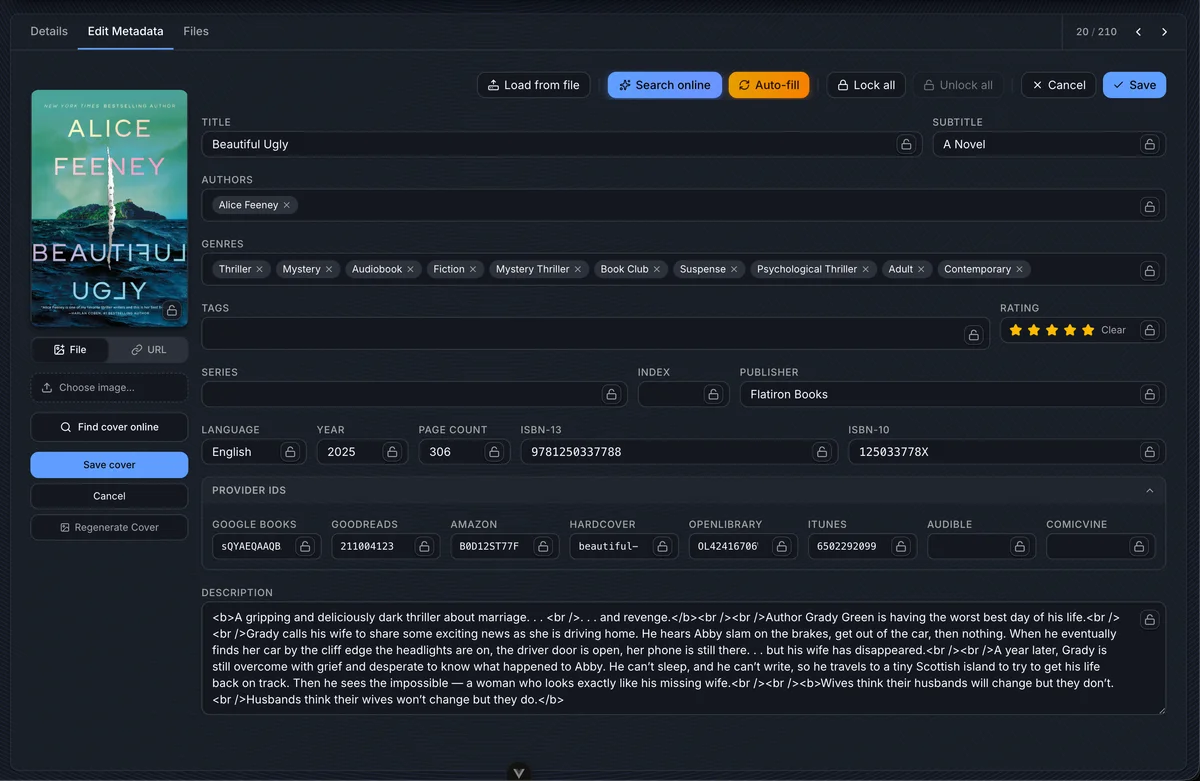
The Edit Metadata tab is a review-and-save workspace. Changes stay in the form until you click Save, so you can load data from several sources, compare it, adjust it, and cancel without changing the book record.
Editing requires the library_edit_metadata permission.
Action bar
Section titled “Action bar”| Action | Behavior |
|---|---|
| Load from file | Reads embedded metadata from the primary book file and places found fields into the form. |
| Write to File & Rename | Writes the saved metadata into the book file on disk, then renames the file to match the library naming pattern. |
| Search online | Opens the manual provider search drawer so you can pick and compare candidate records. |
| Auto-fill | Runs the configured metadata provider pipeline from Settings > Metadata and applies allowed fields to the form. |
| Lock all | Locks every metadata field, including both covers, so automated and manual provider updates cannot overwrite them. |
| Unlock all | Clears all field locks. |
| Cancel | Resets unsaved form changes. |
| Save | Writes the form values to the book record and saves any pending cover change. |
Every other action on this tab, Save included, changes only the database record. Write to File & Rename is the one action that touches the files on disk.
Editable fields
Section titled “Editable fields”The form covers core book metadata, provider identifiers, and format-specific fields.
| Group | Fields |
|---|---|
| Core | Title, subtitle, authors, genres, tags, rating, description |
| Publishing | Publisher, year, language, page count |
| Series | Series name and index |
| Identifiers | ISBN-13, ISBN-10, Google Books, Goodreads, Amazon, Hardcover, Open Library, iTunes, Audible, ComicVine |
| Audiobooks | Narrators, duration, abridged |
| Comics | Issue number, volume, story arcs, creators, characters, teams, locations |
Author, narrator, genre, and tag fields use chips. Type to search existing values, press enter to add a new one, and remove chips you do not want to keep.
Book and Audiobook Covers
Section titled “Book and Audiobook Covers”Most books have one cover. A book that has both an ebook and an audiobook has two: a portrait Book cover (2:3) and a square Audiobook cover (1:1). Each screen uses the one that fits it, so square audiobook art is not squeezed onto an e-reader and a portrait cover is not cropped in the player.
A book gets both covers when:
- Its folder holds an ebook, PDF, or comic file together with audio files. Only Folder as Book libraries group these into one book; a File as Book library makes a separate book from every file. See Library File Structure.
- It has a Storyteller read-aloud EPUB. The synchronized narration counts as an audiobook for covers, in either scan mode.
| Where | Which cover |
|---|---|
| Library grid, lists, table, shelves, search, the dashboard, and the cover on Details | Follows the book’s primary file: the Audiobook cover when an audio file leads, and the Book cover otherwise, a read-aloud EPUB included. When that one is missing, the other is shown. |
| Audiobook player, Read Along and text-to-speech players, the lock screen, and media controls | The Audiobook cover. Without one, the Book cover is shown whole over a blurred, enlarged copy of itself instead of being cropped. |
| Kobo, KOReader, and OPDS | The Book cover. A book with only an Audiobook cover sends that image unchanged. |
| Covers written into files | The Book cover goes into ebook files and the Audiobook cover into audio files. A cover is never written into a file of the other kind. |
Which file leads comes from the library’s Primary file order. The library’s Grid shape, Tall cells or Square cells, sets only the shape of its grid tiles, so every tile in a grid has the same shape; a cover that does not match the tile follows your Cover display mode. Lists, the cover on Details, and other places that show one book at a time use the cover’s own shape. Both settings can be changed by editing the library; see Creating a Library.
When a library is scanned, each cover comes from the art embedded in its own files: the Book cover from the ebook, and the Audiobook cover from the first audio track. A folder image such as cover.jpg fills a cover only when those files have no art of their own. A read-along EPUB’s own art is always its Book cover, so its Audiobook cover fills only from a square folder image or from the cover editor. See Cover images for the full rules.
Tools > Missing Resources checks both covers of a book when it looks for broken covers and leftover cover folders, and each result names the cover it found: the Book cover, the Audiobook cover, or both. Cleaning a broken cover removes only that cover; the other one stays.
Cover Editing
Section titled “Cover Editing”The cover editor lives in the left column of Edit Metadata. Clicking a cover in the table view opens a preview whose edit button leads to the same editor.
For a book with both an ebook and an audiobook, the editor shows two tiles, Book and Audiobook. Select a tile first: uploading a file, pasting a URL, searching online, reverting, and regenerating all act on the selected tile only, and a search from the Audiobook tile looks for square art. Each tile has its own lock and a View larger button. A book with only one kind of file has a single cover.
| Option | Behavior |
|---|---|
| File | Uploads a local image file and previews it before saving. |
| URL | Uses an image URL as the custom cover. |
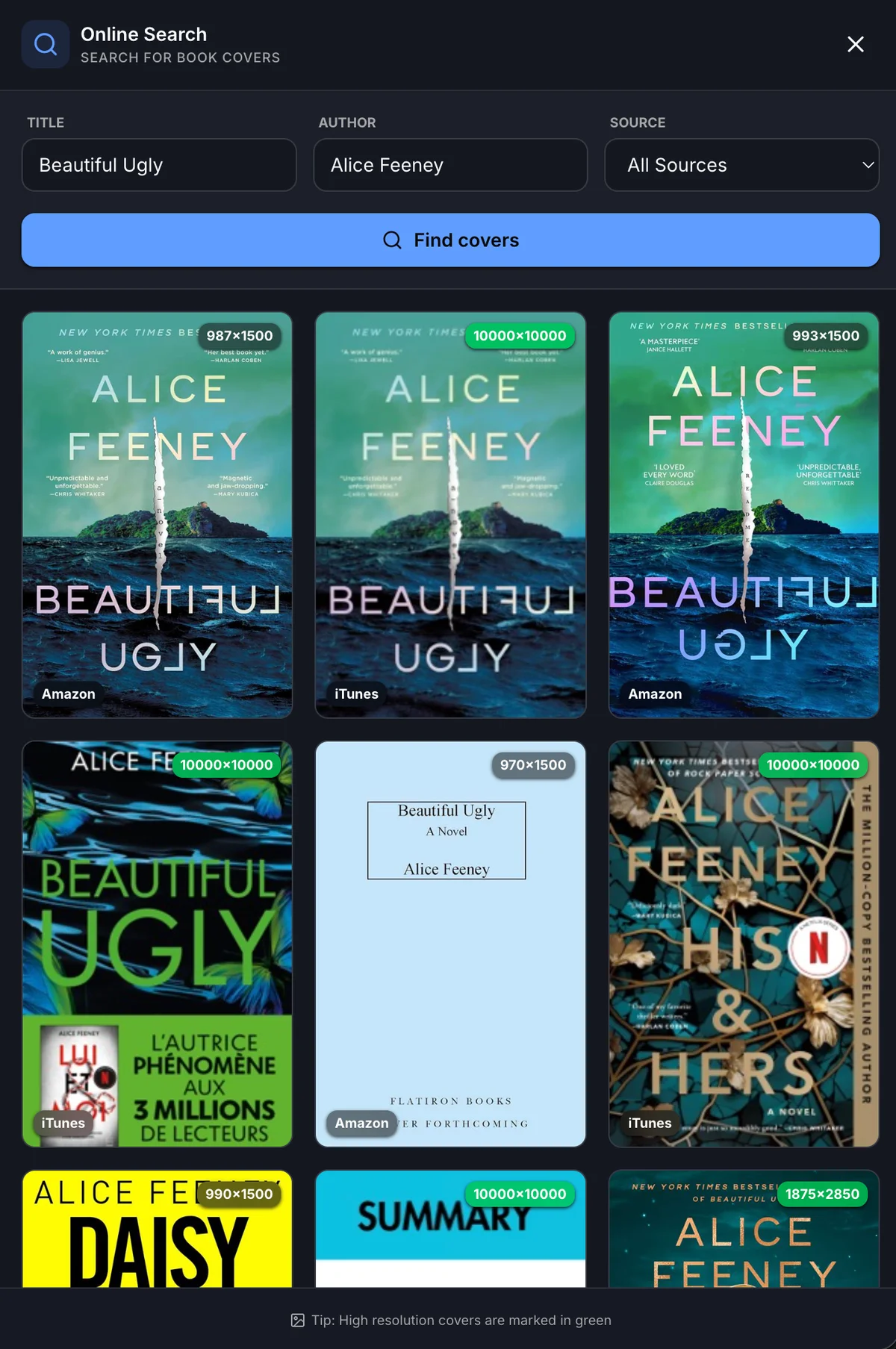
| Find cover online | Searches DuckDuckGo, iTunes, or all cover sources. High-resolution results are marked in green. Turn on Audiobook covers for square results. |
| Save cover | Saves the pending file or URL as a custom cover. |
| Cancel | Clears the pending cover selection. |
| Revert to original | Removes the custom cover and falls back to the extracted cover when one exists. |
| Regenerate Cover | Re-extracts the cover from the book’s files. |
| Cover lock | Prevents cover uploads, URL changes, provider cover updates, regeneration, and revert operations until unlocked. On a book with two covers, the Book tile uses the cover lock and the Audiobook tile uses the audiobook cover lock. |
| View larger | Opens that tile’s cover at full size. |
Choose covers that match the edition you are keeping. A high-resolution image is useful, but edition, language, and title treatment matter more than raw pixel count. For the Audiobook cover, use the audiobook edition’s square art.
Online Metadata Search
Section titled “Online Metadata Search”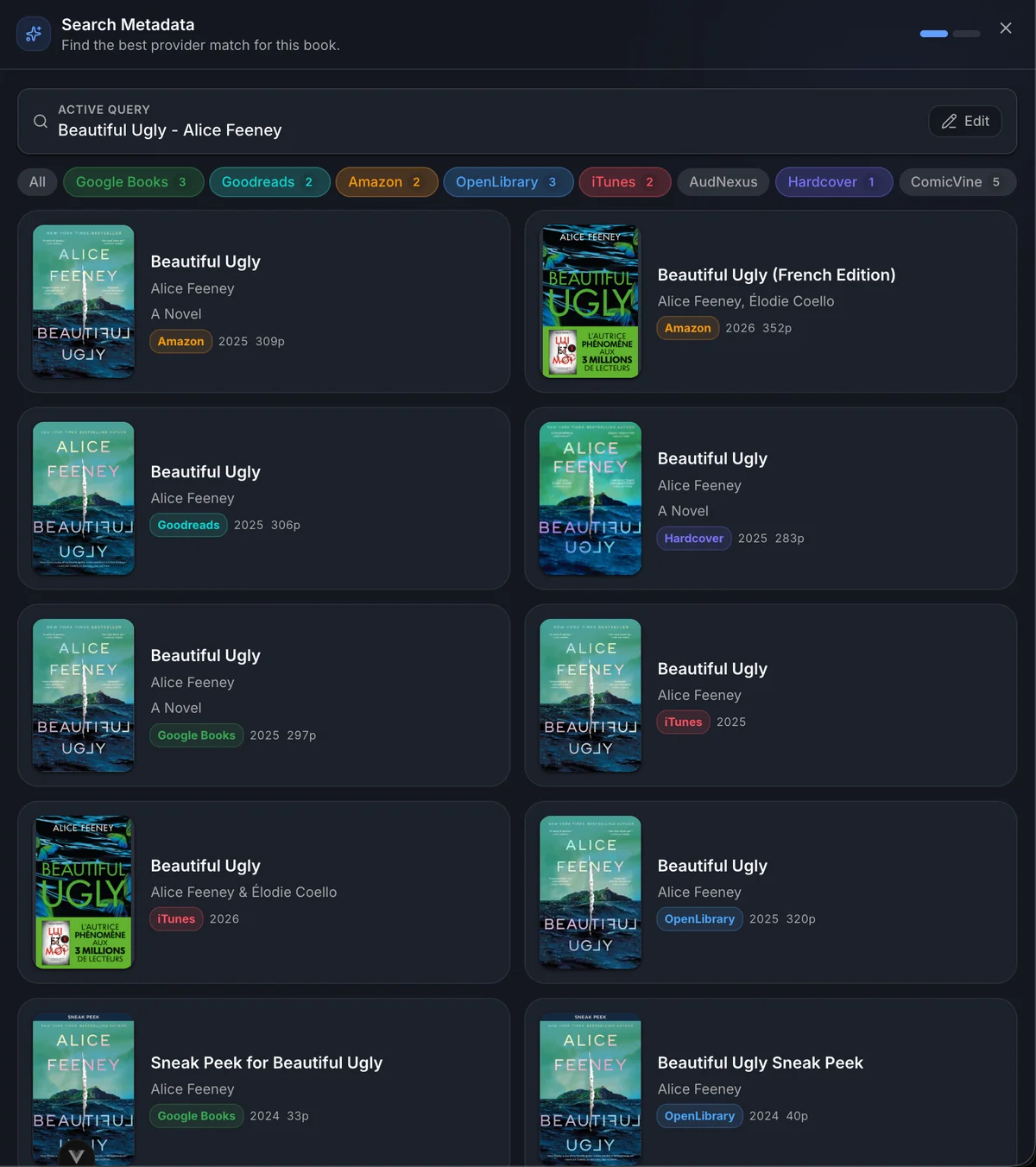
Search online opens a drawer seeded with the current title, first author, and ISBN when available. Results stream in provider by provider, and each provider pill shows how many matches arrived.
Use the provider pills to narrow noisy searches. Click Edit in the active query card when you want to revise the title, author, or ISBN without closing the drawer.
Search works best with an ISBN. If the book does not have one, use a clean title and the primary author. Remove file-name clutter such as format names, release tags, or extra punctuation before searching.
Compare Metadata
Section titled “Compare Metadata”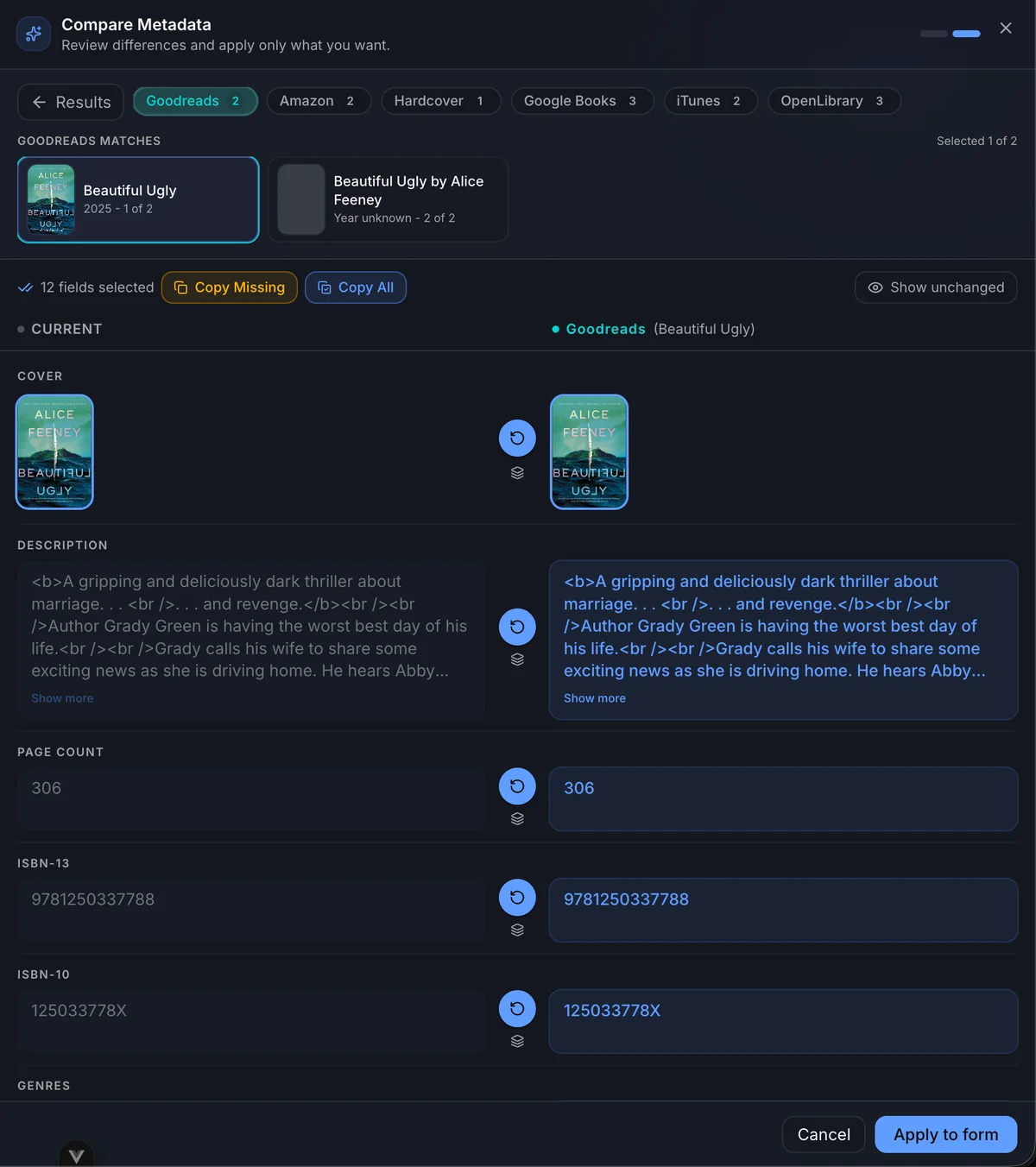
Selecting a result opens Compare Metadata. The left side shows the current book value. The right side shows the selected provider value for the active provider tab.
Selections are field-based, not provider-based. You can take the title and identifiers from Goodreads, the description from Amazon, genres from Google Books, and the cover from iTunes before applying everything to the edit form at once.
On a book with both an ebook and an audiobook, Compare Metadata shows two cover rows, Book cover and Audiobook cover. The Audiobook cover row has its own results: the search also runs as an audiobook, so the row offers square art from Audible, Libro.fm, iTunes and the other sources in the Audiobook cover field rule, best match first. Pick one from the strip under the row. It stays out of Copy All and Copy Missing, so a bulk copy never changes it; pick it on its own. Each applied cover goes to its own tile. A book with one kind of file has a single Cover row, and its cover goes to its only tile.
Auto-fill fills both tiles the same way, following the Cover and Audiobook cover field rules. A locked tile is left alone.
| Control | Behavior |
|---|---|
| Provider tabs | Switch between provider results. Existing field picks from other providers stay selected. |
| Matches row | Appears when a provider returned multiple records; choose the exact edition before selecting fields from that provider. |
| Copy Missing | Selects empty fields from the active provider without changing fields you already picked from another provider. |
| Copy All | Selects every copyable field from the active provider. This can replace earlier picks for the same fields. |
| Show unchanged | Shows fields that already match or have no visible difference. |
| Arrow button | Selects or unselects the active provider’s value for that field. |
| Layers button | Opens all provider values available for that field, so you can pick a different provider without changing tabs. |
| Apply to form | Sends selected fields back to the edit form. It does not save the book yet. |
When a picked field comes from a provider other than the active tab, the current side shows a small provider badge. This makes it easier to review a mixed selection before applying it.
Mixing Providers
Section titled “Mixing Providers”Use the comparison drawer as a staging board. Pick the best value for each field, then apply the full set.
| Goal | Workflow |
|---|---|
| Mostly one provider, cover from another | On the best metadata provider, click Copy All. Open the cover row’s Layers picker and choose the cover from another provider, or switch to that provider and select only the cover row. On a book with two covers, pick the Audiobook cover separately. |
| Only fill gaps from one provider | Click Copy Missing on the provider that best matches the edition. Then switch providers or use Layers for any remaining fields. |
| Description from one provider, identifiers from another | Select the description row from the provider with the best synopsis. Switch to the provider with the strongest ISBN or external record and select the identifier rows you want. |
| Build a record field by field | Move across providers and click the arrow only on the rows you trust. The selected-field count increases as picks accumulate. |
| Replace one earlier choice | Use the Layers button on that row and choose another provider, or switch to the provider you prefer and click the row’s arrow. Only that field changes source. |
| Undo one field | Click the selected row’s arrow again, or choose the same provider in the Layers picker again. |
Changing the selected match inside a provider clears previous picks from that provider, because those picks may no longer describe the same edition. Picks from other providers remain in place.
Provider IDs
Section titled “Provider IDs”Provider IDs are first-class fields in the diff. When a provider result has an external ID, its ID row appears while that provider tab is active.
There are two ways provider IDs get applied:
- If you select any field from a provider, BookOrbit automatically includes that provider’s ID when the result has one.
- If you want an ID without taking any other metadata from that provider, switch to the provider tab and select its ID row directly.
This lets you copy provider IDs one by one. For example, you can keep all visible metadata from Goodreads, select only the Amazon ID from Amazon, select only the Open Library ID from Open Library, then choose an iTunes cover. Applying the selection sends the combined patch back to the edit form.
Field Locks
Section titled “Field Locks”Every metadata field has a lock button. A locked field is disabled in the form and is protected from auto-fill, provider search, bulk refresh, and cover operations.
Use locks after you have verified a field manually: final title, carefully curated genres, the correct series index, or a custom cover you do not want replaced. Use Lock all after a full cleanup when the record should be treated as finished.
A book with both an ebook and an audiobook has two cover locks: cover for the Book cover and audiobook cover for the Audiobook cover. Each protects only its own cover, and Lock all sets both.
Robust Metadata Workflow
Section titled “Robust Metadata Workflow”This workflow favors complete, accurate records over speed.
- Configure providers first. In Settings > Metadata, enable the providers you trust, set field rules, and turn on provider ID storage. For covers, keep high-quality cover sources early in the cover provider order.
- Open the book and inspect Details. Note the current metadata score, existing formats, publication year, page count, ISBNs, and whether the primary file is the edition you expect.
- Go to Edit Metadata and click Load from file. Embedded metadata is often the best source for ISBNs, language, series index, and audiobook or comic-specific fields.
- Clean the search anchors. Correct the title and author, remove filename artifacts, and add ISBN-13 or ISBN-10 when you know it.
- Click Search online. Prefer ISBN searches. If there is no ISBN, search by exact title plus the primary author, then use provider filters to reduce noise.
- Compare editions before copying. Match on title, author, language, year, page count, ISBN, and cover. Avoid preview chapters, foreign editions, summaries, and audiobook records unless that is the file you are editing.
- Apply selectively. Start with Copy Missing when the record already has good data. Use Copy All only for a high-confidence edition match, then override individual fields with Layers when another provider has a better cover, description, genre list, or identifier.
- Fix the cover. Use the diff cover when it matches the edition, or open Find cover online and pick a clean, high-resolution result for the same edition. For a book with both an ebook and an audiobook, check both tiles: portrait art for Book, square art for Audiobook.
- Review the form. Normalize genres and tags, check series index, confirm language, and remove provider IDs that clearly belong to the wrong edition.
- Lock verified fields, then Save. After saving, run Auto-fill only for remaining gaps; locks and field rules will protect the work you already reviewed.
Troubleshooting
Section titled “Troubleshooting”Search returns the wrong editions
Section titled “Search returns the wrong editions”Use ISBN first. If there is no ISBN, remove extra words from the title and search with only the main author. Filter to one provider at a time when a broad search is noisy.
Auto-fill did not update a field
Section titled “Auto-fill did not update a field”The field may be locked, disabled in Settings > Metadata > Field Rules, missing from the provider response, or using a fill-missing strategy while the book already has a value.
Cover actions are disabled
Section titled “Cover actions are disabled”The selected cover is locked. On a book with two covers, each tile has its own lock, so check the lock on the tile you selected. Unlock it before uploading, searching, reverting, or regenerating.
The library shows the other cover
Section titled “The library shows the other cover”For a book with both an ebook and an audiobook, the grid, lists, and Details show the cover of its primary file: the Audiobook cover when an audio file leads, the Book cover otherwise. To show the other one, move its format up in the library’s Primary file order under Settings > Libraries > Edit > Metadata, which also changes the file Read opens; saving the new order rescans the library. Or edit the cover that is shown. Players and e-readers are not affected.
The player shows a blurred portrait cover
Section titled “The player shows a blurred portrait cover”Audio screens show art that is not square whole, over a blurred copy of itself. Either the book has no Audiobook cover and the player is showing its Book cover, or the audiobook’s own art is portrait. To show square art, upload or search for one in the cover editor, on the Audiobook tile when the book has two. When the audio files have no embedded art, a square cover.jpg in the book folder also fills the Audiobook cover on the next scan.
Applied metadata disappeared
Section titled “Applied metadata disappeared”Apply to form only stages values in the edit form. Click Save before leaving the page.
The wrong file opens when reading
Section titled “The wrong file opens when reading”Use the Read split menu or the Files tab to open the exact format you want. The main Read button opens the primary file.