
Migration
Migration imports metadata, covers, and user data from another app into your BookOrbit library. It works as an overlay: BookOrbit matches your existing books to their counterparts in the source system and enriches them with the data from there. No books are created from scratch.
Migration is available to administrators and users with the Manage App Settings permission.
What gets migrated
Section titled “What gets migrated”BookOrbit imports only what the selected source exposes. Anything a source does not provide is left as it is in BookOrbit.
| Category | What’s imported |
|---|---|
| Book metadata | Title, subtitle, description, publisher, published year, language, page count, series name and index, rating, ISBN-10, ISBN-13, and external IDs, wherever the source carries them |
| Relationships | Authors, narrators, genres, and tags, where the source supports them. Existing links are replaced for each type that is imported |
| Covers | Book cover images, where the source and connection mode provide them |
| User data | Reading status, ebook and audiobook progress, listening sessions, bookmarks, annotations, and collection memberships |
Support varies by source:
| Source | Imported | Not imported |
|---|---|---|
| Booklore and Grimmory | Metadata, authors, narrators, genres, tags, covers, reading status and progress, bookmarks, annotations, and collections | Only the deferred items listed below |
| Audiobookshelf | Metadata, authors, narrators, genres, tags, reading status, audiobook and supported ebook progress, audiobook bookmarks, and listening sessions when the source has them | Covers, annotations, collections, and playlists. Podcasts are skipped along with their progress, bookmarks, and sessions |
| Calibre-Web Automated | Metadata, authors, tags, reading status, web reader progress, Kobo progress, KOReader progress, and static shelves as BookOrbit collections | Narrators, genres, covers, reading session history, bookmarks, annotations, and Magic Shelves |
Calibre tags become BookOrbit tags rather than genres, because Calibre-Web Automated does not separate the two reliably.
The following are not yet migrated from any source: PDF annotations, book notes, Kobo device state, comic metadata, and reader/viewer preferences.
Supported sources
Section titled “Supported sources”| Source | Tested version |
|---|---|
| Booklore | v2.2.2 |
| Grimmory | v3.0.3 |
| Audiobookshelf | v2.36.0 |
| Calibre-Web Automated | v4.0.6 schema |
Later versions are likely compatible but have not been verified. Run a dry run first to confirm before committing data.
Calibre-Web Automated does not record a reliable release version in its databases, so BookOrbit checks the database schema against the version above instead. Validation reports the source version as unknown and shows a warning naming the schema it verified against. That warning is expected and does not mean validation failed.
Preparing local import files
Section titled “Preparing local import files”Audiobookshelf backup mode and every Calibre-Web Automated migration read files from a dedicated import directory on the BookOrbit server.
- Set
MIGRATION_IMPORT_ROOTto an absolute directory that the BookOrbit server can read, then restart BookOrbit so it picks up the value. - Place the backup or database snapshots inside that directory.
- Enter paths as BookOrbit sees them. In Docker, these are paths inside the app container, not paths on the host.
For Docker installations, mount a dedicated host directory read-only into the app container. For example, add this entry under the app service’s volumes:
- /path/on/host/bookorbit-imports:/imports:roThen set MIGRATION_IMPORT_ROOT=/imports, restart BookOrbit, and use paths beginning with /imports in the migration wizard. BookOrbit rejects any file outside the configured root, including symlinks that point out of it. Use a dedicated directory rather than a broad storage mount.
Opening migration
Section titled “Opening migration”Go to Settings > Maintenance and click Import from Booklore in the Import section. The card keeps its original label, but the wizard supports every source listed above.
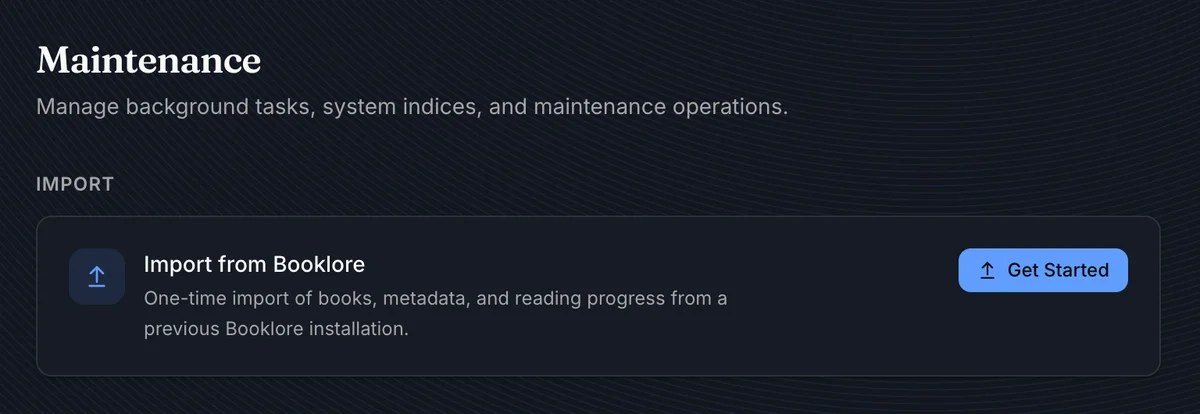
Click Get Started to open the migration wizard.
The five-step wizard walks you through the full process.
Step 1: Source Connection
Section titled “Step 1: Source Connection”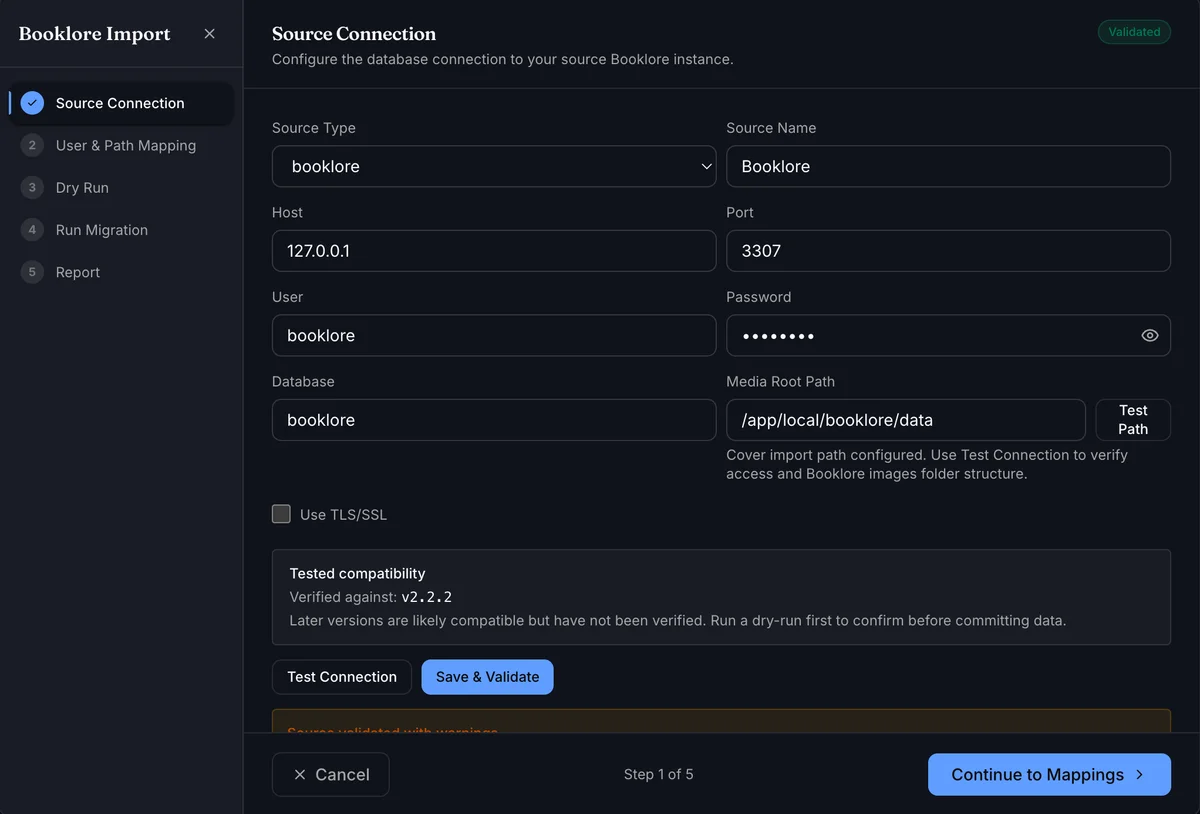
Choose a source type and enter a name for the connection. The remaining fields change to match the selected source.
Booklore and Grimmory
Section titled “Booklore and Grimmory”Enter the host, port, database user and password, database name, and media root path.
Media Root Path is the directory on disk where the source app stores book cover images. Use Test Path to verify that BookOrbit can access it.
Audiobookshelf
Section titled “Audiobookshelf”Audiobookshelf offers two connection modes:
- Live API - enter the Audiobookshelf URL and an API token belonging to an Audiobookshelf
adminorrootuser. Tokens for regular and guest users are rejected, because a full migration has to enumerate every user’s state. The URL must be a cleanhttp://orhttps://origin, with the port when one is needed and no path, query, or fragment after the host. Enable Allow private network access only when the instance is on a trusted local or private network. - Backup file - create a
.audiobookshelfbackup in Audiobookshelf, place it insideMIGRATION_IMPORT_ROOT, and enter its absolute server path. BookOrbit does not need network access to Audiobookshelf in this mode.
In Docker, 127.0.0.1 points at the BookOrbit container itself. Use a hostname or address that container can actually reach.
Both modes import the same data when the source carries it. Some backups do not include the listening-session table, and validation warns when those sessions cannot be imported.
Calibre-Web Automated
Section titled “Calibre-Web Automated”Calibre-Web Automated migrates from two SQLite databases copied while the application is stopped:
- Stop Calibre-Web Automated so neither database can change during the copy.
- Look for
-waland-journalfiles besideapp.dbandmetadata.db. If either database still has one holding data, start Calibre-Web Automated again, let it finish its recovery work, stop it cleanly, and check again. - Copy
app.dbfrom the Calibre-Web Automated config directory andmetadata.dbfrom the Calibre library intoMIGRATION_IMPORT_ROOT, with the application still stopped. - Restart Calibre-Web Automated once both copies finish. BookOrbit only ever reads the copies.
- Enter the absolute server path to each snapshot in Calibre-Web Automated app.db snapshot and Calibre metadata.db snapshot.
BookOrbit rejects a snapshot that still has a journal or WAL sidecar next to it. Never delete one to get past validation - it holds committed data the database needs.
Both snapshots must come from the same stopped instance and copy window. BookOrbit can validate their schemas, but it cannot prove that files copied at different times represent a consistent state.
Click Test Connection to verify connectivity without saving, or Save & Validate to save and confirm the database schema is compatible. A Validated badge appears in the top-right corner on success.
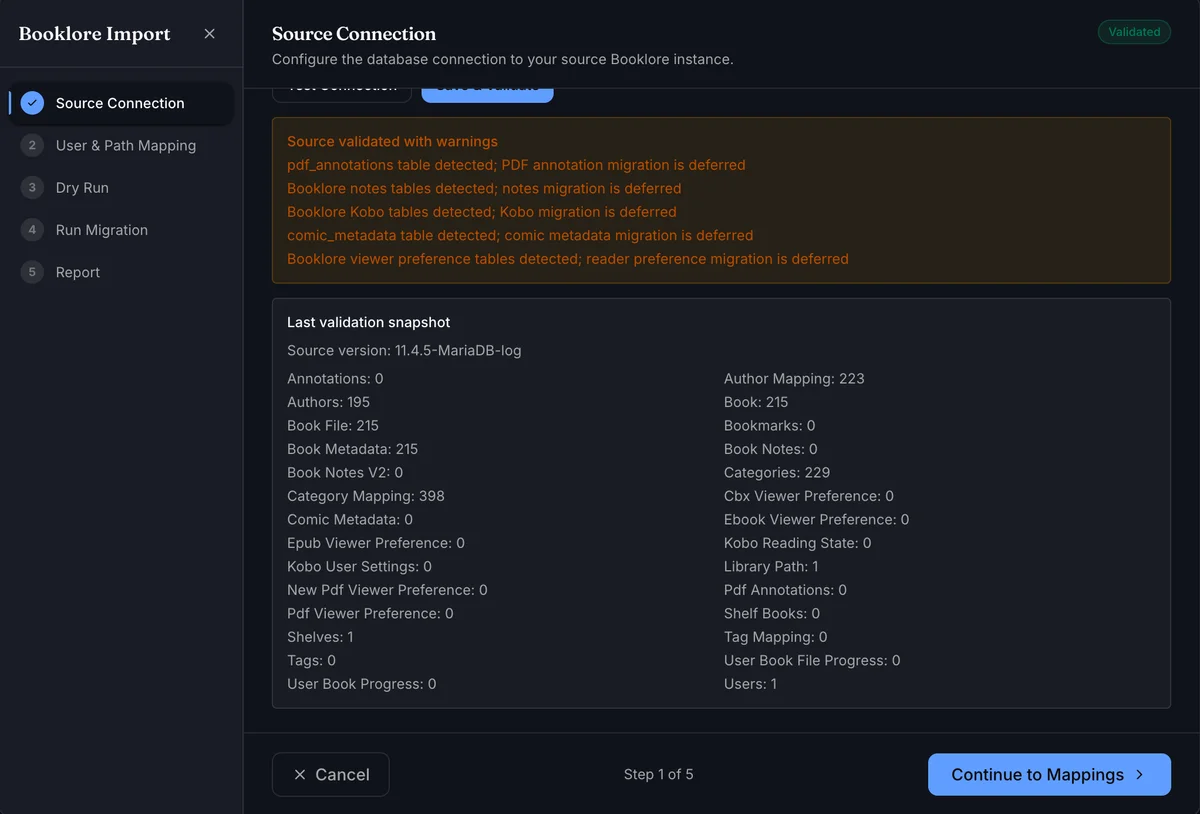
Any warnings below the form - deferred features or missing optional tables - are informational and do not block migration.
After validation, BookOrbit also shows a Last validation snapshot with source version and detected table counts.
Step 2: User & Path Mapping
Section titled “Step 2: User & Path Mapping”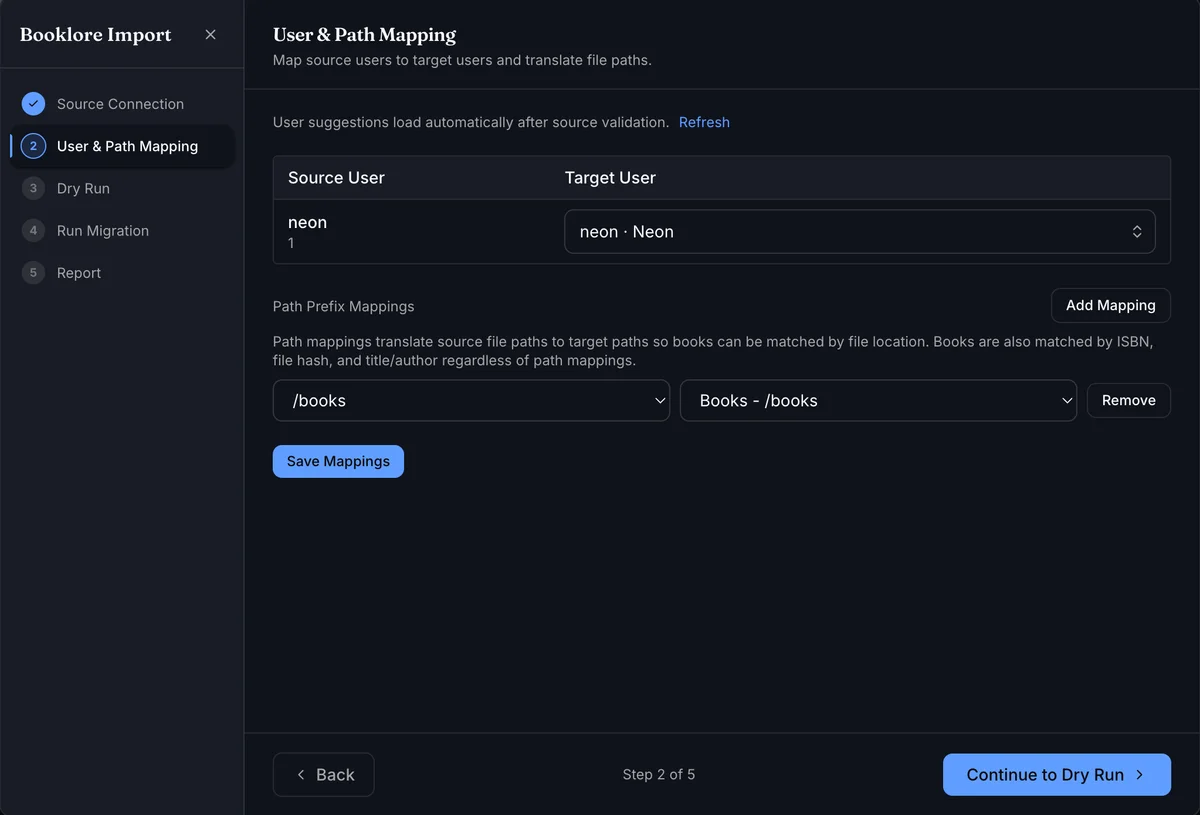
User mappings connect each source user to a BookOrbit account. Suggestions load automatically after validation - BookOrbit matches by username and email and shows a confidence level. Adjust any mapping using the dropdowns.
Path mappings translate source file paths to target paths so BookOrbit can match books by file location. Add one row per root folder: select the source prefix on the left (auto-detected from the source library) and the corresponding BookOrbit library folder on the right.
Path mappings are optional if all your books have matching ISBNs or file hashes, but adding them significantly improves match rates for large libraries.
Use the Path validation panel to confirm mapped source paths are found on disk before continuing.
Click Save Mappings when done.
Step 3: Dry Run
Section titled “Step 3: Dry Run”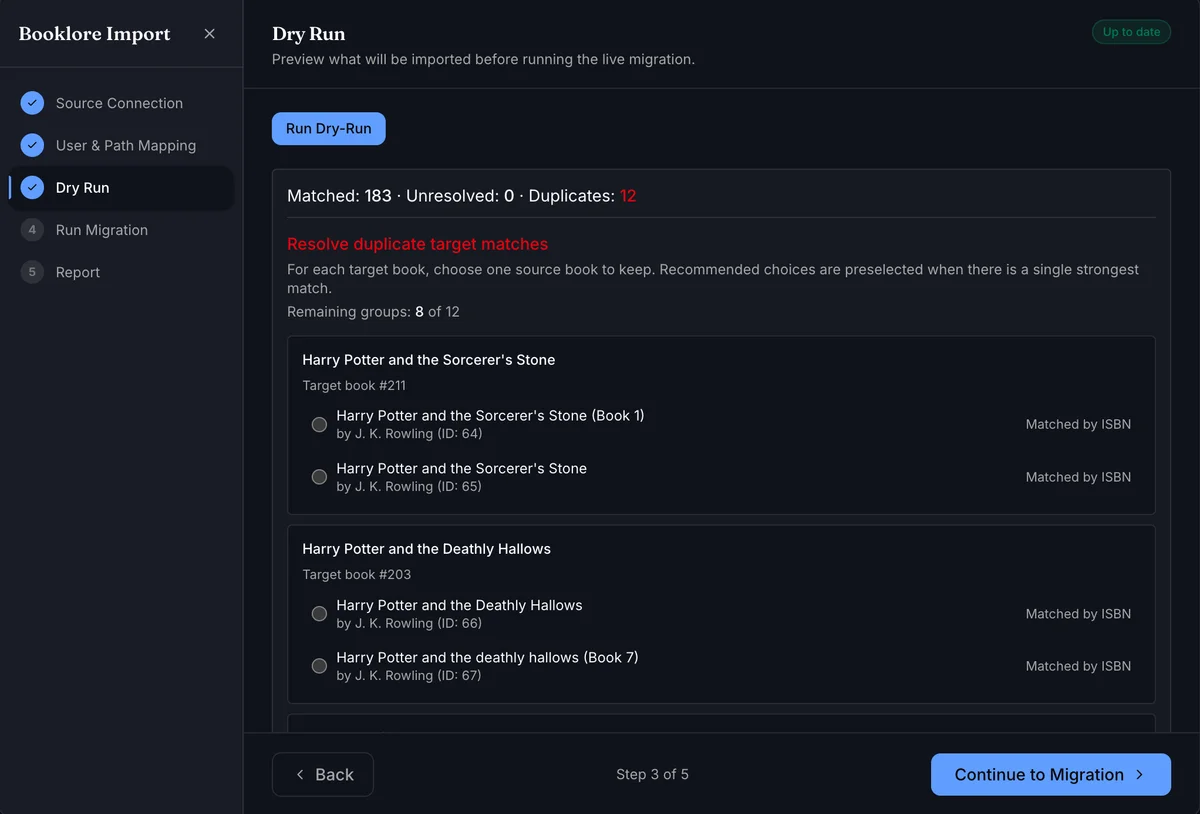
The dry run previews exactly which books will be matched before any data is written. Click Run Dry-Run to generate the plan.
The summary shows three counts:
| Count | Meaning |
|---|---|
| Matched | Books BookOrbit successfully paired to a source book |
| Unresolved | Source books with no matching book in your library |
| Duplicates | Target books matched by multiple source books - requires resolution |
BookOrbit tries to match each book using these strategies in order:
- ISBN - ISBN-13 first, then ISBN-10
- ASIN - the ASIN, Amazon, or Audible identifier when both sides carry one
- File hash - a content fingerprint that works even after renaming or moving files
- Mapped file path - using your path mappings from the previous step
- Title + author - exact match, then a fuzzy author-name fallback
Calibre-Web Automated does not supply file hashes, so path mappings do more of the work for that source.
If duplicates exist, a resolution panel appears. For each target book with multiple source candidates, choose which source book’s data to apply. Recommended choices are preselected when one candidate is clearly stronger.
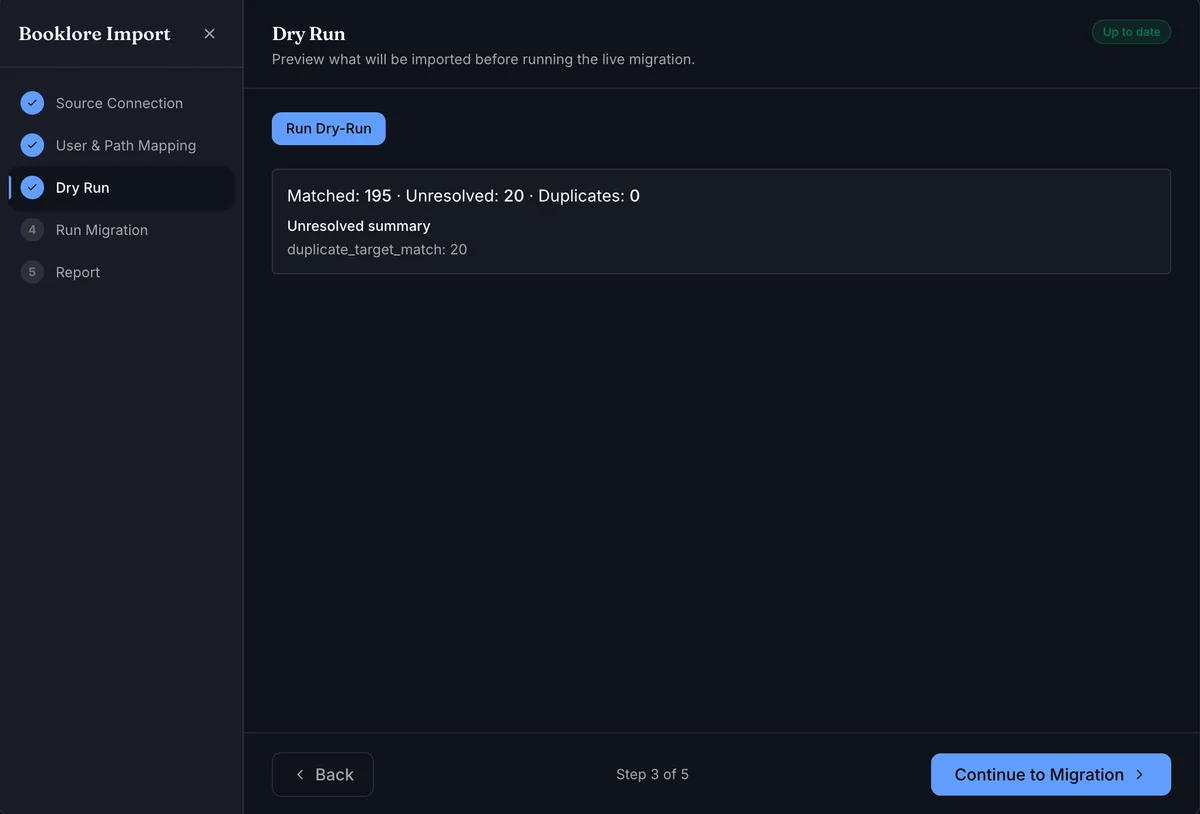
If no duplicate groups remain, the resolver panel is hidden and only the summary is shown. The unresolved summary may include machine-readable reason keys.
A dry-run result stays valid until you change the source connection or mappings. Re-run it after any such change.
Step 4: Run Migration
Section titled “Step 4: Run Migration”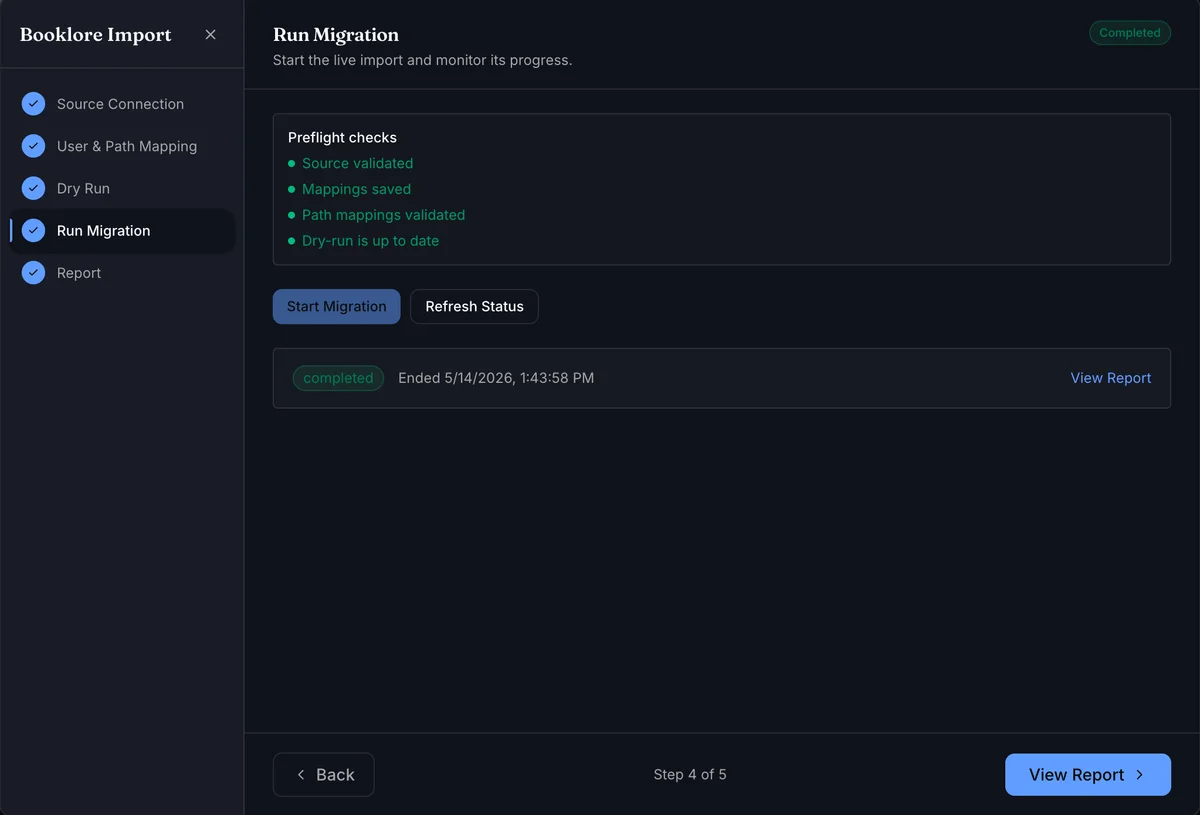
Before Start Migration becomes active, the preflight checks must all pass: source validated, mappings saved, path mappings validated, and dry-run up to date.
Click Start Migration. BookOrbit imports all matched data in the background and updates status in real time.
Use Refresh Status if needed while monitoring. Once complete, click View Report to see the full breakdown.
Step 5: Migration Report
Section titled “Step 5: Migration Report”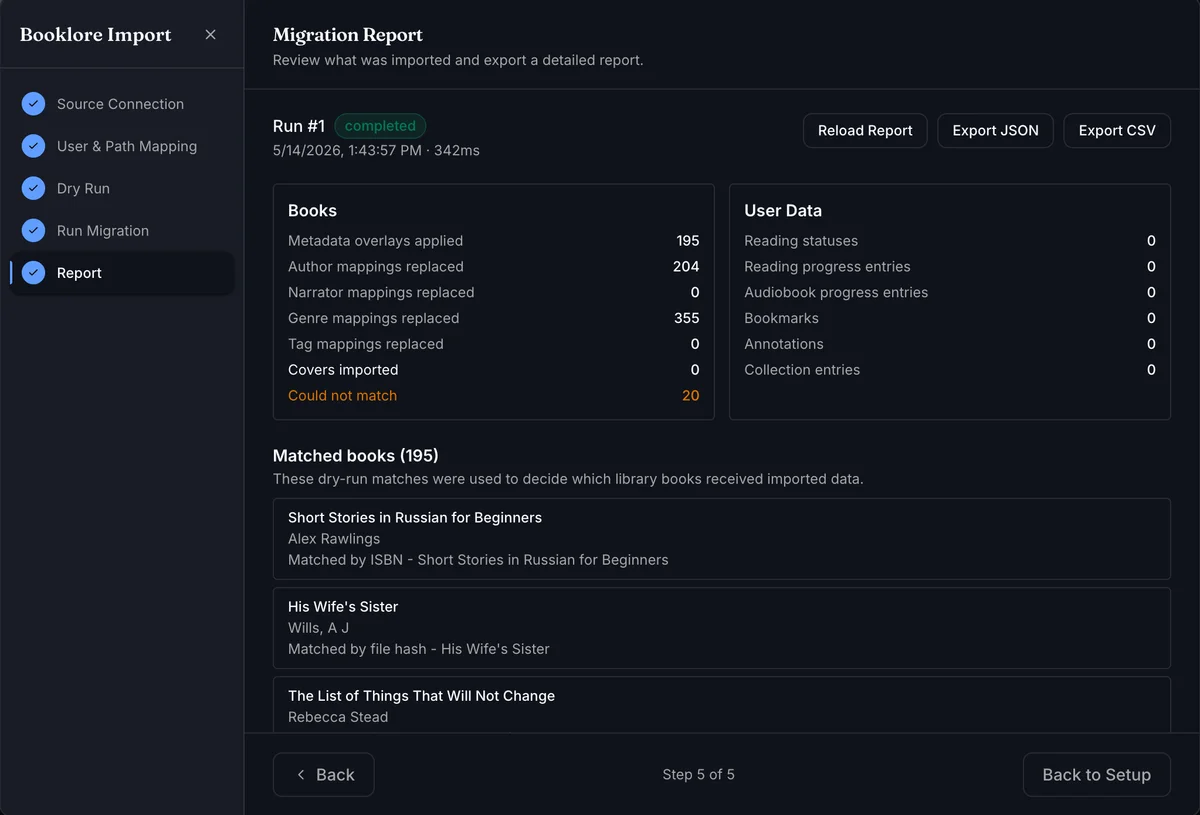
The report has two panels:
Books - entity counts for each type: metadata overlays applied, author/narrator/genre/tag mappings replaced, and covers imported. Books listed as Could not match were present in the source but had no corresponding book in your BookOrbit library.
User Data - counts for reading statuses, reading progress (epub and audiobook), bookmarks, annotations, and collection entries.
Use Load Full Report to include dry-run match details in the report payload before exporting.
The report can be exported as JSON or CSV for auditing.
Notes & limitations
Section titled “Notes & limitations”- Re-running is safe. Each stage re-applies data to the same matched books using the existing dry-run plan. If source data has changed, re-run the dry run first to get a fresh plan, then start the migration again.
- “Unresolved” is not an error. It means no match was found for that source book in your BookOrbit library - typically because the file is not in your library or the ISBN and title differ significantly between systems.
- Deferred features not yet included in migration: PDF annotations, book notes, Kobo device state, comic metadata, and reader/viewer preferences.