
Creating a Library
A library is the bridge between the folders that hold your files and the books you see in BookOrbit. You tell BookOrbit where to look, how to group the files it finds, and how much automation you want. It takes care of the scan from there.
The New library sheet asks for only two things: a name with an icon, and at least one folder. Every other section starts with a sensible default, so you can create the library as soon as those are filled in, or shape it first for ebooks, comics, audiobooks, or a mixed collection.
Before You Start
Section titled “Before You Start”Library creation requires the manage_libraries permission. Users without it can still use libraries they can access, but they will not see the creation controls.
Most importantly, choose the folder from BookOrbit’s point of view. Paths are resolved on the BookOrbit server, not on the computer running your browser. In Docker, use the mounted path inside the container, such as /books/audiobooks, rather than the Finder or Explorer path on the host.
Open The Sheet
Section titled “Open The Sheet”You can begin wherever you happen to be working. Each route opens the same sheet.
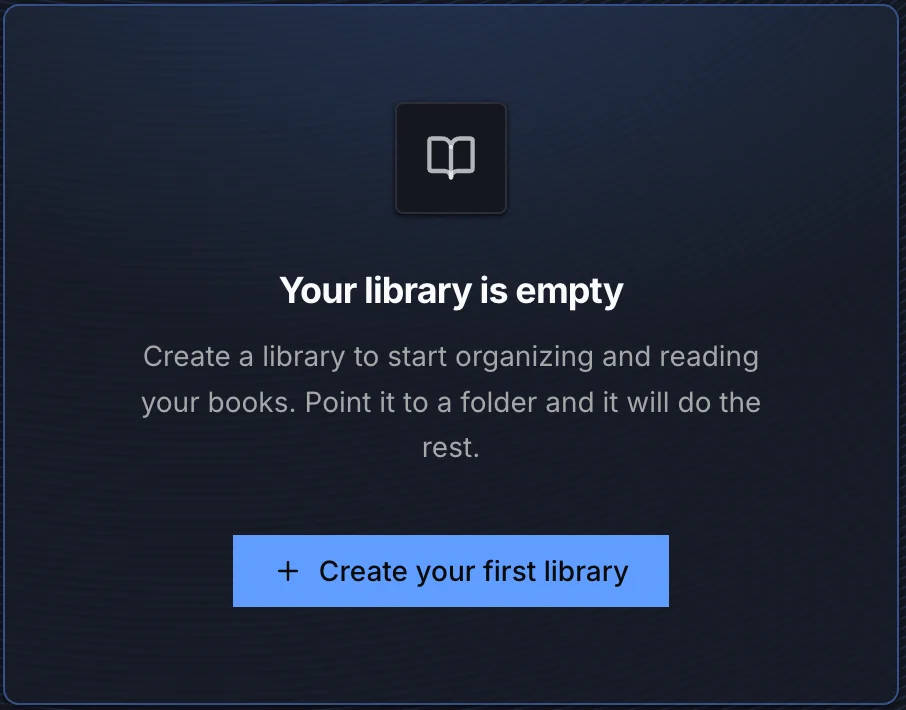
On a new installation, select Create your first library on the dashboard.
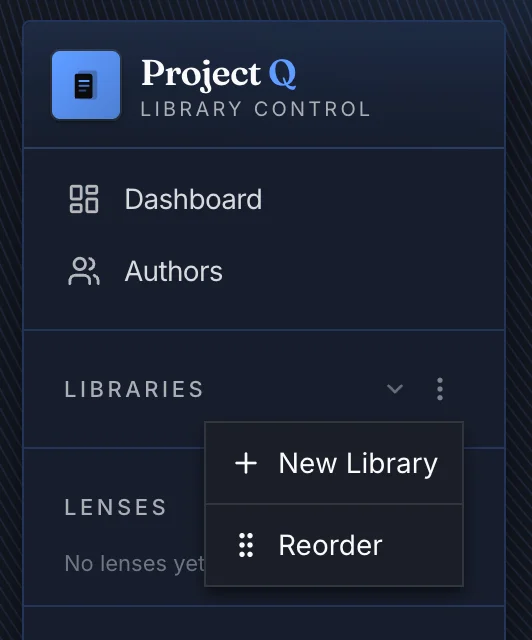
From anywhere in the app, select + beside Libraries in the sidebar.
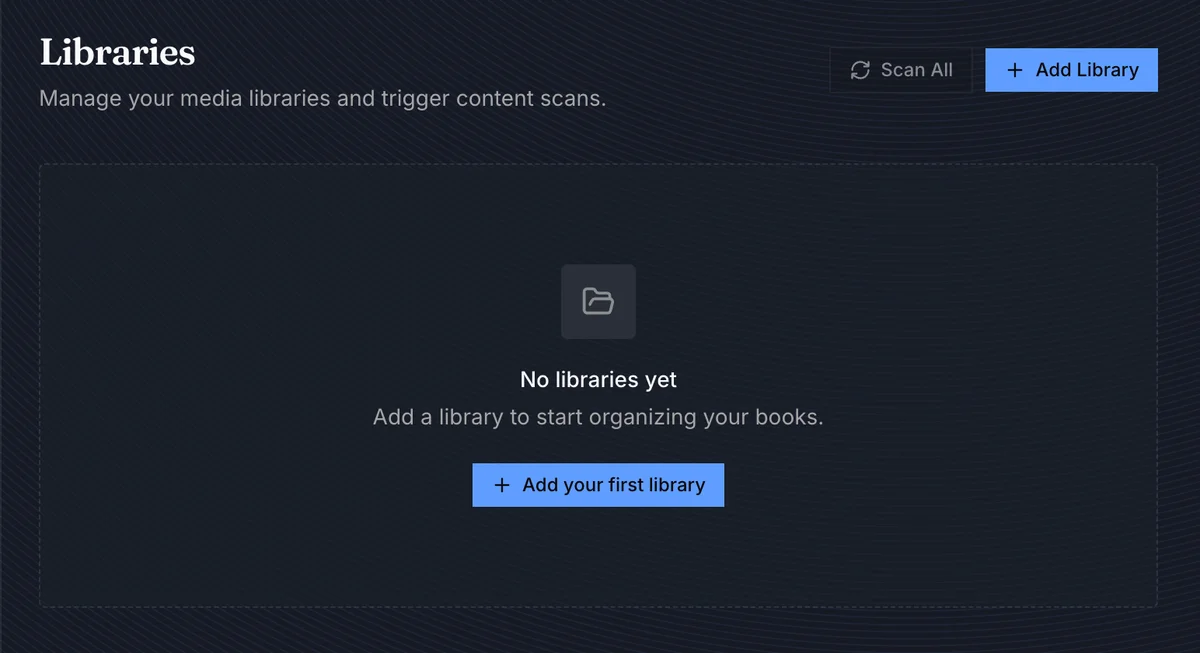
Or open Settings > Libraries and select Add library. On an empty instance, the page also offers Add your first library.
Find Your Way Around
Section titled “Find Your Way Around”The sections are listed on the left, each with a one-line summary of what it is set to, and you can visit them in any order. A section that still needs something is marked, such as Folders showing Needs a folder until you add one.
The bar at the bottom holds Create library and Cancel. Create library becomes available once the library has a name, an icon and a folder; until then, the note beside it says what is missing. Cancel asks before it discards anything you have entered.
Set Up The Library
Section titled “Set Up The Library”Library
Section titled “Library”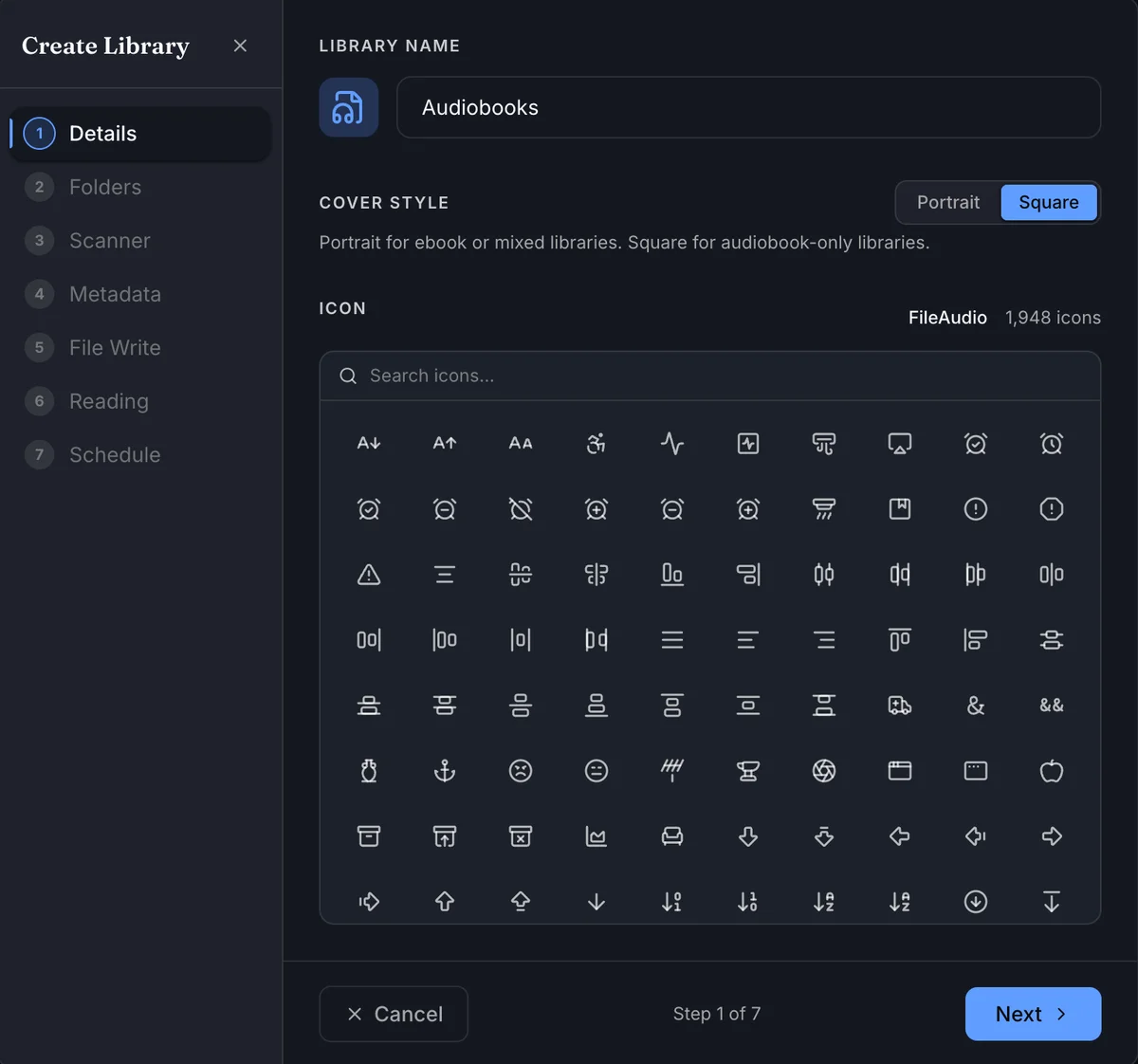
Start with a name that will still make sense in the sidebar a year from now: Ebooks, Audiobooks, Comics, or Kids Books are all good examples. The name must be unique. Pick an icon at the same time, because BookOrbit uses it anywhere the library is represented. More icons opens the full set.
Grid shape sets the shape of the tiles while you browse. Choose Tall cells for ebooks, comics and mixed libraries, and Square cells for audiobook-only libraries. Each book shows the cover of its primary file, square for an audiobook; when a cover does not match the tile, it follows your cover display setting. See Book and Audiobook Covers.
Folders
Section titled “Folders”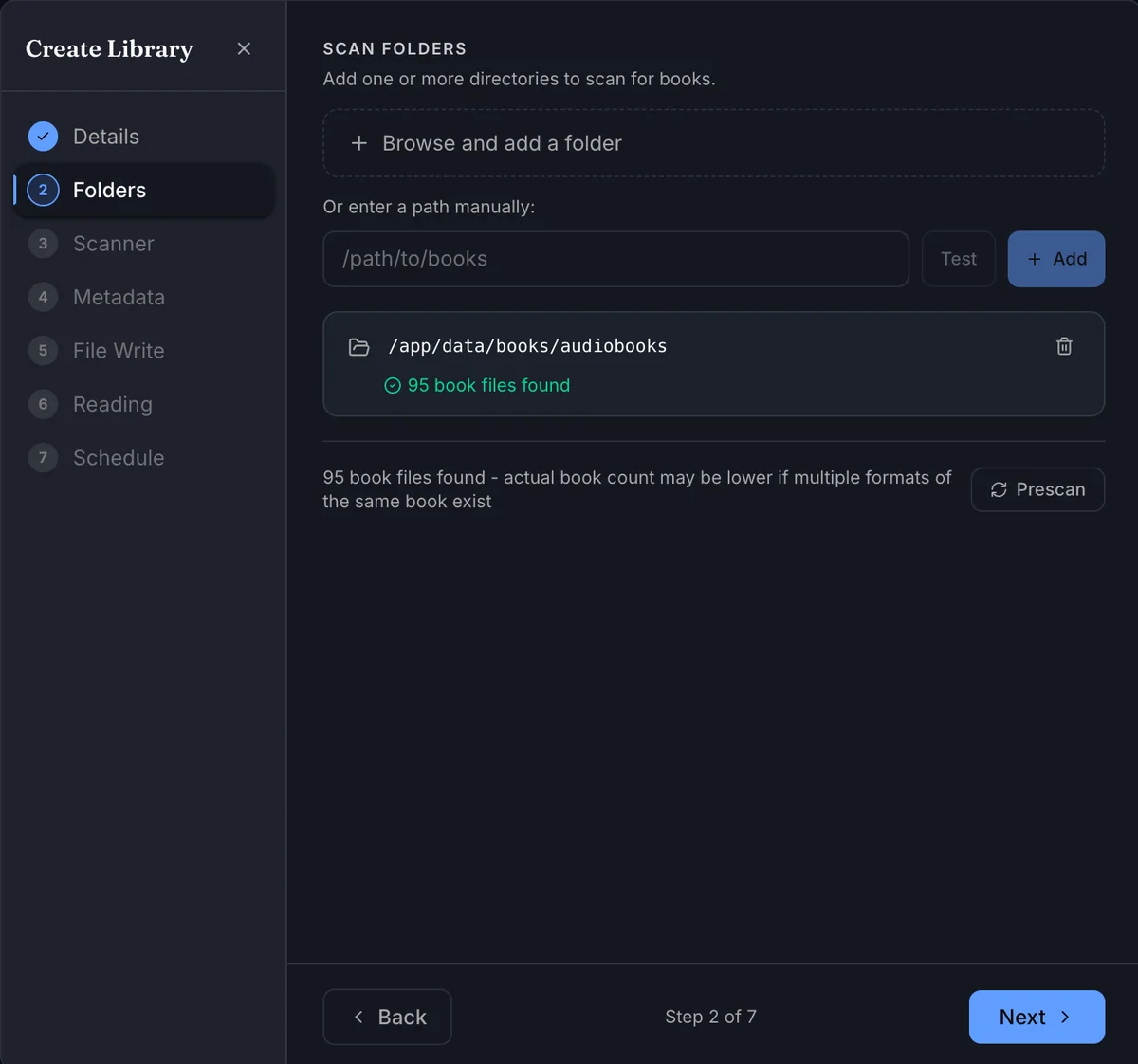
Add one or more server-accessible folders. Paste a path such as /books/audiobooks and select Add, or select Browse… to pick folders on the server. All folders in the library share the rules you choose in the other sections.
Each folder is checked as soon as you add it. Its badge shows how many matching files it holds, or flags a folder BookOrbit cannot read or one another library already reads. The refresh button beside the total checks every folder again. A folder inside one you have already added is refused, because it is already covered.
Scanning
Section titled “Scanning”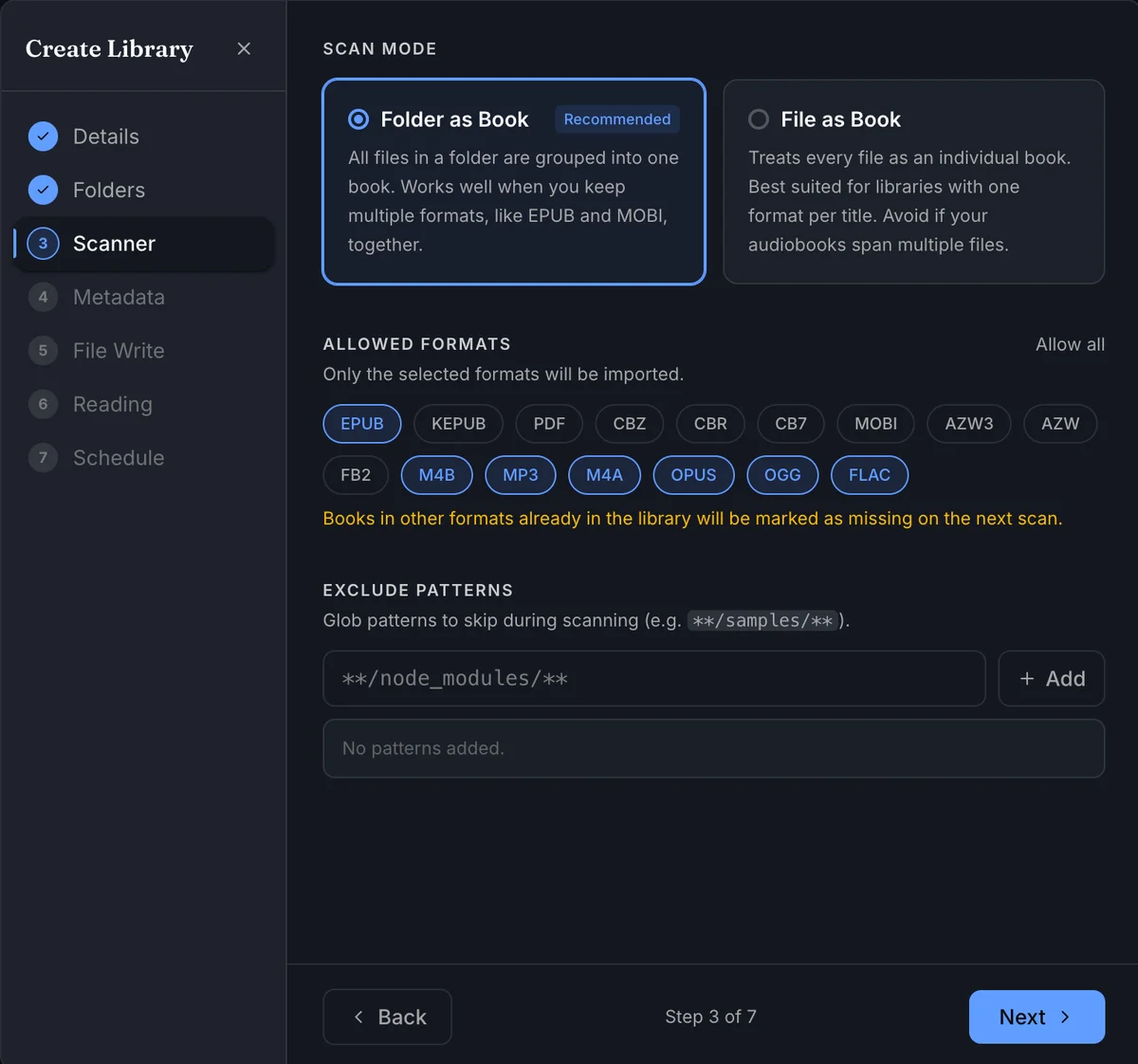
This is where a folder of files becomes a library of books, and How files become books is the one setting you cannot change later. Folder as Book is the default and usually the right choice: files in one book folder stay together, including alternate formats, sidecar metadata, covers, and audiobook tracks. Root-level book files still become individual books.
Choose File as Book for a flat folder where each supported file is a separate title. It does not associate sidecars or folder-level extras with a book. For comics and manga kept in one folder per series, the layout Komga and Kavita use, choose Series folders: it sets File as Book and turns on Folders are series in the Series card below, so each folder becomes a series and each file’s number its place in it; see Library File Structure. For audiobooks, use Folder as Book so multi-file titles stay together; BookOrbit also handles common disc-folder names such as CD 1 and Disc 2.
Import accepts every supported format with All formats. Choose Only these to pick the formats the library imports:
| Group | Formats |
|---|---|
| Ebooks | EPUB, KEPUB, FB2 |
| Kindle | MOBI, AZW3, AZW |
| Documents | PDF, DJVU |
| Comics | CBZ, CBR, CB7 |
| Audio | M4B, MP3, M4A, OPUS, OGG, FLAC |
If you later restrict formats, books whose files are no longer allowed are marked missing on the next scan.
Skip files matching holds patterns for files and folders the scanner should never consider. Each pattern is compared with one file or folder name at a time, not with a whole path: a plain name such as samples or node_modules skips every file or folder with exactly that name, and * matches any run of characters, as in *.tmp or *_sample.*. A skipped folder is skipped with everything inside it. Files and folders whose names begin with . are skipped automatically.
Date added decides what a book’s date added reflects: When imported (the default), File modified time, or File creation time, which falls back to the modified time on filesystems that do not record creation. It applies to books imported from then on; when you edit the library later, Recompute now updates the books already in it.
Metadata
Section titled “Metadata”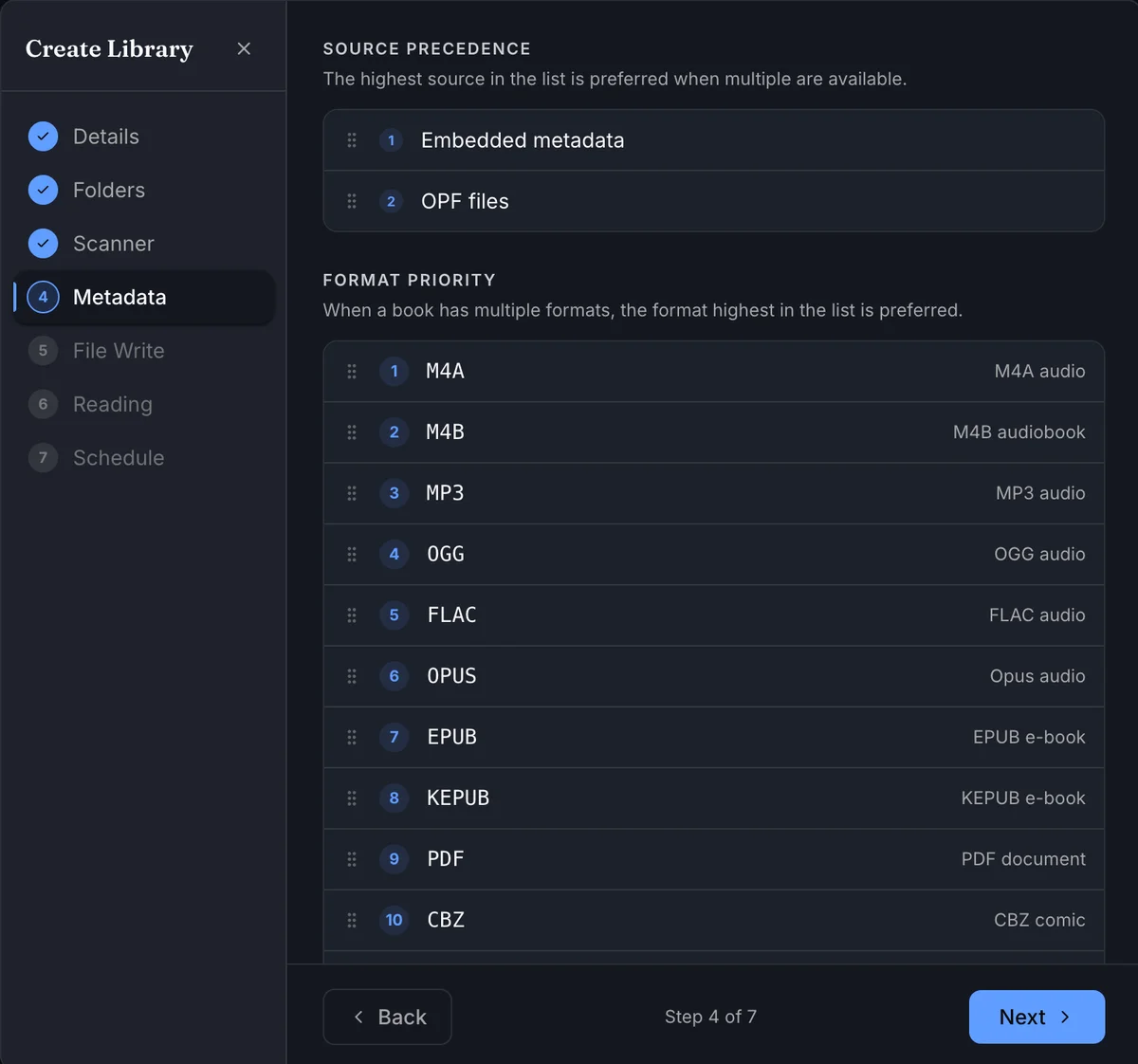
When more than one file can describe the same book, this section establishes a predictable order.
Primary file answers which file leads. BookOrbit registers every allowed file, then makes the first available format in this order the book’s primary file: the one used for normal reading, downloads, and embedded-metadata import. Drag a row or use the arrows; Show all lists every format and Reset order restores the default. New libraries start with this order:
Read-aloud EPUB, EPUB, KEPUB, PDF, CBZ, CBR, CB7, MOBI, AZW3, AZW, FB2, DJVU, M4B, MP3, M4A, OPUS, OGG, FLAC
Read-aloud EPUB is an EPUB with synchronized narration, such as a Storyteller read-aloud, so it can be ranked apart from a plain EPUB. For audiobooks, move M4B, M4A, or MP3 toward the top. The order does not exclude anything; use Import under Scanning when you want a format left out entirely.
Book details come from sets which source fills a book’s details. Tags in the book file reads the primary file itself, while metadata.opf file uses the .opf file Calibre saves beside the book. Put the one you trust most at the top; Calibre libraries usually want metadata.opf first.
Regex reads fields from each file’s path inside the library folder: a series, a number, a title, authors or a date, captured by rules you write. Configure opens the rules with a live preview. In a File as Book library it also offers the Folders are series rules as a starting point. Where Regex sits in the order decides whether its fields replace what the file says or only fill what the file leaves empty.
Rules apply when a file is first imported or changes. To bring the books already in a library up to date after changing the rules, save the library and use Apply rules to existing books. It writes only the fields the rules decide and keeps locked fields.
Reading
Section titled “Reading”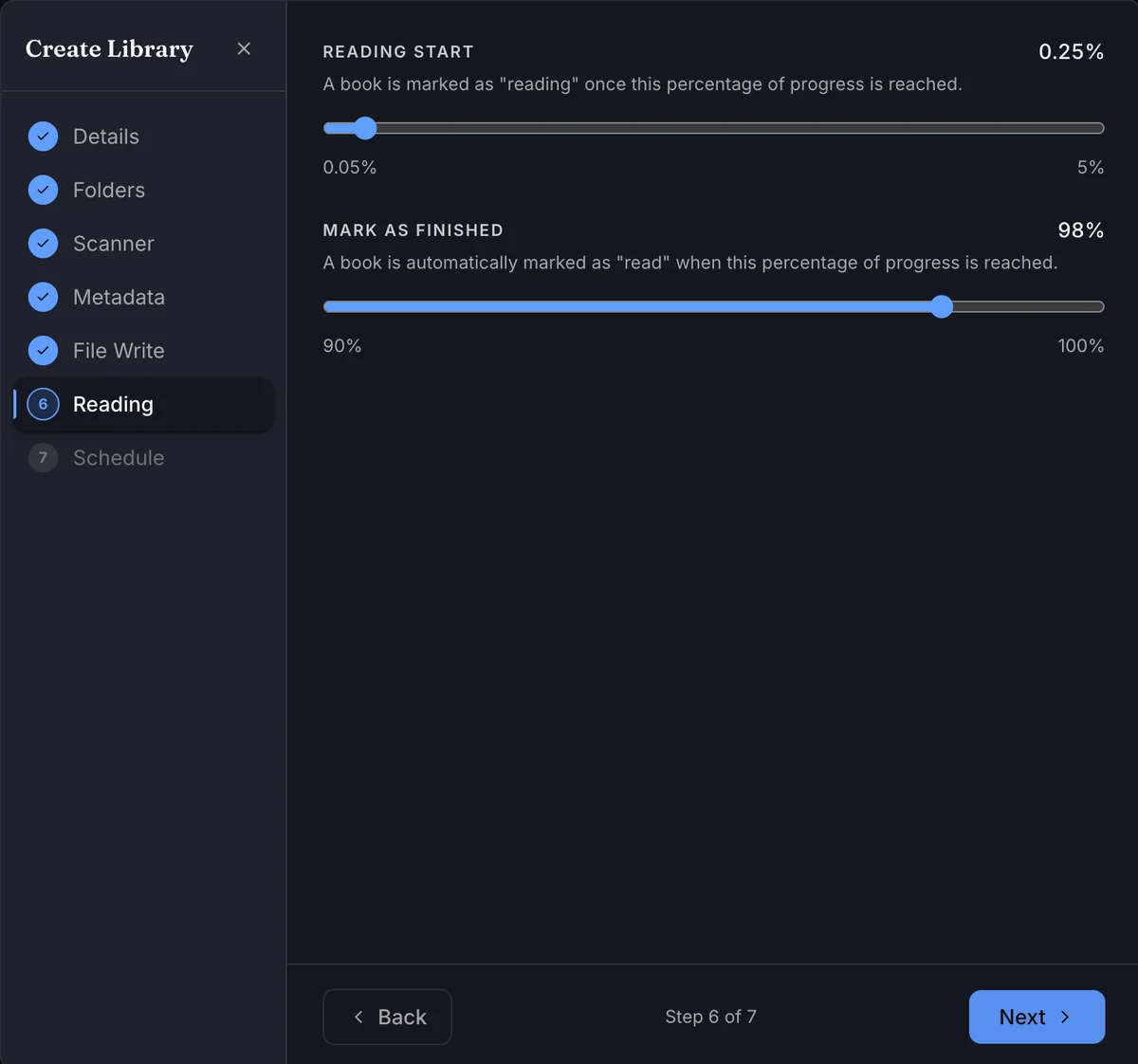
BookOrbit uses progress to move a book through your reading states. The defaults are intentionally forgiving: a book becomes Reading at 0.25%, and becomes Read at 98%. The finish threshold avoids treating appendices, indexes, credits, or trailing blank pages as required reading. Drag the handles or type the values.
| Setting | Range | Default |
|---|---|---|
| Reading start | 0.05% to 5% | 0.25% |
| Mark as finished | 90% to 100%, whole numbers | 98% |
Automation
Section titled “Automation”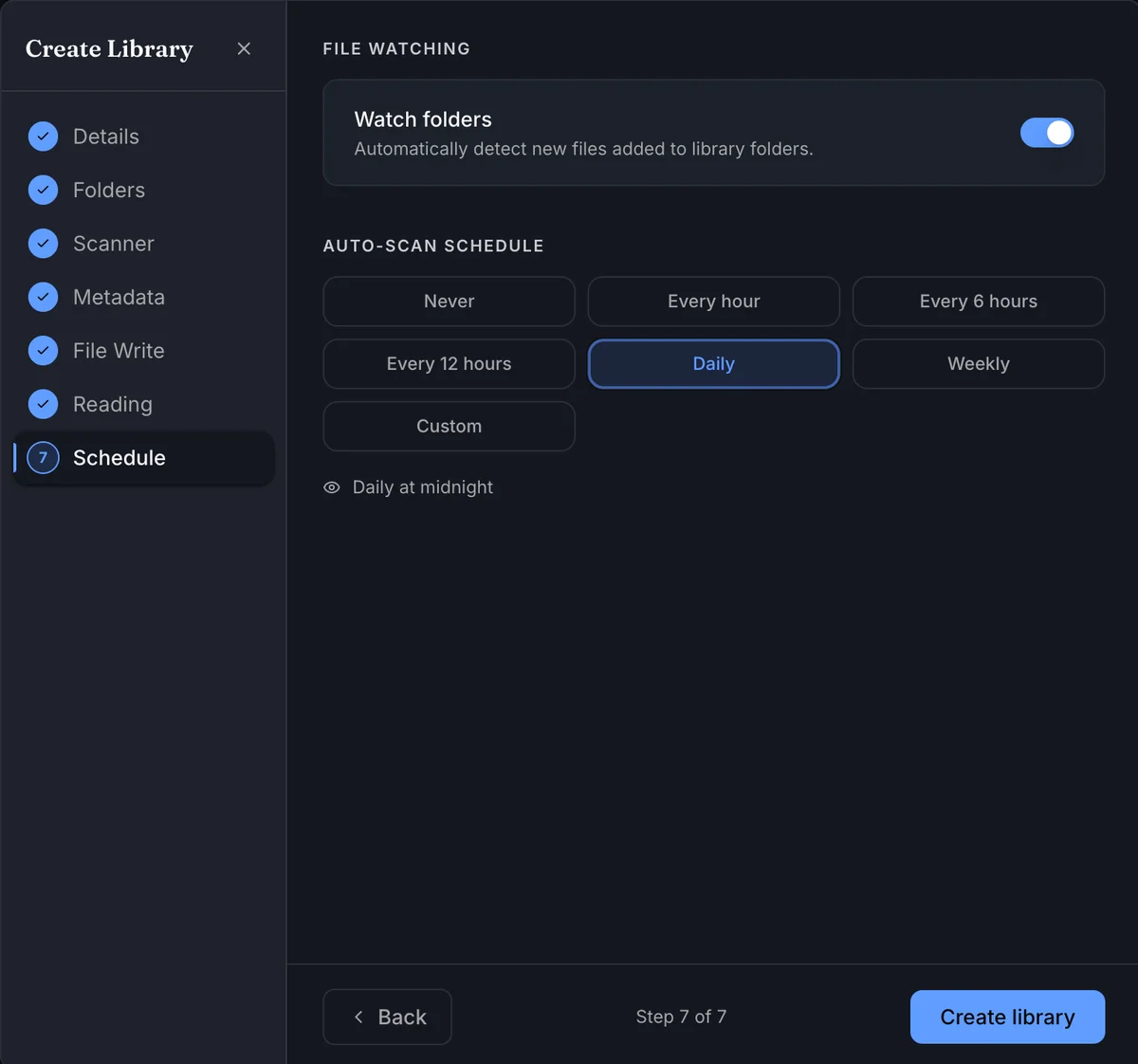
Turn on Watch folders when the storage backing the library provides reliable filesystem events. BookOrbit then schedules targeted scan work as files are added, changed, moved, or removed. For a network mount that does not report events reliably, leave watching off and use a manual or scheduled scan instead.
Choose an Auto-scan schedule if you want a regular safety net: Every hour, Every 6 hours, Every 12 hours, Daily (at midnight), Weekly (Monday at midnight), or Custom for a five-field cron expression. For example, */30 * * * * runs every 30 minutes. Never stores no schedule. Schedules run in the server’s timezone.
File updates
Section titled “File updates”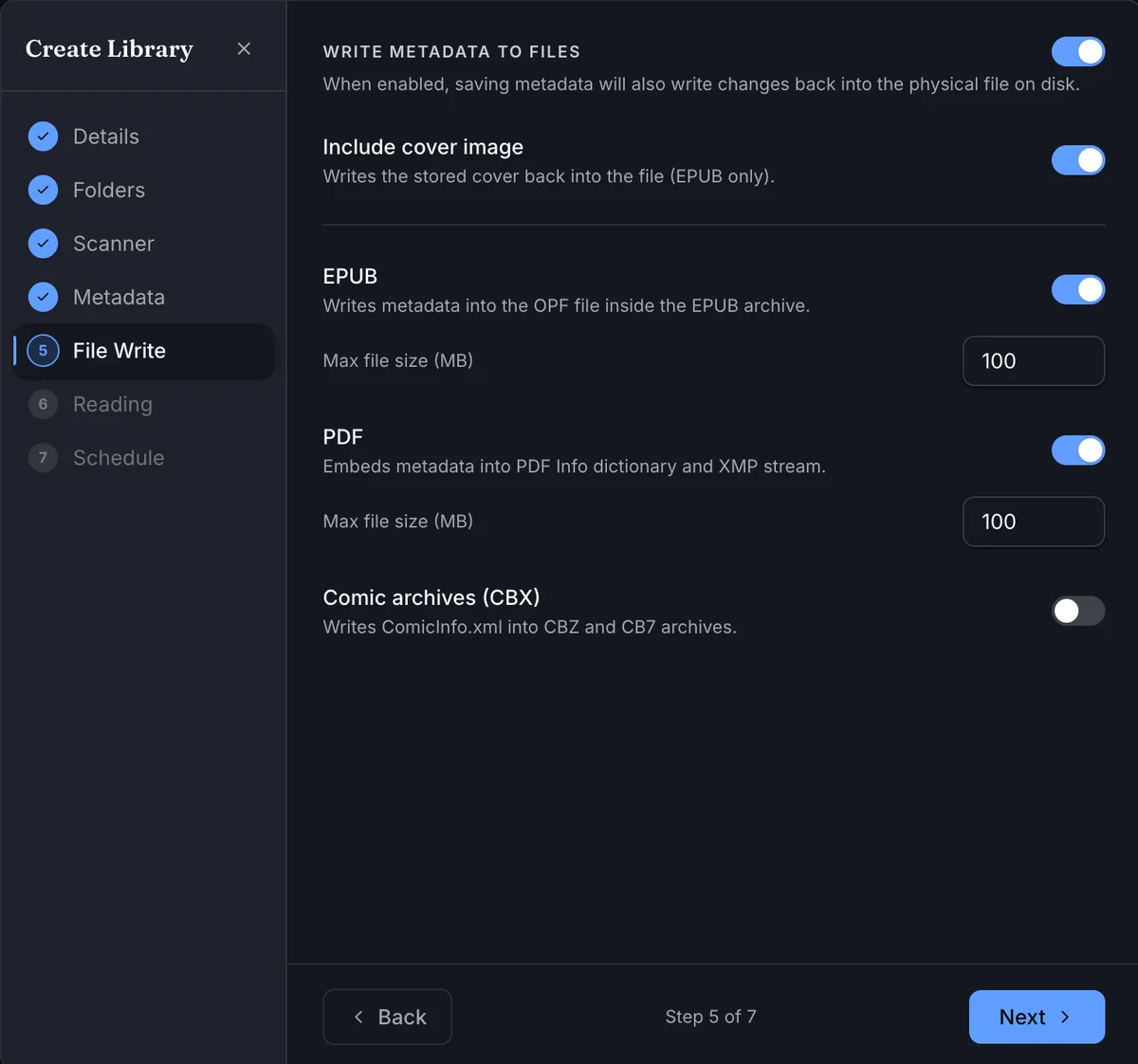
This section is optional and is off by default. Leave it that way if you want BookOrbit to keep its metadata changes in the database only. Enable it when BookOrbit should write changes such as titles, authors, series, descriptions, tags, ratings, or covers back to the files themselves.
| Option | Default | What it changes |
|---|---|---|
| Rename files after metadata changes | Off | Automatically renames physical files when the title, author, series, or year changes, using the library naming pattern. |
| Write metadata to files | Off | Automatically writes metadata into supported files when it changes. The options below appear once it is on. |
| Include cover image | On | Includes the stored cover when the target format supports it. For a book with both an ebook and an audiobook, ebook files get the Book cover and audio files get the Audiobook cover; when that cover is missing, none is written and the file keeps the artwork it already has. |
| Write into every file of a book | Off | Also writes into a book’s other book files, not just its main file. See Books with more than one file. |
| EPUB | On, 100 MB | Writes metadata into the OPF inside the EPUB archive. |
| Read-aloud EPUB | Off, 1,000 MB | Writes metadata into EPUBs with synced narration, such as Storyteller read-alouds. They carry their audio, so they are large and need more memory to rewrite; they follow this toggle and limit instead of the EPUB ones. |
| FictionBook (FB2) | Off, 100 MB | Rewrites the description block inside FB2 files, leaving the book text untouched. |
| On, 100 MB | Writes PDF Info and XMP metadata. | |
| Comic archives (CBX) | Off, 500 MB | Writes ComicInfo.xml into CBZ and CB7 archives. CBR is imported but not written by this option. |
| Kindle (MOBI, AZW3) | Off, 100 MB | Writes metadata into the EXTH header of MOBI, AZW3, and AZW files. |
| Audio | On, 500 MB | Writes tags such as title, authors, narrators, and series into M4B, M4A, MP3, and FLAC files, plus the Audiobook cover when Include cover image is on. |
Each file-size limit can be set from 1 MB to 10,000 MB, and a file over its limit is skipped. Keep backups before enabling file updates for a collection you want to preserve exactly as imported.
Books with more than one file
Section titled “Books with more than one file”By default BookOrbit writes into a book’s main file only. An audiobook is the exception: every track of it is written. So an EPUB kept beside its M4B gets the new metadata, and the M4B does not.
Turn on Write into every file of a book to write into the other files as well. Every book format in the book’s folder is written, including a PDF that happens to sit there, so give a companion file such as a workbook its own folder if it should keep its own title and series: a sub-folder becomes a book of its own. Cover images and text files beside the book are never written. The format toggles and size limits still apply to each file on its own, so an oversized or switched-off file is skipped while the rest are written.
Audio files take the book title when there is one of them, and track titles and numbers when the book is an audiobook made of several tracks. Tracks spread over disc folders such as CD 1 and CD 2 get the folder in their title, so CD 2/01.mp3 becomes CD 2 - 01. When an ebook sits beside several audio files, BookOrbit cannot tell tracks from alternative editions, so each audio file keeps its own title and track number and receives the rest of the metadata.
A book whose main file is a large read-aloud EPUB writes nothing until Read-aloud EPUB is on, because read-aloud EPUBs do not follow the EPUB toggle. With Write into every file of a book on, its plain EPUB and audiobook are written either way.
Writing replaces each file with a new copy, which keeps the file’s permissions and, where BookOrbit is allowed to, its owner and group. A file that is hardlinked elsewhere, such as a torrent’s seeding copy, is separated from that link: the library file gets the new metadata and the seeding copy keeps its original bytes, so the torrent stays valid. That separated file then uses its own disk space.
Turning on the option does not rewrite your library by itself. Use Sync metadata to files from the library’s ... menu when you want existing books updated. Turning it off again only affects later writes; it does not undo files already written.
Some formats cannot hold everything: KEPUB files are not written, a MOBI file gets no date when the book has only a publication year, and each book has one Book cover and one Audiobook cover, so two narrations of the same book share artwork.
Access
Section titled “Access”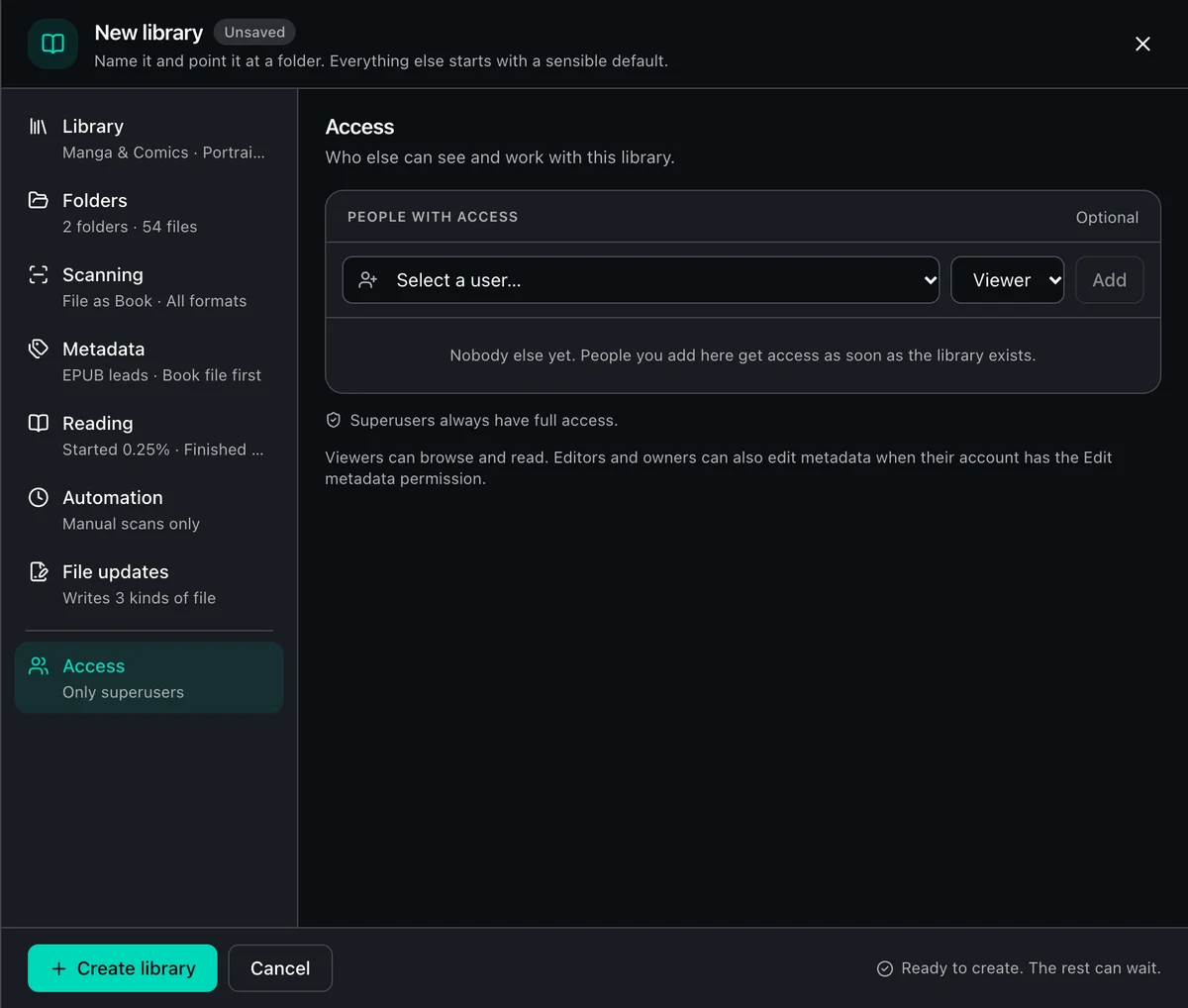
Superusers always have full access to every library. To share this one with other people, pick a user and an access level, then select Add. People you add here get access as soon as the library exists.
Viewers can browse and read. Editors and Owners can also edit metadata when their account has the Edit metadata permission. If someone cannot be added when the library is created, the library is still created and the sheet names who to add again.
Create It, Then Let It Scan
Section titled “Create It, Then Let It Scan”Select Create library from any section once the library has a name, an icon and a folder. BookOrbit saves the library, adds its folders and the people under Access, starts a watcher when Watch folders is on, and immediately begins the first scan. The initial scan may take seconds or minutes, depending on the number of files and the storage speed.
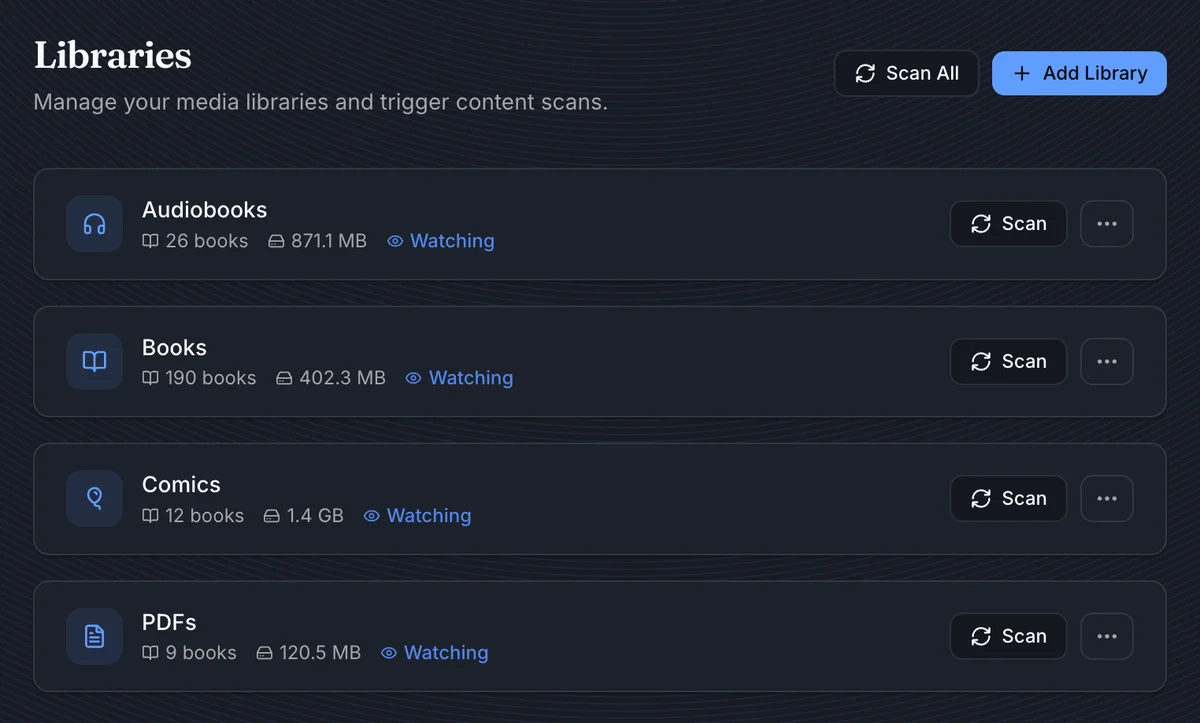
Afterward, Settings > Libraries is the library’s control room. Each card shows the library’s layout and folders, how many books it holds and their size, whether it is watched or scheduled, which files it writes, its format mix, and how its last scan went. Filter the cards by name or path, or change their order with Sort.
Use Scan all to scan every library, Scan to scan one, and the ... menu to edit the library, refresh covers, sync metadata to files, or delete it. Edit library opens the same sheet with Save changes in place of Create library. Everything can be changed there except how files become books, which shows Set at creation.
Refresh covers reads every book’s cover art again from its files, both covers for a book with an ebook and an audiobook. Uploaded and locked covers stay as they are. Changing the grid shape in the edit sheet changes only the shape of the tiles, without reading any files again.