
Account Activity
Account Activity answers the practical questions an administrator has when keeping an instance healthy: Has this account ever signed in? Is a former member still active? Is the new SSO connection working? It deliberately does not turn BookOrbit into a reading-surveillance dashboard. By default, you can see account and authentication signals, not what somebody is reading.
Open Settings > Admin > Account Activity for this privacy-aware view. It is separate from the audit log: the goal here is understanding the current shape of your accounts, not reconstructing every event.
You need the View user activity permission (or superuser access) to open it.
What administrators can see
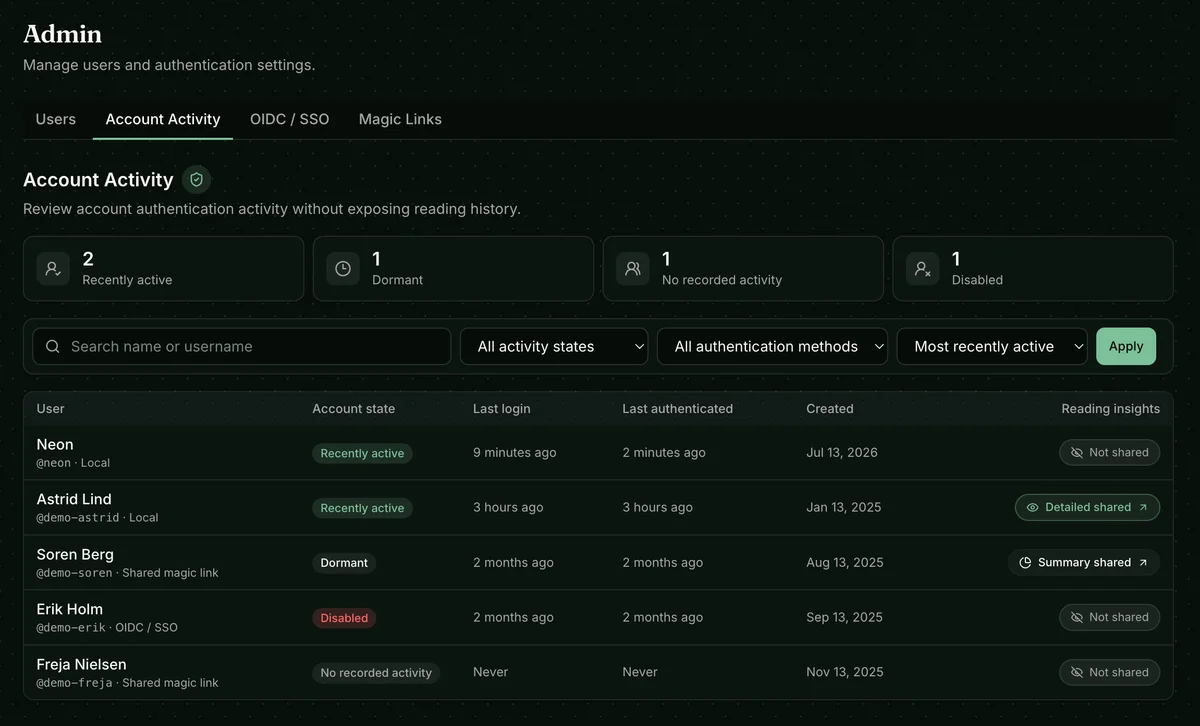
Section titled “What administrators can see”The overview starts with a quick health check: how many accounts are Recently active, Dormant, have No recorded activity, or are Disabled. Recently active means the account authenticated within the last 30 days. That makes it easy to spot an account that never completed onboarding, an old shared link that is still being used, or a user who should be disabled.
Each row then gives the minimum context needed to act:
- Account name, username, and authentication method (local, administrator-created, OIDC / SSO, or shared magic link)
- Account state
- Last login and last authentication times. Authentication is refreshed as a signed-in session is renewed, so it can be newer than the last full login.
- Account creation date
- Whether reading insights are not shared, summary shared, or detailed shared
Use the search box and filters to follow a specific question. For example, filter to OIDC / SSO after changing your identity provider, or sort by least recently active before cleaning up stale accounts. Choose the sorting order and click Apply.
Authentication activity is not reading activity. The overview never reveals book titles, authors, or other reading details unless the user has explicitly chosen to share them.
Reading-insights sharing
Section titled “Reading-insights sharing”The reading-insights badge in the table is a permission from the user, not a setting an administrator makes for them. Each user chooses it in Settings > Account > Privacy & Sharing. That makes the privacy boundary clear before anyone opens a profile.
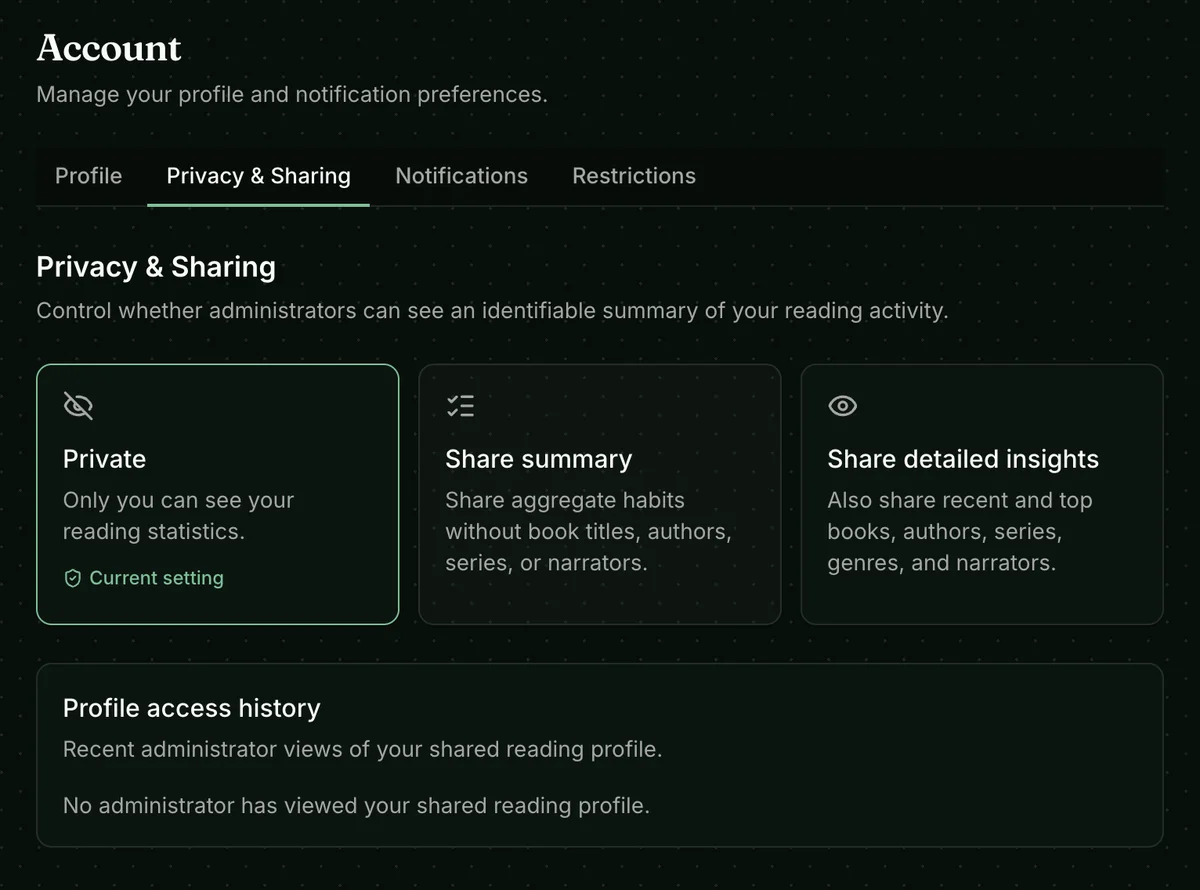
| Setting | What administrators can see |
|---|---|
| Private | No reading statistics or reading history. |
| Share summary | Aggregate reading habits, without book titles, authors, series, or narrators. |
| Share detailed insights | The aggregate information plus recent and top books, authors, series, genres, and narrators. |
The three choices make the tradeoff visible: stay completely private, help an administrator understand aggregate reading habits, or choose to share a richer profile. Profile access is recorded in every sharing mode that allows it. Users can review recent administrator views in Profile access history.
Viewing a shared profile
Section titled “Viewing a shared profile”Select the reading-insights link only when an account has chosen to share a summary or detailed insights. The profile is useful for a voluntary reading discussion or a librarian trying to understand broad engagement, not for checking up on people. It shows only the level the user permitted and can be scoped to the last 30, 90, or 365 days. The authorization for a profile view expires after 15 minutes.
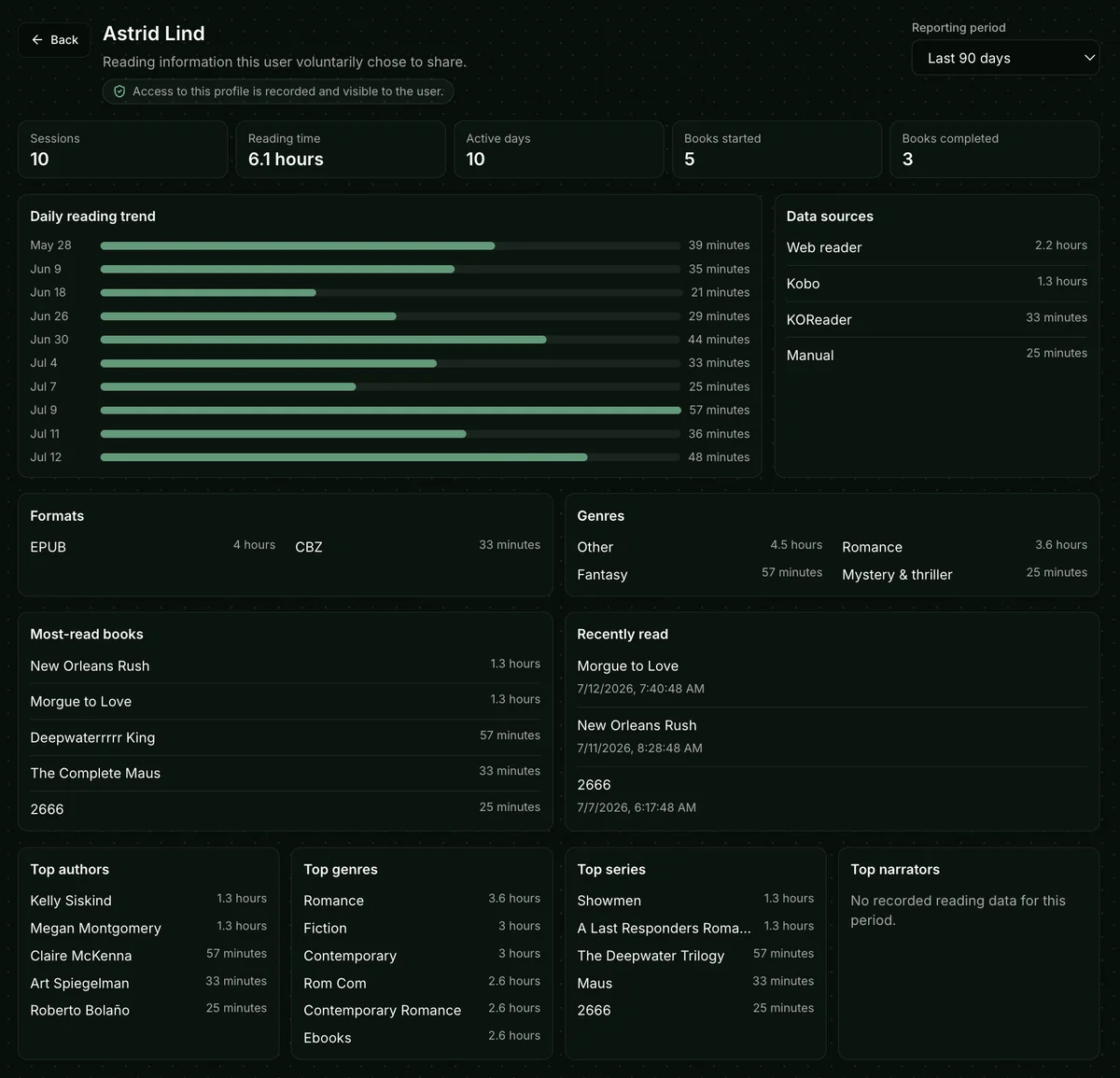
For detailed sharing, the report can include reading sessions, total reading time, active days, books started and completed, the daily reading trend, data sources, formats, genres, most-read and recently read books, and top authors, series, and narrators. Opening this profile is itself meaningful: it is added to the user’s access history, so sharing remains visible rather than silent.
Related administration
Section titled “Related administration”The Users tab in the same Admin workspace controls account access, permissions, shared accounts, and magic links. See Users & Permissions for those tasks.