
Users & Permissions
BookOrbit can be a private library for one person, a carefully shared family shelf, or a service for an entire group. The Admin workspace is where those very different arrangements stay understandable: give a person their own account, give a shared device a deliberately limited account, and decide exactly which libraries and actions each account gets.
Open Settings > Admin to manage local, shared, and SSO-provisioned accounts. The same workspace also contains Account Activity, OIDC / SSO, and Magic Links. The Users tab is available with Manage users; Account Activity requires View user activity; Magic Links and shared-account creation are reserved for superusers.
The Users tab
Section titled “The Users tab”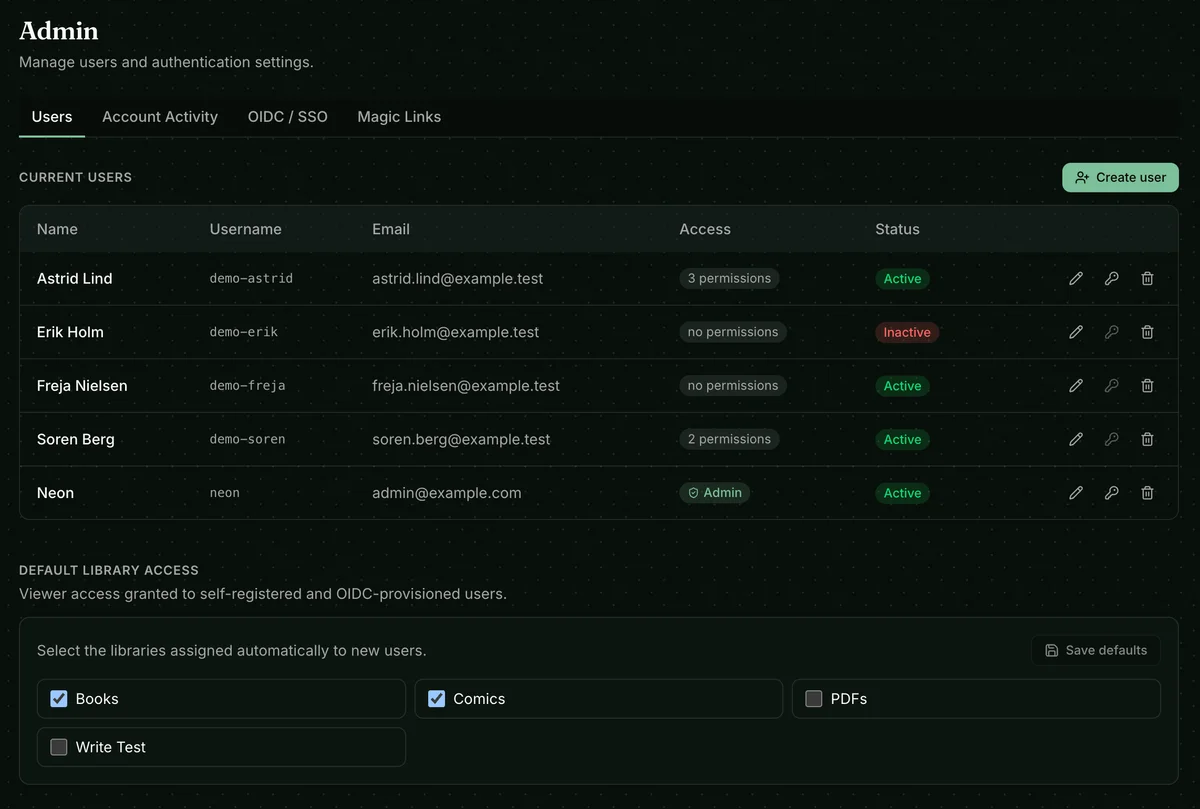
Think of this tab as the front door to your instance. It lists each account’s name, username, email, access level, and status. Use the row actions to edit an account, generate a password-reset link, or delete it.
The access badge is a quick summary: regular accounts show their permission count, while superusers show the Admin badge. An inactive account cannot sign in.
Default library access
Section titled “Default library access”This is the starting point for accounts that arrive without an administrator choosing every library from scratch. Select the libraries to preselect for new accounts, then save the defaults. Self-registered and OIDC-provisioned users receive these libraries automatically. When an administrator creates a local or shared account, the same libraries are selected in the editor and can be adjusted before saving. For example, you might give all new staff access to a shared Books library while keeping personal or archival libraries private.
Default library access does not grant any permissions; it only decides where a new account can browse.
Creating and editing accounts
Section titled “Creating and editing accounts”Click Create user, then complete the three tabs: General, Access, and Restrictions. A useful mental model is: library access decides which books an account can discover, permissions decide what it can do, and restrictions can make that visible catalog smaller. You need the manage_users permission to create or edit accounts.
General
Section titled “General”Use a normal account for a real person. They get their own identity, password, reading life, and settings. Enter a unique username, full name, and email address; after saving, BookOrbit gives you a one-time reset link so they can choose their own password.
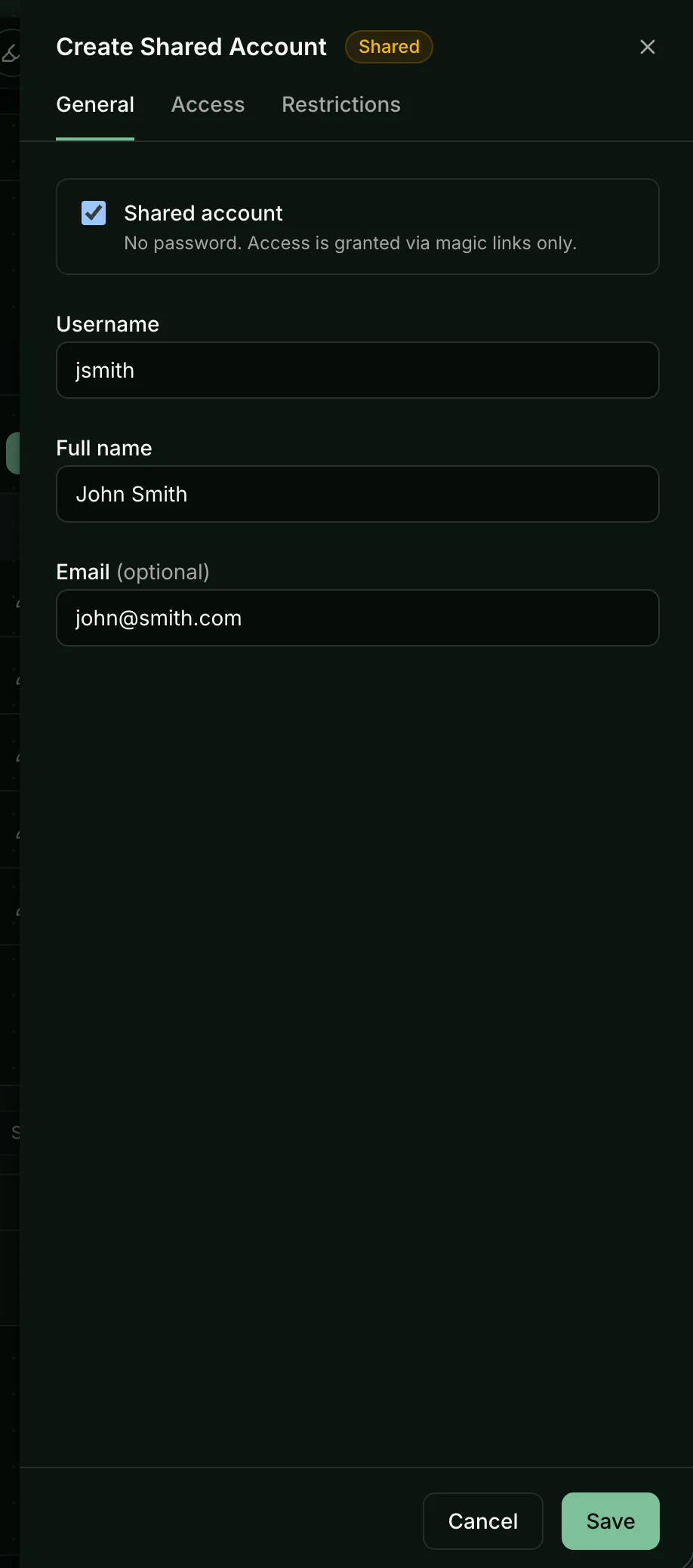
Choose Shared account when the account represents a device or a small shared audience rather than one identifiable person: a family tablet, a library display, a guest account, or a child’s e-reader. A shared account has no password and signs in only through magic links; its email address is optional. That distinction matters: you can revoke a single link without changing anyone’s personal password, and you can keep the account’s library and capabilities intentionally narrow.
Access
Section titled “Access”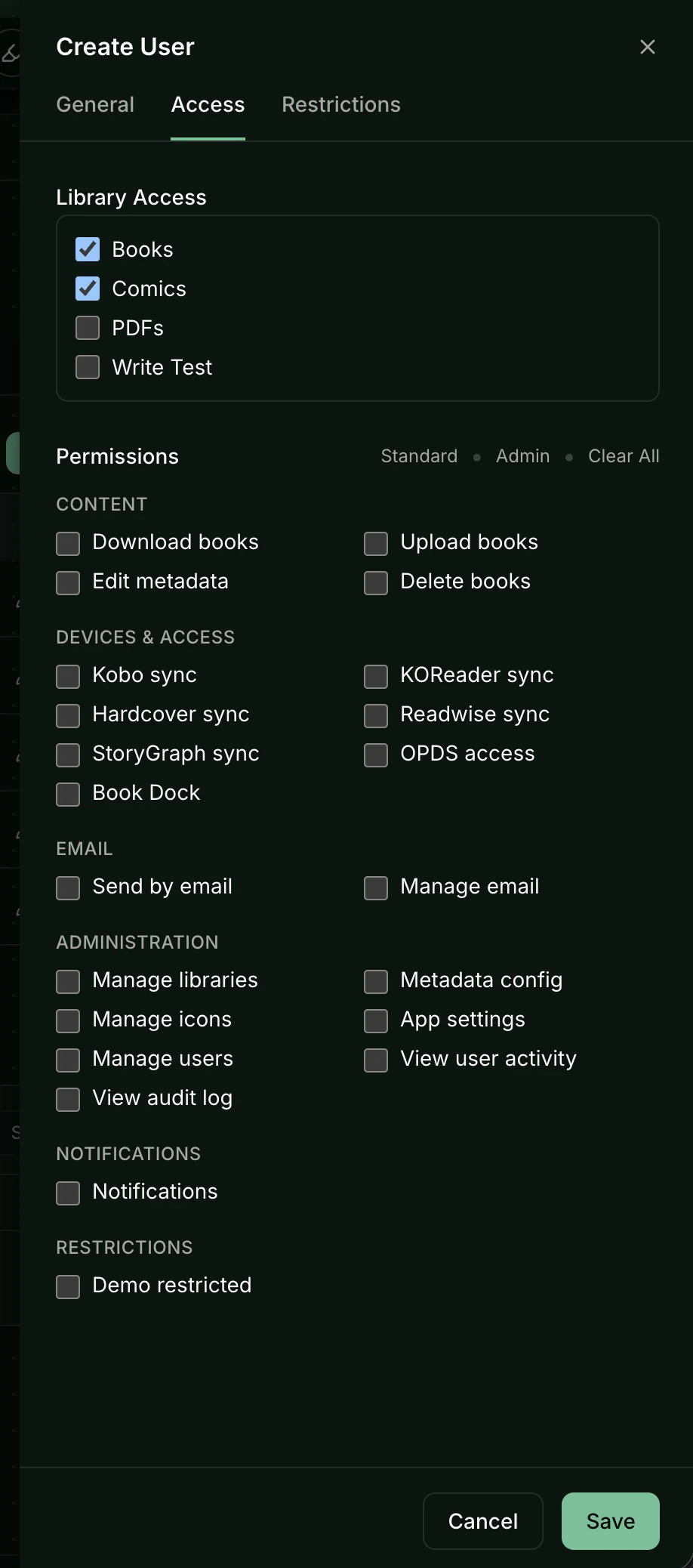
Start with the smallest useful access. Select the libraries the account can see, then grant only the actions it needs. A guest account may need only Download books; someone who curates a library may also need upload and metadata editing. Use Standard to select Download books plus the Devices & Access permissions, Admin to select every permission, or Clear all to remove the selections. These shortcuts do not change superuser status. Superuser promotion is a separate administrator-only action.
Content restrictions
Section titled “Content restrictions”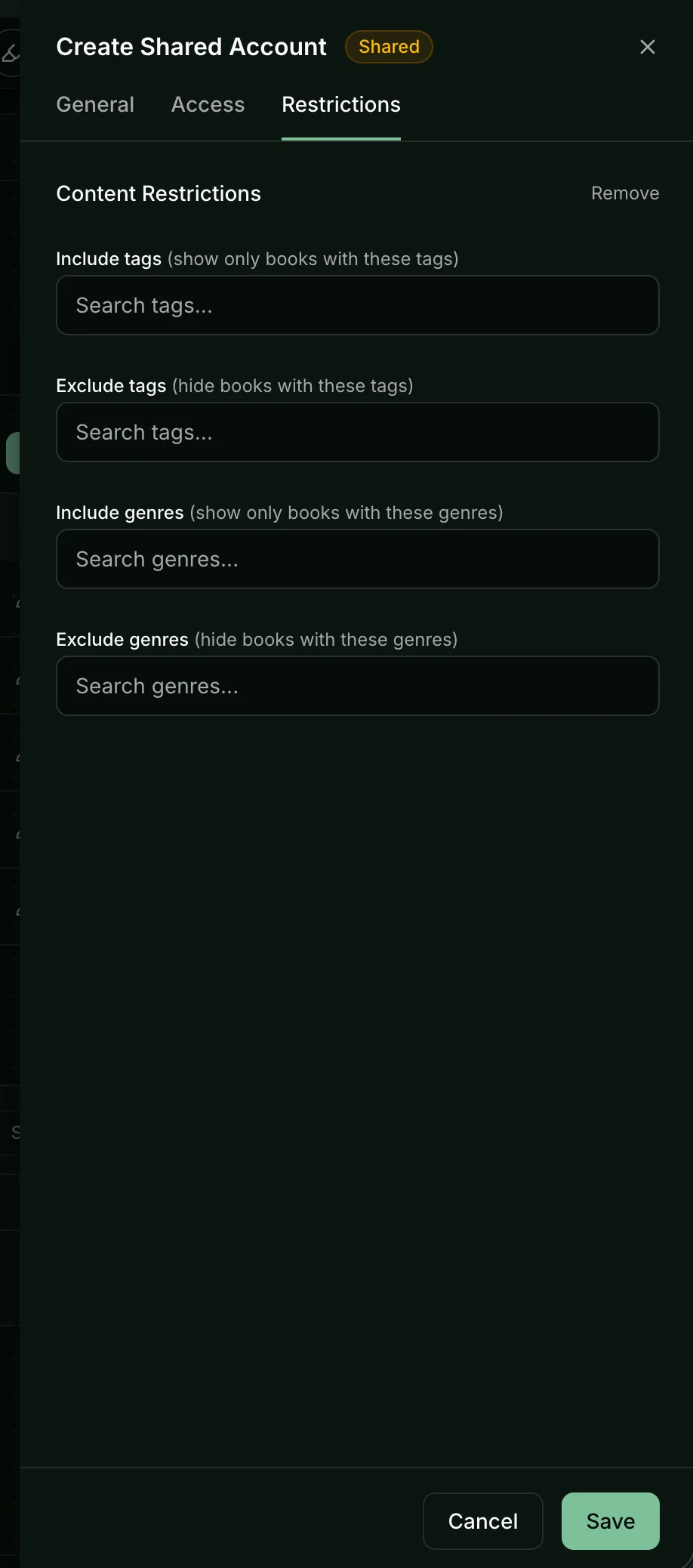
Restrictions give you a second, finer boundary after library access. Add tags or genres to an include list when an account should see only matching books; use an exclude list to hide matching books from an otherwise visible library. This is especially useful when a shared device uses the same library as everyone else but should not surface every title in it. Superusers are not filtered, so the Restrictions tab shows an explanatory notice for them.
Password reset links
Section titled “Password reset links”You never need to invent or transmit a starter password. Every new local account begins with a randomly generated one, and BookOrbit instead shows a one-time reset link. Send that link privately; the person uses it to set a password that only they know.
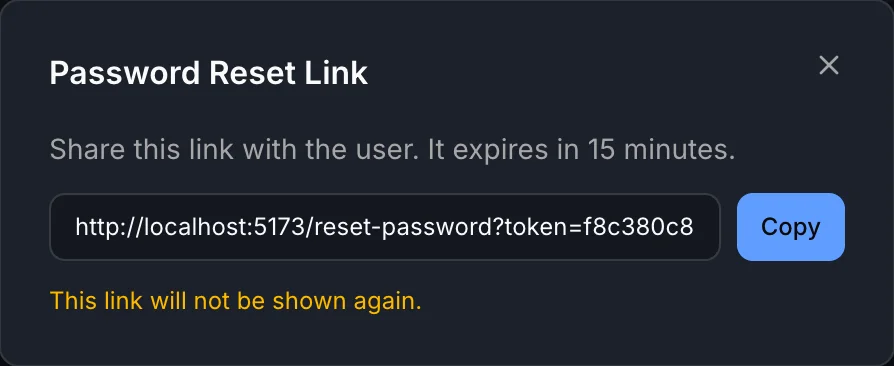
- The link expires in 15 minutes.
- It is shown once and cannot be retrieved after closing the dialog.
- Use the key action on the user row to generate a fresh link when needed.
- After the user sets a password, the link is invalidated immediately.
Magic Links
Section titled “Magic Links”A magic link is a long, secret URL that signs a browser in as a shared account. Opening it proves that the person or device has the link. There is no password to remember, type, or share. It is a good fit for a living-room tablet, a temporary guest, or a device that several people use; it is a poor fit for a person’s own account, where a separate identity and password are safer.
The advantage is control without password churn. Each link belongs to one shared account and can have its own label and expiry. If a tablet is replaced or a guest no longer needs access, turn off that one link while leaving every other account and device alone. Only superusers can open Settings > Admin > Magic Links and manage links.
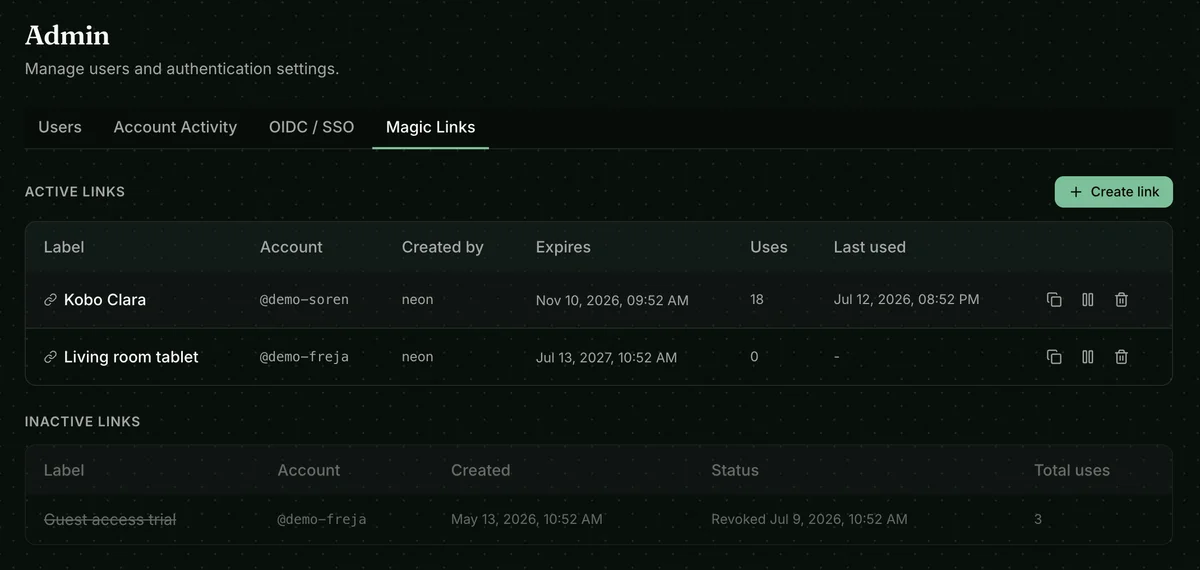
The tab separates links that can still be managed from links that have expired or been revoked, so you can see at a glance which doors are still open. A paused link remains in the active section with a Paused badge, but cannot be used until resumed. Each link records the account it opens, who created it, its optional expiry, how many times it has been used, and when it was last used. Copy a link, pause or resume it, or revoke it with the row actions.
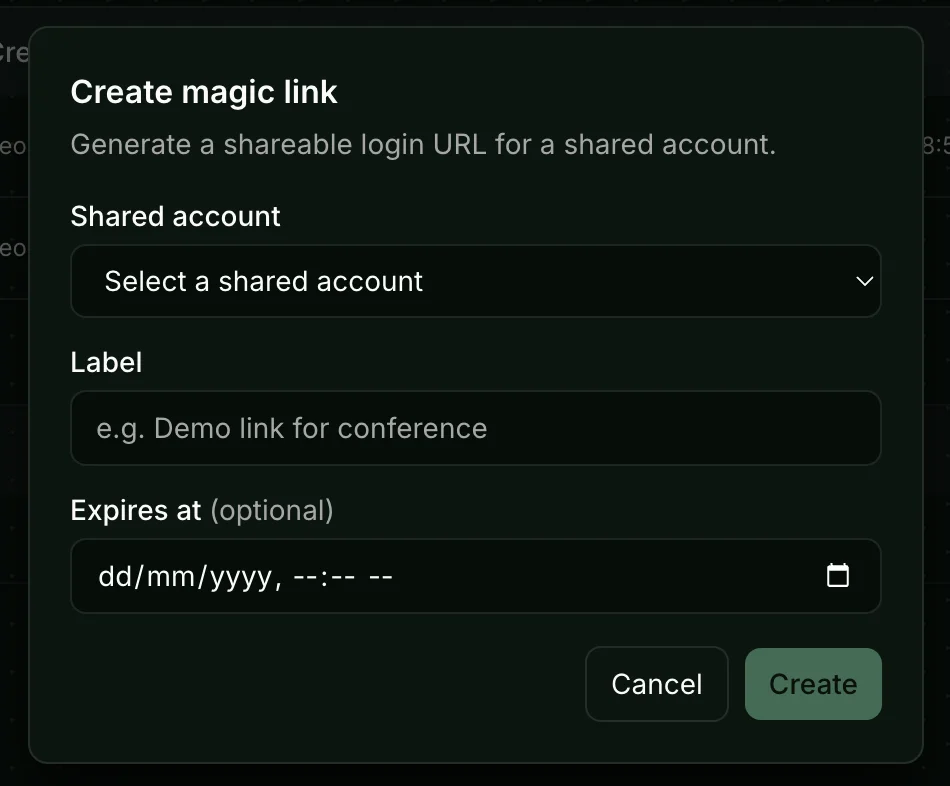
Create links with a purpose, not a generic name: Living room tablet, Summer guest, or Kobo Clara makes a later cleanup much easier. Choose the shared account, enter that recognizable label, optionally set an expiry, and click Create. Then give the URL only to the intended person or device.
Treat the URL exactly like a password. Anyone who has it can sign in as the shared account. If it is forwarded, exposed, or simply no longer needed, pause it to close the door temporarily or revoke it permanently. Either action ends the shared account’s active sessions; revocation cannot be undone. A user can have at most 25 active, unexpired links.
Permissions reference
Section titled “Permissions reference”Permissions are grouped in the account editor.
Content
Section titled “Content”| Permission | What it allows |
|---|---|
| Download books | Download book files and open them in the reader. |
| Upload books | Add files through Book Dock. |
| Edit metadata | Edit book and author metadata, covers, and entities. |
| Delete books | Permanently remove books from accessible libraries. |
| Generate read-aloud books | Create a read-aloud EPUB from a book’s EPUB and audiobook. Also needs Upload books. See Creating a Read-Aloud. |
Devices & access
Section titled “Devices & access”| Permission | What it allows |
|---|---|
| Kobo sync | Pair and sync Kobo devices. |
| KOReader sync | Configure and use KOReader sync. |
| Hardcover sync | Connect and sync a Hardcover account. |
| Readwise sync | Connect and sync Readwise. |
| StoryGraph sync | Connect and sync StoryGraph. |
| OPDS access | Browse and download through OPDS-compatible apps. |
| Book Dock | Open the Book Dock upload workspace. |
| Permission | What it allows |
|---|---|
| Send by email | Send books to email addresses from a book detail page. |
| Manage email | Configure providers, delivery history, recipients, and templates. |
Administration
Section titled “Administration”| Permission | What it allows |
|---|---|
| Manage libraries | Create, edit, and delete libraries and their scan settings. |
| Metadata config | Configure metadata providers, field rules, and enrichment. |
| Manage icons | Manage the custom icons available in the app. |
| App settings | Change instance-wide application settings. |
| Manage users | Create, edit, and delete accounts; assign library access and permissions. Shared-account creation and magic-link management require superuser access. |
| View user activity | Open Account Activity and view authentication data and voluntarily shared reading insights. |
| View audit log | Read the audit log of user and system actions. |
| Moderate shared notes | Hide shared notes and replies from other readers. See Reading Together. |
Notifications and restrictions
Section titled “Notifications and restrictions”| Permission | What it allows |
|---|---|
| Notifications | View and manage in-app notifications. |
| Demo restricted | Marks an account as demo-restricted, which blocks selected settings and operations. |
| No social features | Hides clubs, shared notes, reactions, and reading presence from the account, and hides the account from everyone else. See Reading Together. |
Superuser vs. regular user
Section titled “Superuser vs. regular user”A superuser has the Admin badge. Superusers bypass permission checks and can access everything without individually granted permissions. Only superusers can modify, reset passwords for, or delete other superuser accounts; a regular account with every permission still cannot manage an admin account.
The first account created during setup is always a superuser. An instance must always retain at least one superuser.
What users can change themselves
Section titled “What users can change themselves”From Settings > Account, users can update their full name, avatar, linked OIDC identities, and privacy sharing choice. Local accounts can also change their password; OIDC and shared accounts do not use a local password. Email address is read-only for the user; an administrator can update it.
See Account Activity for the reading-insights sharing choices and the activity administrators can see.
Self-registration
Section titled “Self-registration”By default, only administrators can create accounts. If allow_registration is enabled in Settings > App Settings, the login page shows Sign up. A self-registered account receives the default library access configured in the Users tab but starts with no explicit permissions. An administrator must grant permissions before it can perform protected actions.
Troubleshooting
Section titled “Troubleshooting”| Symptom | Check |
|---|---|
| User logs in but sees no books | Check their library access and any tag or genre restrictions. |
| User cannot open the reader or download files | Grant Download books. |
| A shared account cannot sign in | Create a new active magic link and verify it has not expired or been paused or revoked. |
| Kobo sync is not visible | Grant Kobo sync. |
| OPDS is not visible | Grant OPDS access. |
| A password-reset link expired | Generate a fresh link with the key action. |
| Cannot delete an account | You cannot delete your own account, the last superuser, or an admin account unless you are a superuser. |
| Create user is not visible | Requires Manage users. |