
Book Requests
Sooner or later someone asks you for a book you do not have. On a shared instance that conversation happens somewhere outside BookOrbit: a message, a note, a list on a fridge. You go looking, you find something, and three days later you cannot remember whether you ever told them.
Requests moves that conversation inside the app. Someone searches for a book, asks for it, and watches it arrive; you get a queue instead of a pile of messages. Once a request is approved, BookOrbit can fetch the book from sources you have chosen, hand it to a download client you already run, and file it in the right library, without anyone touching a file.
The important word there is chosen. BookOrbit ships with no sources of its own. Nothing is bundled, nothing is switched on, and until you add something the request queue is exactly what it says on the label: a list of books people would like. What you connect it to is your decision and your responsibility.
Before you start
Section titled “Before you start”Two permissions decide how much of this feature a person sees.
Request books (book_request_access) is the floor: without it there is no Requests entry in the sidebar at all. With it, a person gets two tabs, one to ask for books and one to watch their own requests.
Manage book requests (manage_book_requests) turns the page into a moderation queue: the All requests tab, the approve and reject buttons, the release picker, and deleting a settled request for everybody.
Setting up the plumbing - sources, download clients, automation - needs App settings (manage_app_settings) instead, under Settings > Server > Requests: holding an indexer credential is a different level of trust from waving a request through.
Everything below works without a single source configured, right up to the moment a book has to be fetched. If you only want the social half, a queue of what people want that you satisfy by hand, you can stop reading after Closing a request by hand.
Asking for a book
Section titled “Asking for a book”The Request a book tab searches metadata providers, not trackers or indexers. A requester asks for a work and never sees an indexer, a release name or a seeder count; picking the actual file is somebody else’s job.
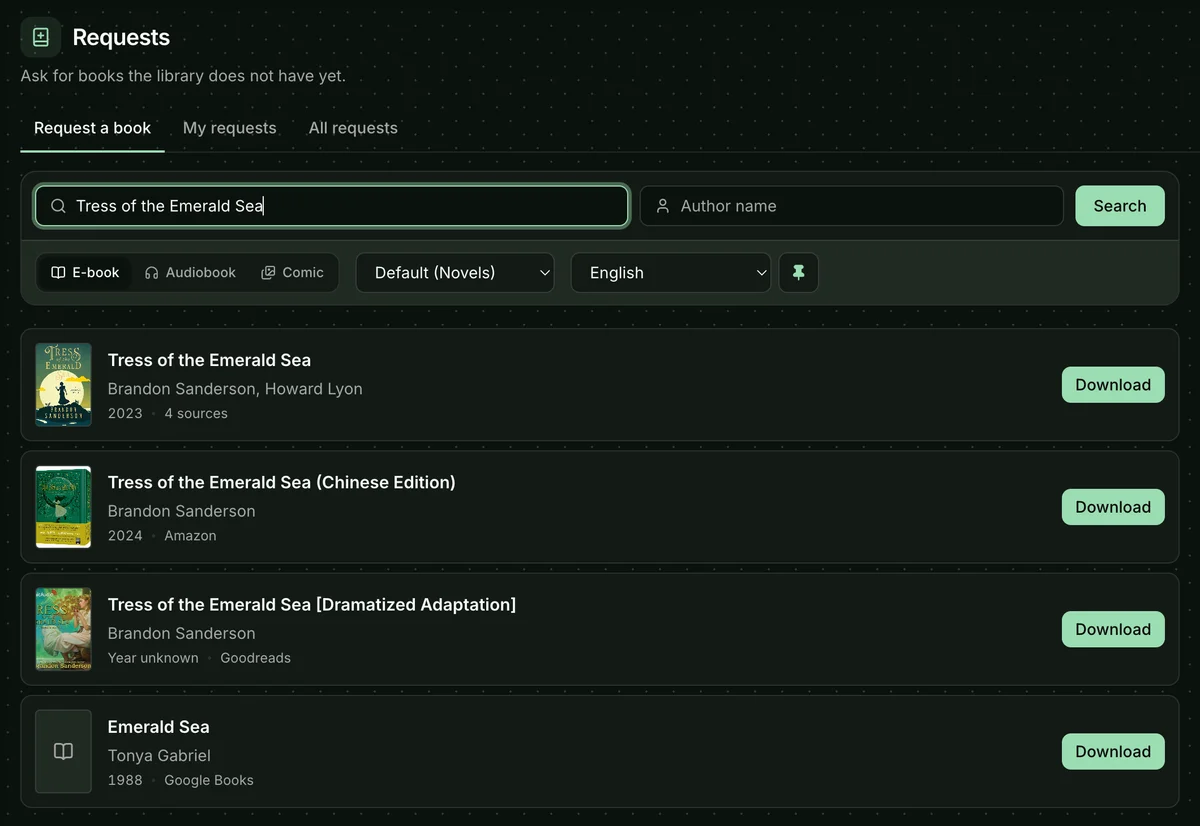
Type a title, an author, or both, and pick the medium: E-book, Audiobook, or Comic. The medium matters more than it looks. Chosen before anything is searched, it decides which sources get asked, which release profile applies, and where the book lands when nobody picks a library. One request covers one medium; wanting the audiobook as well means a second request.
Results are grouped by work rather than listed per provider, so one book that four providers know about is one row saying 4 sources, not four near-identical rows. Expanding a row shows what each provider returned: title, ISBN, year and language. A row already in your library says so instead of offering a button.
Two more controls sit next to the medium:
- Request language starts as your interface language, and a toggle beside it saves that choice for future requests. A release in a language the request ruled out is filtered out of the picker entirely.
- Add to library decides where the book is filed, and what you see here depends on who you are. That is the next section.
Press Request and it joins the queue. If somebody has already asked for the same book in the same medium, the button reads Add me too: rather than opening a second request, BookOrbit adds you to the existing one, and you are notified along with everyone else when it arrives.
Where the book will go
Section titled “Where the book will go”Three things can decide where the book is filed, and the later one always wins:
- The instance default for that medium, from Settings > Server > Requests > Automation, used when the requester names nowhere.
- A library the requester picked on the request form.
- A library the approver chose, which overrides whatever the request was carrying.
An ordinary requester can leave the select alone; it shows the instance default by name, or Let the approver decide when there is none. For anyone whose requests settle immediately - auto-approvers and self-servers, both below - it is not optional, because there is no later moment where anyone picks, and a request with nowhere to go is refused rather than created.
Watching the queue
Section titled “Watching the queue”My requests is what a requester sees. All requests appears for moderators and shows everybody’s, with filters for status, format, requester and fulfilment, plus a Show dismissed checkbox. The sidebar carries a count of what is still live: everybody’s for a moderator, your own for everyone else.
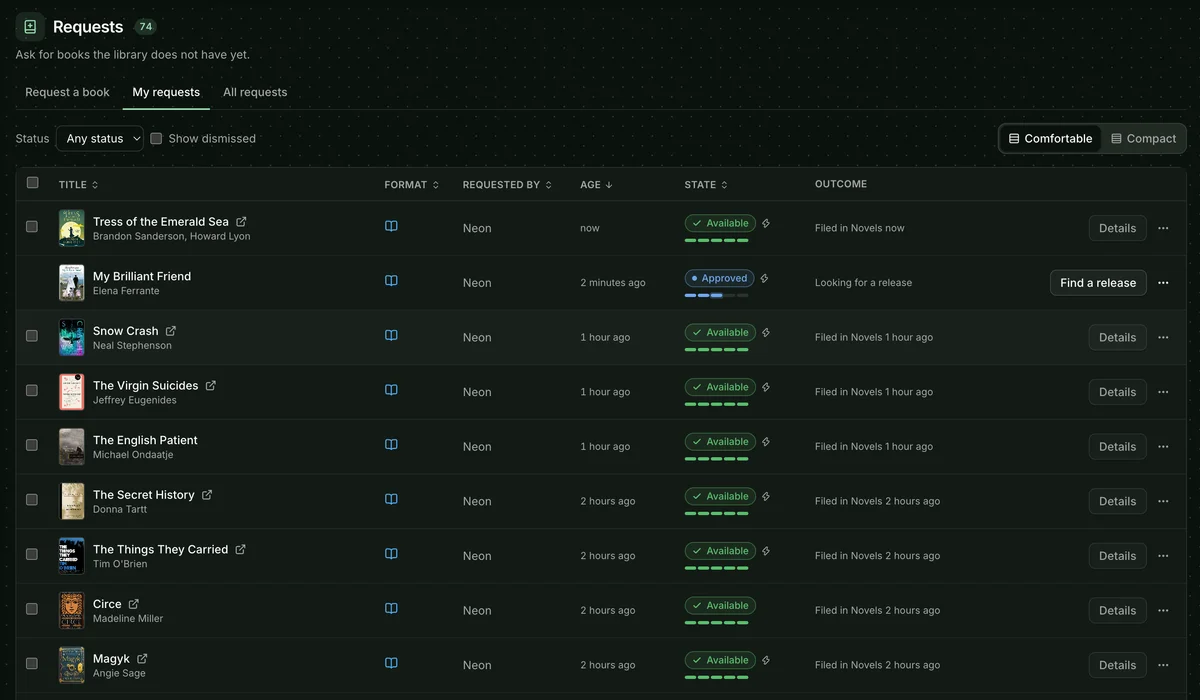
Two columns carry most of the meaning. State is the machine’s answer: where the request has got to. Outcome is the human one: Filed in Novels 2 hours ago, Looking for a release, Waiting for approval.
The eleven states, in the order a healthy request passes through them:
| State | What it means |
|---|---|
| Pending | Asked for, waiting on an approver. |
| Approved | Cleared, but no release has been picked yet. |
| Searching | Sources are being queried for a release. |
| Grabbed | A release was handed to a download client. |
| Downloading | The transfer is running. |
| Importing | The finished file is passing through the Book Dock. |
| Needs review | The imported file did not match the request closely enough, and is waiting in the Book Dock. |
| Available | Filed into the library. This is the end of the road. |
| Rejected | An approver said no. |
| Cancelled | The requester or an approver stopped it. |
| Failed | Something broke. Another release can still be tried. |
Sort by title, format, requester, age or state, and switch between Comfortable and Compact density. Clicking a row opens a drawer over the list rather than navigating away; inside it J and K walk through the queue, A approves, Esc closes.
Selecting rows reveals a bulk bar: a moderator can Approve all or Reject all the pending ones, with one shared reason for the rejection, and anybody can Hide settled ones from their own list.
Cancel, dismiss, delete
Section titled “Cancel, dismiss, delete”Four actions that sound alike and are not:
- Cancel stops a request that is still running, and anyone waiting on it does not get the book. A transfer in flight is stopped: data already in the download client is kept, and partial direct-download staging is cleaned up.
- Dismiss hides a settled request from your own list; nobody else’s view changes, and Restore puts it back.
- Leave is for someone who joined a request rather than making it. You stop following it and stop hearing about it; the request carries on.
- Delete removes the row for everyone, which is why it is a moderator action on a settled request only. Any download still in a client (such as an active transfer or seeding torrent) is removed with its files left in place.
Approving
Section titled “Approving”Open a pending request and the drawer offers Approve and Reject, both with an optional note the requester will see. Approving is also where a moderator can reroute the book to a different library, as long as it is one they can reach themselves.
Approving does not fetch anything by itself; a release still has to be chosen. With automatic downloads off, the request sits at Approved with Looking for a release in the outcome column and a Find a release button waiting for you.
The release picker
Section titled “The release picker”This is where the tracker and indexer side of the world finally appears, and only for the person approving.
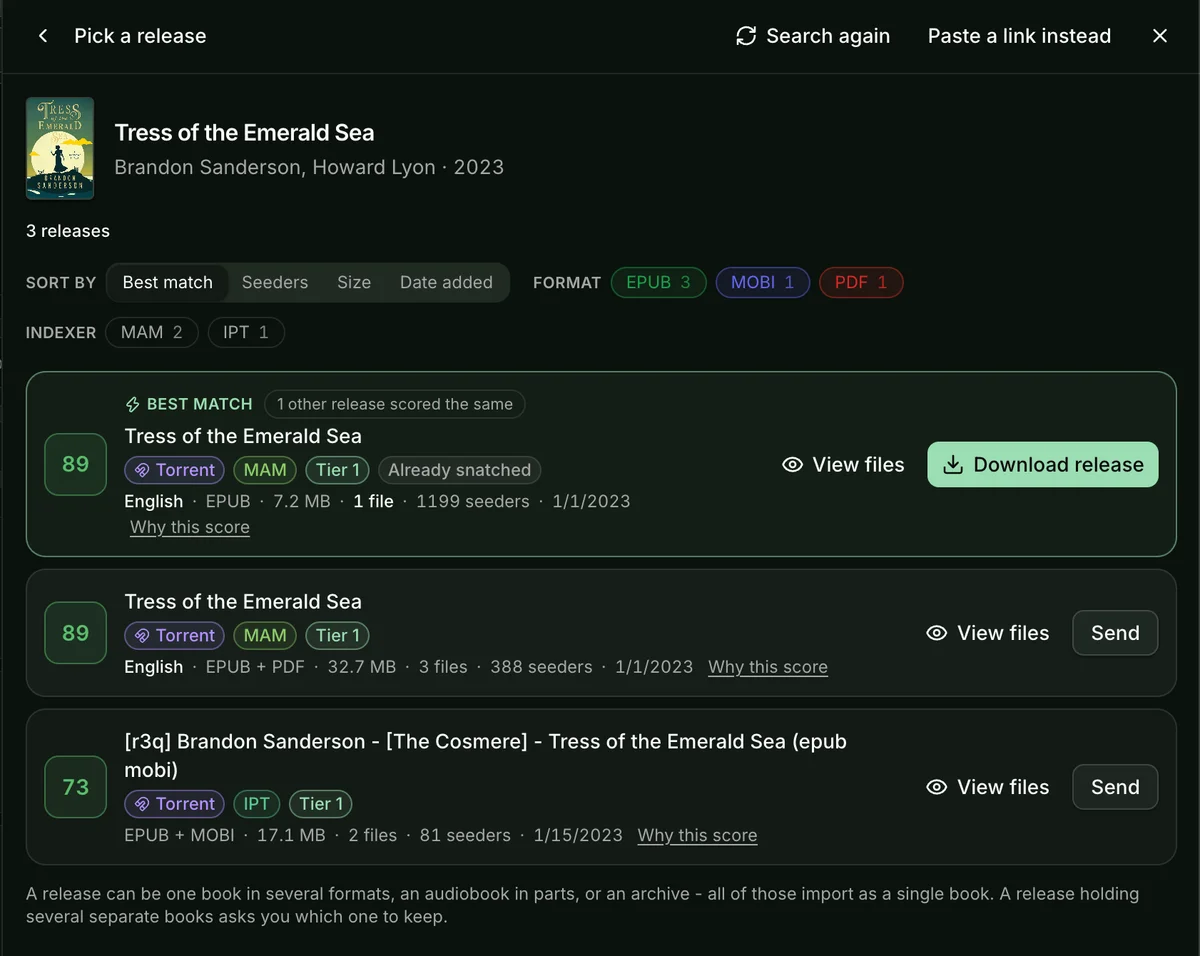
BookOrbit searches every enabled source in parallel, merges the answers into one list, and scores each release out of 100. The score is not a quality rating but a confidence rating, an answer to is this the book that was asked for:
| Contributes | Worth |
|---|---|
| Title, author and ISBN match | up to 61 |
| Format: preferred, then merely usable, then unstated | 12 / 6 / 2 |
| A plausible file size for the medium | 10 |
| Seeders, saturating around 60 of them | up to 12 |
| Freeleech | 5 |
| An implausible size for the medium | -25 |
| More than a dozen files, so possibly a pack of books | -5 |
Why this score on any row breaks that down line by line. Since the match is worth more than everything else put together, a well-seeded release of the wrong book cannot climb over a thin one of the right book.
Some releases never reach the list. A torrent with a seeder count of zero, a format not usable for the medium, or a language the request ruled out is filtered before scoring, and a line under the list says how many went that way. (Usenet releases do not have swarms or seeders; they are never filtered for zero seeders and do not receive seeder points.) File count is deliberately not a filter: three formats of one title, or an audiobook in twelve parts, are ordinary packaging.
Above the list, sort by best match, seeders, size, bitrate or date, and narrow by format, source, language, file layout, audio, freeleech or Hide VIP only. Releases carry a protocol badge (Torrent, Usenet, or Direct) alongside the source name. Facets are counted from the results you actually got, so a chip that would leave nothing is not offered.
Change search reopens the query, because a request snapshot is not always the best one. Edit the title and authors, switch between the ISBNs on offer, one you type yourself, or a plain title-and-author search, adjust the language and formats, and search again. The line above the list says what each source was handed and what it returned.
View files (or About contents for Usenet) reads a release’s file list before you commit to it: one book in several formats, one book split into parts, an archive whose contents are unknown until it unpacks, or genuinely several separate books. The last case is fine - it downloads, and then BookOrbit asks which book to keep. A magnet link cannot be inspected this way because its file list does not exist until a client fetches metadata from the swarm, and a Usenet release’s final unpacked files remain unavailable until NZBGet downloads and extracts them.
Use magnet or .torrent instead skips the search for a torrent link or .torrent file you already have, and goes through the same pipeline as everything else.
If a release turns out badly, Try another release reopens the picker on a failed request without re-approving it. Releases that already failed are marked with the reason, so you do not walk into the same wall twice: a source that refused the file or did not answer, a release needing a VIP account, or a download client that would not take it.
What happens after a grab
Section titled “What happens after a grab”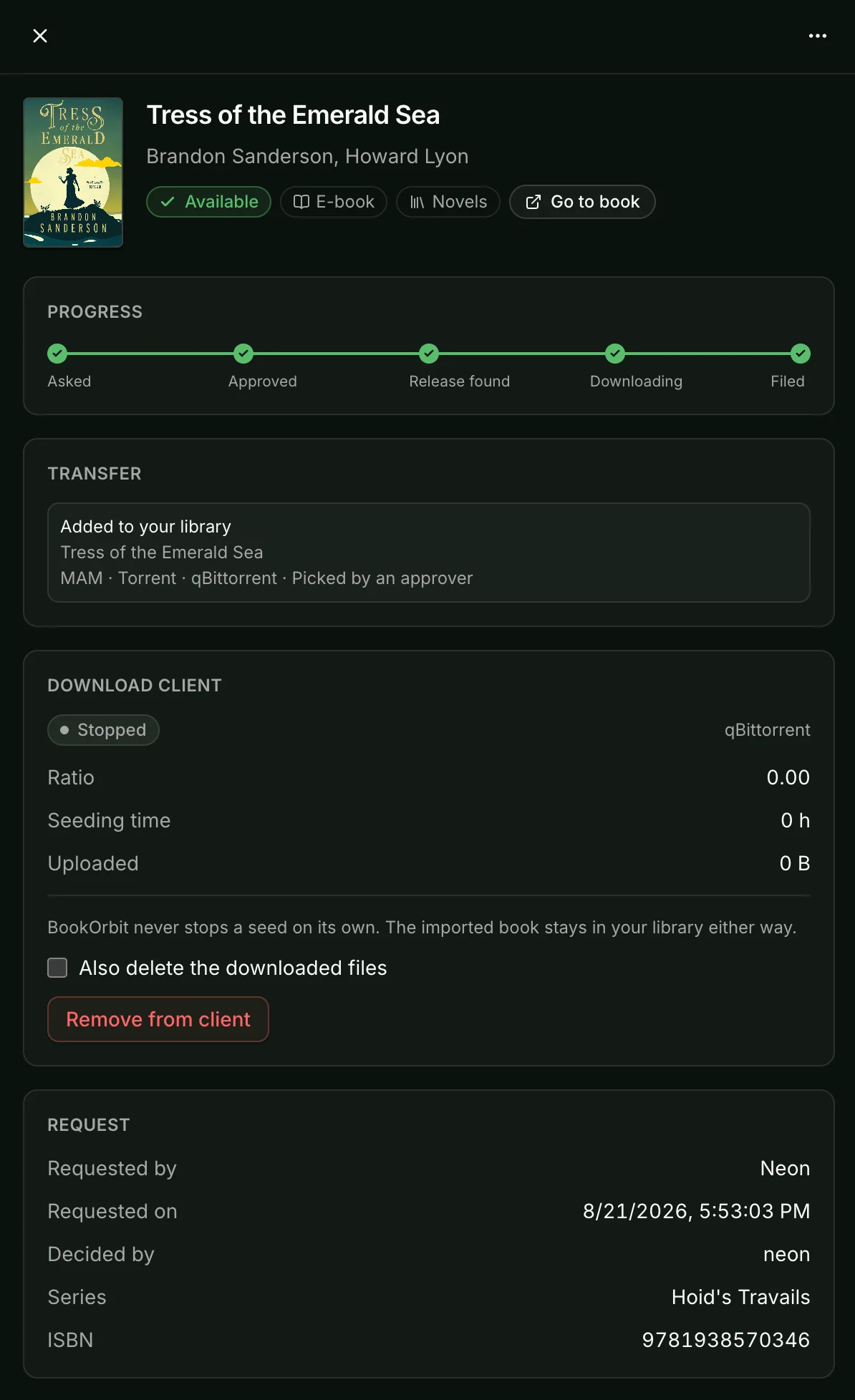
The Progress strip at the top of the drawer is the whole journey in five steps: Asked, Approved, Release found, Downloading, Filed. Under it, the transfer section names the release, the source, the client, and how the release was chosen: by an approver, automatically, or pasted by hand.
Behind those five steps:
- The release goes to the highest-priority enabled download client supporting that delivery method (torrents go to a torrent client, NZBs go to NZBGet), tagged with that client’s category so BookOrbit only ever acts on its own downloads.
- BookOrbit polls for progress. Nothing is moved while the transfer runs.
- When it completes, the finished file is hardlinked into the Book Dock, so it occupies no extra disk. For torrents, the file keeps seeding from the client’s download folder; for NZBs, duplicate disk usage is avoided while files stay in NZBGet. Across filesystems a hardlink is impossible, and BookOrbit copies instead, which does use the space twice.
- The Book Dock reads the file’s title and author, so it can be named and filed correctly.
- If import checking is on, the file is scored against the request. Anything clearing the threshold is filed into the destination library and the request goes to Available.
- Everyone who asked for the book is notified.
Sources that hand over a plain file rather than a torrent or NZB - LibriVox, Project Gutenberg and similar - skip the download client entirely. BookOrbit fetches the file itself into a staging directory and joins the pipeline at step 4.
When a request needs review
Section titled “When a request needs review”Step 5 guards against the thing that goes wrong most often: a release that says it is one book and is another. The check compares what landed against what was asked for - title, author, ISBN - and scores it out of 100.
This is a different question from the one the Book Dock’s confidence column answers, which is whether the file’s embedded metadata agrees with what providers returned for it. Ask for Dune, receive Dune Messiah, and both sides agree perfectly on Dune Messiah: high confidence, wrong book. The request check is what catches it.
Below the threshold, nothing is filed. The request moves to Needs review, the file waits in the Book Dock, and the drawer shows a Why this is waiting panel with the requested and imported values side by side and a verdict on each field. From there, File it anyway files it exactly as a passing score would have, and Discard this import clears the files out of the Book Dock and marks the request failed. Discarding leaves the files in the download client; stop or delete them separately if you want them gone.
The threshold is forgiving on purpose: subtitles, series suffixes and translated editions all cost points, and a false hold costs one click while a false pass puts the wrong book in somebody’s library.
Seeding and client downloads
Section titled “Seeding and client downloads”BookOrbit never stops a seed or removes a finished download on its own. For torrents, the source file is never moved or deleted, so it keeps seeding indefinitely after the book is in your library.
Torrent sources can set manual seed ratio and seed-time goals under Settings > Server > Requests > Sources, or inherit tracker-advertised goals when enabled. Usenet releases do not seed back once completed.
BookOrbit reads client statistics back: the Download client section of the drawer shows state, ratio, seeding time and uploaded bytes for torrents, or transfer status for NZBs, with a Remove from client action and an optional Also delete the downloaded files checkbox. Removing a client download never touches the imported book.
Closing a request by hand
Section titled “Closing a request by hand”None of the above is compulsory. A moderator can close any request against a book already in the library, or a file already sitting in the Book Dock, by searching for it from the request drawer. The requester is notified exactly as they would be if BookOrbit had fetched it. This is the whole workflow for an instance that has no sources and wants none.
Setting up the plumbing
Section titled “Setting up the plumbing”Everything from here is Settings > Server > Requests, and needs the App settings permission.
Sources
Section titled “Sources”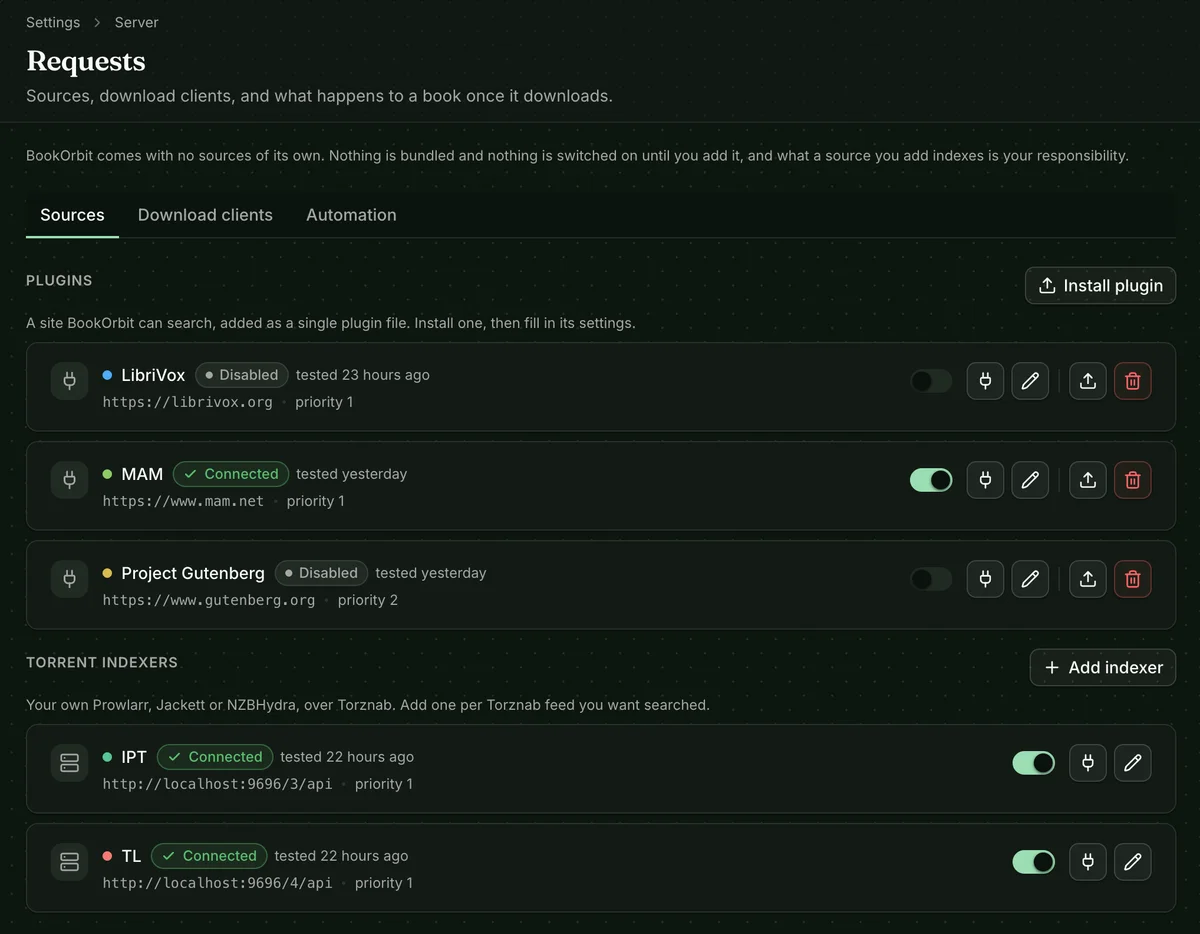
There are three kinds of source:
- Torznab: for torrent indexers. Speaks the Torznab protocol exposed by Prowlarr, Jackett and NZBHydra. Add one row per feed you want searched, with its URL and API key.
- Newznab: for Usenet indexers. Speaks the standard Newznab API exposed by Usenet indexers and NZBHydra. Add one row per indexer with its URL and API key. BookOrbit searches by generic query (including ISBN when enabled) and fetches the NZB securely without exposing credentials to the download client.
- Plugins: single
.mjsfiles that teach BookOrbit to search one specific site. None ship with BookOrbit. Install plugin uploads one, and the review dialog shows what the file declares about itself and the code it will run before you agree to anything. A plugin starts working as soon as it is installed; you are only asked to restart if it will not load in the running process.
Either way, a source is a row you configure and switch on.
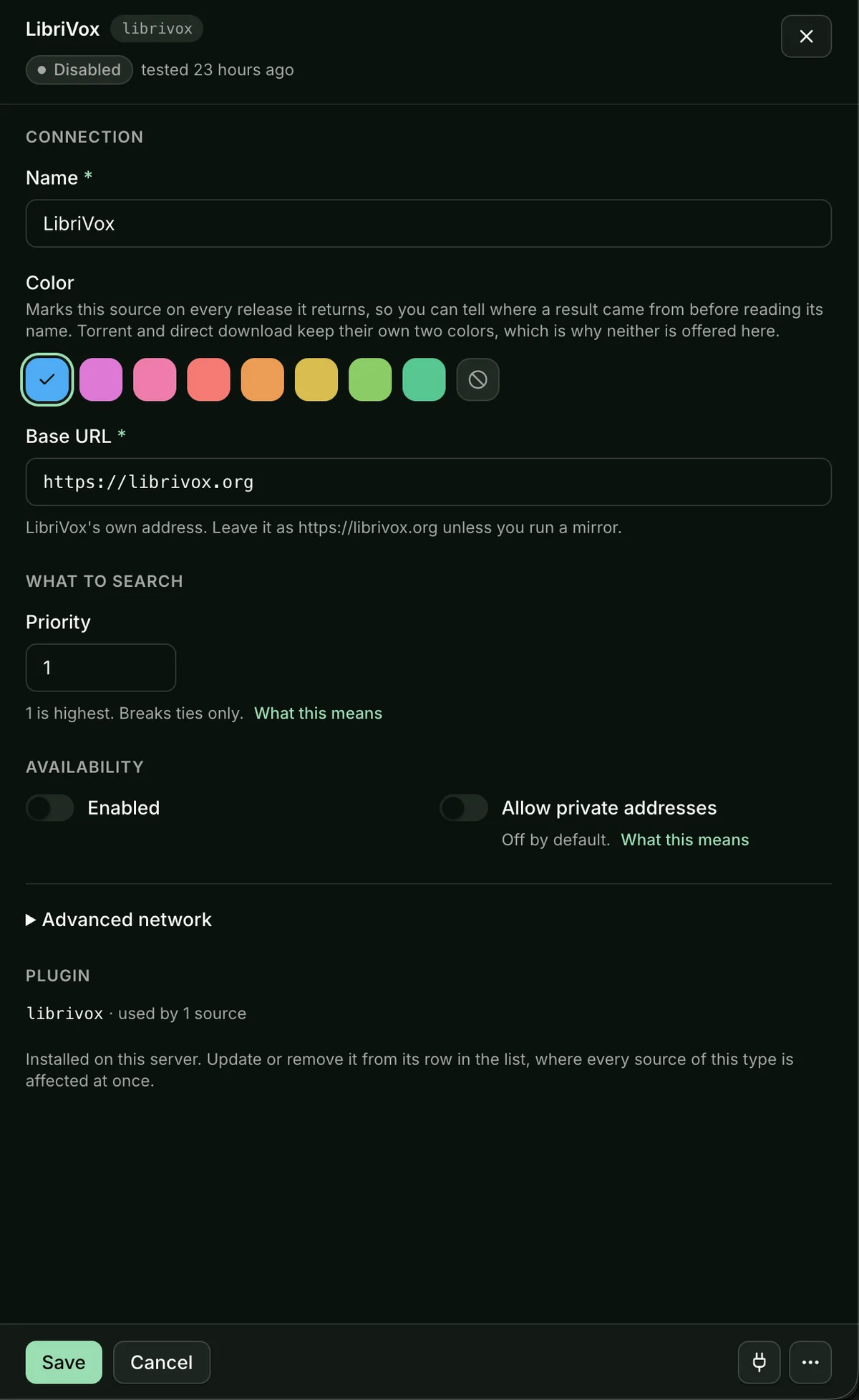
| Setting | What it does |
|---|---|
| Type | When adding a built-in source, choose between Torznab (torrents) and Newznab (Usenet). |
| Color | Marks this source on every release it returns, so you can tell where a result came from before reading the name. Delivery protocols (Torrent, Usenet, Direct) keep their own distinct badges. |
| Search this source for | Turn off a medium the source does not carry. An audiobook-only indexer behind a general proxy still claims to carry everything, and asking it for ebooks costs a request per search. |
| Search by ISBN | On by default. Turn it off where a catalogue answers an exact ISBN with the wrong book; the source then gets the title and author instead. |
| Categories | For Torznab and Newznab, the indexer’s own category numbers to search per medium (defaults: 7020 for ebooks, 3030 for audiobooks, 7030 for comics). |
| Seed ratio / Seed time | For torrent sources, set target seed ratio or total seeding minutes, or allow tracker-advertised goals to fill blank values. Usenet sources do not seed. |
| Allow private addresses | Off by default. Needed only when the source runs on your own network, such as a local Jackett, Prowlarr or NZBHydra instance. |
| Advanced network | Per-source DNS servers and an HTTP proxy, for when the default path to a site does not work. |
Credentials are stored encrypted, which needs BOOK_REQUEST_ENCRYPTION_KEY in the server environment. Without it, saving one is refused rather than stored in the clear:
openssl rand -hex 32Test connection tells you whether a source answers, and the result is stamped on the row. A source that keeps failing real searches is flagged separately, with the length of the run: a test call can succeed against an indexer that has refused every search for a week.
Download clients
Section titled “Download clients”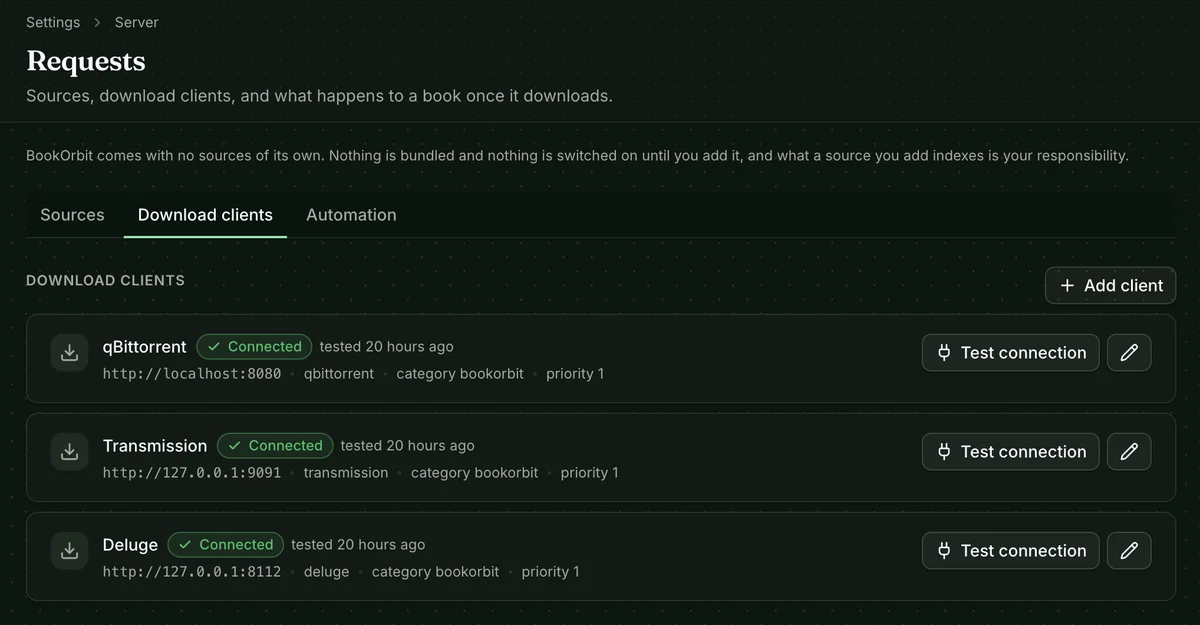
Four external download clients are supported across two delivery protocols:
- Torrents: qBittorrent, Transmission, and Deluge.
- Usenet: NZBGet.
Direct HTTP downloads need no external client, so you only need one of these if you use torrent or Usenet sources. A Newznab source needs an enabled NZBGet client, while a Torznab source needs an enabled torrent client.
BookOrbit does not connect to NNTP news servers directly. Configure your Usenet provider account inside NZBGet, and configure NZBGet’s JSON-RPC API connection in BookOrbit. BookOrbit downloads the credentialed NZB file from your indexer, sends its bytes to NZBGet, and monitors the download by a stable ownership key rather than a transient queue ID.
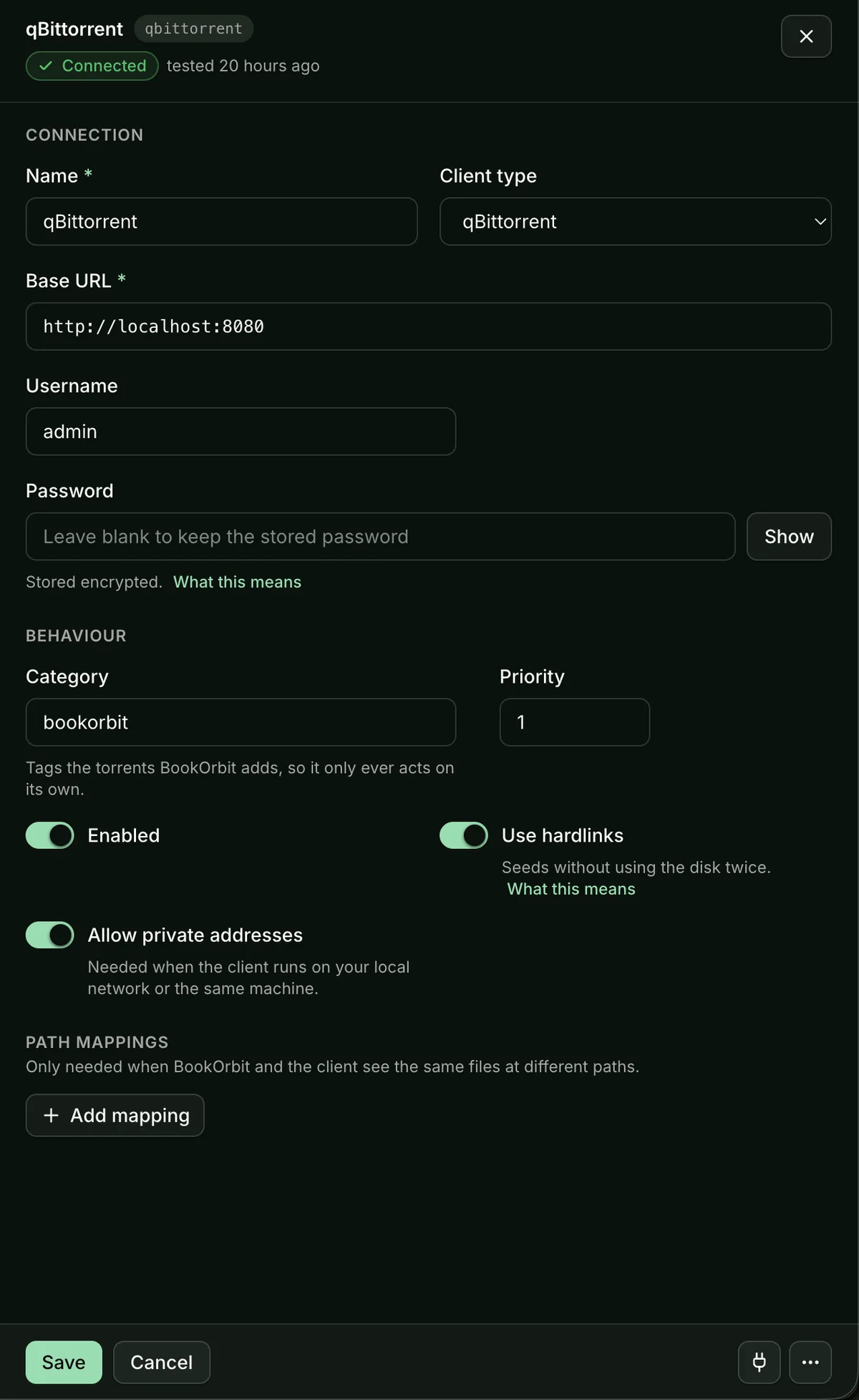
Three settings are worth understanding first:
Category tags every download BookOrbit adds, so it only ever acts on its own downloads. For qBittorrent and NZBGet, the category is set on the task. Transmission has no categories, so the category becomes a subfolder of its download directory instead; Deluge needs its Label plugin switched on.
Use hardlinks is on by default, avoiding duplicate disk usage when files are imported into the Book Dock. For torrents, it keeps the release seeding from the download directory; for NZBs, it avoids storing the extracted files twice. It only works when the client’s download folder and the Book Dock are on the same filesystem, and Test hardlink verifies that rather than leaving you to find out later.
Path mappings translate the paths the client reports into paths BookOrbit can open, and at least one is required on every client: the mapping also declares the directory BookOrbit may import from. When both see the same files at the same paths, map the download directory to itself.
Automation
Section titled “Automation”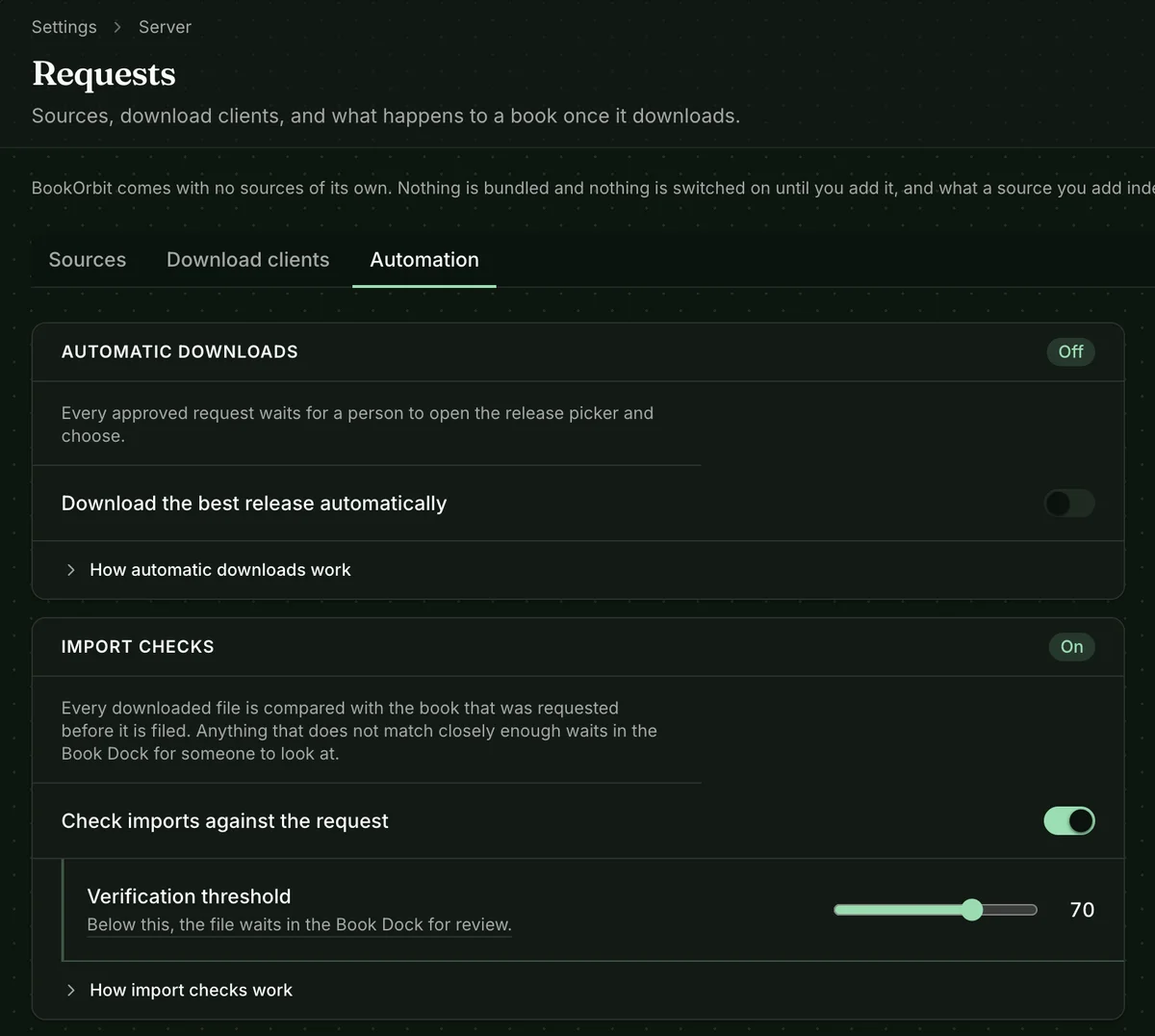
Automatic downloads is off by default, for a plain reason: matching a book to the right release is hard, and a person is usually the better judge. Left off, every approved request waits for someone to open the picker.
Switch it on and an approved request sends its highest-scoring release straight to the download client, as long as it clears the Minimum release score (default 80, floor 50). Try the next release after a failure falls through to the runner-up, bounded by Attempts per request (default 3). Retries only ever apply to releases BookOrbit chose itself; one an approver picked by hand stays failed and waits for them.
Keep looking for requests nothing was found for covers the one hole the rest of the pipeline has no answer to: a request is searched for once, when it is approved, so a book that is not out yet sits at Approved forever. Switch this on and BookOrbit checks again on its own. Search again after sets the base interval (default 24 hours), which doubles for each week a request has been waiting, up to eight times that figure; Stop looking after (default 60 days) is where it gives up and leaves the request to a person. It does nothing while automatic downloads are off.
When automation cannot proceed it hands the request back with a reason rather than stalling silently: nothing scored high enough, nothing matched your release profile, everything good enough has been tried, no source was searched at all, or there is nowhere to file the book. Whoever is responsible for the request is notified.
Import checks is the verification pass described earlier, on by default with a threshold of 70. Off, every download is filed as soon as its title and author have been read, and a mislabelled release lands in your library without warning.
Default destinations
Section titled “Default destinations”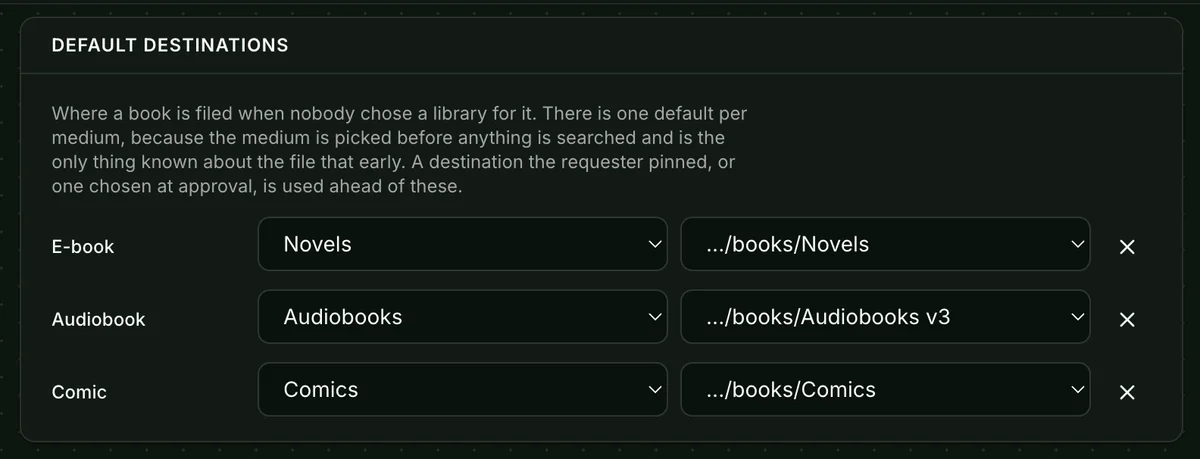
One default per medium, because the medium is the only thing known about a file before anything is searched. A library picked on the request form, or chosen at approval, always wins over these. They start unset: guessing which of your libraries holds audiobooks is how a book ends up somewhere nobody looks.
Release profiles
Section titled “Release profiles”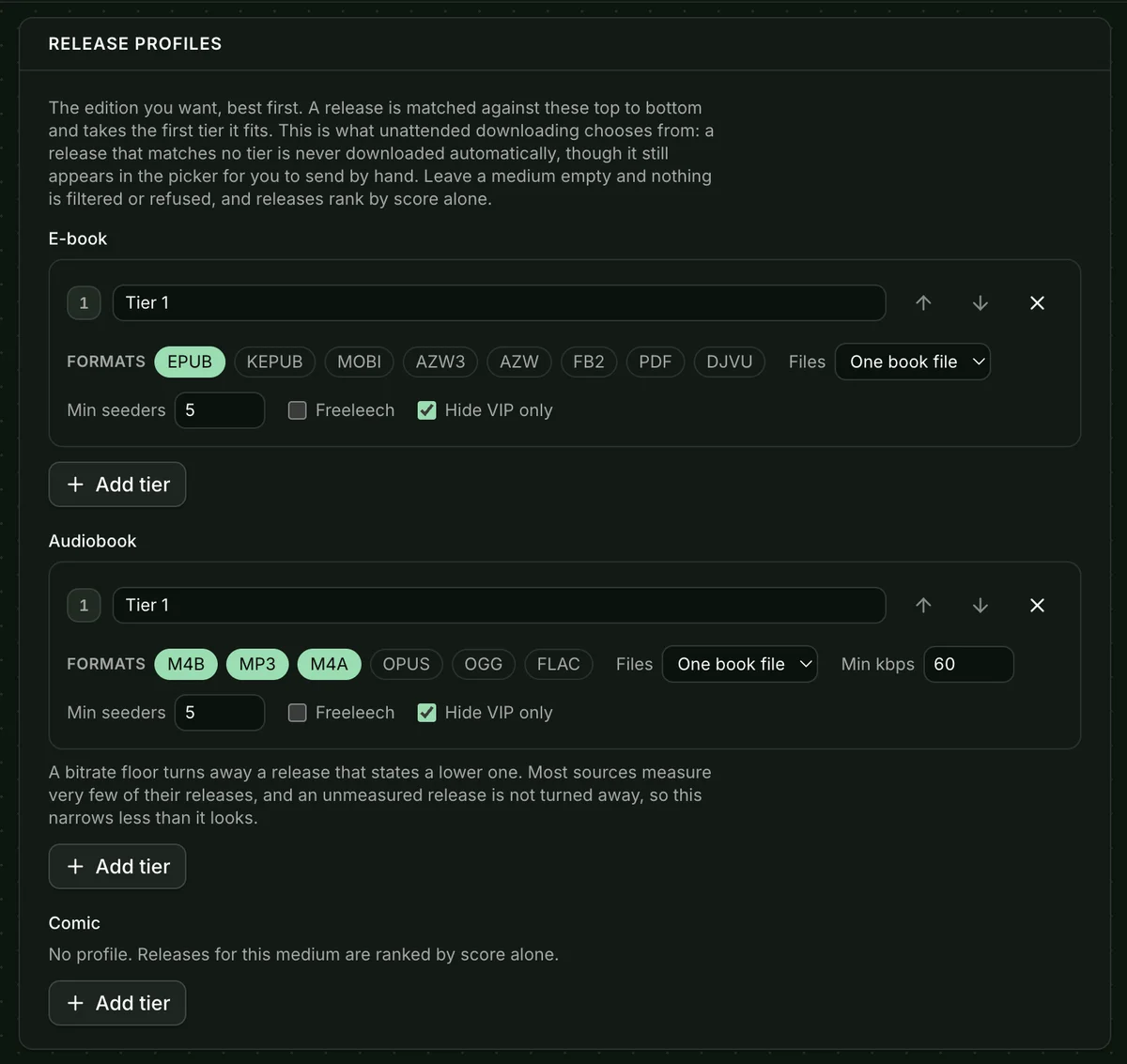
A profile describes the edition you want, best first. A release is matched against your tiers top to bottom and takes the first one it fits.
This is a separate axis from the score: the score asks is this the right book, a profile asks is this the edition I want. A release matching no tier is never downloaded automatically, though it still appears in the picker for you to send by hand. Leave a medium empty - which is how it ships - and nothing is filtered or refused; releases rank by score alone.
Each tier can require formats, a file layout, a seeder floor, a size ceiling, languages, particular sources, freeleech, and no VIP-only releases; audio tiers add a minimum bitrate and a channel count. A bitrate floor narrows less than it looks: most sources measure very few of their releases, and an unmeasured one is not turned away.
Import formats
Section titled “Import formats”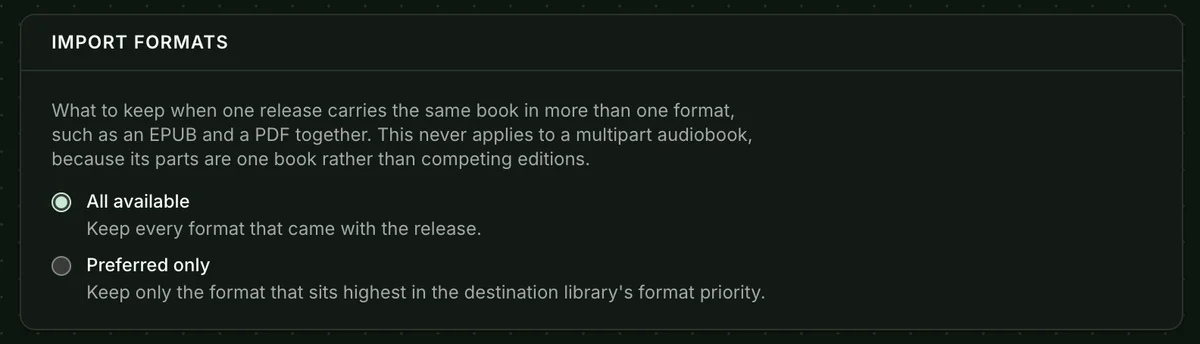
What to keep when one release carries the same book in more than one format, an EPUB and a PDF together for instance. All available keeps everything; Preferred only keeps the format highest in the destination library’s format priority. Neither applies to a multipart audiobook, whose parts are one book rather than competing editions.
Downloading without asking
Section titled “Downloading without asking”Download books directly (book_request_self_fulfill) gives a trusted user the whole pipeline with no approver in it: they search, pick the release themselves, and it downloads.
For those users the search results say Choose release rather than Request, and pressing it goes straight to the release picker. The button also carries a menu of editions: BookOrbit recommends one to search for, preferring the requested language and an ISBN several providers agree on, and you can pick a different edition’s ISBN or skip the ISBN entirely. When no provider knows the book at all, the empty state offers to search the indexers for the typed text directly. That last one is self-servers only, because a request row carrying nothing but a typed string gives an approver no way to tell whether it is the book that was meant.
Self-served requests still create a real row, so the history is visible and everything downstream works the same way. They appear in All requests with a Self-served badge, and when one goes wrong the people on that request are notified rather than every moderator. What bounds them is work in flight: ten can be open at once, because every live one is a release search against every enabled source. A picker opened and never acted on is swept after six hours, so an abandoned search does not keep its claim on a book nobody is fetching.
Auto-approve requests (book_request_auto_approve) is a lighter version: requests are created already approved, but a release is still picked the normal way.
Both need Request books to be useful, and BookOrbit enforces that dependency when permissions are assigned rather than implying it at check time.
Notifications
Section titled “Notifications”Requests use the normal notification system, under a Book requests category each user can turn on or off.
| Event | Who hears about it |
|---|---|
| A request is submitted | Everyone with Manage book requests |
| A request is approved or rejected | The requester and everyone who joined it |
| The book becomes available | The requester and everyone who joined it |
| A request needs review, needs a release picked, or failed | Moderators, or the requester and everyone who joined it for a self-served request |
Permissions reference
Section titled “Permissions reference”| Permission | What it allows |
|---|---|
Request books (book_request_access) | See the Requests page, search, ask for books, watch your own requests. |
Manage book requests (manage_book_requests) | See every request, approve and reject, pick releases, close requests by hand, delete settled requests. |
Auto-approve requests (book_request_auto_approve) | Your own requests are created already approved. |
Download books directly (book_request_self_fulfill) | Pick a release and download it yourself, with no approval step. Requires Request books. |
App settings (manage_app_settings) | Configure sources, download clients and automation under Settings > Server > Requests. |
Every action on a request is audited: created, approved, rejected, cancelled, grabbed, imported, fulfilled, deleted, and client downloads removed.
Troubleshooting
Section titled “Troubleshooting”The Requests page is not in my sidebar
Section titled “The Requests page is not in my sidebar”Grant Request books; nothing about this feature is visible without it.
Nothing happens when a request is approved
Section titled “Nothing happens when a request is approved”Automatic downloads are off by default, which is the intended state: the request waits at Approved with a Find a release button. To turn automation on, see Settings > Server > Requests > Automation.
The release picker finds nothing
Section titled “The release picker finds nothing”Check that at least one source is enabled, answers Test connection, and is set to be searched for this medium. If the picker says no source carries this kind of book, none of your enabled sources cover that medium.
A credential will not save
Section titled “A credential will not save”BOOK_REQUEST_ENCRYPTION_KEY is not set on the server, and credentials are refused rather than stored in the clear. If it was set and later changed, stored credentials cannot be read and must be re-entered.
A source will not connect on my own network
Section titled “A source will not connect on my own network”Turn on Allow private addresses for that source. It is off by default, and needed only when the source runs on your local network or the same machine, such as Jackett.
A download client will not save
Section titled “A download client will not save”Every client needs at least one path mapping, because that declares the directory BookOrbit may import from. If both see the same paths, map the download directory to itself.
A Usenet release cannot be downloaded
Section titled “A Usenet release cannot be downloaded”Make sure an NZBGet client is added and enabled under Settings > Server > Requests > Download clients. Newznab sources require NZBGet, while Torznab sources require a torrent client (qBittorrent, Transmission, or Deluge).
NZBGet connects but downloads fail
Section titled “NZBGet connects but downloads fail”BookOrbit uploads NZBs to NZBGet over its JSON-RPC API. BookOrbit does not communicate directly with NNTP article servers; your Usenet provider account, server host, and ports must be configured inside NZBGet itself.
Downloads finish but nothing lands in the library
Section titled “Downloads finish but nothing lands in the library”Check import checks first: the request is probably at Needs review, with the file waiting in the Book Dock and a panel explaining why. A request with no destination library is refused before downloading, and says so.
Imports use twice the disk
Section titled “Imports use twice the disk”The download folder and the Book Dock are on different filesystems, so hardlinking is impossible and BookOrbit copies. Test hardlink in the client editor confirms it.
BookOrbit cannot see the finished file
Section titled “BookOrbit cannot see the finished file”The client is reporting paths BookOrbit cannot open, which usually means the two run in separate containers. Add a path mapping for them.
A release keeps failing
Section titled “A release keeps failing”Open the request and use Try another release. Releases that already failed for it are marked with the reason, so you can pick a different one.
Someone requested a book we already have
Section titled “Someone requested a book we already have”Rows already in the library say so instead of offering a button, but that check depends on matching metadata. Close the request against the existing book from the request drawer.
A request cannot be deleted
Section titled “A request cannot be deleted”Deleting is a moderator action on a settled request only: rejected, cancelled, available or failed. Cancel it first if it is still running.