
Photo Scans
You are standing in front of a bookshelf, and one spine looks familiar. Is it already in your library? Typing half a title into a search box is the slow way to find out.
Photo scans do it from the camera. The iPhone app reads a cover or a row of spines, matches what it sees against your library, and tells you which books you already have, how far you are through them, and which ones you could request.
Open Search and select Scan a Book, then choose Barcode, Cover or Shelf. Barcode reads a book’s ISBN: a book you own opens, and one you do not goes to a request. It appears for readers who can request books. Cover and Shelf appear when your server supports them.
Shelf mode reads a whole row of spines at once. Point the camera at the shelf, and a badge appears on each book the app recognises.
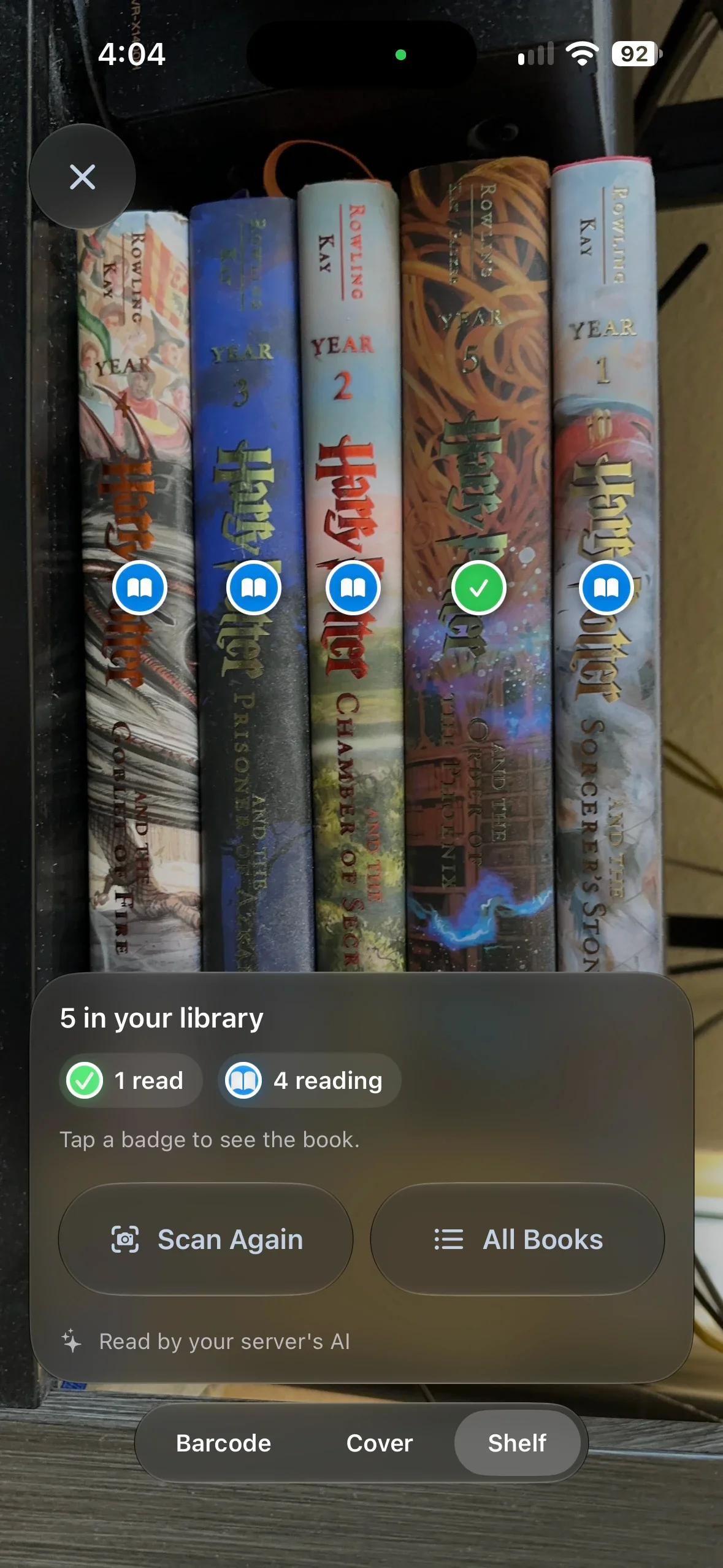
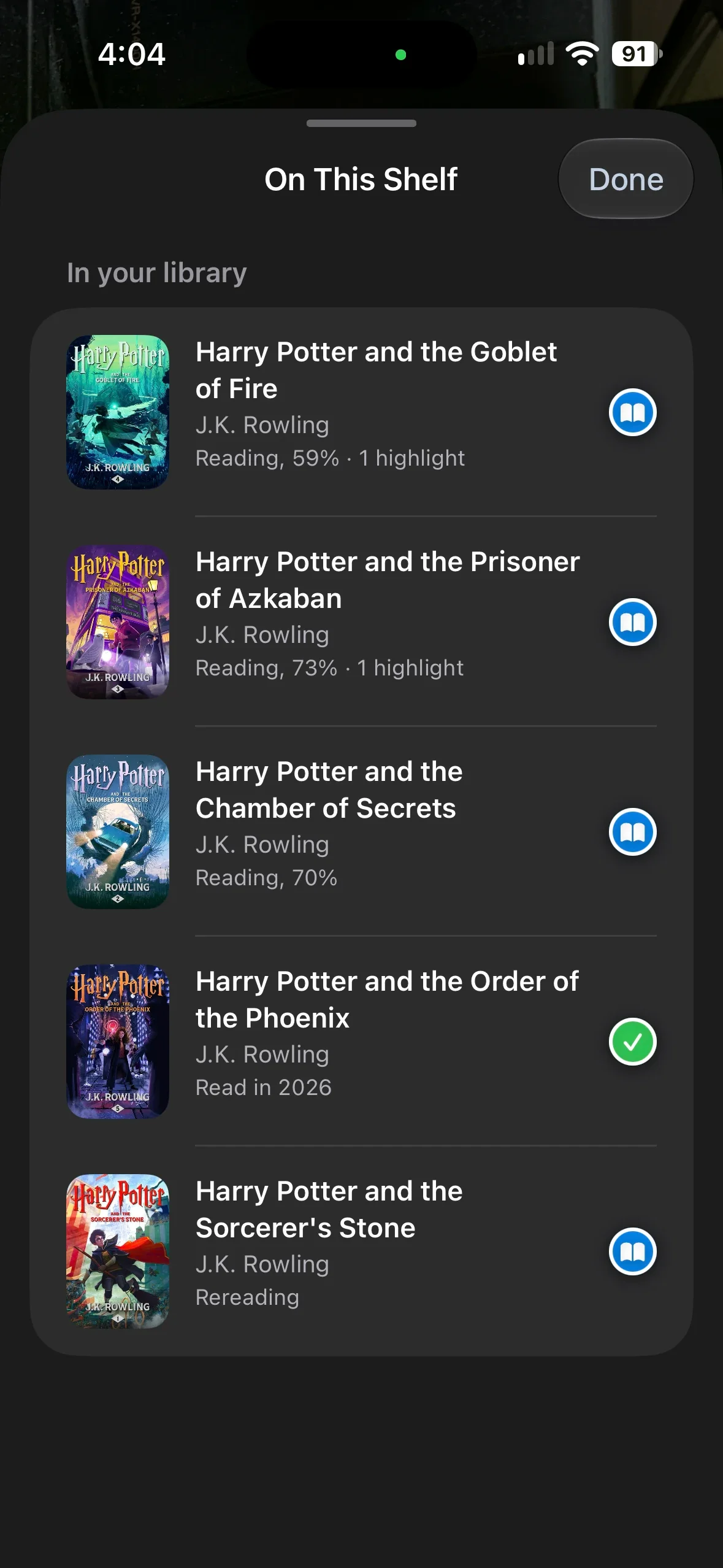
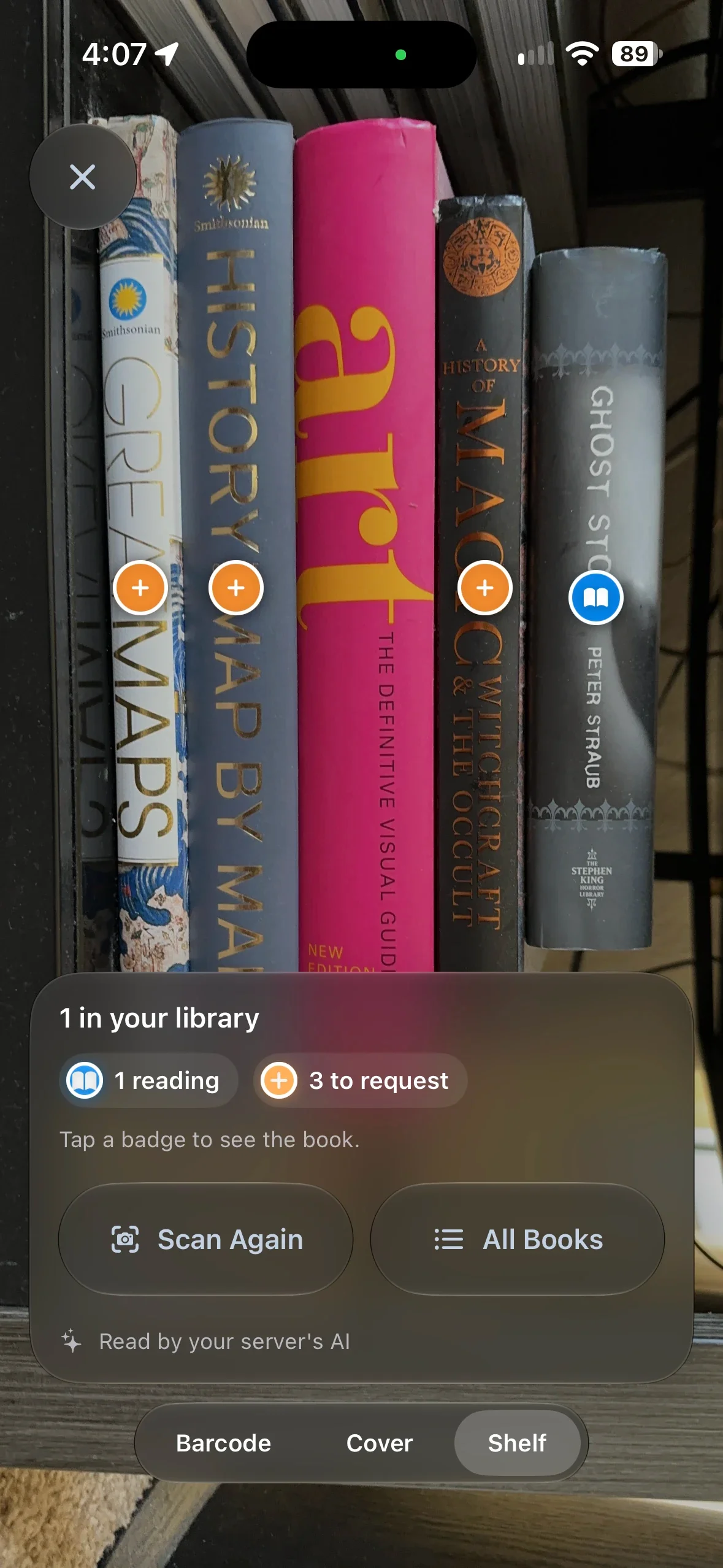
The badges say where each book stands: a blue book for one you are reading, a green tick for one you have read, and an orange plus for one that is not in your library yet. The card underneath adds them up, and a line at its foot says Read by your server’s AI when the AI read the photo. All Books lists them.
Books that are not in your library are marked too. This shelf has one book from the library and three that are not.
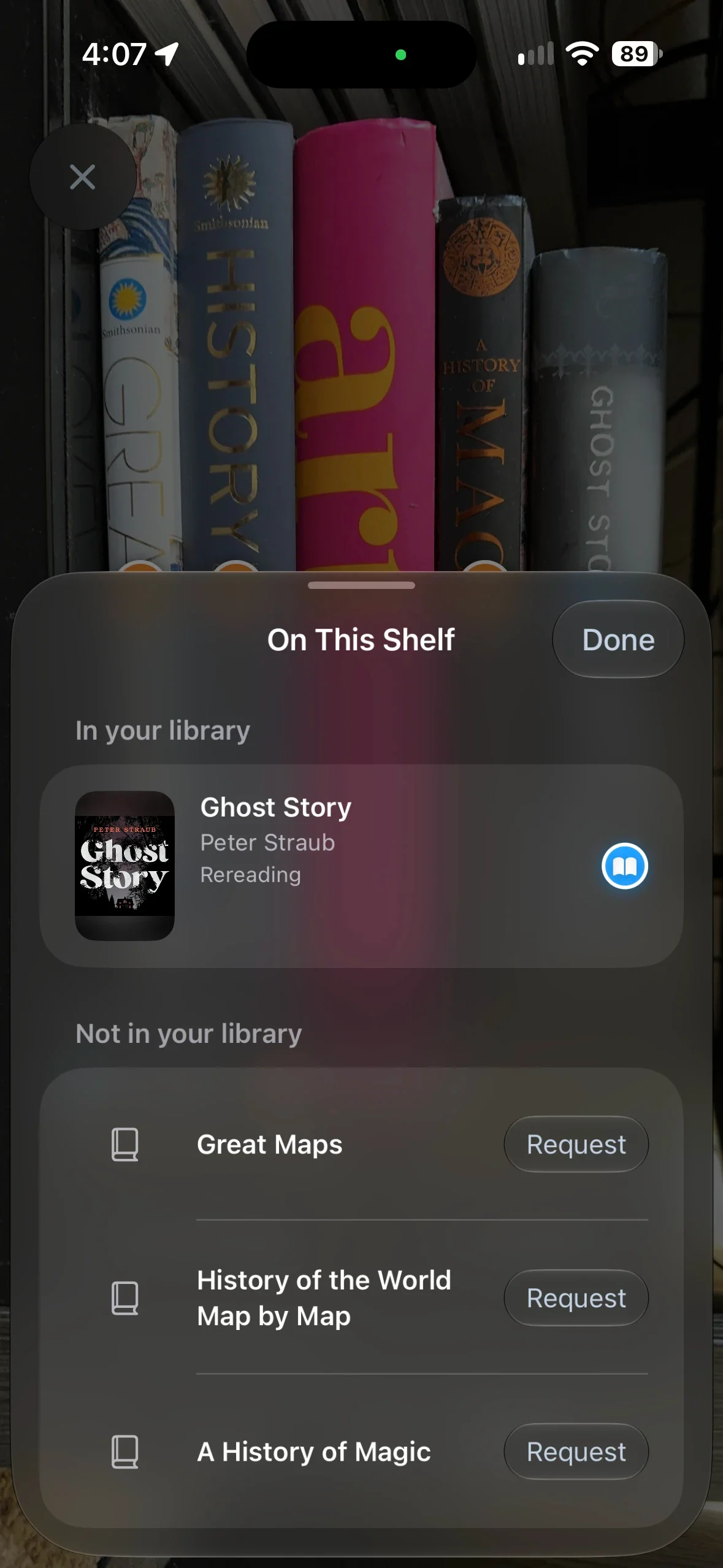
Each one has a Request button, which starts a request for it. See Book Requests.
Cover mode reads a single book, from its cover or its spine, and says which book in your library it is, or offers to request it.
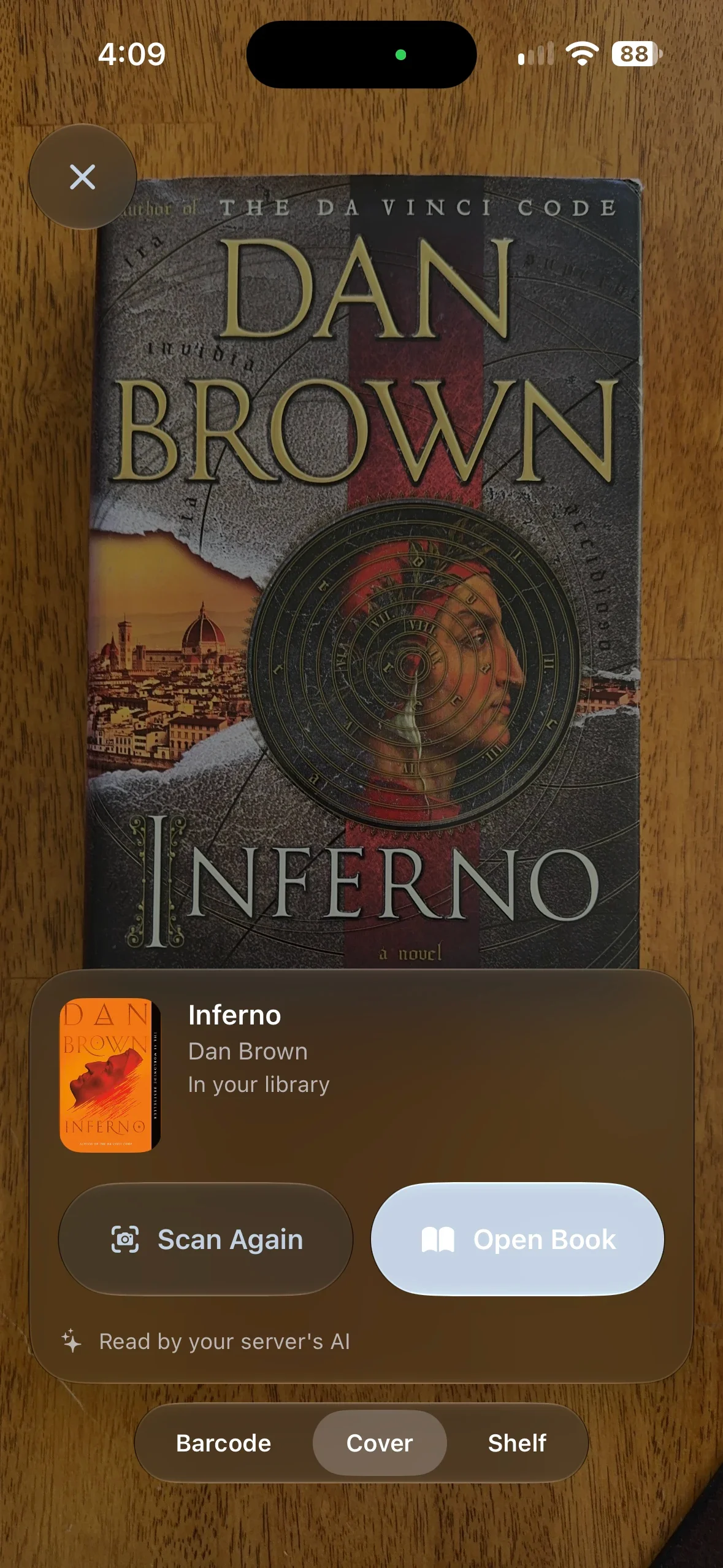
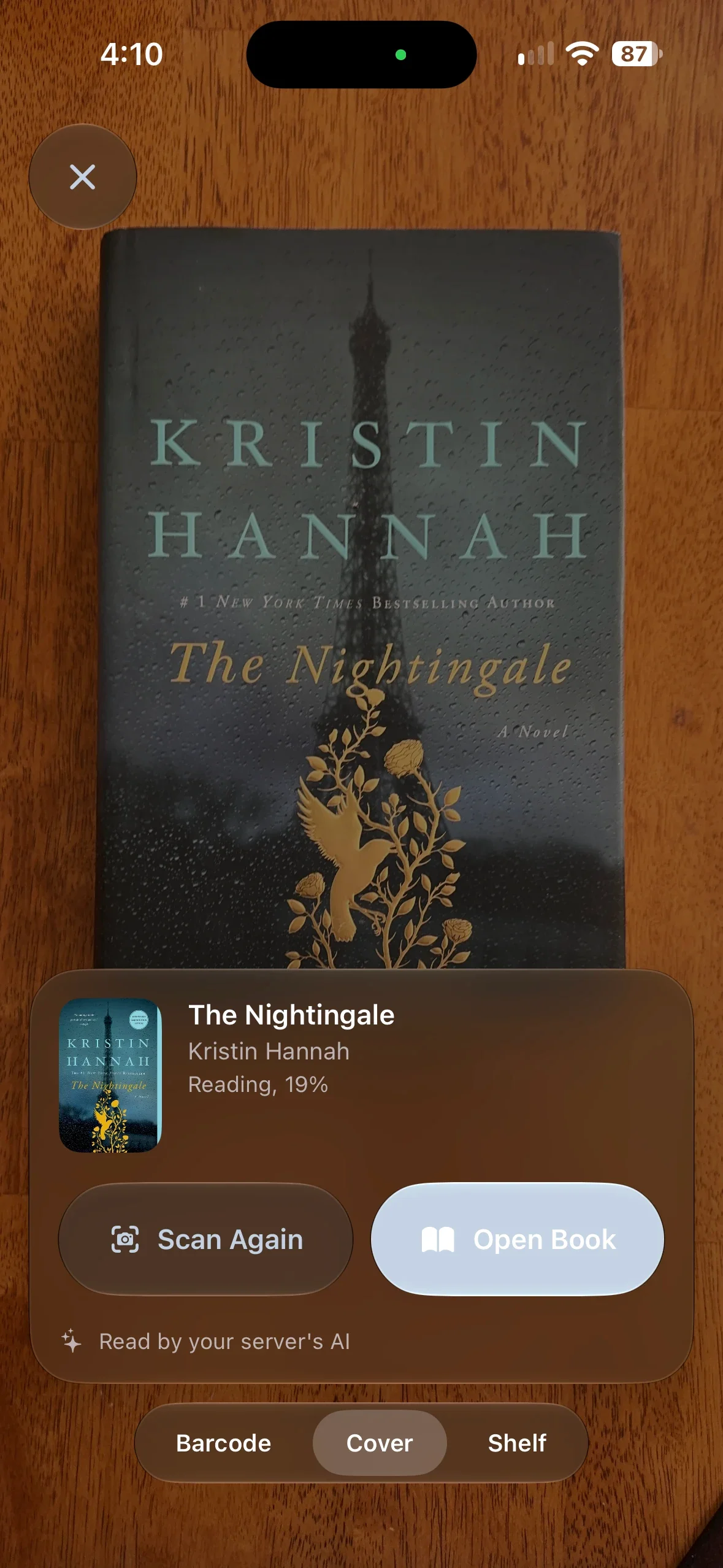
Open Book goes straight to the book, and one you are part way through shows how far you are.
Who reads the photo
Section titled “Who reads the photo”Settings > Photo Scans decides who reads the photo:
| Choice | What happens |
|---|---|
| On This Device Only | The phone reads the text and sends only that text to your server. The photo stays on the phone. |
| AI When Nothing Is Found | The phone tries first. If it reads nothing or finds no matching book, the photo goes to your server’s AI. |
| AI When You Ask | Results show a Read with AI button that sends the photo only when you press it. |
| AI First | Every photo goes to your server’s AI, and the phone reads it only when the AI cannot. |
Picking an AI choice asks you to agree the first time, because the photo itself leaves the phone for your server and its AI provider. Reading with AI counts toward the server’s monthly budget.
Visual Intelligence
Section titled “Visual Intelligence”BookOrbit also answers the system’s Visual Intelligence. Point the camera at a book with Camera Control or the Action button, or search a screenshot, and BookOrbit offers the matching books in your library, or offers to request one that is not there. The photo is read on the phone. Only its lines of text and any ISBN go to your server, whatever you chose under Settings > Photo Scans.
If something does not work
Section titled “If something does not work”| What you see | What to try |
|---|---|
| ”Reading photos with AI is turned off on your server” | An administrator has switched Photo scans off under Settings > Server > AI. |
| ”Your server’s AI budget for this month is used up” | The budget resets when the month turns, or an administrator can raise it. |
| ”The AI took too long to answer” | Try again. |
| ”The AI declined to read this photo” | The model refused the image. Try another photo, or another model in the Vision slot. |
| ”The photo couldn’t be sent” | Try another photo. |
| ”This device couldn’t confirm the app with Apple” | The app could not prove itself to your server, so it will not send photos right now. Try again later. |
| Only Barcode is offered | Cover and Shelf need a server that supports them. |